1. Product Overview
The LUVUOKYE PT20A Weather Station is a multi-functional device designed to monitor indoor and outdoor environmental conditions. It features a large, full-color display that provides clear, easy-to-read information.
Key features include:
- Wireless indoor and outdoor temperature (°C/°F) and humidity (%RH) with MIN/MAX recorded data.
- Self-setting atomic clock with WWVB function, alarm clock, calendar, and moon phase display.
- Weather forecast and absolute barometric pressure monitoring.
- Temperature alerts and indoor comfort level indicator.
- Support for up to 3 remote sensors (one remote sensor is included).
- Adjustable backlight with two power modes.

Image 1.1: LUVUOKYE PT20A Weather Station main unit and remote temperature/humidity sensor.
2. Setup Instructions
2.1 Powering the Main Unit
The weather station main unit can be powered by either an AC adapter or batteries.
- AC Power Mode: Connect the provided AC adapter to the main unit. In this mode, the backlight will remain on with 3 adjustable brightness levels.
- Battery Power Mode: Insert batteries (not included) into the main unit. In this mode, the screen will light up for 10 seconds after you touch the top of the unit to conserve power.

Image 2.1: Illustration of the two power supply modes and backlight adjustment levels.
2.2 Installing and Pairing Remote Sensors
The weather station supports up to three remote sensors to monitor temperature and humidity in different locations. One remote sensor is included with the unit.
- Insert batteries into the remote sensor.
- Place the remote sensor in your desired outdoor or indoor location. Ensure it is protected from direct sunlight and precipitation for accurate readings.
- The main unit should automatically detect and display data from the remote sensor. If not, refer to the troubleshooting section for manual pairing instructions.
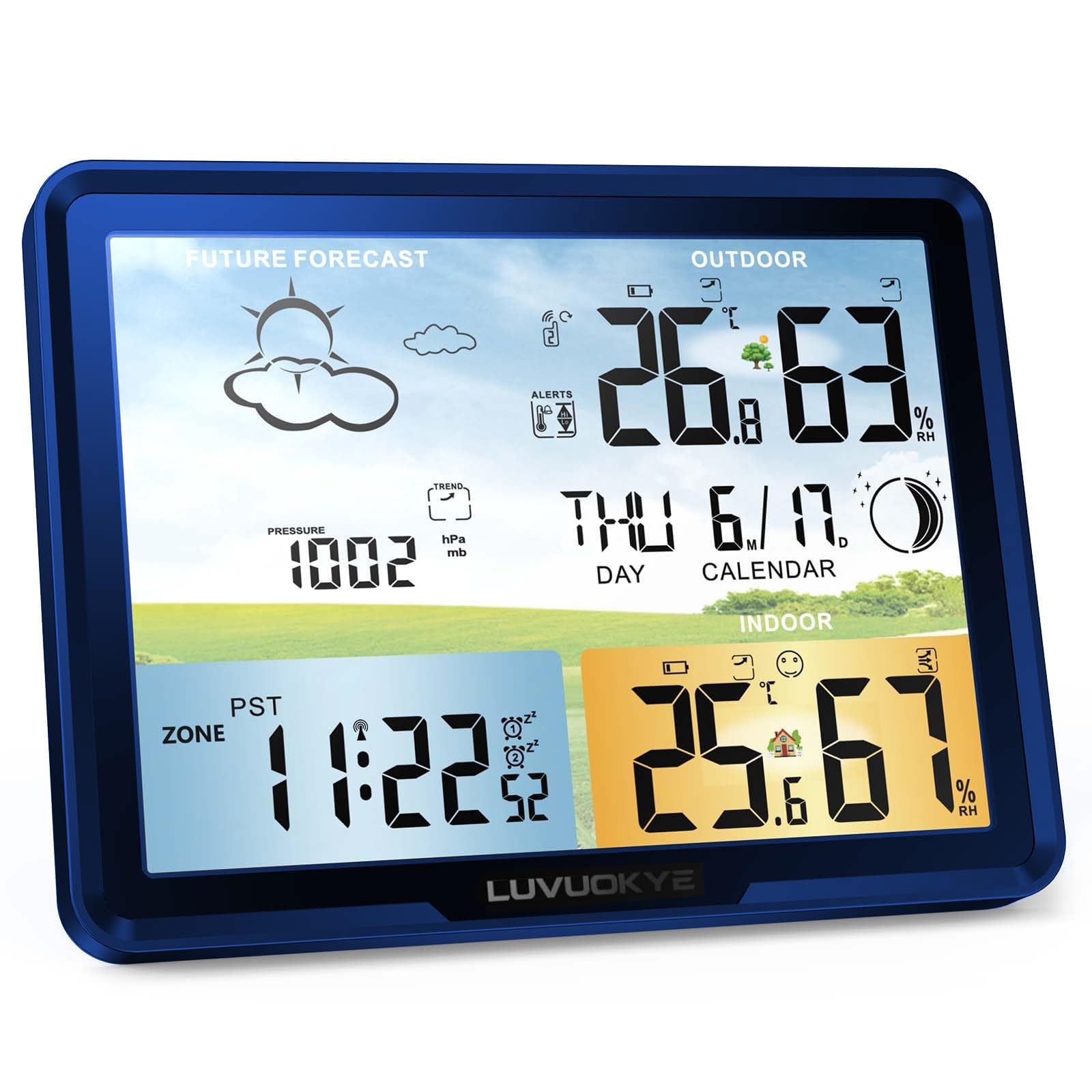
Image 2.2: The weather station supports up to three remote sensors for monitoring various locations.
2.3 Atomic Clock Synchronization
The weather station features a WWVB function, which automatically synchronizes the time and date daily. This eliminates the need for manual time adjustments.
- Upon initial setup, the unit will attempt to receive the WWVB signal. This process may take some time.
- Ensure the weather station is placed in a location with good reception for the WWVB signal.
- The time zone can be adjusted manually if needed. Refer to the operating instructions for details on time zone settings.

Image 2.3: The atomic clock automatically synchronizes for accuracy and includes a dual alarm function.
2.4 Barometric Pressure Calibration
For accurate local weather forecasts, the barometric pressure feature requires a calibration period of 7 to 10 days after initial setup. During this period, the station learns your local atmospheric pressure patterns.
3. Operating Instructions
3.1 Display Layout
The large color display provides a comprehensive overview of weather and time information. Refer to the image below for a breakdown of the display sections.

Image 3.1: Detailed view of the weather station's display, indicating various data points such as weather forecast, remote temperature and humidity, air pressure, moon phase, date and calendar, comfort indicator, time and week, and indoor temperature and humidity.
3.2 Weather Forecast
The weather station provides a forecast for the next 12-24 hours based on barometric pressure changes. The forecast icons include sunny, slightly cloudy, cloudy, rainy, heavy rainy, and snowy conditions.

Image 3.2: Various weather forecast icons displayed on the unit, representing different weather conditions.
3.3 Adjusting Backlight
When powered by the AC adapter, the backlight has three adjustable brightness levels. When powered by batteries, the backlight activates for 10 seconds with a tap on the top of the unit.
3.4 Alarm Clock Function
The weather station includes an alarm clock function. Refer to the specific buttons and menu options on your device for setting and managing alarms.
3.5 Temperature Alerts
You can set customizable temperature alerts for both indoor and outdoor readings. Consult the device's menu for setting high and low temperature thresholds.
4. Maintenance
4.1 Cleaning
Wipe the main unit and remote sensor with a soft, dry cloth. Do not use abrasive cleaners or solvents, as these can damage the display and casing.
4.2 Battery Replacement
When the battery indicator appears on the display, replace the batteries in both the main unit and the remote sensor as needed. Ensure correct polarity when inserting new batteries.
4.3 Sensor Placement
For optimal performance, ensure the remote sensor is placed in a location that is not exposed to direct sunlight, rain, or extreme temperature fluctuations from artificial sources (e.g., vents, windows). Maintain a clear line of sight between the main unit and the remote sensor to minimize interference.
5. Troubleshooting
- No outdoor temperature reading: Ensure the remote sensor batteries are fresh and correctly installed. Verify the sensor is within range of the main unit and there are no significant obstructions. Try re-pairing the sensor by removing and reinserting batteries in both units, then pressing the reset button on the sensor if available.
- Difficulty changing time zone: The atomic clock automatically sets the time. Manual adjustment of the time zone may require specific button combinations. Refer to the device's on-screen menu or a more detailed product guide for precise instructions on time zone configuration.
- Inaccurate weather forecast: The weather forecast requires a 7-10 day calibration period to learn local barometric pressure patterns. Allow this period to complete for improved accuracy.
- Display not staying on (battery mode): This is normal behavior for battery-powered operation to conserve energy. The screen will light up for 10 seconds when the top of the unit is tapped. For a continuously lit display, use the AC power adapter.
- WWVB atomic clock not synchronizing: Ensure the unit is placed away from electronic interference and in a location where it can receive the WWVB signal. Synchronization typically occurs overnight.
6. Specifications
| Feature | Detail |
|---|---|
| Brand | LUVUOKYE |
| Model Number | PT20A |
| Power Source | Battery Powered (Batteries not included), AC Adapter |
| Special Features | Alarm, Clock, Lightweight, Adjustable Backlight |
| Connectivity Technology | Wireless (for sensors), Wi-Fi (for atomic clock synchronization) |
| Display Type | LCD Color Display |
| Item Weight | 490 g |
| UPC | 763971341540 |
7. Warranty and Support
Information regarding product warranty and customer support was not available in the provided product data. Please refer to the product packaging or the manufacturer's official website for details on warranty coverage and how to contact customer support.