
Camii TinySA Ultra V0.4.5.1
Camii TinySA Ultra Spectrum Analyzer V0.4.5.1 Instruction Manual
Model: TinySA Ultra V0.4.5.1
Introduction
This instruction manual provides comprehensive guidance for the safe and effective use of your Camii TinySA Ultra Spectrum Analyzer V0.4.5.1. This device is a versatile tool combining a spectrum analyzer and a signal generator, designed for frequency analysis and signal testing across a wide range of applications. Please read this manual thoroughly before operating the device and retain it for future reference.
Important Safety Information
- Do not expose the device to extreme temperatures, humidity, or direct sunlight.
- Avoid dropping or subjecting the device to strong impacts.
- Use only the provided or recommended accessories and power adapters.
- Do not attempt to open or repair the device yourself. Refer all servicing to qualified personnel.
- Ensure proper ventilation when operating the device.
- Keep the device away from strong magnetic fields.
Package Contents
Verify that all items are present in the package:
- Camii TinySA Ultra Spectrum Analyzer V0.4.5.1
- USB-C Cable
- 32GB Micro SD Card
- Stylus/Pick
- Antennas (various types, e.g., telescopic, whip)
- SMA Male to Male Cables (x2)
- SMA Male to Female Adapter
- Lanyard

Figure 1: The Camii TinySA Ultra Spectrum Analyzer shown with its complete set of accessories, including antennas, cables, a USB-C cable, a 32GB Micro SD card, and a stylus.
Device Overview
The TinySA Ultra features a compact design with a 4-inch touch screen for intuitive operation. Key components include RF input/output ports, a USB-C port, and a Micro SD card slot.
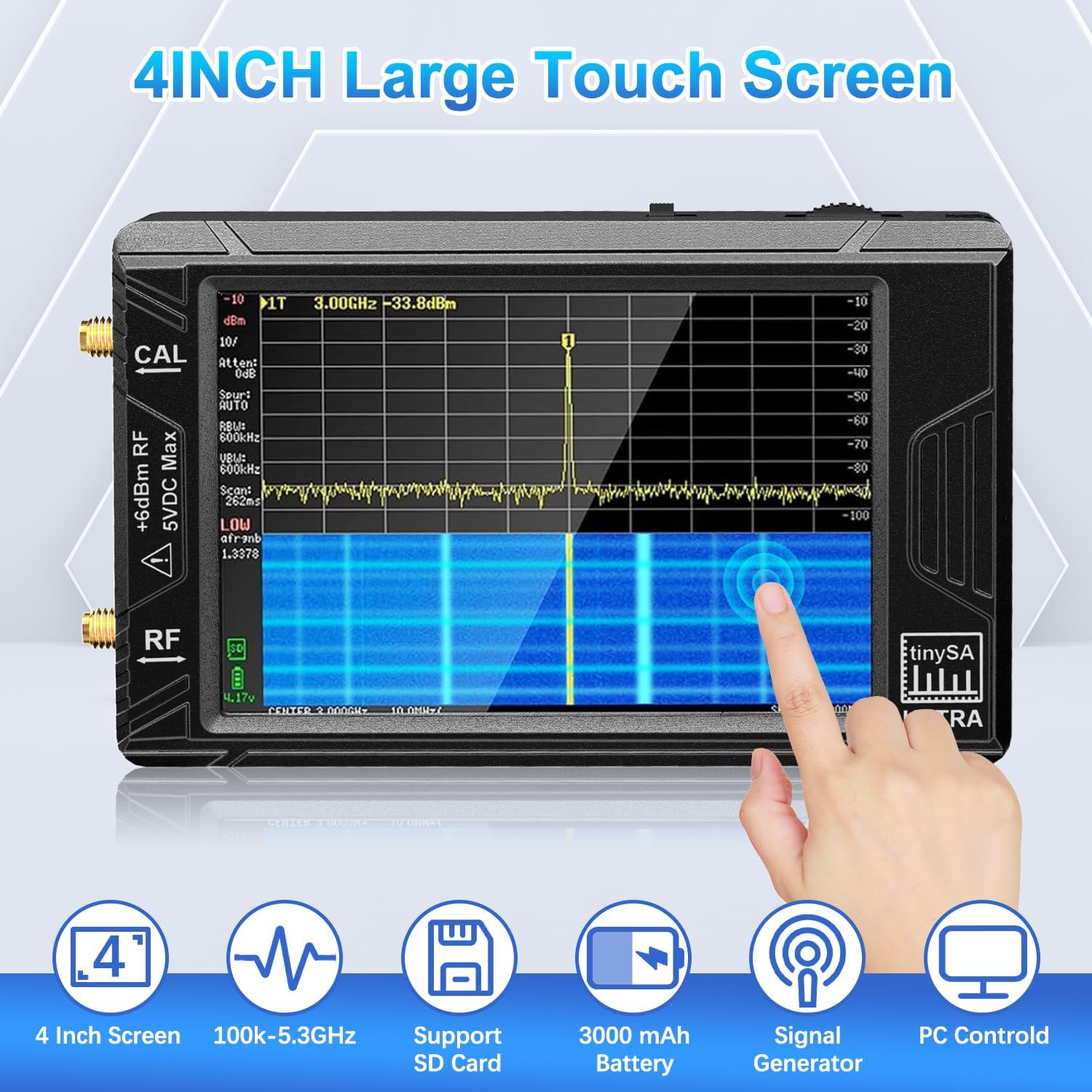
Figure 2: Front view of the TinySA Ultra, highlighting the 4-inch touch screen and icons representing its core features: 4-inch screen, 100kHz-5.3GHz range, SD card support, 3000mAh battery, signal generator function, and PC control.
Key Features:
- 4-inch Touch Screen: 480 x 320 pixel resolution for clear visualization.
- Frequency Range: 100kHz to 5.3GHz for spectrum analysis.
- Signal Generator: Outputs sine waves (100kHz-800MHz), square waves (800MHz-4.4GHz), and mixed signals (4.4GHz-5.4GHz).
- ESD Protection: Enhanced anti-static level.
- Built-in 32GB Micro SD Card: For data storage and transfer.
- Battery: 3000mAh capacity for extended operation.
- Connectivity: USB-C for charging and PC connection.
Setup Guide
1. Charging the Device
Before initial use, fully charge the TinySA Ultra. Connect the provided USB-C cable to the device's USB-C port and a compatible USB power adapter (not included) or a computer's USB port. The charging indicator will show the charging status.

Figure 3: The TinySA Ultra connected via its USB-C port for charging, illustrating its 3000mAh battery capacity and approximately 8 hours of working time.
2. Inserting the Micro SD Card
The device comes with a pre-installed 32GB Micro SD card. If you need to remove or replace it, gently push the card into its slot until it clicks, then release to eject. Ensure the device is powered off before inserting or removing the SD card.
3. Connecting Antennas/Probes
Depending on your measurement requirements, connect the appropriate antenna or probe to the RF input/output ports. Use the provided SMA cables and adapters as needed. Ensure connections are secure but do not overtighten.
4. Powering On/Off
Press and hold the power button (location typically on the side or top) for a few seconds to power the device on or off. A short press may activate/deactivate the screen backlight or put the device into standby mode.
Operating Instructions
1. Basic Navigation
The TinySA Ultra is operated primarily via its 4-inch touch screen. Tap icons and menus to select functions, adjust parameters, and navigate through settings. A stylus is provided for precise input.
2. Spectrum Analyzer Mode
In Spectrum Analyzer mode, the device displays the frequency spectrum of an input signal. You can adjust parameters such as:
- Frequency Range: Set the start and stop frequencies for the scan (100kHz to 5.3GHz).
- Resolution Bandwidth (RBW): Adjust RBW (down to 200Hz) to distinguish adjacent signals effectively. This is crucial for detailed analysis, including SSB two-tone intermodulation tests.
- Attenuation: Control the input signal level to prevent overload.
- Markers: Use markers to pinpoint specific frequencies and measure their amplitude.

Figure 4: The TinySA Ultra operating in spectrum analyzer mode, demonstrating its ability to analyze signals up to 5.3GHz. The image also highlights its dual function as a high-frequency signal generator.

Figure 5: A close-up of the TinySA Ultra screen demonstrating the Resolution Bandwidth (RBW) setting, which can be adjusted down to 200Hz to effectively distinguish adjacent signals, meeting requirements for SSB two-tone intermodulation tests.
3. Signal Generator Mode
The TinySA Ultra can also function as a signal generator. To activate this mode, navigate to the appropriate menu option. You can generate various signal types:
- Sine Wave Output: From 100kHz to 800MHz (MF/HF/VHF bands).
- Square Wave Output: From 800MHz to 4.4GHz (UHF band).
- Mixed Signal Output: Between 4.4GHz and 5.4GHz.
4. Signal Receiver Capabilities
The device includes a built-in Low Noise Amplifier (LNA) and attenuator, enhancing its capabilities as a signal receiver. This allows for measurements with a noise floor of 92dBc@10kHz and a Displayed Average Noise Level (DANL) of -166dBm/Hz.

Figure 6: The TinySA Ultra demonstrating its signal receiver function, featuring a built-in LNA and attenuator for improved noise performance (92dBc@10kHz noise and -166dBm/Hz DANL).
5. PC Connection and Data Transfer
Connect the TinySA Ultra to your computer using the USB-C cable. The device supports connection with the TinySA-APP, compatible with macOS, Linux, and Windows operating systems. This allows for:
- Direct data transfer to your computer for enhanced analysis.
- Synchronization of the device's display screen to your computer.

Figure 7: The TinySA Ultra connected to a laptop via USB, illustrating its PC connection capabilities for data transfer and screen synchronization with the TinySA-APP, compatible with various operating systems.
6. Data Storage
Measurement data can be saved directly to the built-in 32GB Micro SD card. This allows for convenient data sharing and storage without immediate PC connection.
Maintenance
Cleaning
Gently wipe the device's screen and body with a soft, dry, lint-free cloth. Do not use abrasive cleaners, solvents, or aerosol sprays, as these can damage the device.
Battery Care
- To prolong battery life, avoid fully discharging the battery frequently.
- Store the device in a cool, dry place if not used for extended periods, with the battery partially charged (around 50%).
- If the battery performance significantly degrades, contact customer support for assistance.
Firmware Updates
Periodically check the official TinySA website or community forums for available firmware updates. Firmware updates can improve performance, add new features, or fix bugs. Follow the provided instructions carefully when performing updates.
Troubleshooting
| Problem | Possible Cause | Solution |
|---|---|---|
| Device does not power on. | Low battery; device malfunction. | Charge the device for at least 30 minutes. If it still doesn't power on, contact support. |
| No signal displayed in Spectrum Analyzer mode. | Incorrect antenna connection; wrong frequency range; high attenuation. | Ensure antenna is securely connected. Verify the frequency range settings. Check and adjust attenuation levels. |
| PC connection issues. | Faulty USB cable; driver issues; TinySA-APP not running. | Try a different USB-C cable. Ensure the TinySA-APP is installed and running. Check device manager for driver status. |
| Touch screen unresponsive. | Temporary software glitch; screen damage. | Restart the device. If the issue persists, contact customer support. |
Technical Specifications
- Brand: Camii
- Model: TinySA Ultra V0.4.5.1
- Display: 4-inch Touch Screen, 480 x 320 pixels
- Spectrum Analyzer Frequency Range: 100kHz - 5.3GHz
- Signal Generator Output (Sine Wave): 100kHz - 800MHz (MF/HF/VHF)
- Signal Generator Output (Square Wave): 800MHz - 4.4GHz (UHF)
- Signal Generator Output (Mixed): 4.4GHz - 5.4GHz
- Resolution Bandwidth (RBW): Down to 200Hz
- Noise Floor: 92dBc@10kHz
- Displayed Average Noise Level (DANL): -166dBm/Hz
- Battery Capacity: 3000mAh
- Battery Life: Approximately 6-8 hours
- Connectivity: USB-C
- Storage: Built-in 32GB Micro SD Card
- PC Compatibility: macOS, Linux, Windows (via TinySA-APP)
- Product Dimensions: 6.5"L x 4.13"W x 2.17"H
- Special Feature: Portable, ESD Protection
Warranty and Customer Support
For warranty information, technical assistance, or any questions regarding your Camii TinySA Ultra Spectrum Analyzer, please refer to the seller's warranty policy or contact Camii customer support directly. Contact details are typically available on the product packaging or the seller's official website.
We are committed to providing professional and excellent services. If you encounter any issues, please do not hesitate to contact us.