
1. Product Overview
The NEWTRY 2 in 1 Crane Remote Control offers versatile operation with both wireless and wired capabilities, designed for various lifting and material handling applications. This system provides enhanced control distance, improved safety features, and an upgraded indicator system for efficient work.
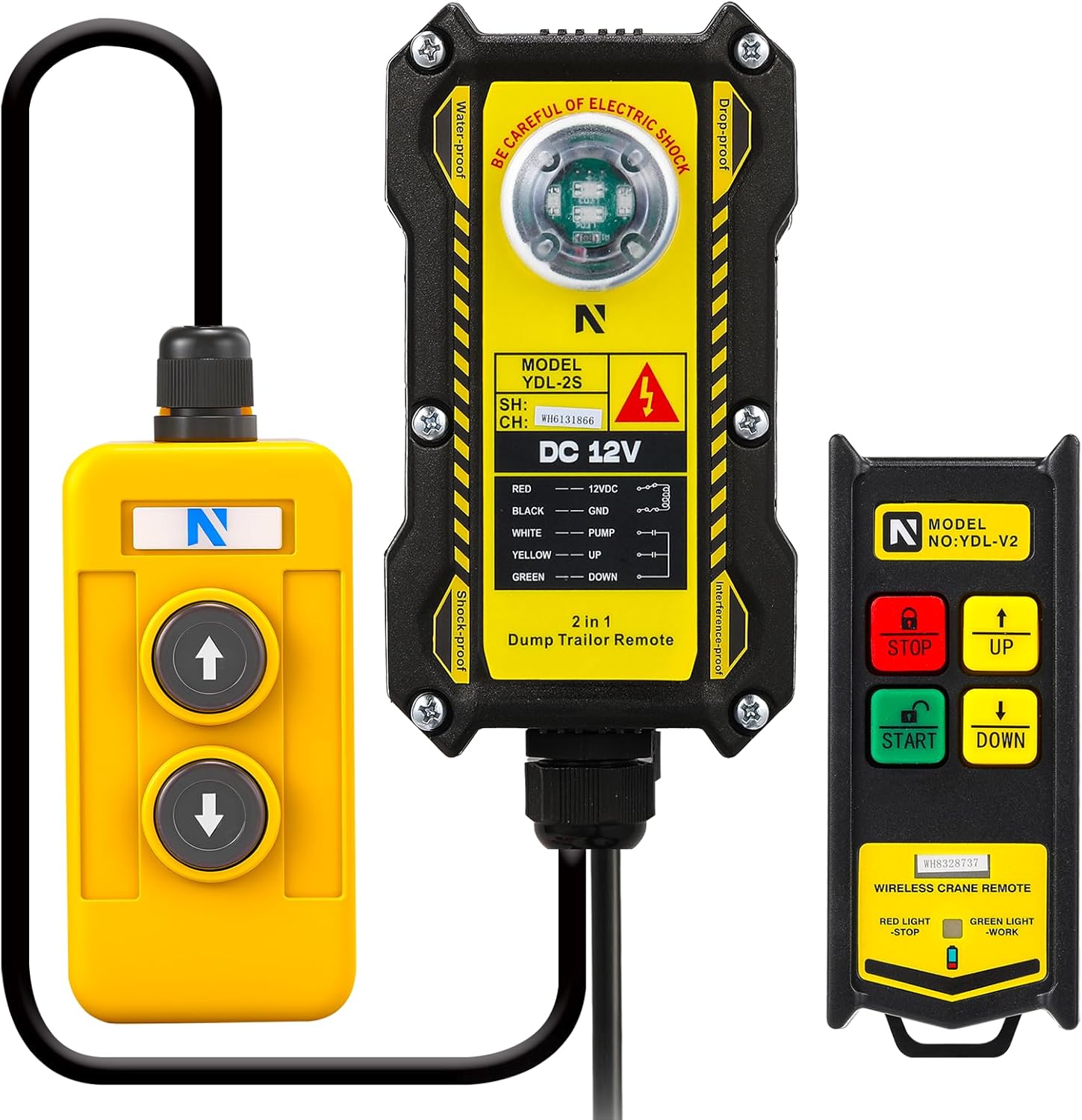
Figure 1: The complete NEWTRY 2 in 1 Crane Remote Control system, including the main receiver unit, the wired control pendant, and the wireless handheld remote.

Figure 2: This image highlights the dual control modes of the NEWTRY crane remote, illustrating both wireless and wired operation for enhanced flexibility.
2. Setup
2.1 Safety First
Before beginning any installation or wiring, ensure that the power source to your equipment is completely disconnected to prevent electrical shock or damage.
2.2 Wiring Diagram Overview
The receiver unit features a clear wiring diagram for easy connection. Identify the following wires:
- RED: 12VDC (Power)
- BLACK: GND (Ground)
- WHITE: PUMP (Control for pump motor)
- YELLOW: UP (Control for upward movement)
- GREEN: DOWN (Control for downward movement)

Figure 3: Wiring diagram for the NEWTRY 2 in 1 Crane Remote Control receiver unit, showing connections for power and control functions.
2.3 Step-by-Step Wiring
- Disconnect Power: Ensure the equipment's battery or power supply is disconnected.
- Connect Power Wires: Connect the RED wire from the receiver to the 12VDC positive (+) terminal of your power source (e.g., battery). Connect the BLACK wire from the receiver to the GND negative (-) terminal.
- Connect Control Wires: Connect the YELLOW wire to the 'UP' control input of your crane/hoist system. Connect the GREEN wire to the 'DOWN' control input. The WHITE wire is typically for the pump motor, connect it according to your specific equipment's requirements.
- Special Considerations for Dump Trailers: For some dump trailers with three solenoids (one for up, one for down, and a third for the pump motor that needs to run for both up and down), you may need to add diodes to split the signal from the UP and DOWN wires to trigger the pump motor relay without backfeeding. Consult a qualified technician if unsure.

Figure 4: Close-up view of the wiring connections on the NEWTRY crane remote receiver, illustrating the proper attachment points for power and control lines.
Video 1: This video demonstrates the wiring process for the NEWTRY 2 in 1 Crane Remote Control, showing connections to the battery and control solenoids.
3. Operating Instructions
3.1 Wireless Remote Operation
The wireless remote provides convenient control from a distance of up to 656 feet (200 meters).
- START Button: Press the green START button to activate the remote and prepare the system for operation.
- UP Button: Press the yellow UP arrow button to initiate upward movement of the crane/hoist.
- DOWN Button: Press the green DOWN arrow button to initiate downward movement of the crane/hoist.
- STOP Button: Press the red STOP button to immediately halt all operations.
- Indicator Lights: The remote features indicator lights (Red for STOP, Green for WORK) to provide visual feedback on the remote's status.

Figure 5: The wireless handheld remote control with its clearly labeled buttons for STOP, UP, START, and DOWN, along with indicator lights.
3.2 Wired Remote Operation
For situations requiring a direct connection or when wireless interference is a concern, the wired remote offers reliable control.
- UP Button: Press the UP arrow button on the wired pendant to move the crane/hoist upwards.
- DOWN Button: Press the DOWN arrow button on the wired pendant to move the crane/hoist downwards.

Figure 6: The wired control pendant, featuring simple UP and DOWN buttons for direct equipment control.
4. Maintenance
To ensure the longevity and optimal performance of your NEWTRY Crane Remote Control, follow these maintenance guidelines:
- Keep Clean: Regularly wipe down the remote and receiver with a dry cloth to remove dust, dirt, and debris. Avoid using harsh chemicals or abrasive cleaners.
- Check Connections: Periodically inspect all wired connections for tightness and signs of corrosion. Ensure the receiver unit's connections are secure.
- Battery Replacement (Wireless Remote): If the wireless remote's performance degrades or the indicator lights dim, replace the 2*AA batteries. Ensure correct polarity.
- Environmental Protection: The unit has an IP65 protection level, meaning it is protected from dust and low-pressure water jets. While robust, avoid prolonged exposure to extreme weather conditions or submersion in water.
- Storage: When not in use for extended periods, store the remote control system in a dry, clean environment away from direct sunlight and extreme temperatures.
5. Troubleshooting Common Issues
If you encounter problems with your NEWTRY Crane Remote Control, refer to the following common issues and solutions:
5.1 Remote Not Responding
- Check Wireless Remote Batteries: Ensure the 2*AA batteries in the wireless remote are fresh and correctly inserted.
- Verify Power to Receiver: Confirm that the receiver unit is receiving 12VDC power. Check the RED and BLACK wire connections.
- Inspect Wired Connections: For both wired and wireless modes, ensure all control wires (YELLOW, GREEN, WHITE) are securely connected to your equipment's solenoids/inputs.
- Signal Interference: Move closer to the receiver unit or away from potential sources of electromagnetic interference.
5.2 Movement Issues (e.g., only goes up/down)
- Incorrect Wiring: Double-check the YELLOW (UP) and GREEN (DOWN) wire connections. Ensure they are connected to the correct control inputs on your equipment.
- Solenoid Issues: If one direction works but not the other, the issue might be with the equipment's solenoid for the non-working direction, not the remote.
- Dump Trailer Specifics: As noted in the setup section, some dump trailers require additional components like diodes if they have a shared pump motor solenoid that needs to be activated for both up and down movements. If you are experiencing issues with only one direction on such a setup, consider this possibility and consult a professional.
5.3 Intermittent Operation
- Loose Connections: Re-check all wiring connections at both the receiver and the equipment side.
- Weak Batteries: Replace the batteries in the wireless remote.
- Environmental Factors: Extreme temperatures or moisture can affect performance. Ensure the unit is operating within its specified environmental conditions.
6. Product Specifications
| Feature | Specification |
|---|---|
| Manufacturer | NEWTRY |
| Part Number | 2 Direction |
| Item Weight | 2.9 pounds |
| Product Dimensions | 10 x 8 x 6 inches |
| Item Model Number | 2 Direction |
| Color | Black |
| Item Package Quantity | 1 |
| Included Components | Crane Remote |
| Batteries Included? | No |
| Batteries Required? | No (for receiver), Yes (for wireless remote - 2*AA) |
| Model Name | WWJ19 |
| Protection Level | IP65 |
| Control Distance | ≤ 200M/656FT |
| Power Supply of Transmitter | 2*AA Batteries |
| Power Supply of Receiver | DC 12V |
| Case Material | Nylon & ABS |
7. Warranty and Support
For information regarding product warranty, returns, or technical support, please refer to the official NEWTRY brand store or contact their customer service directly. Additional protection plans may be available for purchase to extend coverage for your product.
Visit the NEWTRY Store: https://www.amazon.com/stores/NEWTRY/page/2113237F-B089-4DD4-89E0-87D15A420A17