
1. Introduction
Thank you for choosing the Generic Tuya Bluetooth Smart Lock Cylinder M9. This smart lock cylinder offers enhanced security and convenience for your home or office. Designed for easy installation and versatile access, it integrates seamlessly into modern smart living environments. This manual provides detailed instructions for installation, setup, operation, and maintenance to ensure optimal performance and longevity of your smart lock.

Figure 1.1: Tuya Bluetooth Smart Lock Cylinder M9 (Black)
2. Product Features
The Tuya Bluetooth Smart Lock Cylinder M9 is equipped with advanced features to provide a secure and convenient access solution:
- Multiple Unlock Methods: Supports unlocking via Tuya APP, password, IC card, and mechanical key, offering flexible access options.
- Remote Unlocking: Utilize the Tuya APP to remotely unlock the door or generate temporary passwords for guests, enhancing accessibility and control.
- Sensitive Identification: Features a highly responsive system for quick and accurate recognition of passwords and IC cards.
- Emergency Power: Powered by a CR123A battery (not included) with a Type-C interface for emergency power supply when the battery is low.
- Automatic Locking: The lock automatically secures itself 5 seconds after unlocking, providing an added layer of security. This feature can be disabled via the Tuya APP.
- Wide Application: Ideal for various settings including homes, offices, hotels, and apartments. Its waterproof design allows for outdoor door installation.

Figure 2.1: Keyless Smart Cylinder Features Overview
3. Package Contents
Please verify that all items are present and in good condition upon opening the package:
- Smart Lock Cylinder (M9, Black)
- Mechanical Keys
- IC Cards
- Installation Hardware (screws, etc.)
- User Manual
Note: CR123A battery is not included and must be purchased separately.
4. Installation
The smart lock cylinder is designed for easy replacement and installation, typically taking about 10 minutes with a hex screwdriver. No need to break the door or change the door body.
- Prepare the Door: Ensure your door's existing lock cylinder is compatible with the M9's dimensions (60mm, A30mm B30mm).
- Remove Old Cylinder: Unscrew and remove your current lock cylinder from the door.
- Insert New Cylinder: Carefully insert the Tuya Smart Lock Cylinder into the door's lock mechanism.
- Secure the Lock: Use the provided screws and a hex screwdriver to firmly secure the smart lock cylinder in place.
- Test Mechanical Key: Before closing the door, test the mechanical key to ensure smooth operation.

Figure 4.1: Easy Replacement and Installation (Black Model)
5. Setup
To fully utilize your smart lock, follow these steps for initial setup and user management:
5.1 Tuya APP Pairing
- Download the Tuya Smart or Smart Life APP from your smartphone's app store (iOS/Android).
- Register or log in to your account.
- Ensure Bluetooth is enabled on your smartphone.
- Open the APP, tap '+' to add a device, and select 'Lock (Bluetooth)' or 'Smart Lock'.
- Follow the on-screen instructions to pair the lock with your APP.
5.2 Adding Passwords
- In the Tuya APP, select your smart lock.
- Navigate to 'User Management' or 'Password Settings'.
- Choose to add a new password (permanent, timed, or one-time).
- Enter your desired password on the lock's keypad when prompted by the APP.
5.3 Adding IC Cards
- From the Tuya APP, go to 'User Management' or 'Card Settings'.
- Select 'Add Card'.
- Present the IC card to the lock's card reader when prompted by the APP.
- The lock will confirm successful registration.
6. Operating
Your smart lock offers several convenient ways to unlock:
- Password Unlock: Enter your registered password on the keypad and press '#'.
- IC Card Unlock: Present a registered IC card to the card reader area on the lock.
- Mechanical Key Unlock: Insert the mechanical key into the keyhole and turn to unlock. This is useful for emergencies or when batteries are depleted.
- APP Unlock: Open the Tuya APP, select your lock, and tap the unlock icon. For remote unlocking outside Bluetooth range, use the temporary password generation feature within the APP.
6.1 Automatic Locking
By default, the lock will automatically re-lock 5 seconds after being unlocked. This feature can be toggled on or off within the Tuya APP settings for your lock.
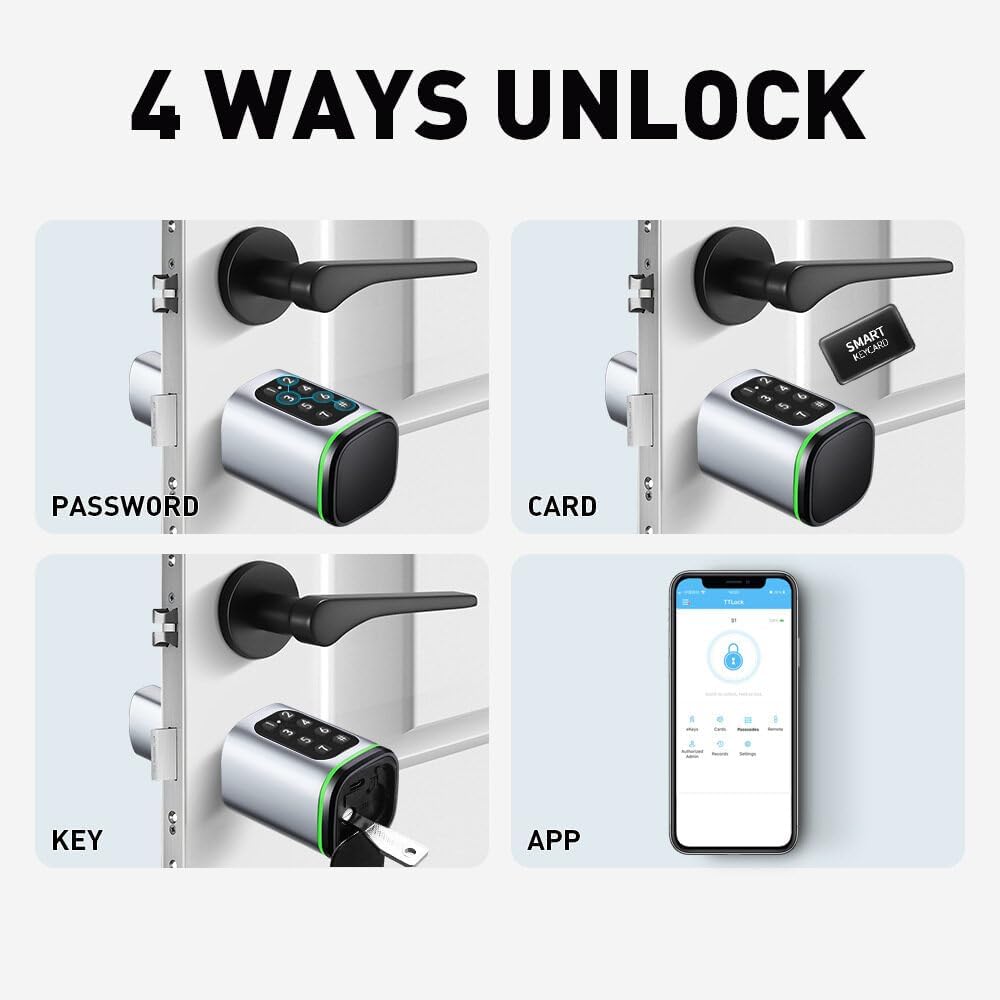
Figure 6.1: Four Primary Unlock Methods
7. Maintenance
Proper maintenance ensures the longevity and reliable operation of your smart lock:
- Battery Replacement: The lock is powered by a CR123A battery. Replace the battery when the low battery indicator appears or when the lock's response becomes slow.
- Emergency Power: If the battery completely drains, connect a power bank via the Type-C interface for temporary power to unlock the door.
- Cleaning: Wipe the lock's surface with a soft, dry cloth. Avoid using abrasive cleaners or solvents that could damage the finish or electronic components.
- Keypad Care: Keep the keypad clean and free of debris to ensure proper function.
8. Troubleshooting
Here are solutions to common issues you might encounter:
| Problem | Possible Cause | Solution |
|---|---|---|
| Lock not responding | Low or dead battery | Replace CR123A battery or use Type-C emergency power. |
| Cannot unlock with password | Incorrect password entered; Password expired (if temporary) | Re-enter password carefully; Check password validity in Tuya APP; Reset password if necessary. |
| IC card not recognized | Card not registered; Card damaged | Register the IC card via Tuya APP; Try a different registered card. |
| APP connection issues | Bluetooth off; APP not updated; Lock too far from phone | Ensure Bluetooth is on; Update Tuya APP; Move closer to the lock. |
| Automatic lock not working | Feature disabled in APP | Enable 'Automatic Lock' in the Tuya APP settings. |
9. Specifications
| Feature | Detail |
|---|---|
| Model | M9 |
| Color | Black |
| Size | 60mm (A30mm B30mm) |
| Material | Aluminum Alloy + Brass Alloy |
| Unlock Methods | Tuya APP, Password, IC Card, Mechanical Key |
| Power Supply | CR123A Battery (not included) |
| Emergency Power | Type-C Interface |
| Manufacturer | Generic |
| Part Number | QT-20240314-430 |
10. Warranty and Support
This product is typically covered by a standard manufacturer's warranty. For specific warranty details and duration, please refer to the product packaging or contact the seller directly.
Extended warranty plans may be available through third-party providers such as Assurant. Please check with your retailer for options like 2-year, 3-year, or 4-year extended home improvement warranties.
For technical support, troubleshooting assistance beyond this manual, or inquiries regarding parts, please contact the seller or manufacturer through the platform where the product was purchased.