
Woibugee 8-Core 4GB+64GB Android Car Radio
Woibugee 8-Core 4GB+64GB Android Car Radio User Manual
Model: 8-Core 4GB+64GB Android Car Radio
Brand: Woibugee
1. Introduction
This manual provides detailed instructions for the installation, operation, and maintenance of your Woibugee 8-Core 4GB+64GB Android Car Radio. This advanced car multimedia system is designed to enhance your driving experience with features such as wireless Apple CarPlay, wireless Android Auto, GPS navigation, and a powerful 8-core processor. Please read this manual thoroughly before installation and use to ensure proper functionality and safety.
Package Contents:
- Android Car Radio Unit
- GPS Adapter
- Radio Antenna
- Wiring Harnesses and Connectors
2. Compatible Vehicles
This Android Car Radio is designed for specific Volkswagen, Golf, Seat, and Skoda models. Please verify your vehicle's compatibility before installation.
Volkswagen
- Polo (2010-2012)
- Passat B6 (2006-2011)
- Passat CC (2008-2011)
- Jetta (2006-2011)
- Tiguan (2007-2011)
- Sharan (2010-2011)
- Sagita (2004-2011)
- Caddy (2004-2012)
- Touran (2008-2011)
- EOS (2006-2011)
- Transporter T5 (2010-2011)
- Cupra (2006-2011)
- Scirocco MK3 (2008-2011)
Golf
- Golf 5 (2003-2008)
- Golf 6 (2008-2013)
- Golf R32 (2003-2008)
- Golf GTI (2003-2008)
- Golf Plus (2005-2012)
Seat
- Toledo (2005-2011)
- Leon (2005-2011)
- Alhambra (2010-2011)
- Altea (2004-2011)
Skoda
- Fabia (2004-2009)
- Yeti (2004-2009)
If your car model is not listed, it does not automatically mean it is incompatible. Please contact customer support for further consultation.

Figure 2.1: Compatible Vehicle Models and Years
3. Product Features
The Woibugee Android Car Radio offers a range of features designed for convenience and performance:
- High Performance Processor: Equipped with an 8-core A55 28NM processor, 4GB RAM, and 64GB ROM for smooth and responsive operation.
- Wireless Apple CarPlay & Android Auto: Seamless integration with your smartphone for navigation, music, calls, and messages via voice control (Siri/Google Assistant).
- GPS Navigation & Wi-Fi: Built-in GPS module with 2.4 & 5 GHz Wi-Fi for online real-time navigation and offline map downloads.
- Advanced Audio: 5 RCA preamplifier outputs (4V) supporting various speaker configurations (rear/front, center, subwoofer) with DSP+32EQ for customizable sound. Max output 4*45W amplifier with RMS 4*25W.
- Steering Wheel Control Support: Compatible with existing steering wheel controls for safe and convenient operation.
- Vehicle Information Display: Shows essential vehicle data such as fuel level, battery voltage, and open doors.
- 7-inch Touch Display: Intuitive touch interface for easy control.
- Multiple Internet Access Options: Supports 4G (via external dongle, not included), Wi-Fi, and USB Tethering.

Figure 3.1: Main Interface of the Android Car Radio

Figure 3.2: High Performance Specifications and Split Screen Functionality
4. Setup & Installation
The car radio is designed for a double-DIN size and offers a plug-and-play installation for compatible vehicles. The panel dimensions are approximately 23.5 cm (9.25 inches) long, 13 cm (5.12 inches) wide, and 5.5 cm (2.17 inches) deep.
4.1 Physical Installation
- Preparation: Ensure the vehicle's ignition is off and the battery is disconnected before starting installation.
- Remove Old Unit: Carefully remove the existing car radio from the dashboard.
- Connect Wiring: Connect the provided wiring harnesses to the car radio and the vehicle's wiring. Ensure all connections are secure.
- Connect Canbus: If your vehicle uses a Canbus system, ensure the Canbus adapter is correctly connected. This is crucial for features like steering wheel controls and parking sensor display.
- Connect 8-PIN Cable: For steering wheel controls and AC/radar display, connect the 8-PIN cable to the designated port on the back of the autoradio.
- Connect Antennas: Attach the GPS adapter and radio antenna to their respective ports on the unit.
- Test Connections: Before fully securing the unit, reconnect the battery and briefly test basic functions (power on, radio, sound).
- Secure Unit: Carefully slide the new car radio into the dashboard opening and secure it in place.

Figure 4.1: Wiring Connections and Product Dimensions
4.2 Initial Setup
- Power On: Turn on the vehicle's ignition to power on the car radio.
- Language Selection: Follow the on-screen prompts to select your preferred language.
- Wi-Fi Connection: Connect to a Wi-Fi network to enable online features and download updates or offline maps.
- Vehicle Protocol Settings: Access the factory settings (code 3368) to confirm and select the correct original vehicle protocol for your car model. This ensures proper functionality of vehicle-specific features.
5. Operating Instructions
5.1 Wireless Apple CarPlay & Android Auto
This unit supports wireless connection for both Apple CarPlay and Android Auto, providing a smart and safe way to use your smartphone in the car.
- Enable Bluetooth & Wi-Fi: On your smartphone, ensure Bluetooth and Wi-Fi are enabled.
- Pair Device: On the car radio, go to the CarPlay/Android Auto application. Follow the on-screen instructions to pair your phone via Bluetooth.
- Automatic Connection: Once paired, your phone should automatically connect to CarPlay or Android Auto when you start the vehicle.
- Voice Control: Use Siri (for CarPlay) or Google Assistant (for Android Auto) to make calls, send messages, get directions, and play music hands-free.

Figure 5.1: Wireless Apple CarPlay and Android Auto Interfaces
5.2 GPS Navigation
The unit features a built-in GPS module for accurate navigation.
- Online Navigation: Connect to Wi-Fi to use online navigation apps like Google Maps for real-time traffic and directions.
- Offline Navigation: Download free offline maps for your region via Wi-Fi. This allows navigation without an internet connection.
- Voice Control: Use voice commands (e.g., "Navigate to Home") to set destinations.

Figure 5.2: GPS Navigation with Voice Control
5.3 Audio Equalization (EQ)
Customize your audio experience using the built-in DSP and 32-band equalizer.
- Access EQ Settings: Navigate to the audio settings or EQ application on the main interface.
- Adjust Frequencies: Use the graphical equalizer to fine-tune bass, mid-range, and treble frequencies.
- Sound Field Control: Adjust the sound field to optimize audio for different seating positions (e.g., Driver, Co-pilot, All).
- Preset Modes: Select from various preset EQ modes or create and save your custom profiles.

Figure 5.3: EQ Adjustment Interface and Internet Access Options
5.4 Steering Wheel Controls
The unit supports integration with your vehicle's existing steering wheel controls.
- Connection: Ensure the Canbus and the 8-PIN cable are correctly connected during installation.
- Learning Function: If controls are not automatically recognized, use the "KEY MCU" application on the home page to enter the learning state and map the buttons manually.
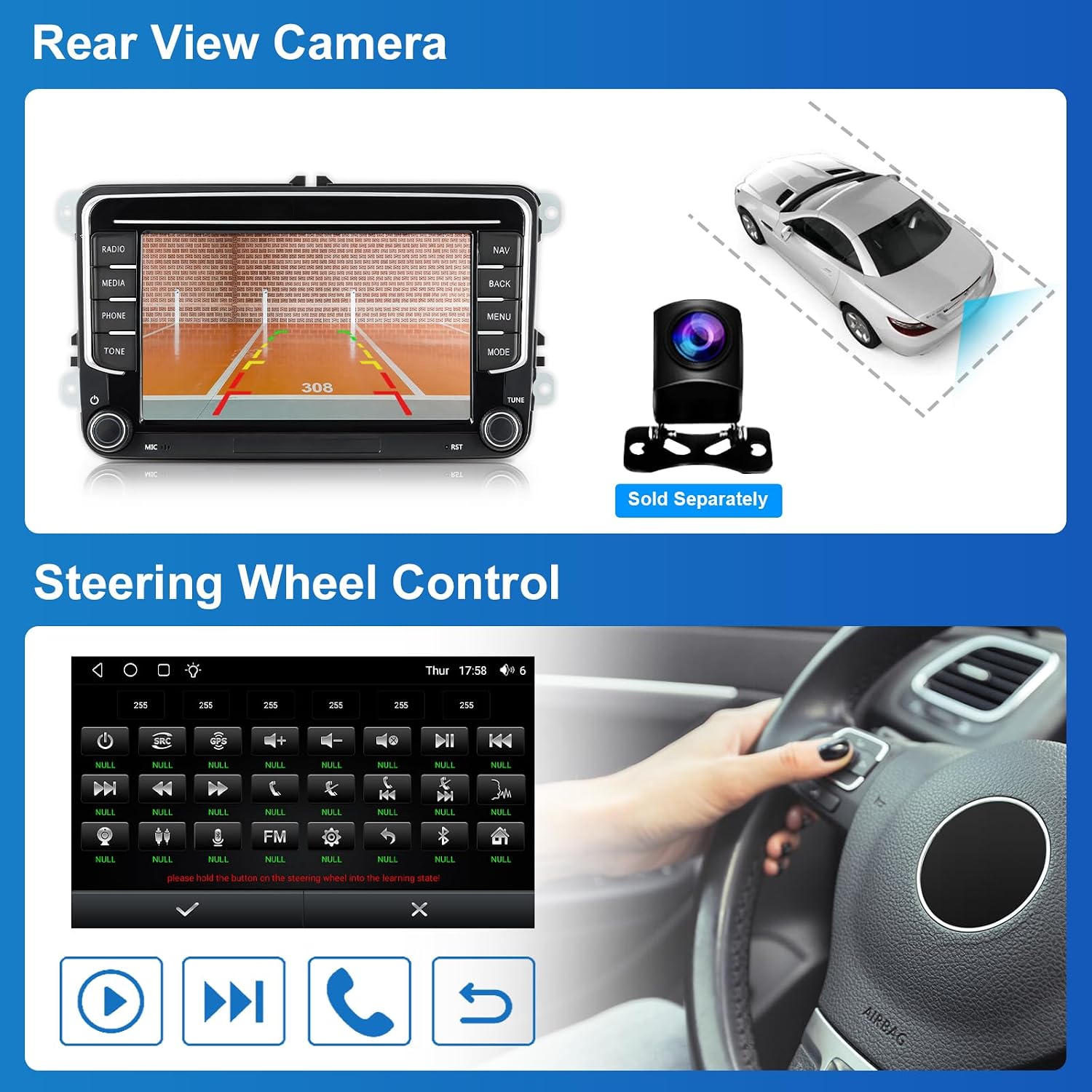
Figure 5.4: Steering Wheel Control Setup and Rear View Camera Display
6. Troubleshooting
This section addresses common issues and their solutions.
6.1 Steering Wheel Controls Not Working
- Check Canbus: Ensure the Canbus adapter is properly connected.
- Check 8-PIN Cable: Verify that the 8-PIN cable is securely connected to the back of the radio. Without this, AC and radar information may also not display.
- Vehicle Protocol: Go to Settings > Factory (code 3368) > Confirmation > Original Vehicle Protocol and select the correct car model (e.g., RZC-Volkswagen -PQ (LOW and H), trying one by one if unsure).
- Key MCU Application: On the home screen, open the "KEY MCU" application to manually learn and map the steering wheel buttons.
6.2 Parking Sensors Not Displaying
- Enable Radar Display: Go to Settings > Factory (code 3368) > Confirmation > Original Vehicle Protocol > Radar Display > On.
6.3 Buttons Not Responding
- Key MCU Application: Use the "KEY MCU" application on the home screen to check and configure button functions.
6.4 No Sound
- Wiring Check: Ensure all speaker wires are correctly connected and not short-circuited.
- Volume Level: Verify the volume is not muted or set to a very low level.
- EQ Settings: Check EQ and sound field settings to ensure they are not misconfigured.
7. Specifications
| Feature | Specification |
|---|---|
| Brand | Woibugee |
| Processor | 8-Core A55 28NM |
| RAM | 4GB |
| ROM | 64GB |
| Display Size | 7 inches |
| Panel Dimensions | 23.5 cm (9.25 in) L x 13 cm (5.12 in) W x 5.5 cm (2.17 in) D |
| Operating System | Android |
| Connectivity | Bluetooth, RCA, Wi-Fi (2.4 & 5 GHz), Optional 4G (via dongle) |
| Audio Output Mode | Multiple |
| Audio Output Type | Bluetooth, RCA |
| Surround Configuration | 2.1 |
| Output Power | Max 4*45W, RMS 4*25W |
| Equalizer | DSP + 32EQ |
| Item Weight | 1.61 Kilograms |
| Compatible Peripherals | Smartphone |
| Special Feature | Wi-Fi Reset |
| First Available Date | March 14, 2024 |
8. Maintenance
To ensure the longevity and optimal performance of your car radio, follow these maintenance guidelines:
- Cleaning: Use a soft, dry cloth to clean the screen and exterior surfaces. Avoid abrasive cleaners or solvents that could damage the finish.
- Software Updates: Periodically check for and install available software updates to improve performance and add new features. Connect to Wi-Fi to perform updates.
- Temperature: Avoid exposing the unit to extreme temperatures, both hot and cold, for extended periods.
- Power Supply: Ensure a stable power supply to prevent damage to the unit.
9. Warranty & Support
For warranty information, technical support, or any issues not covered in this manual, please contact Woibugee customer service. Refer to your purchase documentation for specific warranty terms and contact details.
When contacting support, please have your product model (8-Core 4GB+64GB Android Car Radio) and purchase date available.
Related documents8-Core 4GB+64GB Android Car Radio


Ask a question about this manual
Ask about setup, troubleshooting, compatibility, parts, safety, or missing instructions. Manuals+ will review the question and use this page’s manual context to help answer it.