
PINHUI M4-BK
PINHUI M4-BK Bluetooth 5.3 MP3 Player User Manual
Model: M4-BK | Brand: PINHUI
1. Introduction
This manual provides detailed instructions for the operation and maintenance of your PINHUI M4-BK Bluetooth 5.3 MP3 Player. Please read this manual thoroughly before using the device to ensure proper functionality and to maximize your user experience. This portable MP3 player features a touchscreen, Bluetooth 5.3 connectivity, 64GB of internal storage, expandable memory, a built-in speaker, FM radio, and a voice recorder.
2. Package Contents
Verify that all items listed below are included in your package:
- 1 x PINHUI M4-BK Bluetooth MP3 Player
- 1 x USB Type-C Charging Cable
- 1 x Lanyard
- 1 x Protective Cover
- 1 x 3.5mm Stereo Earphones
- 1 x User Manual (this document)

Figure 2.1: Illustration of the PINHUI M4-BK MP3 Player and its included accessories: the player itself, a USB Type-C cable for charging and data transfer, a lanyard for portability, a protective cover, and a pair of 3.5mm stereo earphones.
3. Product Overview
The PINHUI M4-BK MP3 player is designed for ease of use and portability. It features a 1.8-inch full touchscreen for intuitive navigation and a compact design.
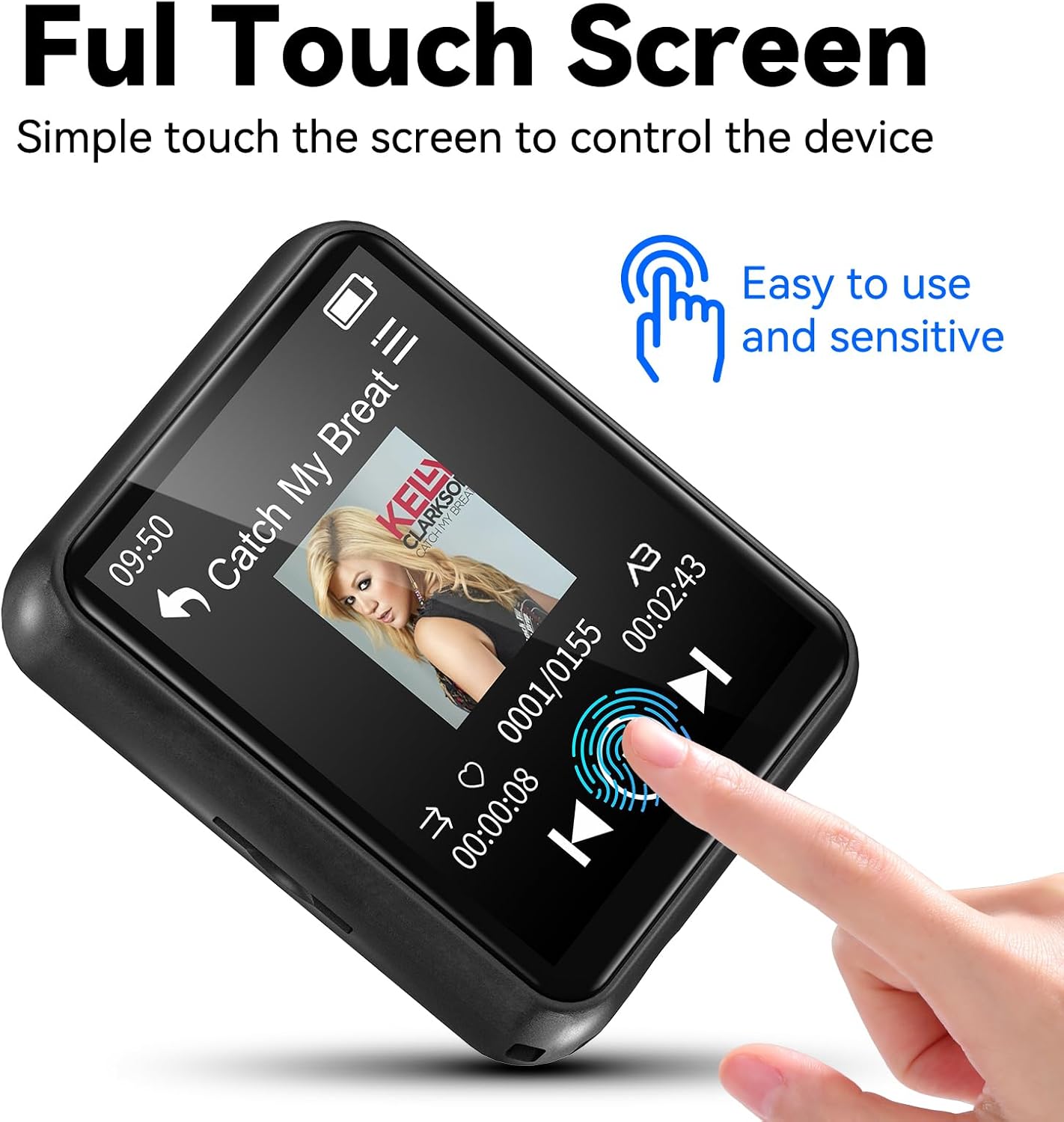
Figure 3.1: The PINHUI M4-BK MP3 Player's 1.8-inch full touchscreen, demonstrating its sensitive and easy-to-use interface for controlling the device.
Key Features:
- Bluetooth 5.3: For stable and fast wireless audio connections.
- 64GB Internal Memory: Stores over 13,000 songs.
- Expandable Storage: Supports up to 128GB TF (Micro SD) card.
- 1.8-inch Full Touchscreen: Intuitive and responsive control.
- Built-in Speaker: Enjoy music without earphones.
- Multi-functional: Music playback, FM radio, voice recorder, e-book reader, video player, photo viewer, pedometer, alarm clock.
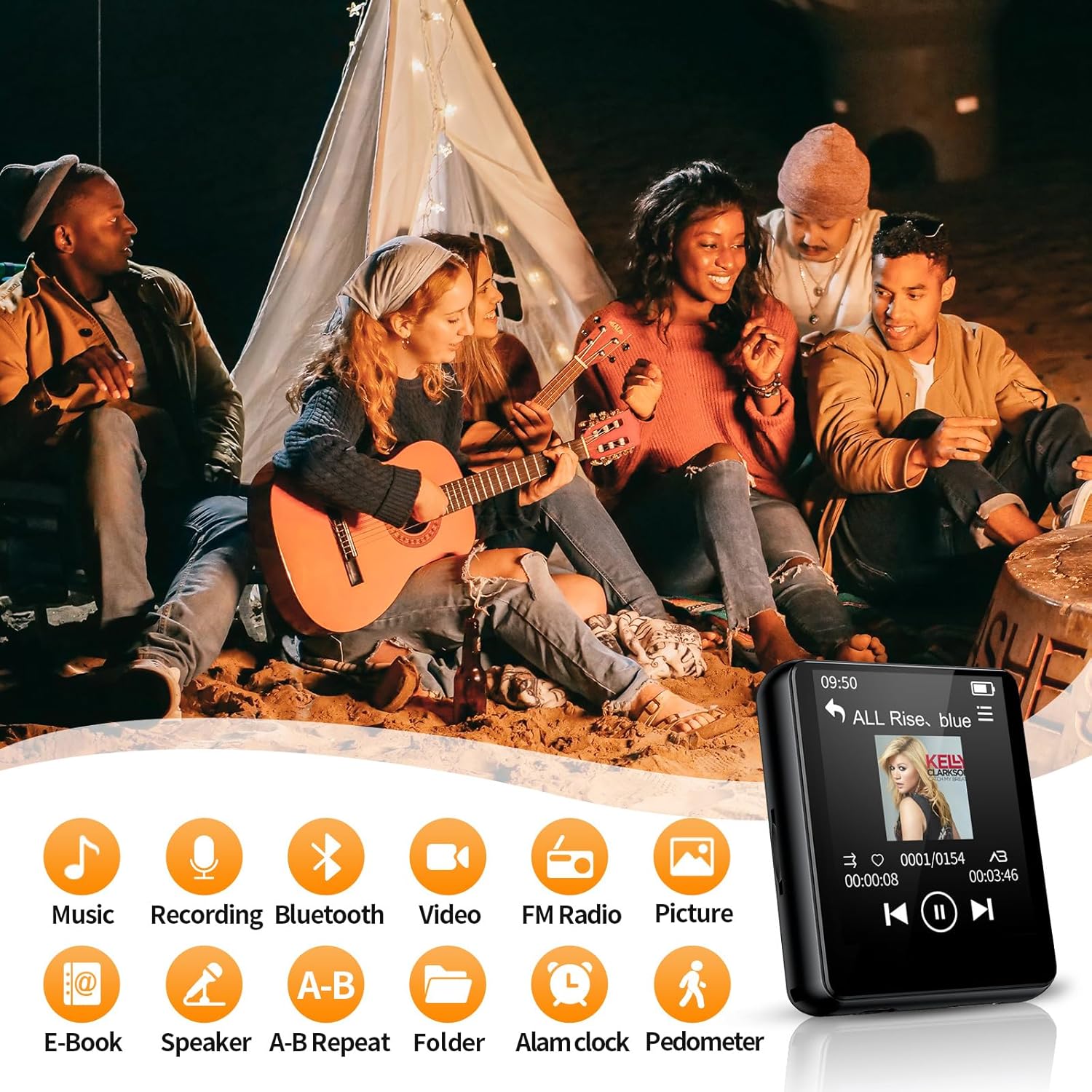
Figure 3.2: The main interface of the MP3 player, showcasing its diverse functionalities through a grid of icons.
4. Setup
4.1 Charging the Device
- Connect the small end of the USB Type-C cable to the charging port on the MP3 player.
- Connect the standard USB end of the cable to a USB power adapter (not included) or a computer's USB port.
- The battery indicator on the screen will show charging status. A full charge typically takes 2-3 hours.
- Disconnect the cable once fully charged.
4.2 Powering On/Off
- To Power On: Press and hold the power button (usually on the side) for a few seconds until the screen lights up.
- To Power Off: Press and hold the power button until a power-off option appears on the screen, then tap to confirm. Alternatively, continue holding the button for a forced shutdown.
4.3 Inserting a TF Card (Optional)
The device has 64GB of internal memory. To expand storage up to an additional 128GB, you can insert a TF (Micro SD) card.
- Locate the TF card slot on the side of the MP3 player.
- Gently insert the TF card into the slot with the gold contacts facing down until it clicks into place.
- To remove, push the card gently inward until it springs out.

Figure 4.1: Visual representation of the MP3 player's 64GB internal storage and the option to expand it with a TF card up to 128GB.
5. Basic Operation
5.1 Touchscreen Navigation
- Tap: Select an icon or confirm an action.
- Swipe: Navigate through menus or lists.
- Back Button: Usually an arrow icon, returns to the previous screen.
5.2 Connecting to a Computer
To transfer music, videos, or other files, connect the MP3 player to your computer using the provided USB Type-C cable. The device will appear as a removable disk drive, allowing you to drag and drop files.
6. Bluetooth Connectivity
The PINHUI M4-BK features Bluetooth 5.3 for connecting to wireless headphones, earbuds, or speakers. Note: This device does not support Bluetooth connection to mobile phones for file transfer or control.
- From the main menu, tap the "Bluetooth" icon.
- Ensure Bluetooth is enabled on the MP3 player.
- Place your Bluetooth headphones or speaker in pairing mode.
- The MP3 player will scan for available devices. Select your device from the list to pair.
- Once paired, audio will be routed through the connected Bluetooth device.

Figure 6.1: The MP3 player demonstrating its Bluetooth 5.3 capability to connect with different audio output devices.
7. Music Playback
To play music, transfer your audio files to the "Music" folder on the device or TF card.
- From the main menu, tap the "Music" icon.
- Browse your music library by artist, album, genre, or all songs.
- Tap a song to begin playback.
- Use the on-screen controls for play/pause, skip track, volume adjustment, and A-B repeat.

Figure 7.1: The MP3 player in music playback mode, showing the interface with song information and controls.
8. FM Radio
To use the FM radio, ensure wired earphones are connected as they act as the antenna.
- From the main menu, tap the "FM Radio" icon.
- Use the on-screen controls to scan for stations or manually tune to a frequency.
- You can save your favorite stations for quick access.
9. Voice Recorder
The built-in microphone allows for clear voice recordings.
- From the main menu, tap the "Recording" icon.
- Tap the record button to start recording.
- Tap the stop button to end the recording.
- Recordings are saved and can be played back from the "Recordings" list.

Figure 9.1: The voice recorder interface, highlighting its clear recording function.
10. Other Features
10.1 E-book Reader
The device supports TXT format e-books. Transfer your TXT files to the "E-book" folder.
- Tap the "E-book" icon from the main menu.
- Select a TXT file to read.
10.2 Video Playback
The player supports certain video formats. Transfer compatible video files to the "Video" folder.
- Tap the "Video" icon from the main menu.
- Select a video file to play.
10.3 Photo Browsing
View your images by transferring them to the "Picture" folder.
- Tap the "Picture" icon from the main menu.
- Browse and select images to view.
10.4 Pedometer
Track your steps during physical activities.
- Tap the "Pedometer" icon from the main menu.
- Start the pedometer function before your activity.
- The device will track your steps, suitable for sports, fitness, running, and travel.

Figure 10.1: The pedometer feature in action, showing step tracking and time elapsed.
10.5 Alarm Clock
Set alarms to wake you up or remind you of events.
- Tap the "Alarm Clock" icon from the main menu.
- Configure new alarms with desired time and recurrence.
11. Maintenance
- Keep the device dry. Moisture can damage electronic components.
- Avoid extreme temperatures.
- Clean the screen with a soft, dry cloth. Do not use harsh chemicals.
- Protect the device from drops and impacts.
- Regularly back up important data to a computer.
12. Troubleshooting
| Problem | Possible Solution |
|---|---|
| Device does not power on. | Ensure the battery is charged. Connect to a power source and try again. If unresponsive, perform a hard reset by holding the power button for 10-15 seconds. |
| Cannot connect via Bluetooth. | Ensure Bluetooth is enabled on both devices and they are in pairing mode. Move devices closer. Disconnect from other Bluetooth devices. Remember, it does not connect to mobile phones. |
| No sound from earphones/speaker. | Check volume level. Ensure earphones are properly plugged in or Bluetooth device is connected. Test with different earphones/speaker. |
| Files not appearing on device. | Ensure files are in compatible formats and transferred to the correct folders. Disconnect and reconnect to the computer. |
| Screen is unresponsive. | Restart the device. If the issue persists, ensure the screen is clean and dry. |
13. Specifications
- Brand: PINHUI
- Model: M4-BK
- Color: Black
- Screen Size: 1.8 Inches
- Display Technology: LCD
- Internal Memory: 64 GB
- Expandable Memory: Up to 128 GB (TF/Micro SD Card)
- Connectivity: Bluetooth 5.3, USB Type-C, 3.5mm Auxiliary
- Special Features: Built-in Speaker, FM Radio, Touchscreen, Equalizer, Voice Recorder, E-book Reader, Pedometer, Alarm Clock
- Compatible Devices: Bluetooth speakers, PC, Laptops, Smartphones (for file transfer only), Earphones
- Battery Type: Lithium-polymer (Rechargeable)
- ASIN: B0CY1P9FBQ
14. Warranty and Support
For warranty information or technical support, please refer to the documentation provided at the time of purchase or contact your retailer. Keep your proof of purchase for warranty claims.
Ask a question about this manual
Ask about setup, troubleshooting, compatibility, parts, safety, or missing instructions. Manuals+ will review the question and use this page’s manual context to help answer it.