
1. Introduction
This manual provides detailed instructions for the installation, operation, and maintenance of the Dahua NVR4108HS-8P-4KS3 8-Channel IP PoE Network Video Recorder. This NVR supports up to 8 IP cameras with PoE, offering high-resolution recording up to 12MP and advanced AI features for enhanced surveillance. Please read this manual thoroughly before using the product to ensure proper and safe operation.
2. Safety Information
To prevent injury to the user or others and property damage, the following safety instructions must be observed:
- Power Supply: Use only the specified power adapter. Ensure the power voltage is stable and meets the NVR's requirements.
- Ventilation: Do not block ventilation openings. Ensure adequate airflow to prevent overheating.
- Environment: Avoid installing the NVR in extreme temperatures (-10°C to +55°C), high humidity, dusty, or corrosive environments.
- Handling: Handle the device with care. Avoid dropping or subjecting it to strong impacts.
- Disassembly: Do not attempt to disassemble or modify the NVR. Refer all servicing to qualified personnel.
- Water Exposure: Keep the NVR away from water and liquids.
3. Package Contents
Verify that all items are present and in good condition upon unpacking:
- Dahua NVR4108HS-8P-4KS3 NVR Unit
- Power Adapter
- USB Mouse
- Quick Start Guide (not included in this manual, but typically provided)
- Screws for HDD installation (if applicable)
4. Product Overview
The Dahua NVR4108HS-8P-4KS3 is a compact 1U network video recorder designed for efficient surveillance. It features a robust metal casing and a comprehensive set of ports for connectivity.
4.1 Rear Panel Layout
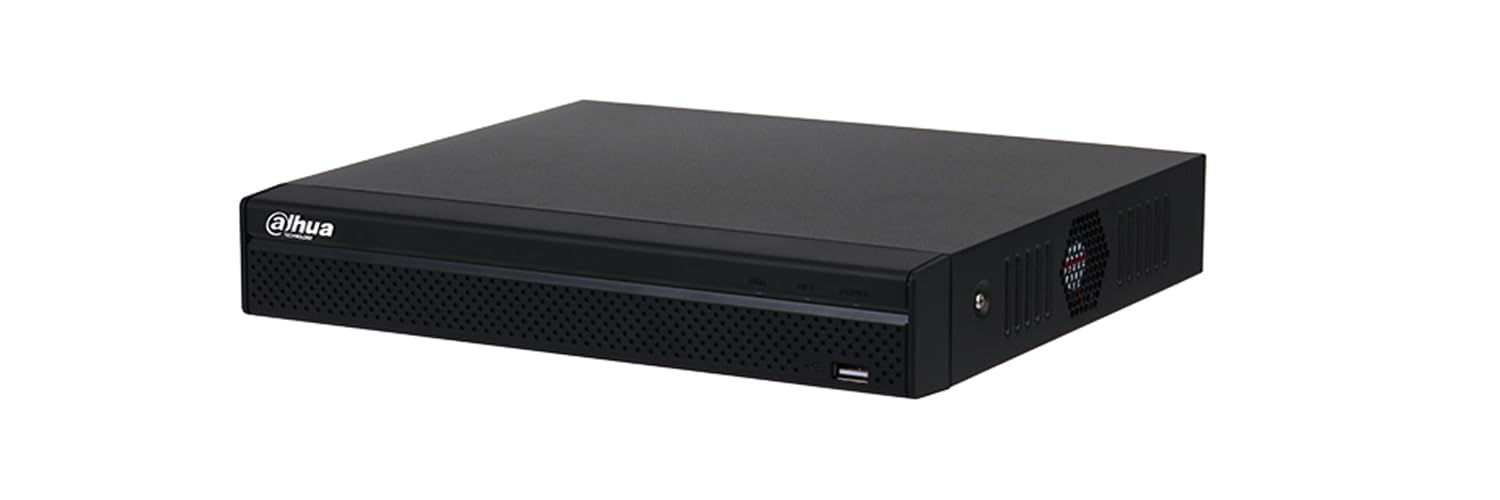
Figure 4.1: Rear Panel of the NVR4108HS-8P-4KS3
The image above displays the rear panel of the Dahua NVR4108HS-8P-4KS3. From left to right, the ports include:
- Power Input: DC 53V power connector.
- PoE Ports (8x): RJ-45 ports for connecting IP cameras and providing Power over Ethernet (IEEE 802.3 af/at).
- LAN Port (1x): RJ-45 10/100/1000 Mbps Ethernet port for network connection.
- VGA Output (1x): For connecting to a monitor.
- Audio Input (1x RCA): For connecting an external audio source.
- Audio Output (1x RCA): For connecting to an external audio device.
- HDMI Output (1x): For connecting to a high-definition monitor or TV.
- USB 2.0 Ports (2x): One on the front (not visible here) and one on the rear for connecting a mouse, USB drive, or other peripherals.
5. Setup
5.1 Hard Drive Installation (Optional)
The NVR supports one SATA hard drive (up to 20TB, not included). Follow these steps to install a hard drive:
- Power off the NVR and disconnect all cables.
- Remove the top cover of the NVR by unscrewing the retaining screws.
- Connect the SATA data and power cables from the NVR to the hard drive.
- Secure the hard drive to the NVR chassis using the provided screws.
- Replace the top cover and secure it with the screws.
5.2 Physical Connections
- Connect Display: Connect a monitor to the NVR's HDMI or VGA output port.
- Connect Mouse: Plug the USB mouse into one of the NVR's USB ports.
- Connect Network: Connect an Ethernet cable from your router/switch to the NVR's LAN port.
- Connect IP Cameras: Connect IP cameras to the NVR's PoE ports using Ethernet cables. The NVR will provide power and data.
- Power On: Connect the power adapter to the NVR's power input and then plug it into a power outlet. The NVR will start automatically.
6. Operating Instructions
6.1 Initial Setup Wizard
Upon first boot, the NVR will guide you through an initial setup wizard to configure basic settings such as language, date/time, network, and password. Follow the on-screen prompts.
6.2 Accessing the NVR
- Local Access: Use the connected monitor and mouse to navigate the NVR's graphical user interface (GUI).
- Remote Access (Web Browser): Enter the NVR's IP address into a web browser on a computer connected to the same network.
- Mobile Access: Download the official Dahua mobile application (available for iOS and Android) and add your NVR using its P2P function or IP address.
6.3 Recording and Playback
- Recording Modes: Configure recording schedules and modes (General, Motion Detection, Intelligent, Alarm) via the NVR's menu.
- Playback: Access recorded footage through the playback menu. Options include instant playback, general playback, event playback, tag playback, and intelligent playback.
- Backup: Backup recorded video to a USB device or network storage.
6.4 AI Features
The NVR supports various Artificial Intelligence (AI) functions, both via the recorder and compatible AI cameras:
- SMD Plus (Smart Motion Detection Plus): Filters out false alarms caused by environmental factors (leaves, rain, light changes) for persons and vehicles. Supports 4 channels via NVR, 6 channels via camera.
- Perimeter Protection: Detects intrusions and tripwire violations. Supports 6 channels via camera.
- Facial Recognition: Identifies faces. Supports 6 channels via camera.
- Other AI features (via camera): People Counting, Stereo Analysis, Heat Map.
7. Maintenance
- Regular Cleaning: Keep the NVR and its ventilation openings clean and free of dust.
- Firmware Updates: Periodically check the Dahua official website for firmware updates to ensure optimal performance and security. Follow the provided instructions carefully during updates.
- Hard Drive Management: Monitor the hard drive status and capacity. Replace the hard drive if it shows signs of failure or if more storage is needed.
- Data Backup: Regularly back up important recordings to external storage to prevent data loss.
8. Troubleshooting
| Problem | Possible Cause | Solution |
|---|---|---|
| No video output on monitor. | Loose cable connection, incorrect input source on monitor, NVR not powered on. | Check HDMI/VGA cable connections. Ensure monitor is set to correct input. Verify NVR power. |
| Cannot access NVR via network. | Network cable disconnected, incorrect IP address, firewall blocking access. | Check LAN cable. Verify NVR's IP address and network settings. Disable firewall temporarily for testing. |
| Cameras not displaying/recording. | PoE issue, camera not powered, camera not added/configured correctly, network issue. | Check PoE cable connections. Ensure cameras are powered. Verify camera IP addresses and NVR channel configuration. |
| NVR fan runs continuously/loudly. | Normal operation, high internal temperature, dust accumulation. | Continuous fan operation can be normal for cooling. Ensure proper ventilation. Clean dust from vents if necessary. If excessive, contact support. |
9. Specifications
| Feature | Description |
|---|---|
| Model | NVR4108HS-8P-4KS3 |
| Video Input | 8 Channels IP PoE |
| Max Recording Resolution | Up to 12MP |
| Max Bandwidth (AI Disabled) | 160Mbps (Incoming), 160Mbps (Recording), 80Mbps (Outgoing) |
| Max Bandwidth (AI Enabled) | 80Mbps (Incoming), 80Mbps (Recording), 60Mbps (Outgoing) |
| Video Compression | Smart H.265+, H.265, Smart H.264+, H.264 |
| Audio Compression | G.711a, G.711u, PCM, G.726 |
| Video Output | 1 HDMI (up to 3840x2160), 1 VGA (up to 1920x1080) |
| Audio Input/Output | 1 RCA In / 1 RCA Out |
| PoE Ports | 8 ports, 10/100 Mbps, IEEE 802.3 af/at (Total PoE Power: <72W) |
| Network Port | 1 RJ-45 (10/100/1000 Mbps) |
| USB Ports | 2 USB 2.0 (1 front, 1 rear) |
| HDD Interface | 1 SATA port, up to 20TB capacity (HDD not included) |
| AI via Recorder | SMD Plus (4 channels) |
| AI via Camera | Facial Recognition (6 channels), Perimeter Protection (6 channels), SMD Plus (6 channels), People Counting, Stereo Analysis, Heat Map |
| Network Protocols | HTTP, HTTPS, TCP/IP, IPv4, IPv6, UDP, NTP, DHCP, DNS, SMTP, UPnP, IP Filter, FTP, DDNS, SNMP, Alarm Server, P2P, Auto Register, IP Search |
| Mobile Access | iOS, Android |
| Power Supply | 53 V DC, 1.81 A (Power consumption <10W without HDD) |
| Dimensions (L x W x H) | 260.0 mm × 232.5 mm × 47.6 mm |
| Net Weight | 0.92 kg |
| Operating Temperature | -10°C to +55°C |
| Installation | Rack or Desktop |
10. Warranty and Support
For warranty information and technical support, please refer to the warranty card included with your product or contact your authorized Dahua reseller or distributor. You can also visit the official Dahua website for further assistance and resources.


