
Virtdream R66
Virtdream R66 65% Voice-Activated RGB Triple Mode Wireless Mechanical Keyboard User Manual
Model: R66
Introduction
Thank you for choosing the Virtdream R66 65% Mechanical Keyboard. This keyboard is designed for versatility and performance, offering multiple connectivity options, dynamic RGB lighting, and a comfortable typing experience. This manual provides detailed instructions on setting up, operating, and maintaining your new keyboard.

Figure 1: Virtdream R66 Keyboard Overview
Setup
Connectivity Modes
The R66 keyboard supports three connectivity modes: 2.4GHz Wireless, Bluetooth 5.0, and Wired USB-C. You can seamlessly switch between up to three devices.
- 2.4GHz Wireless Mode: Connects via the included USB receiver. Press FN + R to activate this mode.
- Bluetooth 5.0 Mode: Supports connection to up to three Bluetooth devices. Press FN + Q, FN + W, or FN + E to switch between Bluetooth channels.
- Wired USB-C Mode: Connects directly to your device using a USB-C cable. This mode also charges the keyboard.

Figure 2: Triple Connectivity for Ultimate Versatility
Initial Charge
The keyboard is equipped with a large 4000mAh battery. For optimal performance, it is recommended to fully charge the keyboard before its first use. Connect the keyboard to a power source using the provided USB-C cable.
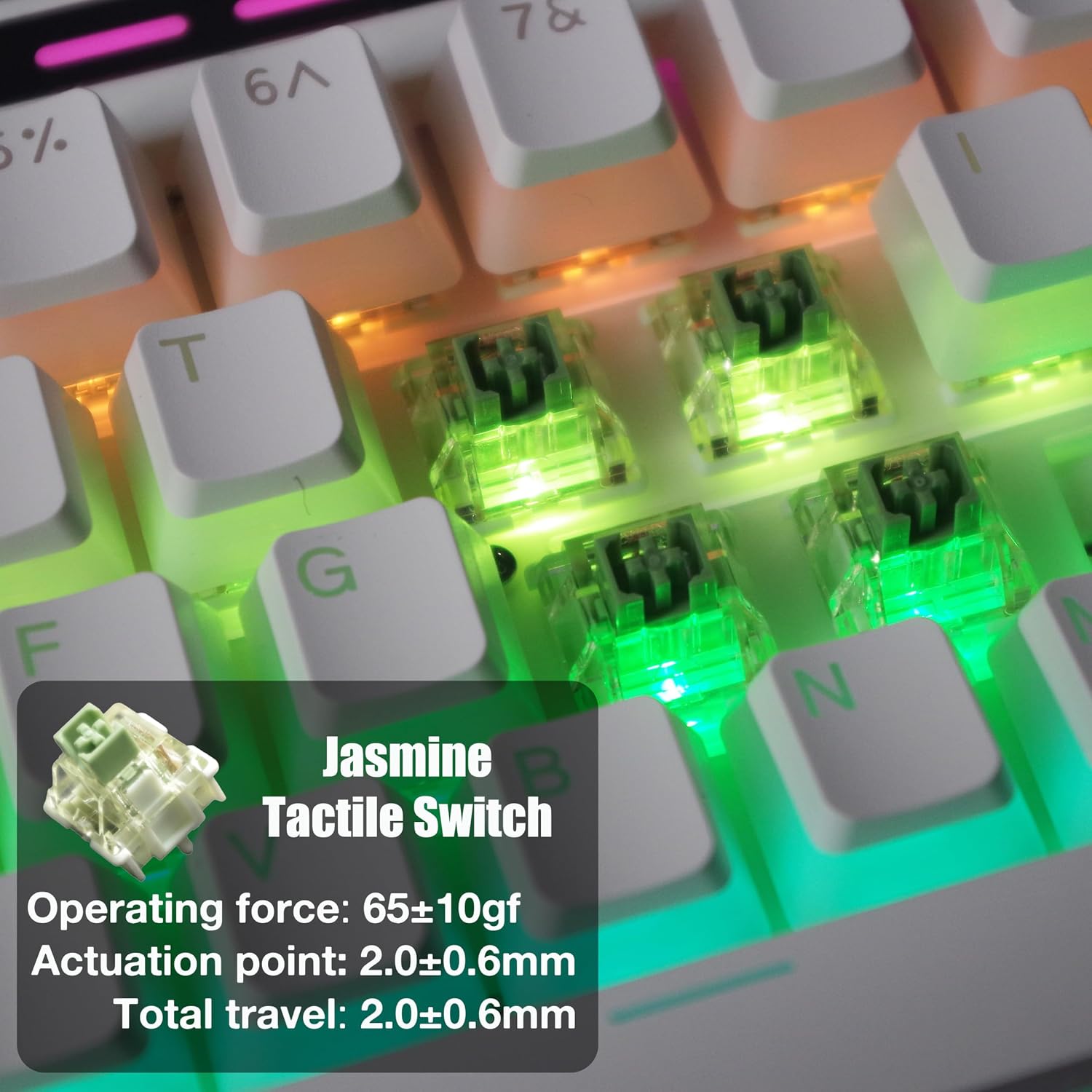
Figure 3: 4000mAh Large Capacity Battery
Operating Instructions
RGB Backlight Effects
The R66 keyboard features extensive RGB backlighting with 16.8 million color combinations and various effects. The keyboard also includes flanking lights for an enhanced aesthetic.
- Voice-Activated Sound Rhythm Mode: Press FN + SPACE to enter Sound Rhythm Mode. The lights will react to ambient music or sounds. There are three distinct effects within this mode.
- Change Color: Press FN + BACK to cycle through different backlight colors.
- Change Effect: Press FN + DEL to cycle through various RGB lighting effects.
- Adjust Brightness/Speed: Use FN + Arrow Keys (Up/Down for brightness, Left/Right for speed) to control the intensity and speed of the lighting effects.

Figure 4: RGB Lighting Effect Control
Video 1: Demonstration of the Virtdream R66 Voice-Activated Keyboard's RGB lighting features, including sound rhythm mode and various color effects.
Knob Control
The metal knob located on the keyboard provides quick access to multimedia and lighting controls:
- Volume Adjustment: Rotate the knob to adjust the system volume.
- Mute/Unmute: Press the knob to mute or unmute the sound.
- Brightness Adjustment: Long press the knob, then rotate it to adjust the keyboard's backlight brightness.
- Keyboard Lights On/Off: Press the knob to toggle the keyboard lights on or off.
Hot-Swappable Switches
The R66 keyboard features hot-swappable switch sockets, allowing you to easily change switches without soldering. This provides extensive customization options for mechanical keyboard enthusiasts.

Figure 5: Jasmine Tactile Switch Details
Figure 6: Hot-Swappable Switch Replacement
Maintenance
To ensure the longevity and optimal performance of your Virtdream R66 keyboard, follow these maintenance guidelines:
- Cleaning: Regularly clean the keycaps and keyboard body with a soft, dry cloth. For deeper cleaning, you can remove the keycaps using a keycap puller and clean the switches and plate with compressed air.
- Keycap Care: The PBT keycaps are durable and oil-resistant. Avoid using harsh chemicals or abrasive materials that could damage the keycap legends or surface.
- Storage: When not in use for extended periods, store the keyboard in a dry, dust-free environment.
Troubleshooting
If you encounter any issues with your Virtdream R66 keyboard, please refer to the following common solutions:
| Problem | Possible Cause | Solution |
|---|---|---|
| Keyboard not responding (Wired) | Loose cable connection, faulty USB port. | Ensure USB-C cable is securely connected to both keyboard and computer. Try a different USB port or cable. |
| Keyboard not connecting (Wireless/Bluetooth) | Low battery, incorrect mode selected, interference, not paired. | Charge the keyboard. Ensure correct mode (2.4Ghz or Bluetooth) is selected. Re-pair the keyboard with your device. Move closer to the receiver/device. |
| RGB lights not working or dim | Lights turned off, brightness too low, software issue. | Press the knob to turn lights on. Adjust brightness using FN + Up Arrow. Check for any specific software settings if applicable. |
| Keys double-pressing or not registering | Dust/debris in switch, faulty switch. | Clean around the affected switch. If hot-swappable, try replacing the switch with a spare. |
Specifications
| Feature | Detail |
|---|---|
| Product Dimensions | 12.8 x 5.31 x 1.18 inches |
| Item Weight | 2.64 pounds |
| Manufacturer | VirtDream |
| ASIN | B0CXXFKG5P |
| Country of Origin | China |
| Batteries | 1 Lithium Ion battery required (included) |
| Compatible Devices | Laptop, Gaming Console, PC, Tablet, Smartphone |
| Connectivity Technology | Bluetooth, 2.4GHz Wireless, USB-C Wired |
| Keyboard Description | Mechanical |
| Special Features | Ergonomic, Backlit, Integrated Stand, Rechargeable, Hot-Swappable |
| Color | Glacial-White- Tactile Switch |
| Number of Keys | 66 |
| Keyboard Backlighting | RGB |
| Style | Modern |
Warranty and Support
The Virtdream R66 keyboard comes with a manufacturer's warranty. For detailed warranty information, technical support, or service inquiries, please contact the manufacturer directly through their official website or the retailer from whom you purchased the product. Please retain your proof of purchase for warranty claims.
Ask a question about this manual
Ask about setup, troubleshooting, compatibility, parts, safety, or missing instructions. Manuals+ will review the question and use this page’s manual context to help answer it.