
DXchip 4KEZH01R01-DXUS
DXchip 4K Wireless HDMI Transmitter and Receiver User Manual
Model: 4KEZH01R01-DXUS
Brand: DXchip
1. Introduction
The DXchip 4K Wireless HDMI Transmitter and Receiver kit provides a solution for wirelessly transmitting high-definition video and audio signals. This system eliminates the need for long HDMI cables, offering a plug-and-play experience for streaming content from various source devices to a display.
This manual outlines the setup, operation, and troubleshooting for your DXchip wireless HDMI extender, ensuring optimal performance and user experience.
2. Product Overview
The DXchip 4K Wireless HDMI Transmitter and Receiver kit consists of two main components: a Transmitter (TX) unit and a Receiver (RX) unit. Both units are compact and designed for ease of use.

Image: The DXchip 4K Wireless HDMI Transmitter and Receiver units, showing their compact design.
Key Features:
- 4K@30Hz Resolution: Supports video resolutions up to 3840x2160 at 30Hz, and is backward compatible with 1080P and 720P.
- Wireless Transmission: Transmits audio/video signals wirelessly up to 98 feet (30 meters) in an open field with low latency (approximately 0.1 seconds).
- Plug and Play: No Wi-Fi, software, or Bluetooth required for operation.
- Broad Compatibility: Works with most HDMI output devices and displays.
3. Setup Instructions
Follow these steps to set up your DXchip Wireless HDMI Transmitter and Receiver kit:
Step 1: Connect the Receiver (RX)
- Connect the Receiver (RX) unit to an available HDMI input port on your display device (TV, monitor, or projector).
- Connect the USB power cable from the Receiver (RX) unit to a USB power source (e.g., a USB port on your TV or a 5V/1A USB power adapter, not included). Ensure the Receiver is powered on.
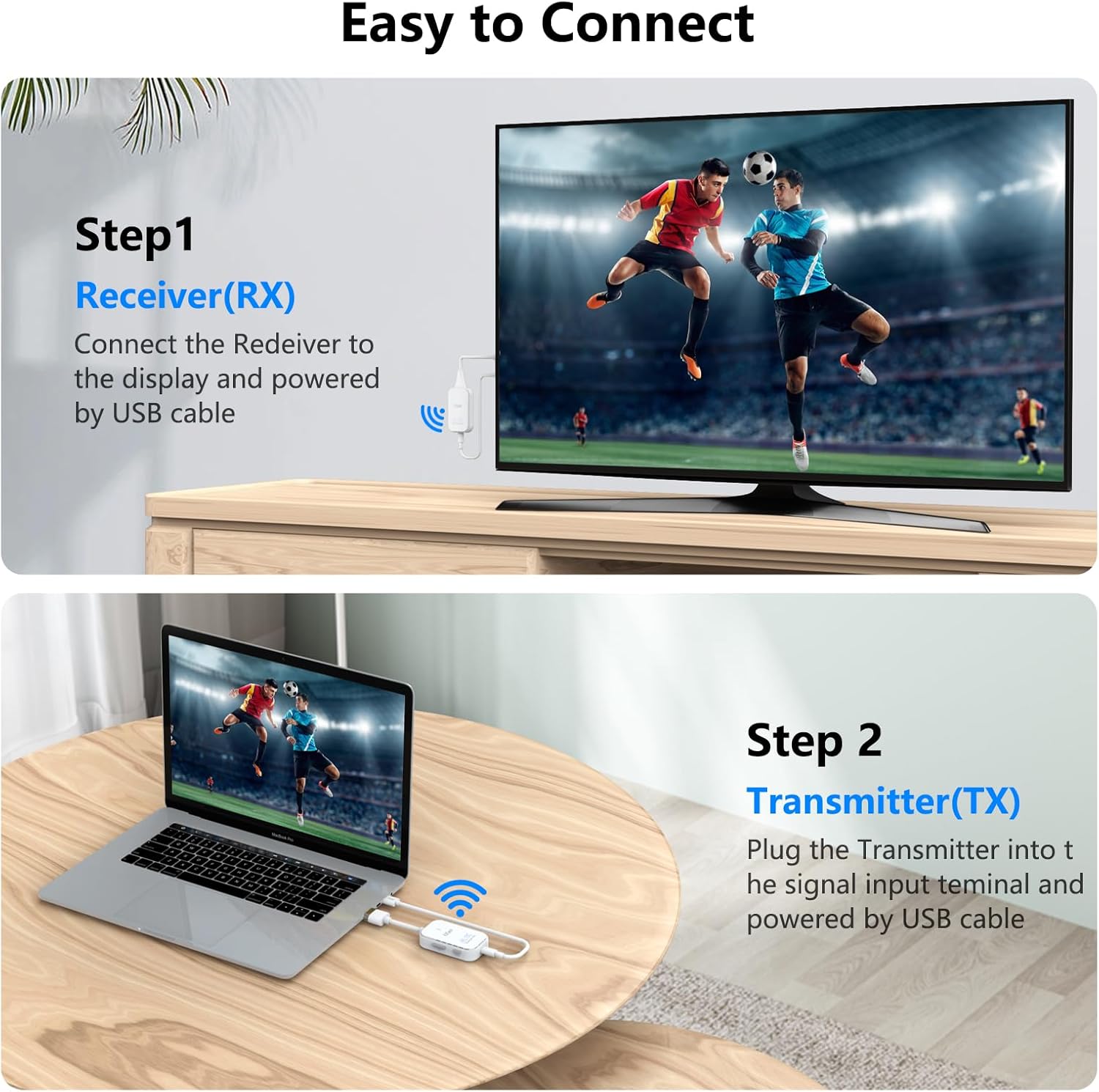
Image: The Receiver (RX) unit connected to an HDMI port on a television and powered by a USB cable.
Step 2: Connect the Transmitter (TX)
- Connect the Transmitter (TX) unit to the HDMI output port of your source device (e.g., PC, laptop, cable box).
- Connect the USB power cable from the Transmitter (TX) unit to a USB power source (e.g., a USB port on your laptop or a 5V/1A USB power adapter, not included). Ensure the Transmitter is powered on.

Image: The Transmitter (TX) unit connected to an HDMI port on a laptop and powered by a USB cable.
The Transmitter and Receiver units are pre-paired at the factory. Once both units are powered and connected, they should automatically establish a wireless connection, and your content will appear on the display.
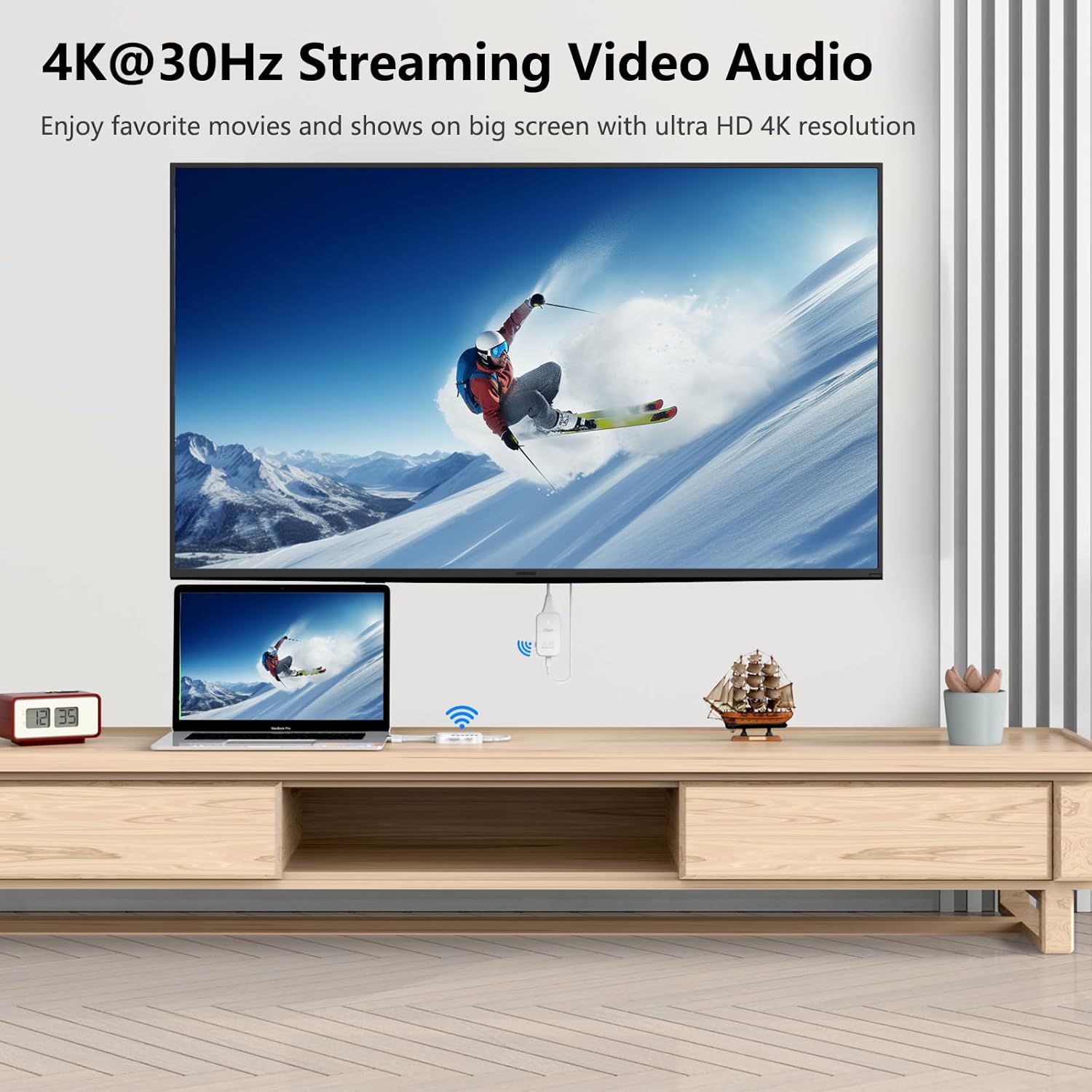
Image: A laptop screen wirelessly streaming video and audio content to a large television display, demonstrating the 4K@30Hz capability.
4. Operating Instructions
Display Modes: Mirror and Extend
The system supports two primary display modes:
- Mirror Mode: Duplicates the content of your source device's screen onto the connected display.
- Extend Mode: Extends your source device's desktop, allowing you to have different content on the connected display.

Image: A visual representation of Mirror Mode, where the laptop screen is duplicated on the TV, and Extend Mode, where the TV acts as a second, extended display.
To switch between these modes on a Windows PC, press the Windows key + P and select your desired display option.
5. Compatibility
The DXchip Wireless HDMI Extender Kit is compatible with a wide range of HDMI output devices and display devices.
Compatible Source Devices:
- Laptops
- PCs
- Blu-ray players
- Cameras (DSLR, DV machines)
- Set-top boxes
- Game Consoles (Note: Not recommended for competitive gaming due to slight latency)
Compatible Display Devices:
- HDTVs
- Monitors
- Projectors

Image: An illustration depicting the broad compatibility of the DXchip wireless HDMI system with devices such as cameras, game boxes, computers, laptops, DV machines, and set-top boxes as sources, and HDTVs, monitors, and projectors as displays.
Important Compatibility Notes:
- This kit does not support direct connection to smartphones or tablets.
- This wireless HDMI extender does not support using with an HDMI splitter.
6. Troubleshooting
If you encounter issues with your DXchip Wireless HDMI Transmitter and Receiver, refer to the following troubleshooting tips:
- No Video or Image on Screen:
- Ensure both the Transmitter (TX) and Receiver (RX) units are properly connected and powered.
- Verify that your display device is set to the correct HDMI input source.
- On a Windows PC, press Windows key + P and select 'Duplicate' or 'Extend' mode.
- No Audio Transmission:
- Check if your PC or source device's audio is muted.
- Confirm that your monitor or TV supports audio playback via HDMI.
- Freezing, Stuck, or Disconnection Issues:
- If the computer has low power or the current to the HDMI input is insufficient, the power light on the transmitter may be weak or off. In such cases, connect a 5V/1A power adapter (not included) to a wall socket to provide external power to both the Transmitter and Receiver units.
- Ensure there are no significant obstacles between the Transmitter and Receiver units that could interfere with the wireless signal.
- Try re-pairing the units manually. (Specific re-pairing steps are typically provided in a video or separate guide; if issues persist, consult the manufacturer's support).
- Shortened Transmission Distance:
- The stated transmission distance of 98ft/30m is for an open field without obstacles. Walls, floors, and other structures will shorten the effective transmission range.
- Latency with Gaming Consoles:
- Due to a slight inherent delay in wireless video transmission, this extender is not recommended for connecting to gaming consoles where low latency is critical for competitive gameplay.
7. Specifications
| Feature | Specification |
|---|---|
| Brand | DXchip |
| Model Number | 4KEZH01R01-DXUS |
| Connectivity Technology | Wireless |
| Supported Resolution | Up to 4K@30Hz (3840x2160), backward compatible with 1080P/720P |
| Transmission Distance | Up to 98 feet (30 meters) in open field |
| Latency | Approximately 0.1 seconds |
| Audio Output Mode | Stereo |
| Surround Sound Channel Configuration | 2.0 |
| Connector Type | HDMI |
| Total HDMI Ports | 1 (per unit) |
| Power Input | 5V/1A (via USB) |
| Item Weight | 6.4 ounces |
| Package Dimensions | 6.85 x 2.95 x 1.85 inches |
8. Maintenance
To ensure the longevity and optimal performance of your DXchip Wireless HDMI Transmitter and Receiver, follow these maintenance guidelines:
- Cleaning: Use a soft, dry cloth to clean the units. Avoid using liquid cleaners or aerosols.
- Storage: Store the units in a cool, dry place away from direct sunlight and extreme temperatures when not in use.
- Handling: Handle the units with care to prevent physical damage. Avoid dropping or subjecting them to strong impacts.
- Ventilation: Ensure the units have adequate ventilation during operation to prevent overheating. Do not cover the ventilation holes.
9. Warranty and Support
Specific warranty details are typically provided with your purchase documentation or on the manufacturer's official website. Please refer to those resources for information regarding warranty coverage and terms.
For technical support or further assistance, please contact DXchip customer service through the retailer where you purchased the product or visit the official DXchip website for contact information.
Ask a question about this manual
Ask about setup, troubleshooting, compatibility, parts, safety, or missing instructions. Manuals+ will review the question and use this page’s manual context to help answer it.