
1. Introduction
Thank you for choosing the Smart Tech 43UV01V 43-inch 4K UHD VIDAA Smart TV. This manual provides essential information for the safe and efficient operation of your television. Please read it thoroughly before using the product and retain it for future reference.

Image 1.1: The Smart Tech 43UV01V TV showcasing its 4K display and integrated VIDAA Smart TV features, including popular streaming services and Dolby Audio support.
2. Safety Information
Always follow basic safety precautions when using this television to reduce the risk of fire, electric shock, and injury.
- Do not expose the TV to rain or moisture.
- Do not block ventilation openings.
- Ensure proper grounding of the power plug.
- Unplug the TV during lightning storms or when unused for long periods.
- Refer all servicing to qualified service personnel.
- Keep batteries out of reach of children.
3. Package Contents
Please check that all components are present and undamaged. If any items are missing or damaged, contact your retailer.
- Smart Tech 43UV01V 43-inch 4K UHD VIDAA Smart TV
- Remote Control
- AAA Batteries (2x)
- TV Stand (Base and Screws)
- Power Cord
- Instruction Manual (this document)
4. Setup
4.1 Attaching the Stand
Place the TV face down on a soft, flat surface to prevent screen damage. Align the stand bases with the mounting holes on the bottom of the TV and secure them with the provided screws.

Image 4.1: Illustration of the TV's underside, indicating where the stand components attach.
4.2 Connecting External Devices
Your Smart Tech TV offers various connection ports for external devices. Ensure the TV is powered off before making any connections.
- HDMI Ports (3x): For connecting Blu-ray players, game consoles, set-top boxes, etc.
- USB Ports (2x): For connecting USB storage devices to play media or update firmware.
- AV Input: For older devices using composite video and stereo audio.
- Optical Audio Output: For connecting to a soundbar or home theater system.
- Earphone Jack: For private listening.
- RJ45 (Ethernet) Port: For a wired internet connection.
- CI Slot: For Conditional Access Modules (CAMs) from your broadcast provider.
- Antenna/Cable Input (DVB-T2/DVB-S2): For connecting terrestrial or satellite antennas.
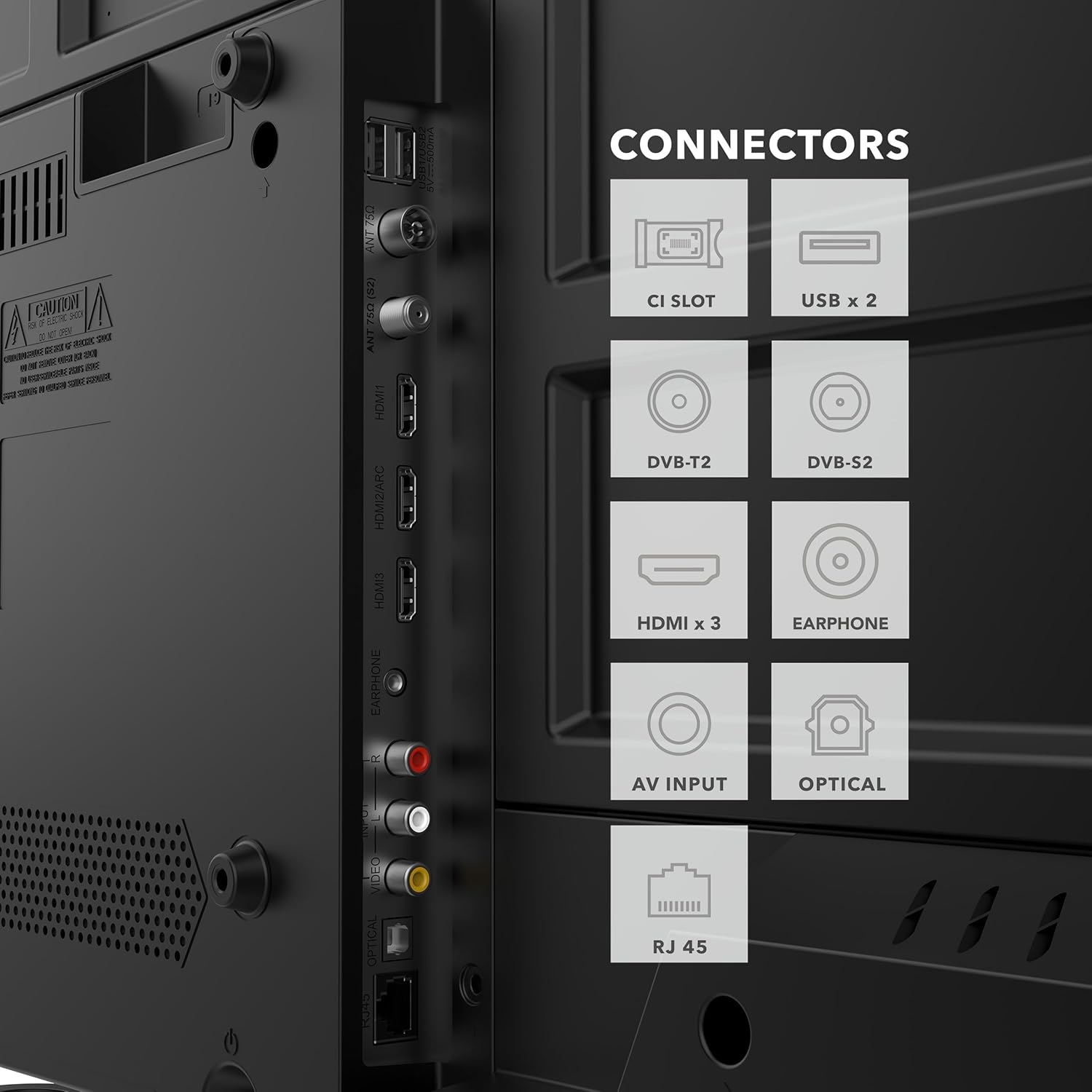
Image 4.2: Detailed view of the TV's rear panel, highlighting the various input and output connectors for external devices.
4.3 Initial Power On and Network Setup
After connecting all necessary cables, plug the power cord into an electrical outlet. Press the power button on the remote control or the TV. Follow the on-screen instructions to complete the initial setup, including language selection, time zone, and network connection (Wi-Fi or Ethernet).
5. Operating Instructions
5.1 Remote Control Functions
The included remote control allows you to navigate the TV's features and settings. Insert the two AAA batteries into the remote, ensuring correct polarity.

Image 5.1: The remote control features dedicated buttons for quick access to popular applications like Netflix, YouTube, Prime Video, and Disney+.
- Power Button: Turns the TV on or off.
- Navigation Pad (Up/Down/Left/Right/OK): For menu navigation and selection.
- Volume Up/Down: Adjusts the sound level.
- Channel Up/Down: Changes TV channels.
- Home Button: Accesses the VIDAA Smart TV home screen.
- App Buttons: Direct access to Netflix, YouTube, Prime Video, Disney+.
- Back/Exit: Returns to the previous screen or exits a menu.
5.2 VIDAA Smart TV Interface
The VIDAA operating system provides a user-friendly interface for accessing streaming services, live TV, and other smart features.
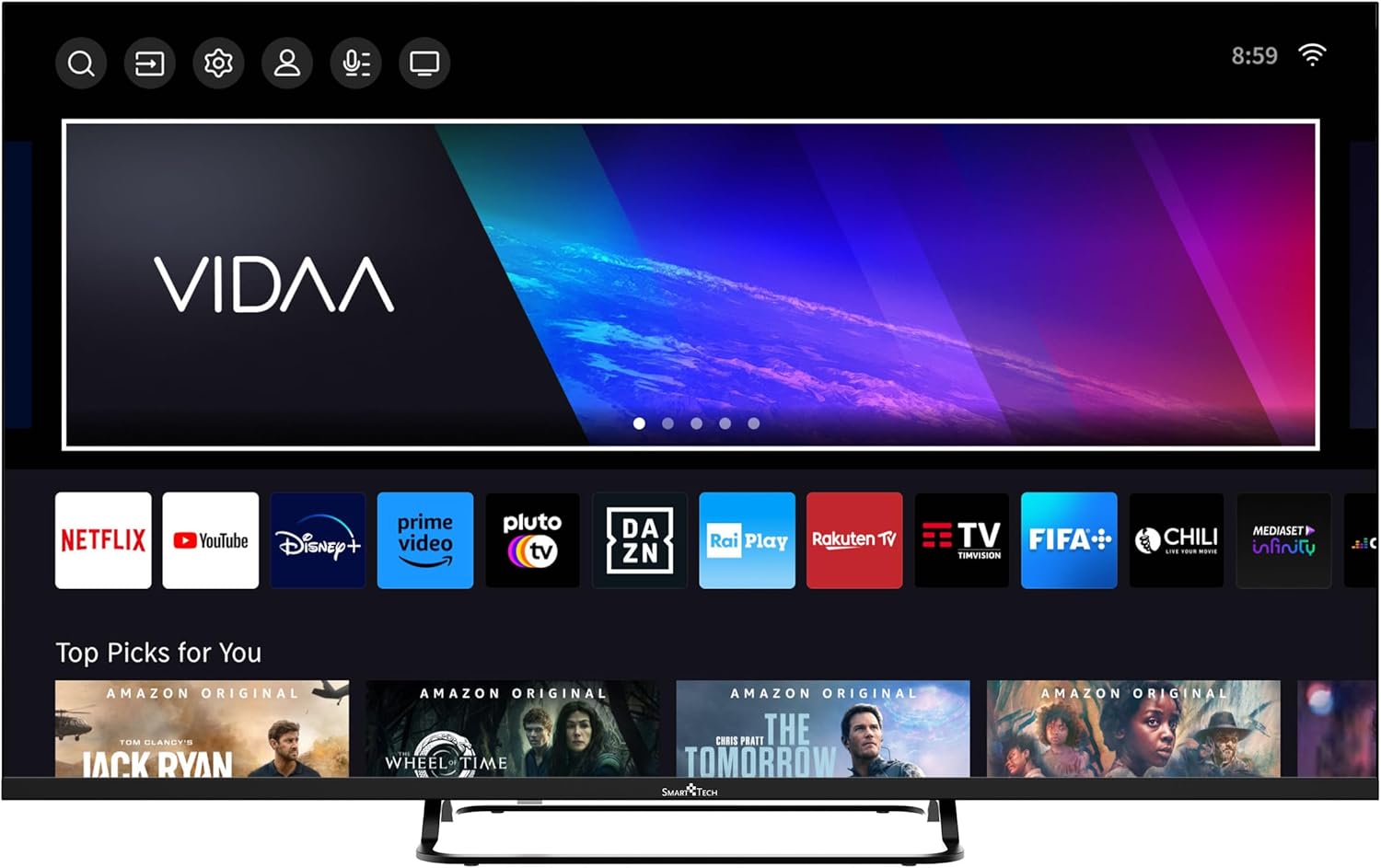
Image 5.2: The VIDAA Smart TV home screen, showing a selection of pre-installed applications and content recommendations.
- Accessing Apps: Use the navigation buttons on your remote to select and launch applications from the home screen.
- Content Search: Utilize the search function to find movies, shows, or other content across various platforms.
- Settings Menu: Access picture, sound, network, and other system settings via the gear icon on the home screen.
5.3 Picture and Sound Settings
Customize your viewing experience through the TV's settings menu.
- Picture Modes: Select from Standard, Dynamic, Movie, Sport, or User modes to optimize picture quality for different content. Adjust brightness, contrast, color, and sharpness.
- Sound Modes: Choose from Standard, Music, Movie, Speech, or User modes. The TV supports Dolby Audio for enhanced sound.
- Parental Control: Enable parental control features to restrict access to certain channels or content based on ratings.
5.4 Hotel Mode
The Hotel Mode feature allows for advanced control over TV settings, often used in hospitality environments. This mode can restrict certain functions, set default volumes, and manage input sources. Consult the advanced settings menu or contact customer support for detailed instructions on activating and configuring Hotel Mode.

Image 5.3: Overview of key features, including the Hotel Mode functionality.
6. Maintenance
- Cleaning the Screen: Gently wipe the screen with a soft, lint-free cloth. For stubborn marks, use a screen cleaner specifically designed for TVs, applied to the cloth, not directly to the screen.
- Cleaning the Cabinet: Use a soft, dry cloth to wipe the TV cabinet. Do not use abrasive cleaners or solvents.
- Ventilation: Ensure the ventilation openings on the back of the TV are not blocked to prevent overheating.
7. Troubleshooting
| Problem | Possible Cause | Solution |
|---|---|---|
| No power | Power cord not connected; no power from outlet. | Check power cord connection; test outlet with another device. |
| No picture, but sound is present | Incorrect input source selected; loose video cable. | Press the SOURCE button on the remote; check video cable connections. |
| No sound, but picture is present | Volume muted or too low; incorrect audio output setting. | Unmute or increase volume; check audio settings in the menu. |
| Remote control not working | Batteries are dead or incorrectly inserted; obstruction between remote and TV. | Replace batteries; ensure clear line of sight to the TV's IR sensor. |
| Cannot connect to Wi-Fi | Incorrect password; router issues; TV too far from router. | Verify password; restart router; move TV closer or use wired connection. |
8. Specifications
| Model Number | 43UV01V |
| Brand | Smart Tech |
| Screen Size | 43 Inches (109 cm) |
| Display Technology | LED |
| Resolution | 4K UHD (3840 x 2160) |
| Operating System | VIDAA |
| Refresh Rate | 60 Hz |
| Audio Technology | Dolby Audio |
| HDMI Ports | 3 |
| USB Ports | 2 |
| Connectivity | Wi-Fi, Bluetooth, Ethernet (RJ45) |
| Special Features | Parental Control, Hotel Mode |
| Color | Black |
| Product Dimensions (D x W x H) | 23 cm x 95 cm x 59 cm |

Image 8.1: Dimensional drawing of the Smart Tech 43UV01V TV, illustrating its width, height, and depth.
9. Warranty and Support
Smart Tech products are designed for reliability and performance. For warranty information, please refer to the warranty card included with your purchase or visit the official Smart Tech website.
For technical support, troubleshooting assistance, or service inquiries, please contact Smart Tech customer support through their official channels. Keep your purchase receipt and model number (43UV01V) handy when contacting support.
Manufacturer: Express Luck
Spare Parts Availability: 11 Years (as per product data)


