
Wennzy DVD-225
Wennzy DVD-225 Home DVD Player User Manual
Model: DVD-225
1. Introduction
Thank you for purchasing the Wennzy DVD-225 Home DVD Player. This digital multimedia player is designed to provide high-quality video and audio playback for your home entertainment system. It is compatible with a wide range of disc formats and features a built-in USB port for playing media files from external drives.
This manual provides detailed instructions for setting up, operating, and maintaining your DVD player. Please read it thoroughly before use to ensure proper functionality and to maximize your viewing and listening experience.
2. Safety Information
To ensure safe operation and prolong the life of your DVD player, please observe the following safety precautions:
- Do not expose the unit to rain or moisture to prevent fire or electric shock.
- Do not block ventilation openings. Ensure adequate space around the unit for proper airflow.
- Do not place the unit on an unstable cart, stand, tripod, bracket, or table.
- Unplug the unit during lightning storms or when unused for long periods.
- Refer all servicing to qualified service personnel.
- Important Note: This DVD player does not support Blu-ray Discs. Attempting to play Blu-ray Discs may cause damage to the unit or disc.
- This product is a Class 1 Laser Product. Avoid direct exposure to the laser beam.
3. Package Contents
Please check the package contents upon opening to ensure all items are present:
- 1 x Wennzy DVD-225 Portable DVD Player
- 1 x 3-in-1 AV Cable (RCA)
- 1 x Remote Control
- 1 x User Manual (English)

Figure 3.1: Contents of the Wennzy DVD-225 package, including the player, remote, AV cable, and user manual.
4. Product Overview
Familiarize yourself with the various components and ports of your DVD player.
4.1 Front Panel

Figure 4.1: Front panel of the DVD-225 player, showing the disc tray, control buttons, and USB port.
- Disc Tray: For inserting DVDs and CDs.
- Open/Close Button: Opens and closes the disc tray.
- Stop Button: Stops disc playback.
- USB Port: Connects USB drives for media playback.
- Play/Pause Button: Starts or pauses disc/USB playback.
- Power On/Off Button: Turns the unit on or off.
4.2 Rear Panel

Figure 4.2: Rear panel of the DVD-225 player, displaying various audio and video output ports.
- Left Channel Output (White RCA): Audio output for the left speaker.
- Right Channel Output (Red RCA): Audio output for the right speaker.
- Video Output (Yellow RCA): Video output to connect to a TV or projector.
- Left Mic Output (Optional): For microphone input (if applicable to specific models).
- Right Mic Output (Optional): For microphone input (if applicable to specific models).
- COAX Output: Digital coaxial audio output.
5. Setup
Follow these steps to connect your DVD player to your television or home theater system.
5.1 Connecting to a TV/Projector
- Ensure both the DVD player and your TV/projector are turned off.
- Connect the 3-in-1 AV cable (RCA) to the corresponding color-coded ports on the rear of the DVD player (Yellow for Video, White for Left Audio, Red for Right Audio).
- Connect the other end of the AV cable to the matching input ports on your TV or projector.
- Plug the power cord of the DVD player into a wall outlet.
- Turn on your TV/projector and select the correct AV input source (e.g., AV1, Video 1, Input).
- Turn on the DVD player using the Power button on the front panel or the remote control.
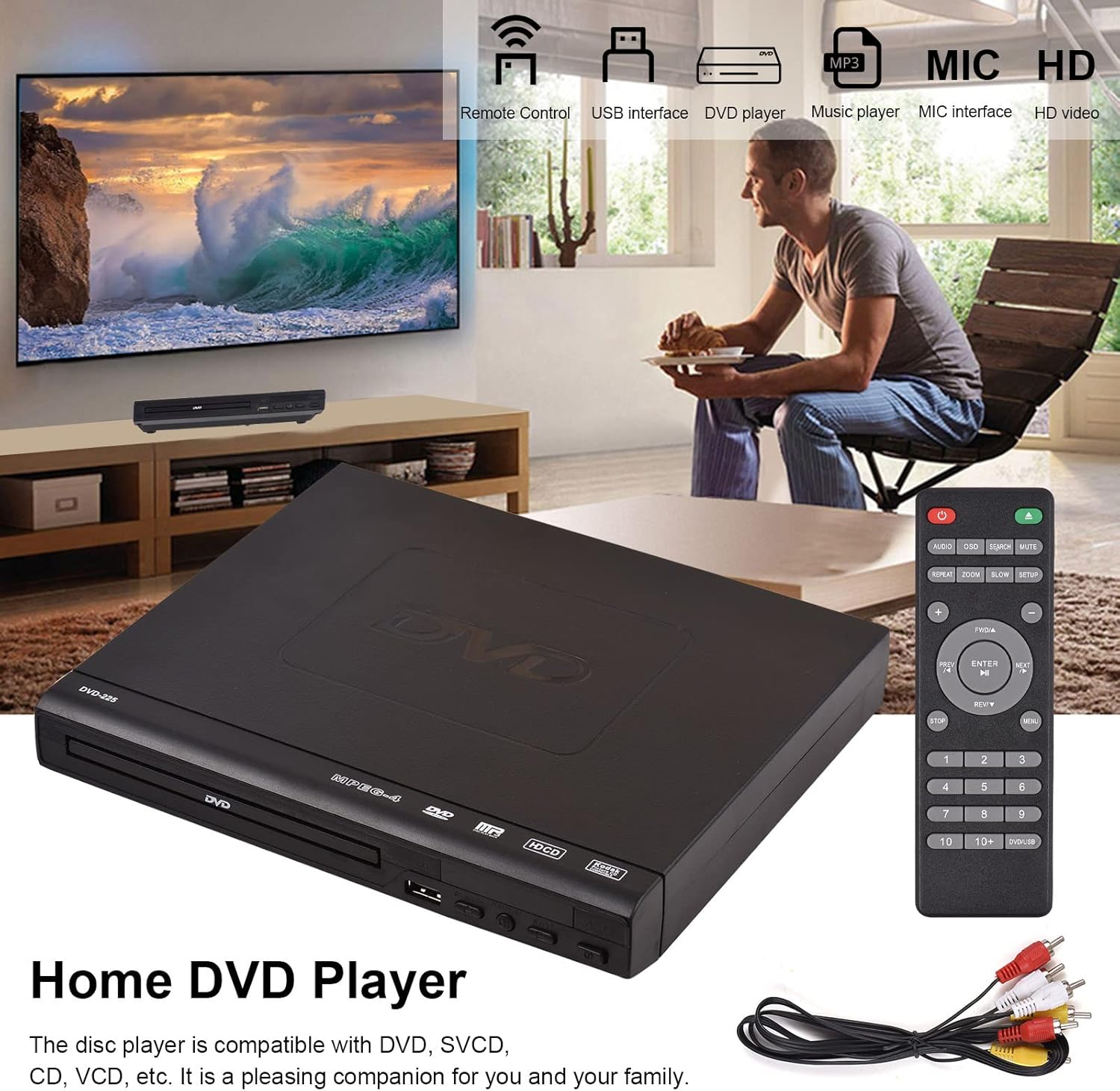
Figure 5.1: The DVD-225 player set up and connected to a television for home entertainment.
6. Operating Instructions
This section details how to use your DVD player for various media types.
6.1 Disc Playback
- Press the OPEN/CLOSE button on the player or remote to open the disc tray.
- Place a compatible disc (DVD, SVCD, VCD, CD-R, CD-R/W, Picture CD) gently into the disc tray with the label side facing up.
- Press the OPEN/CLOSE button again to close the tray.
- The player will automatically detect the disc and begin playback. If a menu appears, use the arrow keys and ENTER button on the remote to navigate.
- To stop playback, press the STOP button.
The DVD-225 features intelligent error correction, which helps to read discs even if the surface is slightly scratched, ensuring a smoother playback experience.
6.2 USB Disk Playback
The built-in USB 2.0 port allows you to play video, music, and photo files directly from a USB flash drive.
- Insert your USB flash drive into the USB port on the front of the DVD player.
- The player will automatically switch to USB mode or prompt you to select the media type (Video, Music, Photo).
- Use the navigation buttons on the remote control to browse your files and folders.
- Press ENTER or PLAY to start playback of the selected file.

Figure 6.1: USB flash drive connected to the DVD-225 player for media playback.
6.3 Remote Control Functions
The included remote control provides full functionality for operating your DVD player from a distance.

Figure 6.2: The wireless infrared remote control for the DVD-225 player.
- Power (Red Button): Turns the player on/off.
- AUDIO: Selects audio tracks.
- SUBTITLE: Selects subtitle tracks.
- MUTE: Mutes/unmutes audio.
- REPEAT: Repeats current track/chapter/title.
- ZOOM: Zooms in/out on the picture.
- SLOW: Slow motion playback.
- SETUP: Accesses the system setup menu.
- Navigation Buttons (UP/DOWN/LEFT/RIGHT): Navigates menus.
- ENTER: Confirms selection.
- PLAY/PAUSE (►/∥): Starts or pauses playback.
- STOP (■): Stops playback.
- PREV/NEXT (◀◀/►►): Skips to previous/next track or chapter.
- REW/FF (◀◀◀/►►►): Fast rewind/fast forward.
- Number Buttons (0-9, 10+): Direct track/chapter selection.
7. Maintenance
Proper care and maintenance will ensure the longevity and optimal performance of your DVD player.
- Cleaning the Unit: Use a soft, dry cloth to wipe the exterior of the player. Do not use liquid cleaners or aerosol sprays.
- Disc Care: Handle discs by their edges. Keep them clean and free of dust, fingerprints, and scratches. Store discs in their cases when not in use.
- Ventilation: Ensure the ventilation openings on the player are not blocked to prevent overheating.
- Storage: If storing the player for an extended period, unplug it from the power outlet and store it in a cool, dry place.
8. Troubleshooting
If you encounter any issues with your DVD player, refer to the following common problems and solutions:
| Problem | Possible Cause | Solution |
|---|---|---|
| No power | Power cord not connected; power outlet faulty. | Ensure power cord is securely plugged in. Try a different outlet. |
| No picture | AV cable not connected correctly; incorrect TV input selected. | Check AV cable connections. Select the correct AV input on your TV. |
| No sound | Audio cables not connected; TV/player volume too low or muted. | Check audio cable connections. Increase volume and check mute settings on both player and TV. |
| Disc not playing | Disc is dirty, scratched, or incompatible format (e.g., Blu-ray). | Clean the disc. Try a different, known-good disc. Ensure it's not a Blu-ray disc. |
| Remote control not working | Batteries are dead or inserted incorrectly; obstruction between remote and player. | Replace batteries. Ensure correct polarity. Remove any obstructions. Point remote directly at the player's sensor. |
9. Specifications
Detailed technical specifications for the Wennzy DVD-225 Home DVD Player.
| Power Supply | AC 110-240V 50/60Hz |
| Power Consumption | ≤15W |
| Compatible Disc Formats | DVD, SVCD, VCD, CD-R, CD-R/W, Picture CD |
| Color | Black |
| Item Size (L*W*H) | 22.3 x 19.0 x 4.2 cm (8.78 x 7.48 x 1.65 in) |
| Item Weight | 671g (23.66 oz) / 1.96 pounds |
| Manufacturer | Wennzy |
| Country of Origin | China |
Figure 9.1: Physical dimensions of the Wennzy DVD-225 player.
10. Warranty and Support
For warranty information or technical support, please refer to the documentation included with your purchase or contact your retailer. You may also visit the official Wennzy website for further assistance.
Related Documents - DVD-225
 |
How to Connect and Set Up Your DVD Player with HDMI or AV Cables Learn how to easily connect your DVD player to your TV using either standard A/V (Red-White-Yellow) cables or a modern HDMI cable. This guide provides step-by-step instructions for a seamless setup, ensuring you can enjoy your movies quickly. |
 |
DVD Player Operation and Features A comprehensive guide to operating the DVD player, including disc insertion, playback controls, special functions, and screen format settings. |
 |
Samsung DVD-P355K/P355KD DVD Player Руководство пользователя Подробное руководство пользователя для DVD-проигрывателя Samsung DVD-P355K и DVD-P355KD. Узнайте о настройке, функциях, подключении и устранении неполадок. |
 |
DVD Player Operation and Features A comprehensive guide to operating the DVD player, including disc insertion, playback controls, menu navigation, special features like subtitles and angles, and screen format settings. |
 |
Samsung DVD Player User Manual - DVD-C450K/C450, DVD-C360, DVD-C350K/C350 User manual for Samsung DVD Player models DVD-C450K/C450, DVD-C360, and DVD-C350K/C350. Provides setup, operation, features, and troubleshooting information. |
 |
Panasonic DVD/CD Player Operating Instructions - Models DVD-CP67, DVD-CV52, DVD-CV47, DVD-CV37 Comprehensive operating instructions for Panasonic DVD/CD Players, covering setup, basic and advanced operations, troubleshooting, specifications, and warranty information. Includes detailed guidance on connecting to a TV, using the remote control, playing various disc formats (DVD-Video, CD, MP3, WMA), and enhancing movie viewing experiences. |