
edjfbdehvdchvdeibjfg vv1/48138
Tuya App High Security Smart Lock User Manual
Model: vv1/48138
Introduction
This manual provides comprehensive instructions for the installation, operation, and maintenance of your Tuya App High Security Stainless Steel Smart Keyless Keypad Password Lock. Please read this manual thoroughly before installation and use to ensure proper functionality and safety.
The smart lock offers multiple unlocking methods including fingerprint, password, RFID card, mechanical key, and remote access via the Tuya app.
Product Overview

Figure 1: Front and back panels of the Tuya Smart Lock. The front panel features a keypad and fingerprint reader, while the back panel houses the battery compartment and electronic lock button.

Figure 2: Detailed view of the smart lock components, including the touch keypad, card sensing area, FPC fingerprint reader, #304 stainless steel panel, electronic lock button, mechanical key hole, and Type-C USB charging port.
The smart lock is constructed from #304 stainless steel, ensuring durability and security. It integrates an FPC fingerprint reader and a Mabuchi Micro Motor for reliable performance.
Installation Guide
1. Pre-installation Checks
Before beginning installation, ensure your door meets the following requirements:
- Door opening direction: Universal, adjustable for right/left direction.
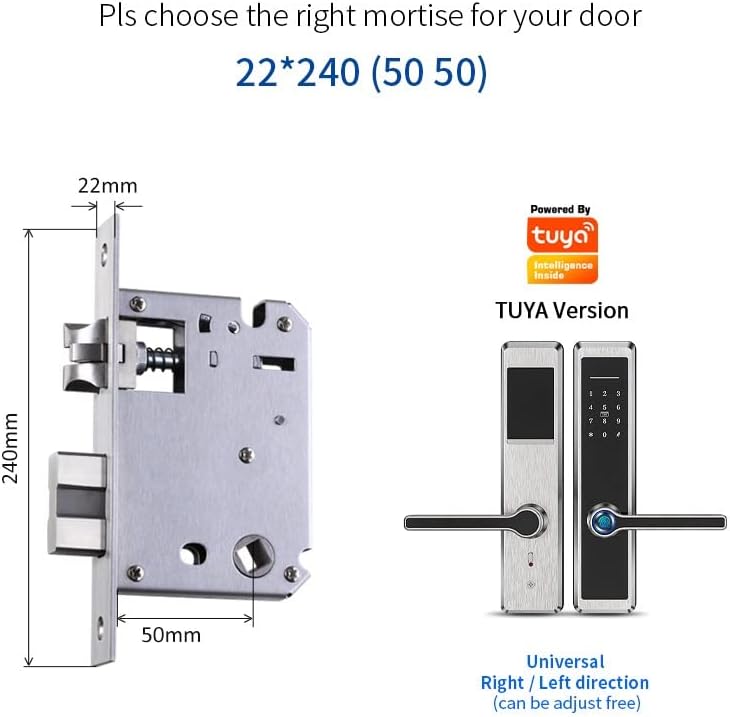
Figure 3: Diagram showing the dimensions of the 22*240 (50 50) mortise, crucial for selecting the correct mortise for your door.

Figure 4: The smart lock supports both double mortise (5050) and single latch (50/60/70) installations, allowing it to replace most old mechanical locks.
2. Mortise Selection
The lock supports both 5050 double mortise and 50/60/70 single latch configurations. Choose the appropriate mortise based on your door's existing setup or new installation requirements.

Figure 5: Close-up view of the 5050 Mortise and the 50/60/70 Single Latch options, illustrating the different locking mechanisms.
3. Installation Steps
- Prepare the Door: Ensure the door frame and existing holes are clean and properly sized for the chosen mortise. Refer to Figure 3 for mortise dimensions.
- Install the Mortise: Insert the mortise into the door edge and secure it with screws.
- Install Spindle and Pillars: Insert the spindle through the mortise and attach the mounting pillars to the exterior panel.
- Connect Cables: Carefully route the cable from the exterior panel through the door and connect it to the interior panel.
- Mount Panels: Secure the exterior and interior panels to the door using the provided screws. Ensure the lock is aligned and operates smoothly.
- Install Battery Box: Open the battery compartment on the interior panel and insert the required batteries.
- Test Functionality: After installation, test all unlocking methods (fingerprint, password, card, key) to ensure proper operation.
Operating Instructions
1. Initial Setup and App Pairing (Tuya App)
- Download the "Tuya Smart" or "Smart Life" app from your mobile app store.
- Register an account and log in.
- Add Device: Follow the in-app instructions to add your smart lock. This typically involves putting the lock into pairing mode (refer to lock's specific instructions for pairing mode activation, usually by pressing a button on the interior panel).
- Configure Settings: Once paired, you can manage users, add fingerprints, set passwords, register RFID cards, and view access logs through the app.
2. Unlocking Methods
- Fingerprint Unlock:

Place your registered finger on the FPC fingerprint reader located on the handle. The lock will unlock if the fingerprint is recognized. Ensure your finger covers the sensor completely.
- Password Unlock:

Enter your registered password on the touch keypad. The lock supports virtual passwords to prevent peeping, allowing you to enter random numbers before or after your actual password. Press '#' to confirm.
- RFID Card Unlock:

Tap your registered RFID card on the card sensing area of the lock. The lock will unlock upon successful recognition.
- Mechanical Key Unlock:

In case of emergency or battery depletion, insert the mechanical key into the keyhole and turn to unlock manually. This method also shows the Type-C USB port for emergency power supply.
3. Locking the Door
The lock typically auto-locks after a few seconds of closing the door. You can also manually lock it from the inside by pressing the electronic lock button or from the outside by lifting the handle (if applicable) or waiting for auto-lock.
Maintenance
- Battery Replacement: Replace batteries when the low battery warning is indicated. Use high-quality alkaline batteries.
- Cleaning: Wipe the lock surface with a soft, dry cloth. Avoid using abrasive cleaners or solvents that may damage the finish or electronic components.
- Fingerprint Sensor: Keep the fingerprint sensor clean and dry for optimal performance.
- Mechanical Parts: Periodically check screws and mechanical parts for looseness and tighten if necessary. Do not lubricate the internal locking mechanism unless specified by the manufacturer.
Troubleshooting
| Problem | Possible Cause | Solution |
|---|---|---|
| Lock not responding | Dead batteries; System error. | Replace batteries. Use emergency power supply via Type-C USB. Restart the lock by removing and reinserting batteries. |
| Fingerprint not recognized | Finger wet/dirty; Sensor dirty; Fingerprint not properly registered. | Ensure finger and sensor are clean and dry. Try different angle/pressure. Re-register fingerprint if issue persists. |
| Password not working | Incorrect password; Keypad malfunction. | Verify password. Ensure correct sequence and confirmation key (#). Clean keypad. |
| Lock not pairing with app | Bluetooth/Wi-Fi issue; Lock not in pairing mode; App error. | Ensure Bluetooth/Wi-Fi is on. Put lock in pairing mode. Restart app/phone. Check app permissions. |
Specifications
- Model: vv1/48138
- Brand: edjfbdehvdchvdeibjfg
- Material: #304 Stainless Steel
- Unlocking Methods: Fingerprint, Password, RFID Card, Mechanical Key, Tuya App
- Fingerprint Sensor: FPC Fingerprint Reader
- Motor: Mabuchi Micro Motor
- Emergency Power: Type-C USB Port
- Mortise Compatibility: 5050 Double Mortise, 50/60/70 Single Latch
- Connectivity: Tuya App (Bluetooth/Wi-Fi dependent on specific model variant)
Warranty and Support
For warranty information and technical support, please contact the manufacturer or your point of purchase. Keep your purchase receipt as proof of purchase.
Manufacturer: edjfbdehvdchvdeibjfg
Date First Available: April 19, 2024
For further assistance, please visit the official product support page or contact customer service via the details provided with your product packaging.
Ask a question about this manual
Ask about setup, troubleshooting, compatibility, parts, safety, or missing instructions. Manuals+ will review the question and use this page’s manual context to help answer it.