
1. Introduction
This manual provides instructions for the cjc 4-in-1 Wireless Charging Station. This device integrates multiple functions into a single unit, including wireless charging, a digital alarm clock, an ambient temperature display, and an adjustable night light. Please read this manual thoroughly before use to ensure proper operation and to maximize the lifespan of your device.

Image 1.1: Front view of the cjc 4-in-1 Wireless Charging Station, displaying the time and temperature.
2. Package Contents
Verify that all items are present in the package:
- 1 x cjc 4-in-1 Wireless Charging Station
- 1 x USB Type-C Charge Cable
- 1 x User Manual (this document)
If any items are missing or damaged, please contact customer support.
3. Product Overview
Familiarize yourself with the various components and controls of your charging station.
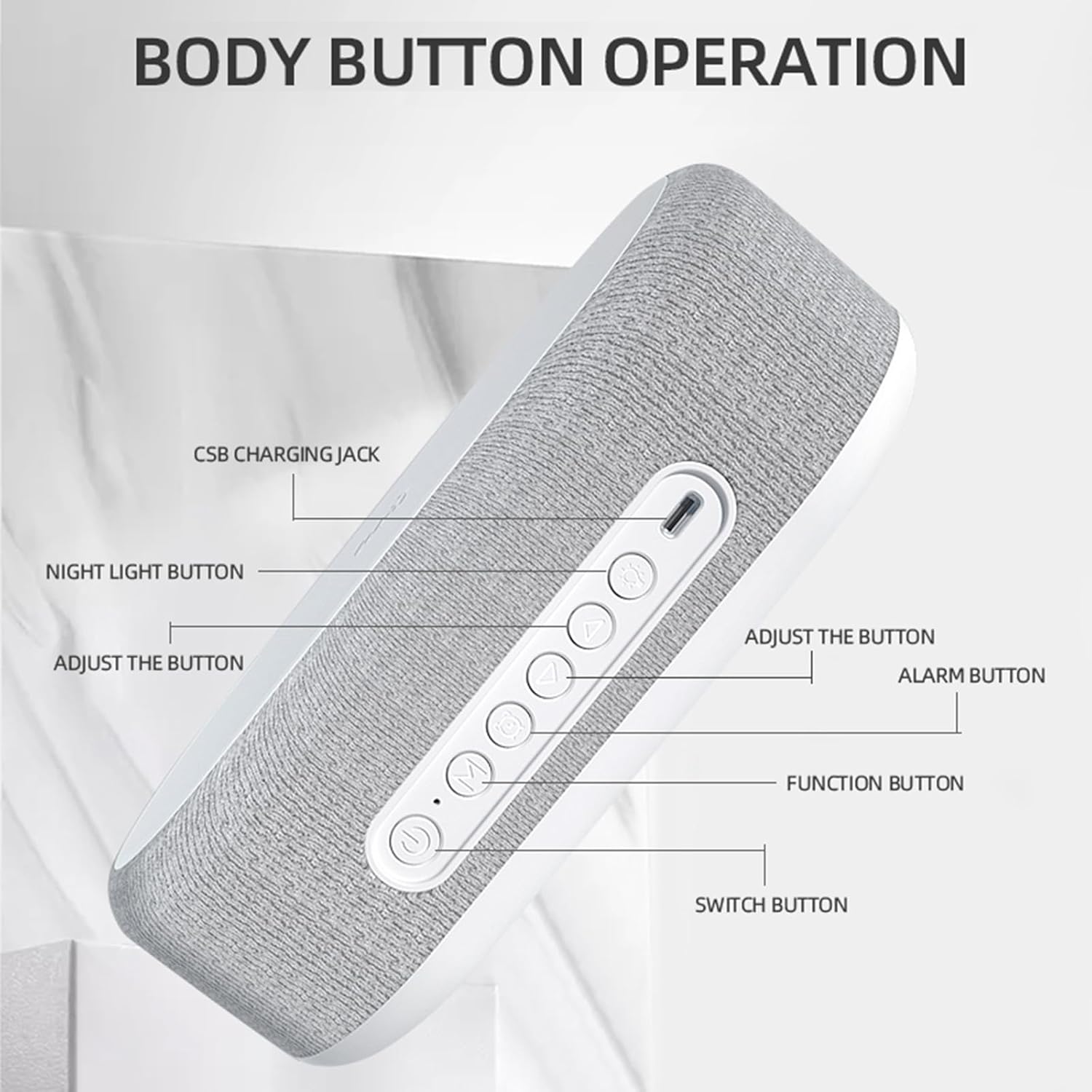
Image 3.1: Side view illustrating the button layout and charging port.
- CSB Charging Jack (USB Type-C Input): Connects the power cable.
- Night Light Button: Controls the night light function.
- Adjust Buttons (Up/Down): Used for setting time, alarm, and other parameters.
- Alarm Button: Activates and sets the alarm.
- Function Button: Cycles through different modes or settings.
- Switch Button (Power On/Off): Turns the device on or off.
- Wireless Charging Pad: Top surface for wireless charging compatible devices.
- LED Display: Shows time, temperature, and alarm status.
4. Setup
- Connect Power: Insert the provided USB Type-C charge cable into the CSB Charging Jack on the back of the device. Connect the other end of the cable to a compatible power adapter (QC 3.0, 9V/3A recommended for optimal performance, not included).
- Power On: Press the Switch Button to turn on the device. The LED display will illuminate.
- Initial Time Setting:
- Press the Function Button to enter time setting mode. The hour digits will flash.
- Use the Adjust Buttons (Up/Down) to set the correct hour.
- Press the Function Button again to switch to minute setting. The minute digits will flash.
- Use the Adjust Buttons (Up/Down) to set the correct minutes.
- Press the Function Button a third time to confirm and exit time setting mode.
5. Operating Instructions
5.1 Wireless Charging
The top surface of the device functions as a wireless charging pad for Qi-compatible devices.

Image 5.1: Placing a device on the wireless charging pad.
- Ensure the charging station is powered on.
- Place your Qi-compatible smartphone or other device directly onto the center of the wireless charging pad.
- The device will automatically begin charging. A charging indicator (if available on your device) or a subtle light on the charging station may confirm charging.
- The intelligent charging feature will automatically cut off power when your device reaches 100% battery to protect battery health.
Note: For optimal fast charging (up to 15W), use a QC 3.0 (9V/3A) power adapter. Charging efficiency is approximately 75%.

Image 5.2: Intelligent protection feature for safe charging.
5.2 Setting the Digital Alarm Clock
The integrated digital alarm clock helps you manage your schedule.

Image 5.3: The alarm clock function in a bedroom setting.
- Set Alarm Time:
- Press the Alarm Button. The alarm time digits will flash.
- Use the Adjust Buttons (Up/Down) to set the desired alarm hour.
- Press the Alarm Button again to switch to minute setting.
- Use the Adjust Buttons (Up/Down) to set the desired alarm minutes.
- Press the Alarm Button a third time to confirm the alarm time.
- Activate/Deactivate Alarm: After setting the alarm time, press the Alarm Button briefly to toggle the alarm on or off. An alarm icon will appear on the display when activated.
- Snooze Function: When the alarm sounds, press any button (except the Power button) to activate snooze. The alarm will sound again after a short interval.
- Stop Alarm: To stop the alarm completely, press and hold the Alarm Button until the alarm icon disappears from the display.
5.3 Adjusting the Night Light
The device features a night light with three adjustable brightness levels.
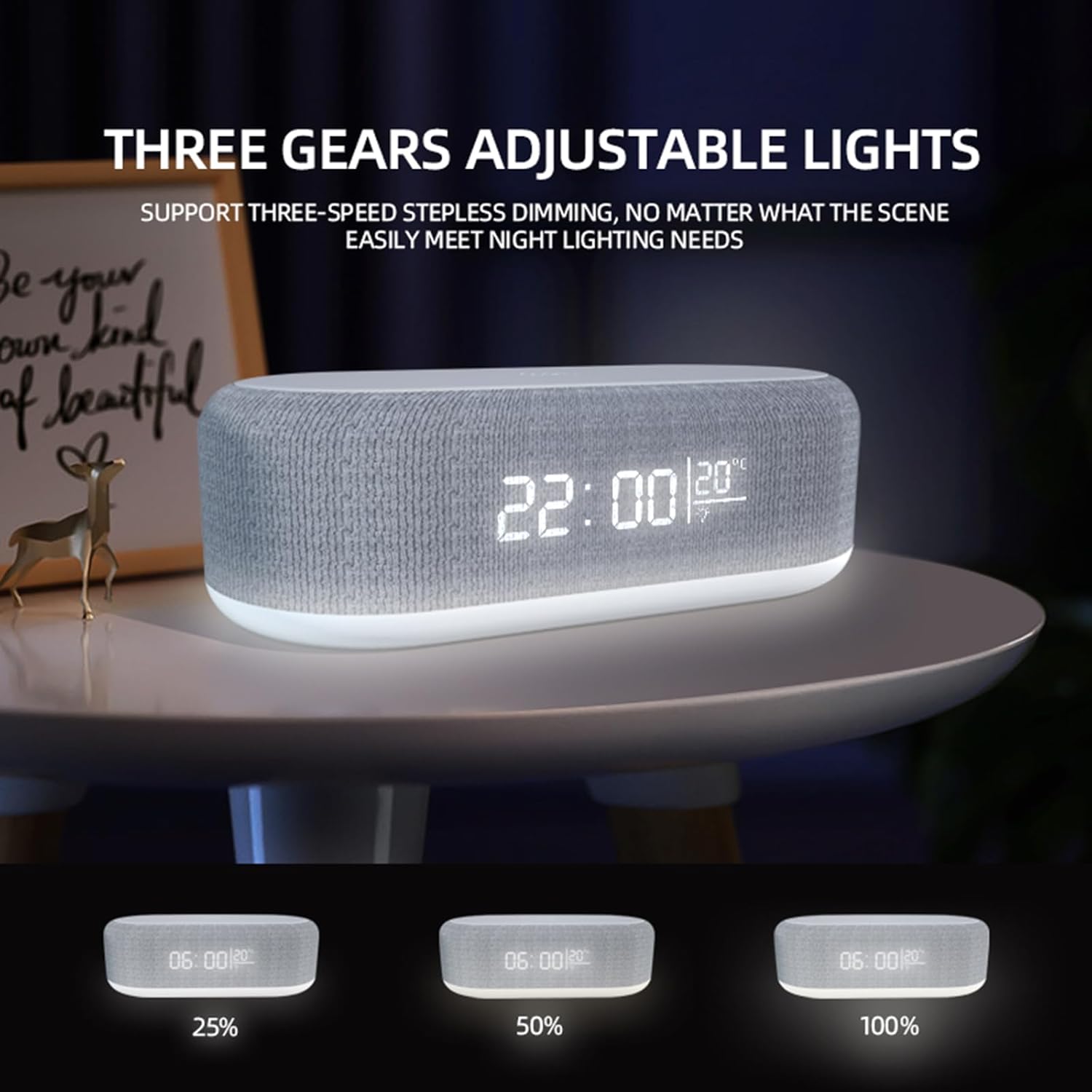
Image 5.4: Night light with three adjustable brightness levels.
- Press the Night Light Button to turn on the light at its lowest brightness (25%).
- Press the Night Light Button again to cycle to the next brightness level (50%).
- Press the Night Light Button a third time for the brightest level (100%).
- Press the Night Light Button a fourth time to turn off the night light.
5.4 Reading the Temperature Display
The device continuously displays the ambient room temperature.
- The temperature is shown on the LED display, typically next to the time.
- The unit of temperature (Celsius or Fahrenheit) may be switchable via the Function Button or a combination of buttons. Refer to the display for the current unit.

Image 5.5: Clear LED display showing time and temperature.
6. Maintenance
- Cleaning: Disconnect the power before cleaning. Use a soft, dry cloth to wipe the surface of the device. Do not use abrasive cleaners, solvents, or immerse the device in water.
- Storage: When not in use for extended periods, store the device in a cool, dry place away from direct sunlight and extreme temperatures.
- Avoid Obstructions: Ensure the wireless charging pad is free of metal objects, cards with magnetic strips, or thick cases that could interfere with charging.
7. Troubleshooting
| Problem | Possible Cause | Solution |
|---|---|---|
| Device does not power on. | No power connection or faulty cable/adapter. | Ensure the USB Type-C cable is securely connected to both the device and a working power adapter. Try a different cable or adapter. |
| Wireless charging is slow or not working. | Device not properly aligned; foreign objects; incompatible case; insufficient power adapter. |
|
| Alarm does not sound. | Alarm not activated or set incorrectly. | Verify the alarm time is set correctly and the alarm icon is visible on the display. |
| Night light is not working. | Not activated. | Press the Night Light Button to cycle through brightness levels and turn it on. |
8. Specifications
| Brand | cjc |
| Model | 4-in-1 Wireless Charging Station |
| Color | White |
| Material | ABS |
| Product Dimensions | 7.87 x 9.75 x 2.5 inches (20 x 24.76 x 6.35 cm) |
| Weight | 0.74 lb (0.33 kg) |
| Input | 5V/3A, 9V/3A (USB Type-C) |
| Recommended Power Adapter | QC 3.0, 9V/3A (not included) |
| Wireless Charging Output | 15W (Max) |
| Charging Efficiency | ≥ 75% |
| Transmission Distance | ≤ 5mm |
| Special Features | Automatic Off (overcharge protection), Fast Charging, Digital Alarm Clock, Temperature Display, Adjustable Night Light |

Image 8.1: Product dimensions.
9. Safety Information
- Do not disassemble, repair, or modify the product.
- Keep the device away from water, moisture, and high temperatures.
- Avoid dropping or subjecting the device to strong impacts.
- Do not place metal objects or magnetic cards on the wireless charging pad during operation, as this may cause overheating or damage.
- Use only the specified input voltage and current. Using an incompatible power adapter may damage the device or pose a safety risk.
- Keep out of reach of children.
10. Warranty and Support
This product is covered by a standard manufacturer's warranty. For specific warranty details, please refer to the documentation provided at the time of purchase or contact your retailer.
For technical support, troubleshooting assistance, or inquiries regarding your cjc 4-in-1 Wireless Charging Station, please contact cjc customer service through the retailer's platform or the official brand website.
You can visit the cjc Store for more information: cjc Store on Amazon