
1. Introduction and Overview
Thank you for choosing the aosu 5MP Outdoor Security Camera, Model C5E2CH11. This advanced security camera is designed to provide comprehensive surveillance for your outdoor spaces. It features 5-megapixel high-resolution video, 24/7 continuous recording, intelligent auto-tracking, and precise human, pet, and vehicle detection. With its full-color night vision, 360-degree panoramic view, IP65 waterproof rating, and 2.4GHz WiFi connectivity, the C5E2CH11 offers reliable and smart protection. This manual will guide you through the setup, operation, and maintenance of your new security camera.
2. Product Features
2.1 High-Resolution Imaging with Enhanced Night Vision
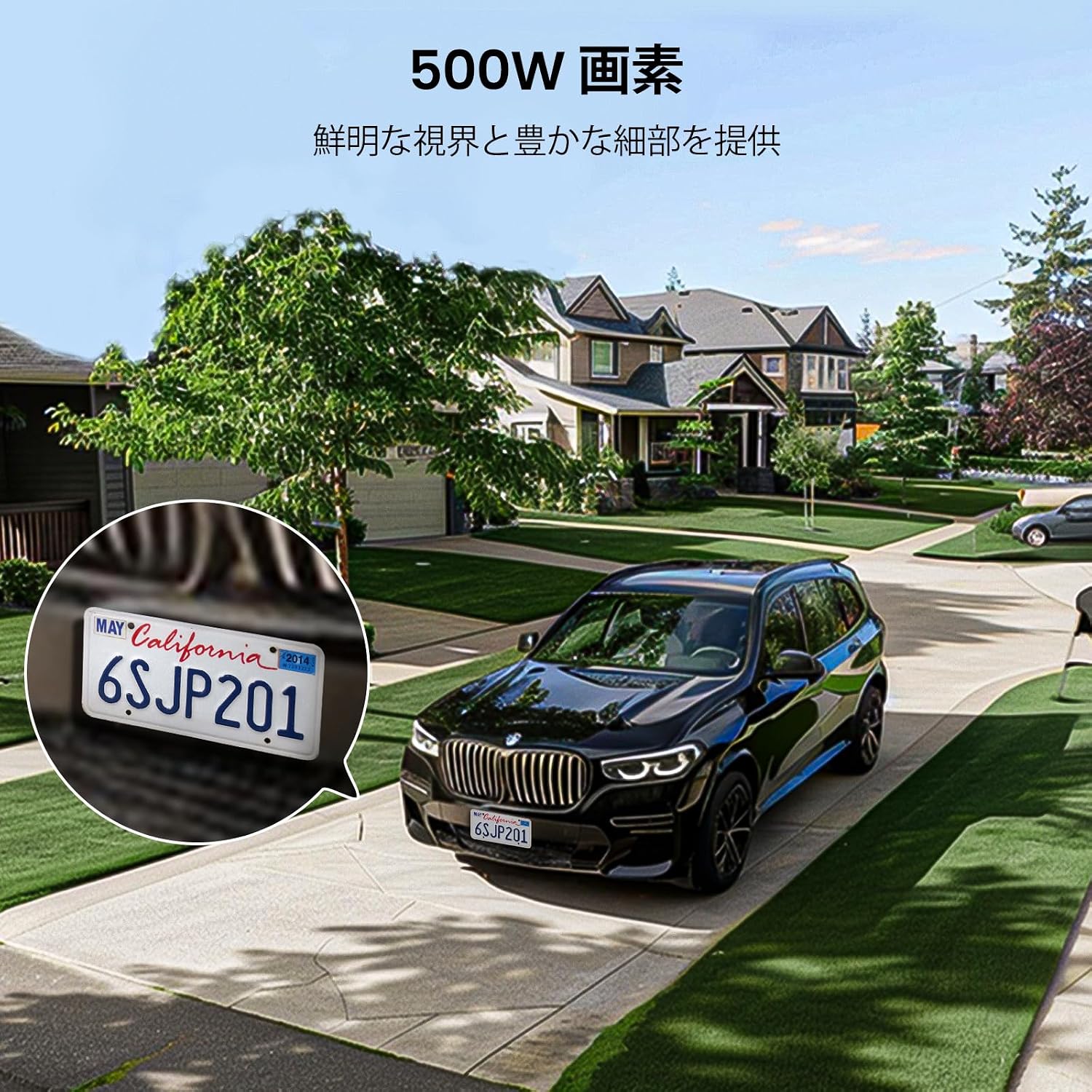
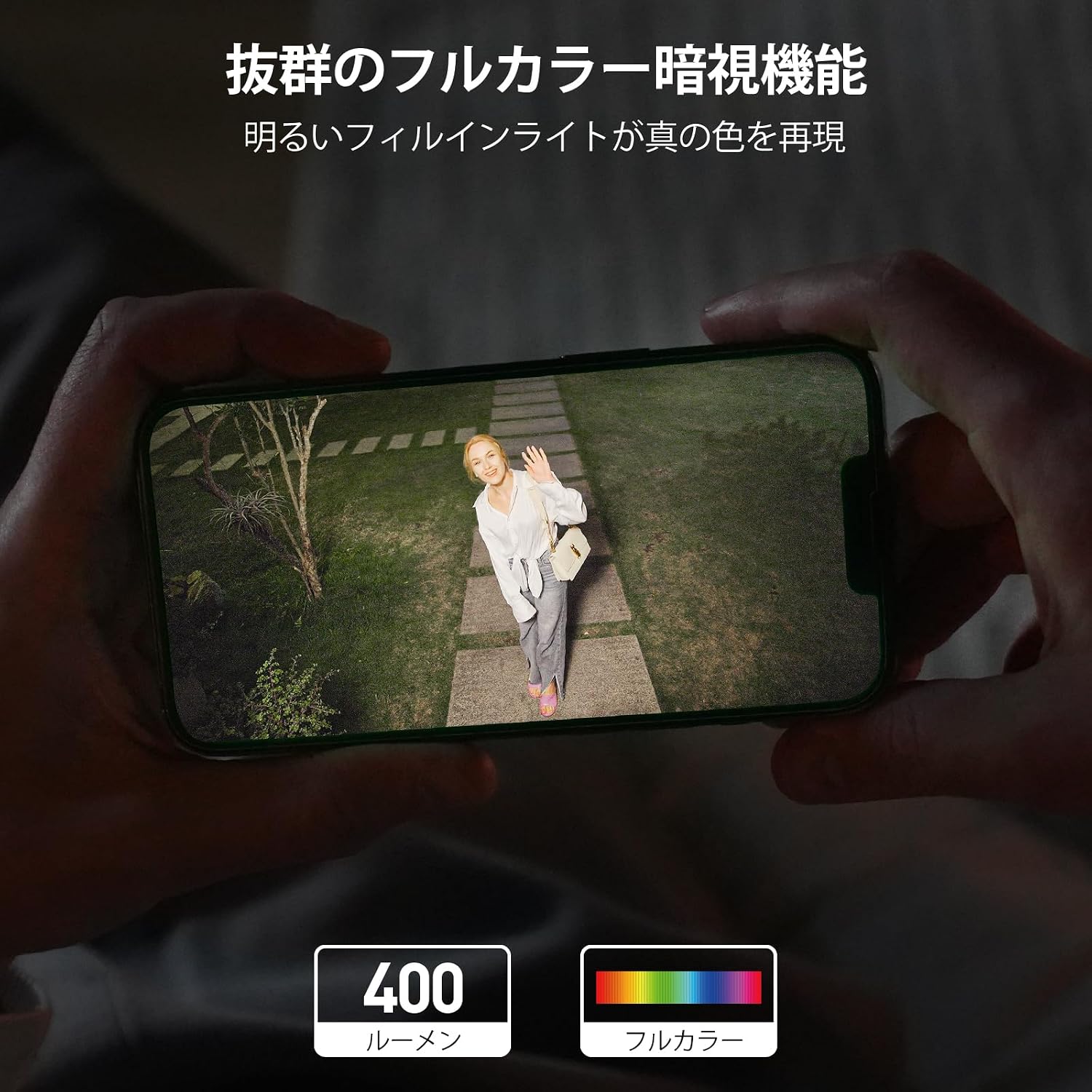
The camera features a 5-megapixel sensor and high-transparency optics, providing ultra-high resolution for clear and detailed images with accurate colors. Equipped with a full LED light strip, it delivers 400 lumens of brightness, extending the illuminated area and enabling full-color night vision that appears as bright as daytime.
2.2 Continuous Recording, Automatic Patrol, and Weatherproof Design
This Wi-Fi security camera operates with a single power cable, simplifying installation. It supports 24-hour continuous recording with stable signal transmission. The camera can be set to automatically patrol 360 degrees hourly for a week, monitoring all surrounding changes. Its IP65 waterproof rating ensures reliable outdoor performance.
2.3 Intelligent Human Detection and 360-Degree Auto-Tracking
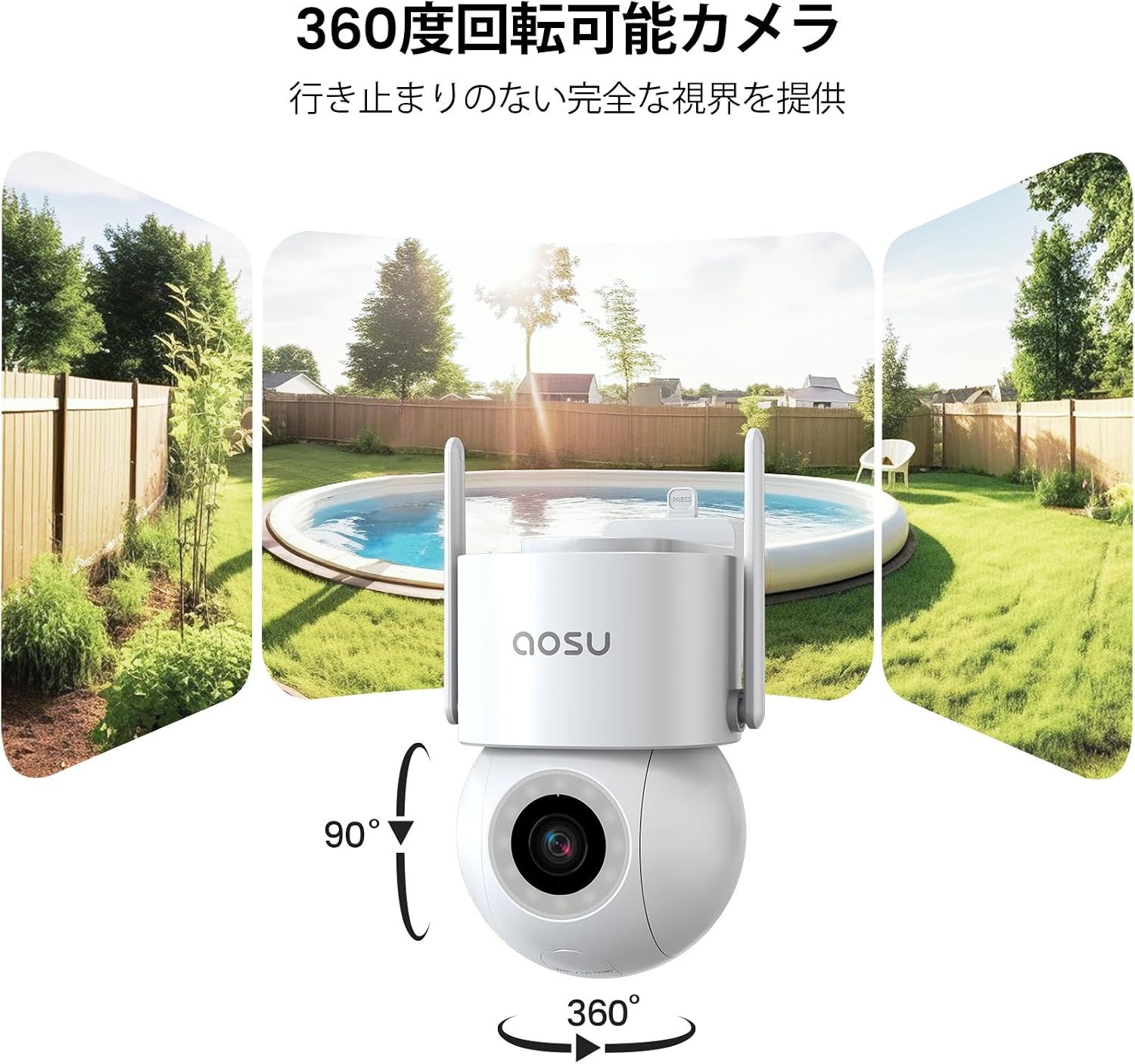
The camera automatically detects and tracks human subjects as they approach, continuing until they leave the monitored area. With 360-degree horizontal and 90-degree vertical rotation, it eliminates blind spots, ensuring complete event capture. Manual rotation and angle adjustment are also available via the app.
2.4 Audible and Visual Alarms with Instant Notifications
The security camera offers multiple deterrents against unauthorized access. During active protection periods, if an intruder is detected, the camera activates a bright light and an audible alarm. Simultaneously, it sends immediate notifications to your smartphone app and saves the video footage as evidence.


2.5 Flexible Recording Storage and Dedicated App Support
Manage your camera and view recordings using the dedicated "aosu" app. Videos are stored chronologically for easy searching and playback. Storage options include cloud storage and local microSD card storage (up to 128GB, sold separately). For any inquiries before or during use, please contact customer support via Amazon's "Order History" -> "Purchase History" -> "Question" section. Support is available weekdays from 10:30 AM to 7:30 PM JST, with responses typically within one business day.
3. Setup Guide
Follow these steps to set up your aosu 5MP Outdoor Security Camera. Ensure you have downloaded the "aosu" app and created an account before proceeding.
- Unboxing: Carefully remove all components from the packaging. Verify that all included accessories (screws, expansion pipes, mounting sheet, power adapter, manual) are present.
- Power On: Connect the camera to a power source using the provided power adapter. The camera will perform a self-test, indicated by its lights and automatic rotation. This is normal.
- App Installation: Download the "aosu" app from your smartphone's app store (iOS or Android). Register for an account if you haven't already.
- Add Device: Open the aosu app and follow the on-screen instructions to add a new device. You will typically scan a QR code on the camera or in the app to initiate pairing.
- WiFi Connection: Connect the camera to your 2.4GHz WiFi network. Ensure your smartphone is also connected to the same 2.4GHz network during setup.
- Mounting: Choose a suitable outdoor location for installation. Use the mounting sheet to mark drill holes, then secure the camera using the screws and expansion pipes. Ensure the camera has a clear field of view and is within WiFi range.
Setup Videos:
4. Operating Instructions
The aosu security camera is primarily controlled via the dedicated "aosu" smartphone application. Ensure your camera is powered on and connected to your WiFi network.
4.1 Live View and Playback
- Open the aosu app and select your camera from the device list to access the live view.
- To review recorded footage, navigate to the playback section within the app. Videos are organized chronologically for easy access.
4.2 Pan, Tilt, and Zoom (PTZ) Control
- In the live view, use the on-screen controls to manually adjust the camera's horizontal (pan) and vertical (tilt) angles.
- The camera supports digital zoom. Pinch to zoom in or out on the live or recorded video.
- Set up automatic patrol routes within the app to have the camera periodically scan predefined areas.
4.3 Motion Detection and Alarms
- Configure motion detection sensitivity and detection zones in the app settings.
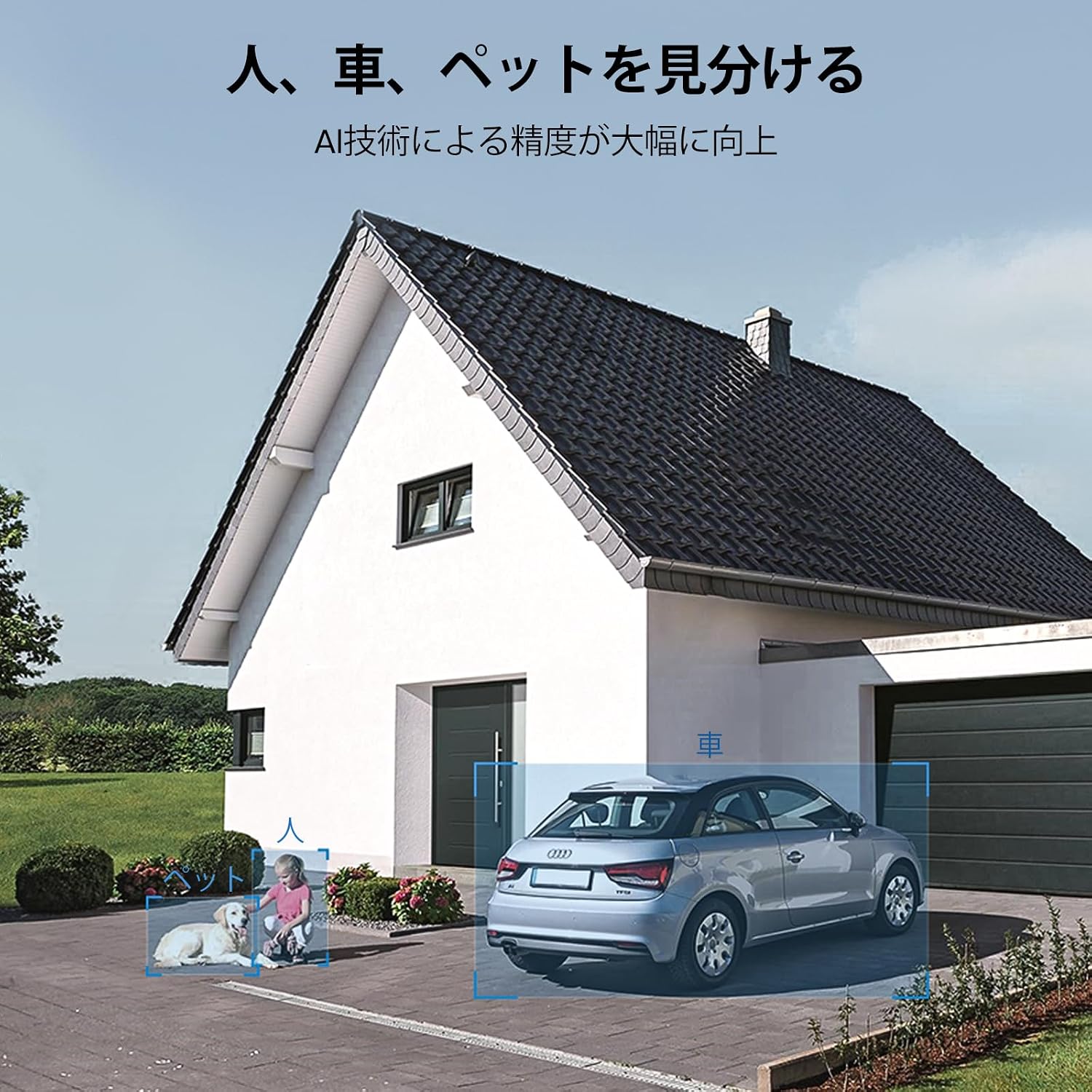
- Enable human, pet, and vehicle detection for more precise alerts.
- Customize alarm settings to activate the built-in light and siren when an intruder is detected.
- Ensure app notifications are enabled on your smartphone to receive instant alerts.
4.4 Two-Way Audio
- Use the microphone icon in the live view to speak through the camera's speaker.
- The camera's built-in microphone allows you to hear audio from the camera's location.
4.5 Storage Management
- Access cloud storage options and manage your subscription through the aosu app.
- If using a microSD card (up to 128GB, sold separately), insert it into the designated slot. The app will allow you to format and manage the card.
4.6 Family Sharing and Smart Home Integration
- Share camera access with family members through the app's sharing features.
- The camera is compatible with Alexa, allowing for voice control and integration into your smart home ecosystem.
5. Maintenance
To ensure optimal performance and longevity of your aosu security camera, follow these maintenance guidelines:
- Lens Cleaning: Regularly clean the camera lens with a soft, lint-free cloth to remove dust, dirt, or smudges that may affect image clarity. Avoid abrasive cleaners.
- Housing Cleaning: Wipe the camera's exterior housing with a damp cloth as needed to keep it clean.
- Connection Check: Periodically inspect the power cable and mounting hardware to ensure they are securely connected and free from damage.
- Software Updates: Keep the aosu app and camera firmware updated to the latest versions to benefit from new features, improvements, and security patches. Check the app regularly for update notifications.
- Environmental Considerations: While the camera is IP65 waterproof, avoid directing high-pressure water jets directly at the device. Ensure proper drainage around the installation area.
6. Troubleshooting
If you encounter issues with your aosu security camera, please refer to the following common troubleshooting steps:
- Camera Not Connecting to WiFi:
- Ensure your WiFi network is 2.4GHz. The camera does not support 5GHz networks.
- Check the WiFi signal strength at the camera's location. Move the camera closer to the router if necessary.
- Verify that the WiFi password entered in the app is correct.
- Restart your router and the camera.
- Poor Image Quality:
- Clean the camera lens.
- Ensure there are no obstructions in the camera's field of view.
- Check your internet connection speed. A slow connection can affect live stream quality.
- Motion Detection Not Working:
- Verify that motion detection is enabled in the app settings.
- Adjust the detection sensitivity and detection zones.
- Ensure the camera's firmware is up to date.
- No Notifications:
- Check your smartphone's notification settings for the aosu app.
- Ensure the camera has an active internet connection.
- Verify that alarm settings are correctly configured in the app.
- MicroSD Card Not Recording/Recognized:
- Ensure the microSD card is inserted correctly.
- Format the microSD card through the app.
- Check if the microSD card is faulty or exceeds the maximum supported capacity (128GB).
Important Note: According to aosu statistics, only about 3% of all after-sales cases are due to hardware defects. The majority are software-related issues that can be resolved by adjusting software settings. If you are unable to resolve an issue, please contact customer support.
7. Specifications
| Feature | Specification |
|---|---|
| Recommended Use | Outdoor Security |
| Brand | aosu |
| Model Name | C5E2CH11 |
| Connectivity Technology | 2.4GHz WiFi Only |
| Special Features | PTZ Technology, Two-Way Audio, Night Vision |
| Indoor/Outdoor Use | Indoor, Outdoor |
| Compatible Devices | Smartphone |
| Power Source | Power Cord |
| Connection Protocol | Wi-Fi |
| Mounting Type | Wall Mount, Screw-in |
| Color | White |
| Outer Material | Plastic |
| Waterproof Type | Water Resistant (IP65) |
| Room Type | Office, Kids Room, Hallway, Classroom |
| Light Source Type | LED |
| Still Image Effective Resolution | 5 MP |
| Waterproof Rating | IP65 |
| Photo Sensor Resolution | 3 MP |
| Control Method | App |
| Wireless Type | Wi-Fi |
| Video Pixels | 5 MP |
| Field of View | 360 Degrees |
| Motor Type | Digital Zoom |
| Zoom Magnification (Digital) | 6x |
| Product Body Size | 13.4 x 16.8 x 19.8 cm |
| Number of Units | 1.00 Count |
| Manufacturer Name | aosu |
| Included Components | Screws and Expansion Pipes, Mounting Sheet, Instruction Manual, Security Camera Body, Power Adapter |
| Country of Origin | China |
| Special Purpose | Surveillance |
| UPC | 783970046079 |
| Voltage | 100 Volts |
| Batteries Required | No |
| Video Capture Format | MPEG-4 |
| Night Vision Range | 20 Meters |
| Night Vision | Color Night Vision |
| Number of Infrared LEDs | 4 |
| Internal Memory Type | microSD |
| Max Flash Memory Supported Size | 128 GB |
8. Warranty and Support
aosu provides dedicated customer support to ensure your satisfaction with the product.
8.1 Warranty Information
The aosu 5MP Outdoor Security Camera comes with a one-year warranty from the date of purchase. This warranty covers hardware issues that are confirmed by our online customer service as irreparable through software adjustments.
8.2 Customer Support
For any questions or issues regarding your camera, whether before or during use, please contact aosu customer support through Amazon:
- Navigate to your "Order History" on Amazon.
- Select the relevant purchase from your "Purchase History".
- Click on the "Question" option to send a message to our support team.
Support Hours: Weekdays, 10:30 AM to 7:30 PM (Japan Standard Time).
We aim to respond to all inquiries within one business day.