Introduction
This manual provides detailed instructions for the installation, operation, and maintenance of your APHQUA 10.26'' Portable Carplay & Android Auto Screen. Please read this manual thoroughly before using the device to ensure proper functionality and safety.
Package Contents
Please verify that all items are present in the package:
- APHQUA 10.26'' Portable Carplay & Android Auto Screen
- Suction Cup Mount
- Self-Adhesive Bracket
- Car Charger (with USB charging port)
- 3.5mm Audio Cable (AUX cable)
- User Manual
- Suction Cup Gasket
- Reversing Camera (if included with your specific model)

Setup Guide
Mounting Options
The device comes with two primary mounting options for versatile placement in your vehicle:
- Suction Cup Mount: Ideal for attaching to your windshield or a smooth dashboard surface. This mount offers 360-degree rotation for optimal viewing angles.
- Self-Adhesive Bracket: Provides a secure, semi-permanent attachment to your dashboard. Ensure the surface is clean and dry before applying.

Power Connection
Connect the device to your vehicle's cigarette lighter socket using the provided car charger. The car charger also includes a USB charging port, allowing you to charge your mobile phone simultaneously.
Wireless CarPlay & Android Auto Connection
To connect your smartphone wirelessly:
- Ensure Bluetooth and Wi-Fi are enabled on your smartphone.
- On the APHQUA screen, navigate to the CarPlay or Android Auto interface.
- Search for the device's Bluetooth name (e.g., "Carkit-xxxx") on your phone and pair.
- Confirm the pairing code on both devices.
- Allow access to contacts and notifications if prompted.
- Once Bluetooth is connected, the device will automatically establish a Wi-Fi connection for CarPlay/Android Auto functionality.


Wired CarPlay Link
For a wired connection, use a high-quality USB data cable to connect your iPhone to the USB port on the APHQUA screen. Follow any prompts on your phone to confirm the connection. This method does not require Bluetooth or Wi-Fi connection to the car stereo.

Operating Instructions
Wireless CarPlay & Android Auto
Once connected, your smartphone's interface will be displayed on the APHQUA screen. You can access navigation, music, calls, messages, and other compatible apps directly from the screen. The touch screen is responsive, providing a seamless user experience.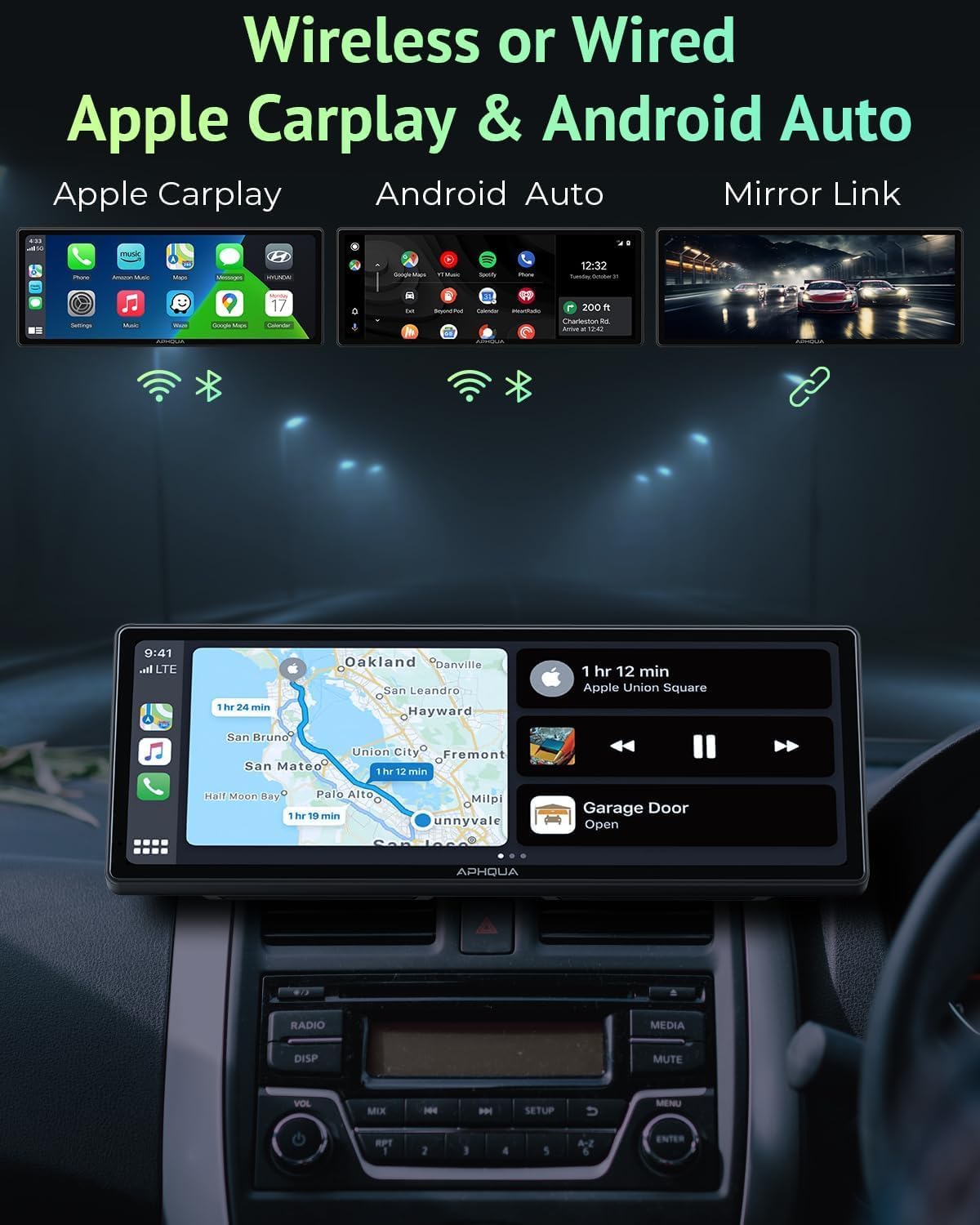
Mirror Link (iOS/Android)
The Mirror Link function allows you to cast your phone's screen directly to the APHQUA display, enabling full-screen playback of content like YouTube or TikTok. For iOS, this typically involves connecting to the device's Wi-Fi and using Screen Mirroring. For Android, a wired USB connection is often used.
Audio Output Modes
The APHQUA screen offers four ways to output audio to your car's sound system:
- Bluetooth Audio: Connect your phone to the APHQUA screen via Bluetooth, and the screen can then transmit audio wirelessly to your car's Bluetooth stereo system for high-quality, lossless sound.
- AUX Audio: Use the included 3.5mm AUX cable to connect the APHQUA screen directly to your car's AUX input for a direct audio connection.
- FM Transmitter: The device can transmit audio over an FM frequency. Tune your car's FM radio to the same frequency set on the APHQUA screen. Ensure the chosen frequency is not occupied by other radio stations.
- Built-in Speaker: The device has a high-quality built-in speaker for direct audio output, suitable for basic use without connecting to the car's speakers.


Voice Control (Siri & Google Assistant)
The APHQUA screen features a built-in microphone and supports external microphone connection (external microphone not included). You can use voice commands for hands-free operation, such as making calls, getting GPS navigation, or sending messages. Simply activate Siri or Google Assistant through the screen.
GPS Navigation
By connecting with your smartphone via CarPlay or Android Auto, the APHQUA screen provides real-time intelligent car navigation. The 10.26-inch ultra-clear screen displays routes clearly, and intelligent voice broadcasts guide you, eliminating the need for frequent map updates on the device itself.
Video Playback
Utilize Airplay (for iOS) or Android Cast (for Android) to play videos from your smartphone directly on the APHQUA screen. The high-resolution IPS touch screen provides a clear viewing experience, suitable for passengers during travel.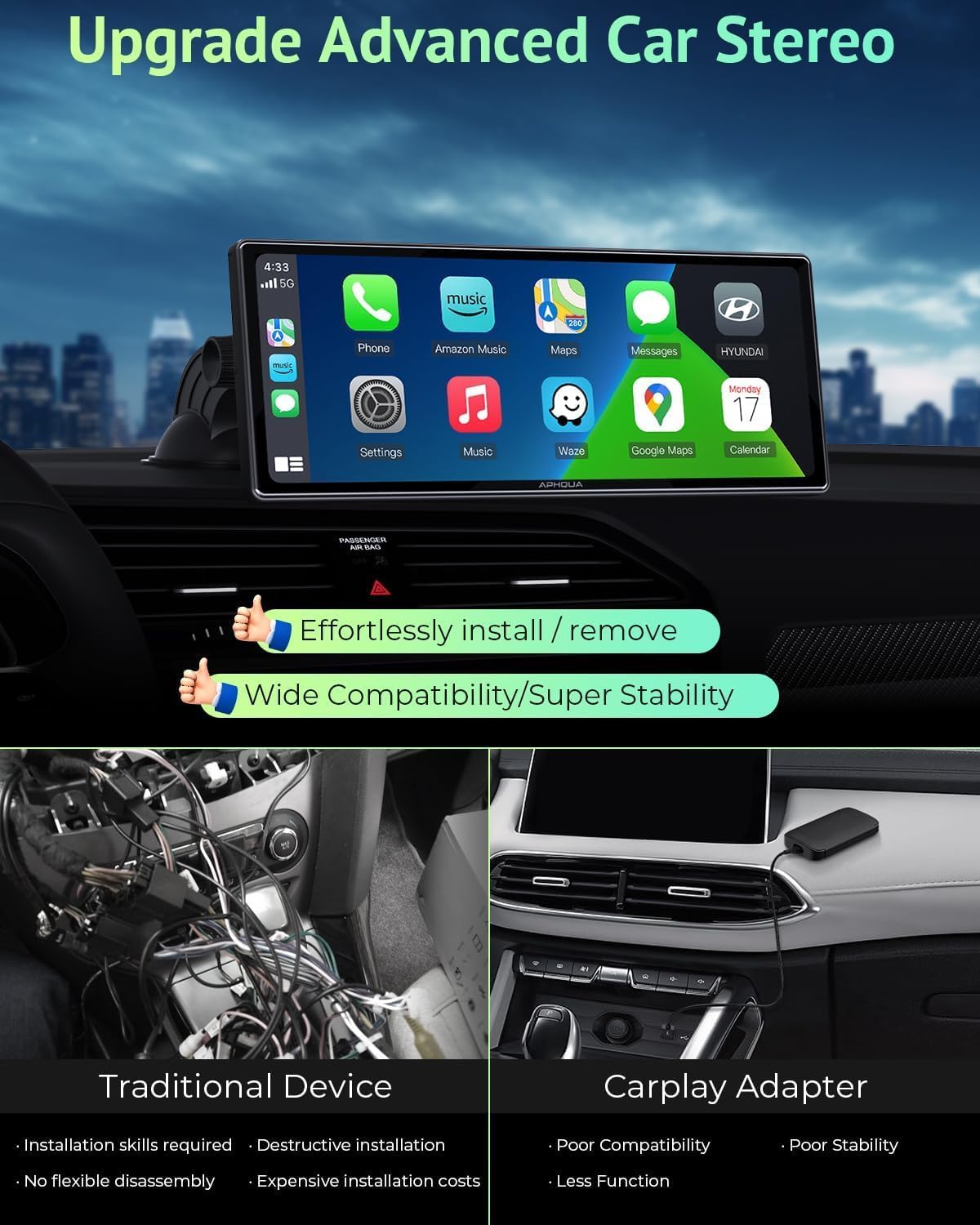
Maintenance
To ensure the longevity and optimal performance of your APHQUA screen, follow these maintenance guidelines:
- Cleaning: Use a soft, lint-free cloth to gently wipe the screen and body. For stubborn smudges, slightly dampen the cloth with water or a screen-safe cleaner. Avoid abrasive materials or harsh chemicals.
- Temperature: Avoid exposing the device to extreme temperatures, both hot and cold, for extended periods.
- Storage: When not in use, especially for long periods, store the device in a cool, dry place away from direct sunlight. The suction cup mount can be easily removed and stored.
- Cable Care: Handle all cables gently. Avoid sharp bends or kinks that could damage the internal wires.
Troubleshooting
If you encounter issues with your APHQUA screen, please refer to the following common problems and solutions:
- No Power / Device Not Turning On:
- Ensure the car charger is securely plugged into the cigarette lighter socket.
- Check if the cigarette lighter socket in your vehicle is functioning correctly (e.g., by testing with another device).
- Verify that the power cable is properly connected to the device. - Wireless CarPlay/Android Auto Not Connecting:
- Ensure Bluetooth and Wi-Fi are enabled on your phone.
- Restart both your phone and the APHQUA device.
- For iPhones updated to iOS 18.0.1, it may be necessary to restore the device to factory settings or restart the phone and reconnect to use CarPlay.
- Forget the device's Bluetooth connection on your phone and re-pair.
- Ensure no other devices are interfering with the Bluetooth or Wi-Fi connection. - Poor Call Quality / Cannot Hear or Be Heard:
- Ensure the built-in microphone is not obstructed.
- If using an external microphone (not included), ensure it is properly connected.
- Check your phone's audio settings to ensure output is directed to the APHQUA device.
- If using FM transmission for audio, try switching to AUX or Bluetooth audio output modes, as FM quality can vary. - Audio Static or Hum:
- This can occur with FM transmission. Try adjusting the FM frequency to an unoccupied channel.
- If using AUX, ensure the cable is fully inserted and not damaged.
- Check for electrical interference in your vehicle. - Bluetooth Connection Drops Randomly:
- Restart the APHQUA device and your phone.
- Ensure your phone is within close proximity to the device.
- Check for any conflicting Bluetooth devices in the vehicle. - Mounting Adhesive Not Holding:
- Ensure the dashboard surface is thoroughly cleaned and dry before applying the adhesive bracket.
- Apply firm pressure for an extended period during initial installation.
- Consider using the suction cup mount as an alternative, especially on textured dashboards. - Screen Brightness Too High/Low (No Auto-Adjustment):
- The device does not have an ambient light sensor for automatic brightness adjustment. Manual adjustment is required.
- To adjust brightness, you may need to exit CarPlay/Android Auto to access the device's main settings.
- For Android Auto, you can explore developer options for a 'Day/Night mode' setting, though its effectiveness may vary. - USB/MicroSD Media Not Supported:
- Ensure your USB drive or microSD card is formatted to FAT32. The device may not support other file systems like NTFS or exFAT.
Specifications
| Feature | Specification |
|---|---|
| Model Number | A3 |
| Screen Size | 10.26 inches |
| Display Resolution | HD 1600*600p (IPS Touch Screen) |
| Connectivity Technology | USB, Bluetooth, Wi-Fi |
| Compatible Devices | Smartphones (Apple CarPlay, Android Auto, Mirror Link) |
| Audio Output Modes | Bluetooth, AUX, FM Transmitter, Built-in Speaker |
| Voice Control | Siri, Google Assistant |
| Power Source | 5V 2A Cigarette Lighter Power |
| Item Weight | 1.99 pounds (approx. 0.91 kg) |
| Package Dimensions | 10.39 x 4.96 x 4.17 inches |
Warranty and Support
APHQUA is committed to providing high-quality products and customer satisfaction. Your product comes with:
- One-Year Return and Replacement: We offer a one-year return and replacement policy for accessories.
- 24-Hour Online Service: For any inquiries or support needs, our online service team is available 24 hours a day.
- Boot Logo Customization: As a professional manufacturer, APHQUA offers customization services for the start screen logos. You can send your preferred car logo or photo to customize the boot screen.
For technical support or warranty claims, please contact APHQUA customer service through the platform where you purchased the product.


