Introduction
This manual provides detailed instructions for the setup, operation, and maintenance of your KUYHRF Ergonomic Vertical Wireless Mouse. Designed for comfort and efficiency, this mouse features dual-mode connectivity, adjustable DPI settings, and a rechargeable battery to enhance your computing experience.
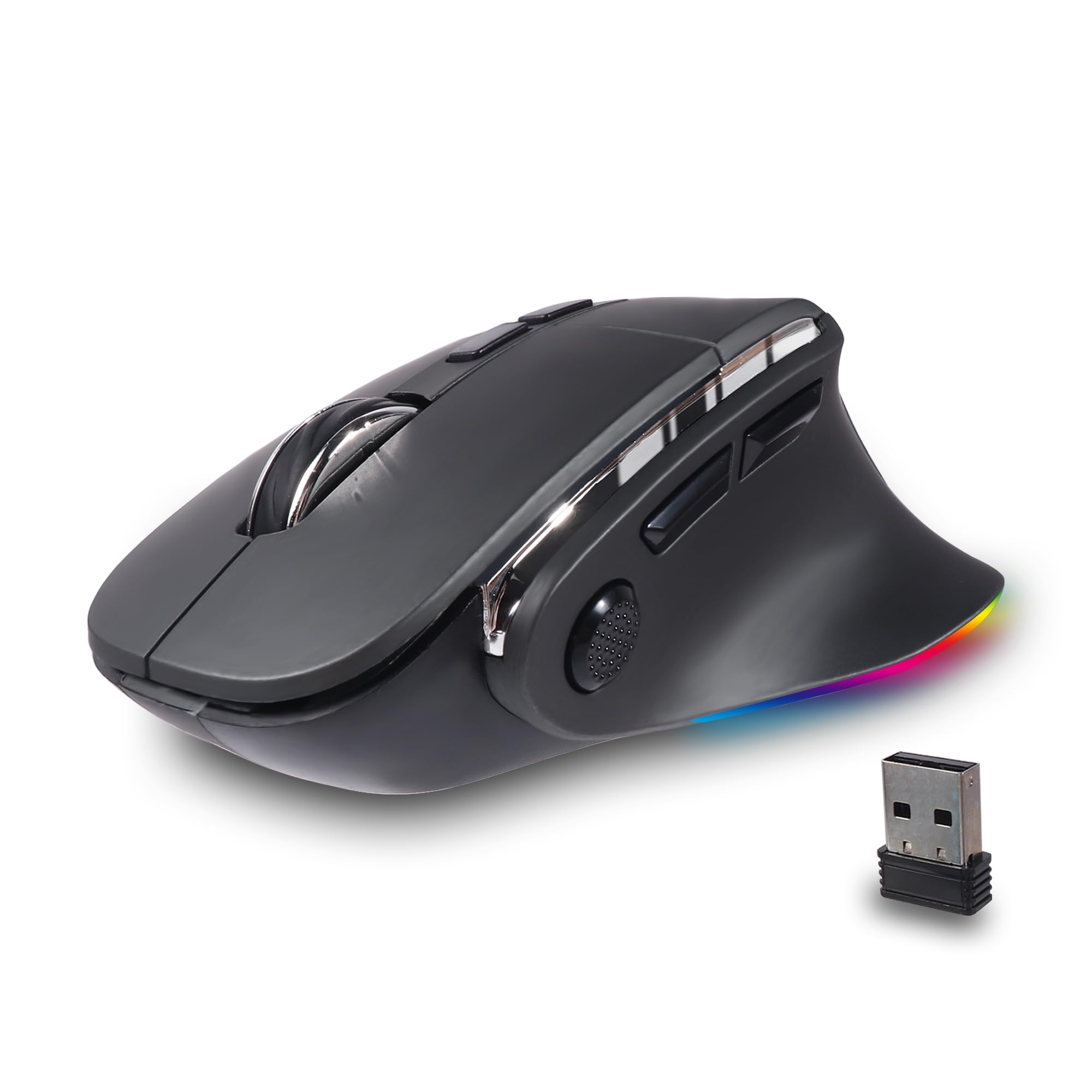
Image: The KUYHRF Ergonomic Vertical Wireless Mouse, showcasing its unique vertical design for improved wrist posture.
Product Features
- Ergonomic Design: Promotes a natural "handshake" wrist and arm position to reduce fatigue and discomfort during prolonged use.
- Dual-Mode Connectivity: Supports both Bluetooth (BT5.0/BT3.0) and 2.4GHz USB wireless connections for versatile compatibility.
- Adjustable DPI: Offers 1000, 1600, and 2400 DPI resolution settings for precise and smooth tracking on various surfaces.
- Rechargeable Battery: Equipped with a durable 500mAh lithium battery, easily rechargeable via the included Micro Type-C cable.
- Quiet Click: Designed for silent operation, minimizing disturbance in quiet environments.
- Multi-Color LED Breathing Light: Features 7 different LED colors that change randomly during use, creating a dynamic visual effect.
- 8 Buttons: Includes standard left/right click, scroll wheel, DPI button, forward/backward buttons, and a dedicated LED control button.
- Wide Compatibility: Compatible with Windows, Android, Mac OS, Linux, and other devices.

Image: Comparison illustrating the ergonomic advantage of the vertical mouse design over a traditional mouse, highlighting reduced wrist strain.
Setup
2.4GHz USB Connection
- Locate the USB receiver stored in the compartment on the bottom of the mouse.
- Plug the USB receiver into an available USB-A port on your computer.
- Slide the power switch on the bottom of the mouse to the "2.4G" position.
- The mouse should automatically connect to your computer.
Bluetooth Connection
- Ensure your device's Bluetooth is enabled.
- Slide the power switch on the bottom of the mouse to the "BT" position.
- On your device, search for Bluetooth devices and select "BT5.0 Mouse" or "BT3.0 Mouse" to pair.
- The mouse supports pairing with multiple Bluetooth devices. Use the mode switch button on the bottom to cycle between paired Bluetooth devices.

Image: Illustration of the mouse's dual-mode connectivity, showing connections to a laptop via USB and a tablet via Bluetooth, with an easy switch button.
Operating Instructions
Basic Functions
- Left Click: Standard selection and activation.
- Right Click: Accesses context menus.
- Scroll Wheel: Scrolls up and down documents or web pages. Pressing the scroll wheel acts as a middle click.
- Forward/Backward Buttons: Located on the side, these buttons allow for quick navigation in web browsers or file explorers.
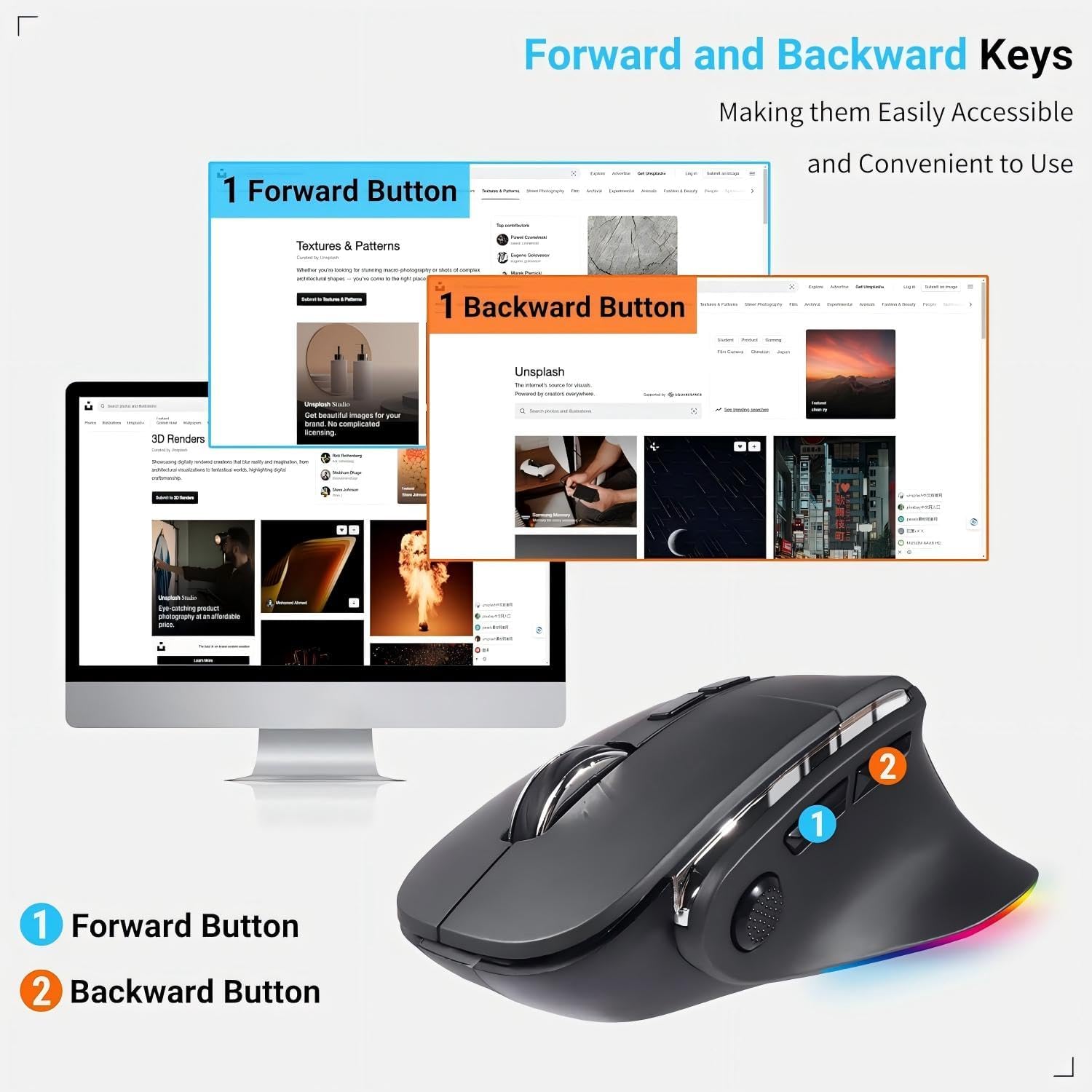
Image: The ergonomic mouse highlighting the conveniently placed Forward and Backward navigation buttons.
DPI Adjustment
The mouse features adjustable DPI (Dots Per Inch) settings to control cursor sensitivity. Press the DPI button (located near the scroll wheel) to cycle through the available settings: 1000 DPI, 1600 DPI, and 2400 DPI. Choose the setting that best suits your task and preference.

Image: Visual representation of the three adjustable DPI settings (1000, 1600, 2400) for customized cursor speed and precision.
LED Lighting Control
The mouse is equipped with a multi-color LED breathing light feature. The lights will cycle through 7 different colors randomly during use. To turn the LED lights on or off, press the dedicated LED control button (if available, otherwise this feature is automatic).
Charging
The KUYHRF Ergonomic Vertical Wireless Mouse has a built-in rechargeable 500mAh lithium battery. When the battery is low, the LED indicator may flash or the mouse performance may degrade. To charge the mouse:
- Connect the included Micro Type-C charging cable to the charging port on the front of the mouse.
- Plug the other end of the cable into a USB power source (e.g., computer USB port, USB wall adapter).
- The LED indicator will show charging status (e.g., solid light while charging, off when fully charged).
The mouse can be used while charging.

Image: The mouse connected to a charging cable, illustrating its rechargeable nature and 500mAh battery capacity.
Maintenance
- Cleaning: Use a soft, dry cloth to clean the mouse. For stubborn dirt, slightly dampen the cloth with water or a mild cleaning solution. Avoid harsh chemicals.
- Storage: When not in use for extended periods, store the mouse in a cool, dry place.
- Battery Care: To prolong battery life, avoid fully discharging the mouse frequently. Charge it when the low battery indicator appears.
- Avoid Drops: Protect the mouse from drops and impacts, which can damage internal components.
Troubleshooting
- Mouse not responding:
- Ensure the mouse is powered on and the correct connection mode (2.4G or BT) is selected.
- Check battery level and charge if necessary.
- For 2.4GHz mode, ensure the USB receiver is securely plugged into the computer. Try a different USB port.
- For Bluetooth mode, ensure Bluetooth is enabled on your device and the mouse is properly paired. Try re-pairing.
- Cursor movement is erratic or slow:
- Clean the optical sensor on the bottom of the mouse.
- Ensure you are using the mouse on a suitable surface (a mouse pad is recommended).
- Adjust the DPI setting to a higher value if the cursor is too slow.
- LED lights are not working:
- Press the dedicated LED control button to toggle the lights on/off.
- Ensure the mouse has sufficient battery charge.
Specifications
| Product Dimensions | 4.98 x 3.26 x 0.1 inches |
| Item Weight | 6.4 ounces |
| Connectivity Technology | Bluetooth (BT5.0/BT3.0), 2.4GHz USB |
| Movement Detection Technology | Optical |
| DPI Settings | 1000 / 1600 / 2400 |
| Battery | 500mAh Lithium Polymer (rechargeable) |
| Number of Buttons | 8 |
| Special Feature | Ergonomic Design, LED Breathing Light, Quiet Click |
Warranty and Support
For any questions, technical support, or warranty inquiries regarding your KUYHRF Ergonomic Vertical Wireless Mouse, please contact the manufacturer directly through the retailer's platform or the official KUYHRF website. Please retain your proof of purchase for warranty claims.