
1. Introduction
Thank you for choosing the BESDERSEC A8 Security Camera. This manual provides detailed instructions for the installation, operation, and maintenance of your new security camera system. The A8 camera offers advanced features such as 2K HD resolution, PTZ (Pan-Tilt-Zoom) capabilities, clear night vision, two-way audio, and smart detection, ensuring comprehensive home security.
This system is designed for outdoor use with an IP66 waterproof rating, making it suitable for various weather conditions. It supports 2.4GHz WiFi connectivity and is compatible with smartphones, tablets, and computers via the iCSee mobile application.

Image: Two BESDERSEC A8 security cameras, showing their dome shape, dual antennas, and lens array, ready for outdoor installation.
2. Package Contents
Please verify that all items are present in your package:
- 1 x BESDERSEC A8 Security Camera
- 1 x User Manual (this document)
- 1 x Installation Accessories Kit
- 1 x Power Supply (3m power cord)
3. Specifications
| Feature | Specification |
|---|---|
| Model | A8 |
| Mobile Application | iCSee |
| Indoor/Outdoor Usage | Outdoor |
| Material | ABS Plastic |
| Field of View (PTZ) | 355° Horizontal / 90° Vertical |
| Video Resolution | 2K HD (2MP Effective Still Resolution) |
| Video Encoding | H.265/25fps |
| Night Vision Range | 20-30m (6pcs 850nm infrared LED lights) |
| Operating Temperature | -10°C to 55°C (14°F to 131°F) |
| Power Input | 100-240V AC |
| Continuous Voltage | 12V/0.5A |
| Power Consumption | 6W |
| Alarm Mode | APP Notification, White Light, Sound Alarm |
| Connectivity | 2.4GHz WiFi (5GHz not supported), Ethernet, RTSP, ONVIF |
| Storage Options | SD Card (up to 128GB), Cloud Storage (subscription) |
| Water Resistance | IP66 Waterproof |
| Special Features | Auto Tracking, Human Detection, Two-Way Audio, Alexa Integration |

Image: The A8 camera is designed with IP66 waterproof material, protecting it from rain, snow, and dust across a wide temperature range.
4. Setup
4.1 Physical Installation
- Choose a Location: Select an outdoor location that provides optimal viewing coverage and is within range of your 2.4GHz WiFi network. Ensure the camera is positioned to capture desired areas without obstruction.
- Mount the Camera: Use the provided installation accessories kit to securely mount the camera to a wall or ceiling. Ensure the mounting surface is stable and can support the camera's weight.
- Connect Power: Connect the provided power supply to the camera and plug it into a suitable power outlet. The camera will power on and initiate its startup sequence.
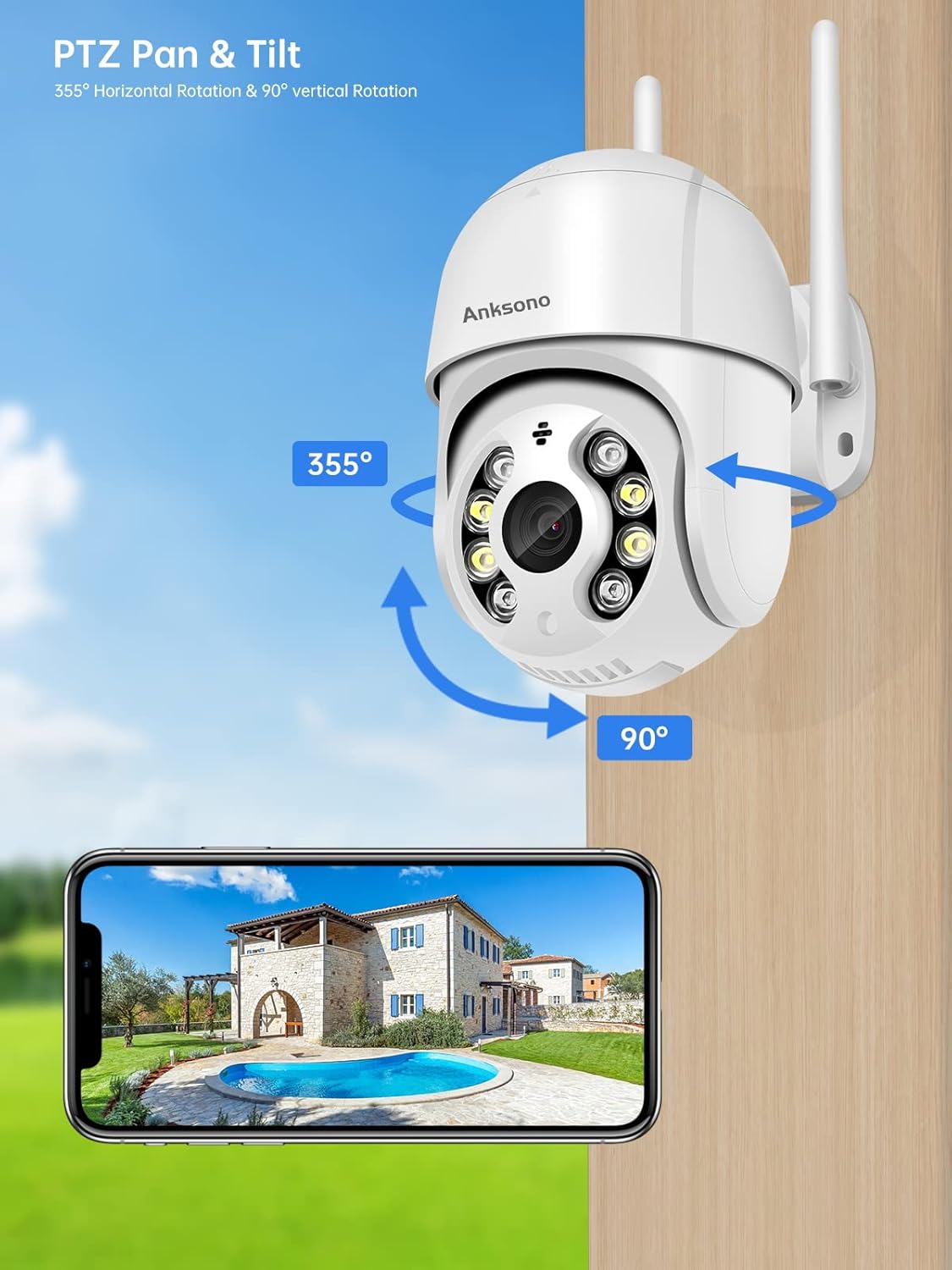
Image: The camera's PTZ functionality allows for 355° horizontal and 90° vertical rotation, providing extensive coverage of your property.
4.2 Network Connection (iCSee App)
The A8 camera primarily uses the iCSee mobile application for setup and control. Please note that this camera supports 2.4GHz WiFi only; 5GHz networks are not supported.
- Download iCSee App: Search for "iCSee" in your smartphone's app store (Google Play Store for Android or Apple App Store for iOS) and download the application.
- Register/Login: Open the iCSee app and register a new account or log in if you already have one.
- Add Device: Follow the in-app instructions to add your new camera. This typically involves scanning a QR code on the camera or using a network search function.
- Connect to WiFi: During the setup process, you will be prompted to select your 2.4GHz WiFi network and enter the password. Ensure your phone is connected to the same 2.4GHz network during this step.
- Complete Setup: Once connected, the camera will be added to your account, and you can begin live viewing and configuring settings.
4.3 Advanced Connectivity (Optional)
For advanced users, the camera supports Ethernet connectivity, ONVIF, and RTSP protocols, allowing integration with Network Video Recorders (NVRs) and third-party software like Blue Iris, iSPY, Zone Minder, Security Spy, and VLC. A built-in web interface is also available, accessible via Internet Explorer or Internet Explorer Mode in Edge, which may require an ActiveX plugin for full functionality.
5. Operating Instructions
5.1 Live View and PTZ Control
Open the iCSee app and select your camera to access the live view. Use the on-screen controls to pan (horizontal rotation up to 355°) and tilt (vertical rotation up to 90°) the camera to adjust its viewing angle. You can also use digital zoom to get a closer look at specific areas.
5.2 Night Vision Modes
The A8 camera offers three night vision modes, which can be switched via the iCSee app:
- Infrared Night Vision: Provides clear black and white images in complete darkness.
- Color Night Vision: Utilizes built-in spotlights to provide full-color images even in low-light conditions.
- Dual-Light Mode: Combines infrared and color vision. The camera typically uses infrared, but switches to color and activates spotlights upon detection of motion or human presence.
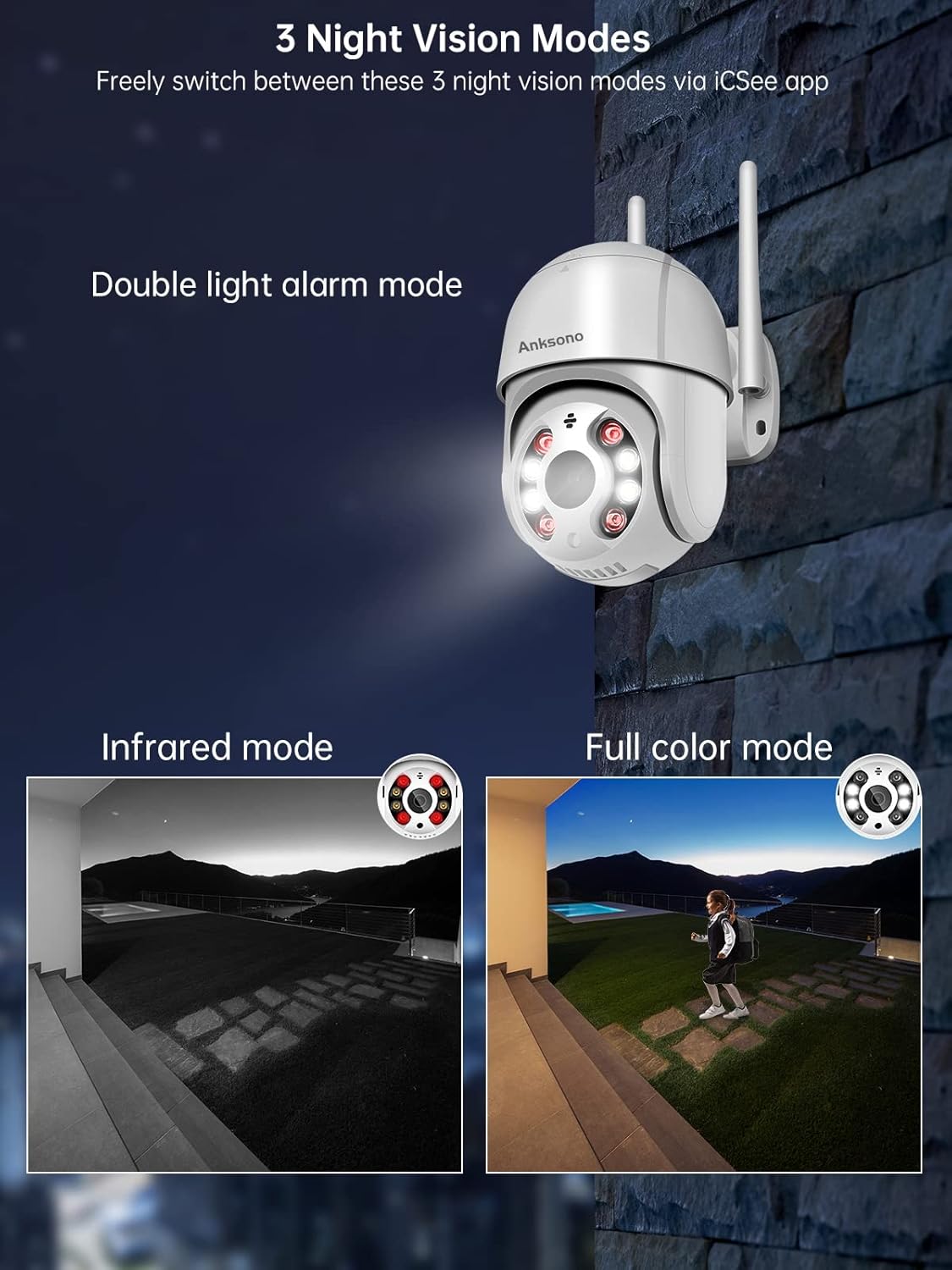
Image: Freely switch between Infrared, Full Color, and Double Light Alarm night vision modes via the iCSee app for optimal visibility in varying light conditions.
5.3 Motion Detection and Alerts
The camera features advanced motion sensors and human detection capabilities. When motion is detected, the camera will:
- Send instant alerts to your phone via the iCSee app.
- Record 10-second video clips of the event.
- Activate white light and/or sound alarms (configurable in the app).
You can customize sensor sensitivity and define specific detection areas within the app to minimize false alarms.
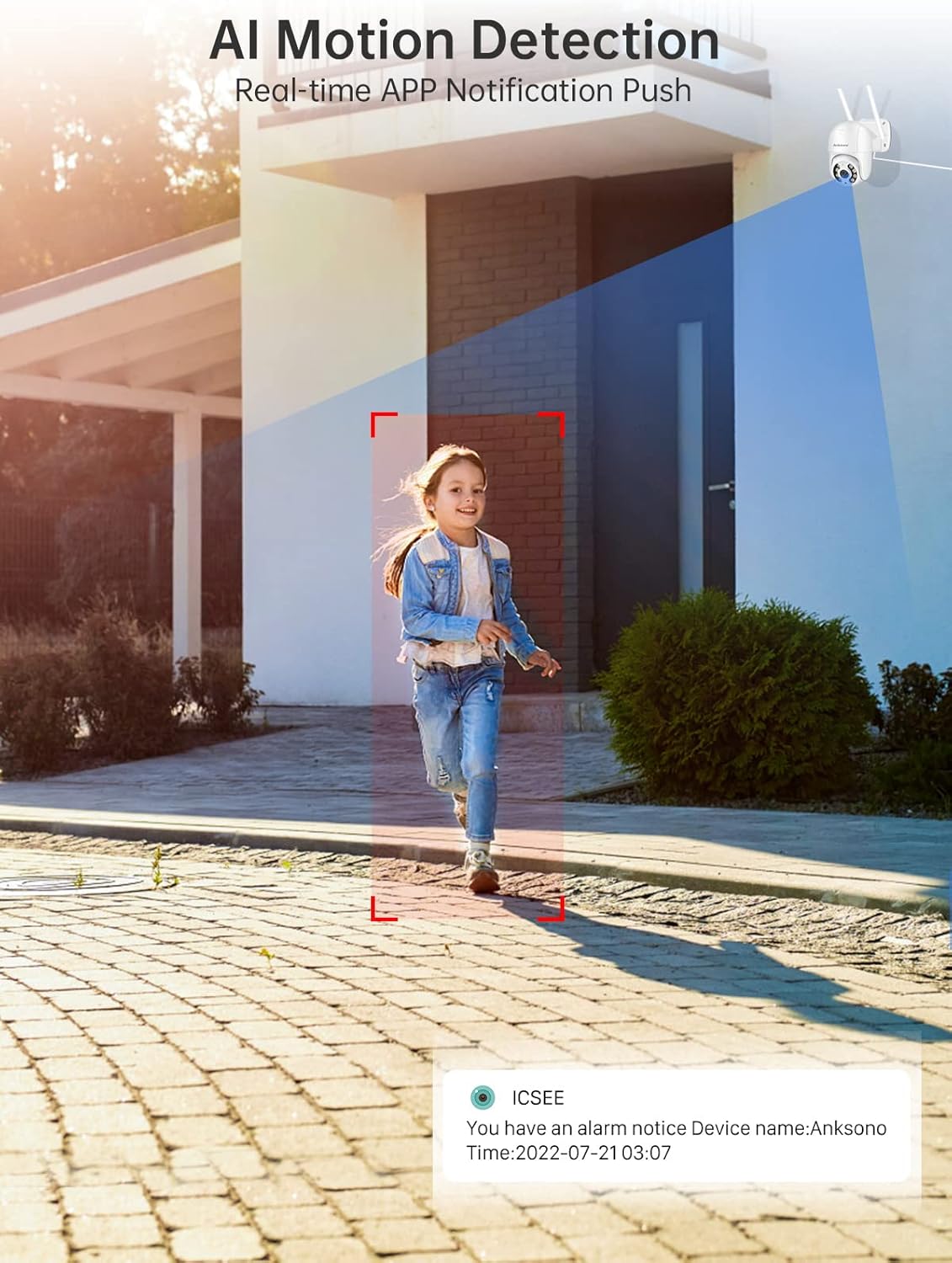
Image: Real-time AI Motion Detection provides immediate app notifications when activity is detected, highlighting the subject within the frame.
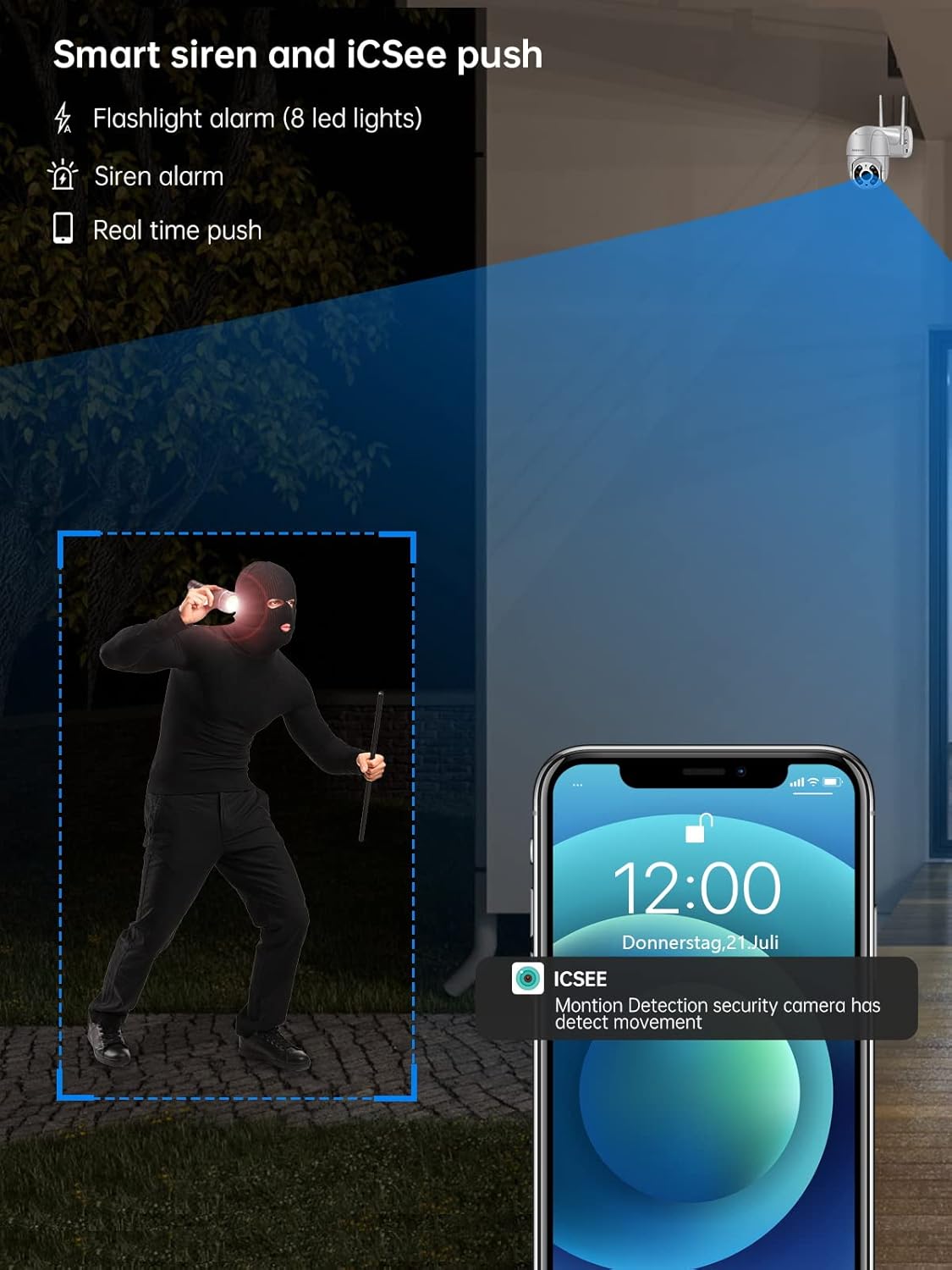
Image: The camera's smart siren and iCSee push features include a flashlight alarm (8 LED lights) and a siren alarm, providing real-time alerts for detected motion.
5.4 Two-Way Audio
The built-in microphone and speaker allow for seamless two-way communication. You can speak through the camera to visitors, delivery personnel, or family members from anywhere using the iCSee app.

Image: Two-Way Audio allows you to talk to family or mailmen remotely through the camera's built-in microphone and speaker.
5.5 Storage Options
Recorded videos can be stored using two methods:
- SD Card Storage: The camera has a built-in SD card slot supporting up to 128GB. This allows for local storage and easy previewing of recordings.
- Cloud Storage: Optional paid cloud service subscriptions are available for saving and uploading videos, providing an additional layer of security against theft or damage to the camera.
5.6 Multi-user Sharing and Alexa Integration
You can share access to your camera with up to 4 users simultaneously through the invitation link in the iCSee app. The camera also seamlessly integrates with Alexa Echo Show, allowing you to request live video displays using voice commands.
6. Maintenance
- Cleaning: Periodically clean the camera lens and housing with a soft, damp cloth to ensure clear image quality. Do not use harsh chemicals or abrasive materials.
- Firmware Updates: Check the iCSee app regularly for firmware updates. Keeping your camera's firmware up-to-date ensures optimal performance, new features, and security enhancements.
- Power Supply: Ensure the power supply connection is secure and free from damage.
- Network Stability: Maintain a stable 2.4GHz WiFi connection for uninterrupted operation.
7. Troubleshooting
| Problem | Possible Cause / Solution |
|---|---|
| Camera offline / Cannot connect to WiFi |
|
| Poor image quality |
|
| Motion detection not working or too many false alarms |
|
| Two-way audio issues |
|
| Cannot access web interface (for advanced users) |
|
8. Warranty and Support
For warranty information, please refer to the purchase documentation or contact your retailer. For technical support, product inquiries, or assistance with setup and troubleshooting, please contact BESDERSEC customer service. Contact details can typically be found on the product packaging or the official BESDERSEC website.
Manufacturer: Shenzhen Anboqi Technology Co.,Ltd