
1. Introduction
The Wonrabai SIM7670G LTE Cat-1/GNSS HAT is an expansion board designed for Raspberry Pi series boards, including Raspberry Pi 5, 4B, 3B+, 3B, Zero W, and Zero 2W. This HAT provides global multi-band LTE Cat-1 cellular connectivity and GNSS positioning capabilities. It also features three extended USB 2.0 ports, enhancing the functionality of your Raspberry Pi for various IoT and communication projects.
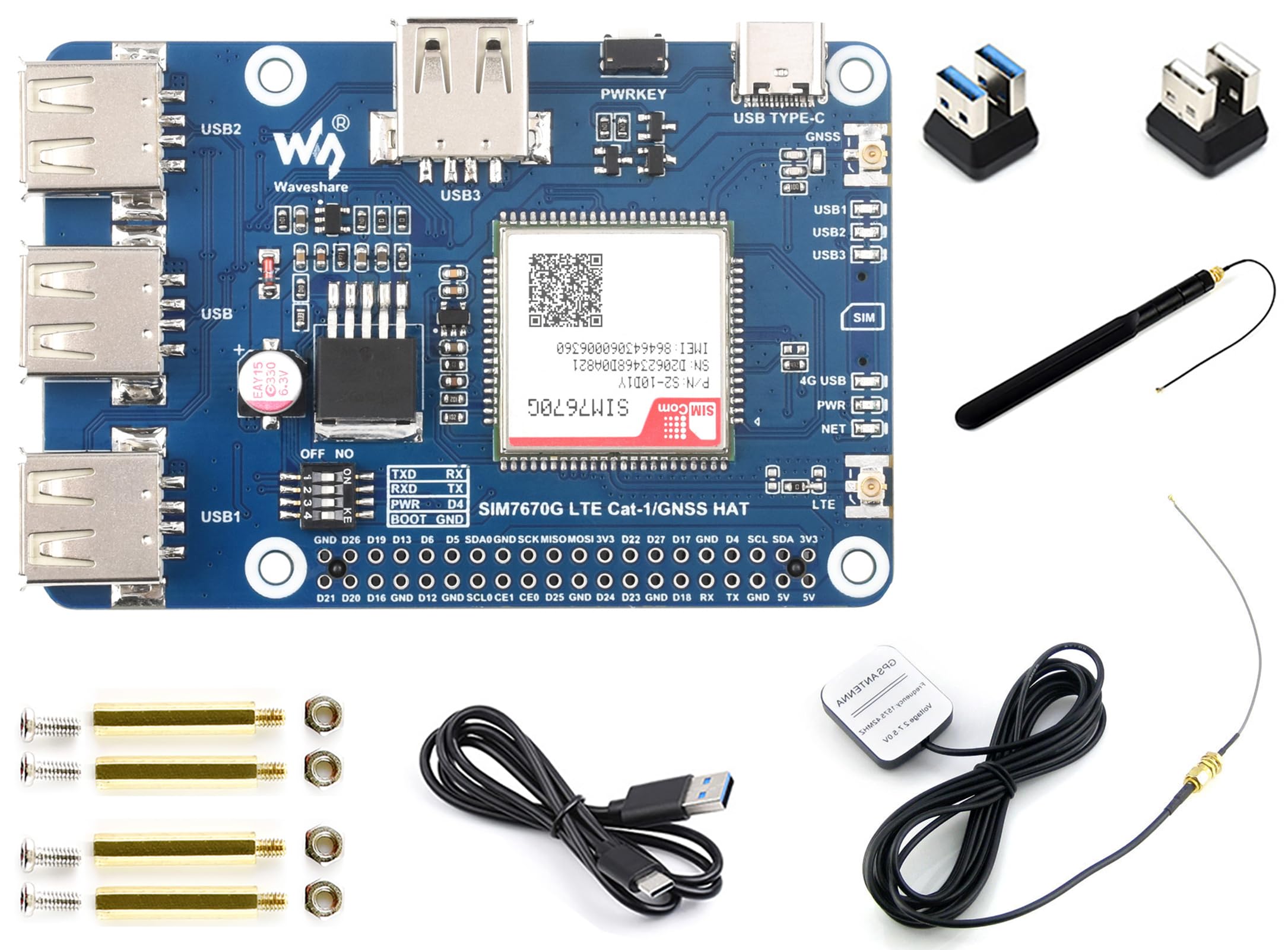
Image: The SIM7670G LTE Cat-1/GNSS HAT board with its key features highlighted, including global multi-band support, 4G Cat-1, GNSS positioning, dial-up, cloud platform compatibility, and USB hub functionality.
2. What's in the Box
The package includes the following components:
- SIM7670G Cat-1/GNSS HAT x1
- USB-A to USB-C cable x1
- GPS Antenna x1
- LTE Antenna x1
- 2×20PIN female pinheader x1
- USB 3.0 Adapter x1
- USB 2.0 Adapter x1
- Screws pack x1

Image: Visual representation of all items included in the product package, clearly labeled with numbers corresponding to the list of components.
3. Product Features
- LTE Cat-1 Connectivity: Supports global multi-band LTE Cat-1 with data rates up to 5Mbps (Uplink) and 10Mbps (Downlink). This is ideal for applications requiring reliable, low-power cellular communication.
- GNSS Positioning: The integrated GNSS module supports GPS, GLONASS, Galileo, and BeiDou for accurate global positioning.
- USB Dial-up: Enables connection to Windows PCs, Raspberry Pi, or other Linux industrial devices via USB for LTE Cat-1 networking. The board also extends USB functionality with three additional USB 2.0 ports.
- Waveshare.cloud Support: Provides access to tutorials and demos for quick setup of smart IoT solutions, including large-screen data visualization displays.

Image: A composite image illustrating the global multi-band LTE Cat-1 support, GNSS positioning capabilities, dial-up functionality on Windows/Linux, and a detailed pinout definition of the HAT board.
4. Hardware Overview
Familiarize yourself with the components of the SIM7670G HAT board:

Image: A detailed diagram of the SIM7670G HAT board, labeling each component with a number for easy identification and reference.
- SIM7670G module: The core LTE Cat-1 and GNSS communication module.
- Raspberry Pi 40PIN GPIO header: Standard connector for Raspberry Pi boards.
- DIP switches: Used for switching UART connection and power ON/OFF control of the module to the Raspberry Pi GPIO, and for entering burning mode.
- USB Type-A interface: For connecting to the host's USB port (e.g., Raspberry Pi) for 4G communication, power supply, and extending USB ports.
- 3x USB extended ports: Additional USB 2.0 ports for connecting peripherals.
- PWRKEY: Power key.
- USB Type-C port: For connecting to the host's USB port (e.g., Raspberry Pi) for 4G communication, power supply, and extending USB ports.
- GNSS IPEX 1 connector: For connecting the GPS antenna.
- LED indicators: Status lights for power, network, etc.
- LTE IPEX 1 connector: For connecting the LTE antenna.
- Nano SIM card slot: For inserting a Nano SIM card for cellular connectivity.
- 4G UART pads: Compatible with Raspberry Pi 5 3PIN UART connector.
- Reserved test pads: For connecting with other host boards.
- FE1.1S USB 2.0 HUB: USB hub chip.
5. Setup Instructions
Follow these steps to set up your SIM7670G LTE Cat-1/GNSS HAT board:
- Insert SIM Card: Carefully insert a Nano SIM card into the Nano SIM card slot (11) on the HAT board. Ensure the card is correctly oriented.
- Attach Antennas: Connect the GPS antenna to the GNSS IPEX 1 connector (8) and the LTE antenna to the LTE IPEX 1 connector (10).
- Connect to Raspberry Pi: Align the 40PIN GPIO header (2) of the HAT with the GPIO pins on your Raspberry Pi board. Gently press down to secure the connection.
- Power Connection: Connect the HAT to your Raspberry Pi or host device via the USB Type-A interface (4) or USB Type-C port (7) using the provided USB cable. This supplies power and enables communication.
- DIP Switch Configuration: Adjust the DIP switches (3) according to your specific application requirements for UART connection and power control. Refer to the detailed documentation for specific switch settings.

Image: The SIM7670G HAT board connected to various Raspberry Pi models, including Raspberry Pi 5, Raspberry Pi 4B, and a CM4 IO Base Board, demonstrating its compatibility.
6. Operating Instructions
- LTE Cat-1 Networking: Once connected and powered, the SIM7670G module will attempt to establish an LTE Cat-1 network connection. Use appropriate drivers and software on your Raspberry Pi or host system to enable dial-up networking.
- GNSS Positioning: The GNSS module will automatically search for satellite signals. Use GNSS software or commands on your host system to retrieve GPS, GLONASS, Galileo, or BeiDou positioning data.
- USB Extended Ports: The three USB 2.0 extended ports (5) can be used to connect additional USB peripherals to your Raspberry Pi.
- Waveshare.cloud Integration: For IoT applications, refer to the Waveshare.cloud tutorials for integrating the SIM7670G HAT to upload sensor data, monitor devices, and utilize data visualization services via MQTT protocol.
7. Application Examples
The SIM7670G HAT board can be utilized in various applications:
- Remote Monitoring: Deploy the HAT with a Raspberry Pi for remote data collection and monitoring in areas without Wi-Fi, using LTE Cat-1 for data transmission.
- Smart Garden Solutions: Utilize the HAT to report sensor data (e.g., temperature, humidity) from a garden via MQTT to a cloud platform, enabling remote control of irrigation or lighting.
- IoT GPS Mobile Positioning: Implement the GNSS module to regularly report location data for mobile detection, animal tracking, or asset management.
- Server Performance Cloud Monitoring: Monitor the operational status and performance parameters of a Raspberry Pi server in real-time through a cloud platform using the HAT's cellular connectivity.

Image: A diagram illustrating an application example where the SIM7670G HAT connects to a cloud server via LTE Cat-1, enabling message uploading, receiving, and device control from a user terminal.

Image: Examples of data visualization dashboards on Waveshare.cloud, showcasing smart garden solutions, IoT GPS mobile positioning, and server performance cloud monitoring using the SIM7670G HAT.
8. Specifications
| Feature | Description |
|---|---|
| Model Name | SIM7670G |
| Brand | Wonrabai |
| Connectivity Technology | USB |
| Operating System Compatibility | Windows/Linux |
| LTE Cat-1 Data Rates | Up to 5Mbps (Uplink) / Up to 10Mbps (Downlink) |
| GNSS Support | GPS, GLONASS, Galileo, BeiDou |
| Extended Ports | 3x USB 2.0 |
| Item Weight | 7.4 ounces |
| Package Dimensions | 6.18 x 4.17 x 1.93 inches |
9. Maintenance
To ensure the longevity and optimal performance of your SIM7670G HAT board, follow these maintenance guidelines:
- Keep the board clean and free from dust. Use a soft, dry brush or compressed air for cleaning.
- Avoid exposing the board to extreme temperatures, high humidity, or direct sunlight.
- Ensure proper ventilation when operating, especially when integrated into an enclosure.
- Handle the board with care to prevent physical damage to components or connectors.
- Regularly check for firmware updates for the SIM7670G module and your Raspberry Pi operating system to ensure compatibility and security.
10. Troubleshooting
If you encounter issues with your SIM7670G HAT board, consider the following troubleshooting steps:
- No Network Connection:
- Verify that the Nano SIM card is correctly inserted and activated with a data plan.
- Check that both the LTE and GPS antennas are securely connected to their respective IPEX connectors.
- Ensure the DIP switch settings are configured correctly for your desired operation mode (UART connection, power control).
- Confirm that the necessary drivers and software are installed and properly configured on your Raspberry Pi or host system.
- No GNSS Signal:
- Ensure the GPS antenna is connected and has a clear, unobstructed view of the sky.
- Test the GNSS functionality in an open outdoor environment.
- USB Ports Not Functioning:
- Verify that the HAT is properly connected to the Raspberry Pi's GPIO and powered via the USB connection.
- Check for any driver issues related to USB hubs on your host system.
11. Warranty and Support
This Wonrabai product comes with a standard manufacturer's warranty, subject to the terms and conditions at the time of purchase. For technical support, detailed documentation, software resources, and warranty claims, please visit the official Wonrabai website or contact their customer service. Keep your purchase receipt as proof of purchase for any warranty-related inquiries.