
Introduction
Thank you for choosing the KOLMAX BK98 Wireless Gaming Keyboard. This manual provides detailed instructions for setting up, operating, and maintaining your keyboard to ensure optimal performance and longevity. Please read this manual thoroughly before using the product.

Image: KOLMAX BK98 Wireless Gaming Keyboard, showcasing its full layout, RGB backlighting, and the included 2.4G USB receiver.
Package Contents
Please check the package contents to ensure all items are present:
- KOLMAX BK98 Wireless Gaming Keyboard
- User Manual
- USB-C Cable
Product Features
- Dual Modes Gaming Keyboard Connection: Supports Bluetooth and 2.4G Wireless connectivity for versatile device compatibility.
- Wireless Bluetooth RGB Keyboard: Features customizable RGB backlighting with various modes (breathing, horse racing) and adjustable brightness/speed.
- Quick Charge, Longer Lasting: Equipped with a Type-C charging port and a power-saving feature that automatically turns off backlight after 60 seconds of inactivity.
- Strong Compatibility with 98 Layout: Compact 98-key layout saves desk space while retaining a number pad. Compatible with PC, Windows, Mac, iOS, Linux, Chrome OS, Android, Laptops, Chromebooks, Tablets, and TVs.
Setup
Connection Modes
The BK98 keyboard supports two wireless connection modes: Bluetooth and 2.4G Wireless. The USB-C cable is for charging only.

Image: Illustration of the keyboard's dual connection modes (Bluetooth and 2.4G Wireless) and the multifunctional knob for switching between devices.
2.4G Wireless Connection
- Locate the 2.4G USB receiver, usually stored in a compartment on the keyboard.
- Plug the USB receiver into an available USB port on your computer.
- Turn on the keyboard. The keyboard should automatically connect to the receiver.
Bluetooth Connection
- Turn on the keyboard.
- Long press the multifunctional knob or the designated FN key combination (e.g., FN+1/2/3) to switch to Bluetooth mode. The indicator light will flash, indicating pairing mode.
- On your device (PC, Mac, tablet, smartphone), go to Bluetooth settings and search for new devices.
- Select "KOLMAX BK98" (or similar name) from the list of available devices to pair.
- Once paired, the indicator light will stop flashing and remain solid.
Initial Charging
Before first use, it is recommended to fully charge the keyboard. Connect the provided USB-C cable to the keyboard's charging port and the other end to a USB power source (e.g., computer USB port, wall adapter).
Operating
Backlight Control
The keyboard features RGB backlighting with multiple effects. Use the FN key combinations to control the backlight:
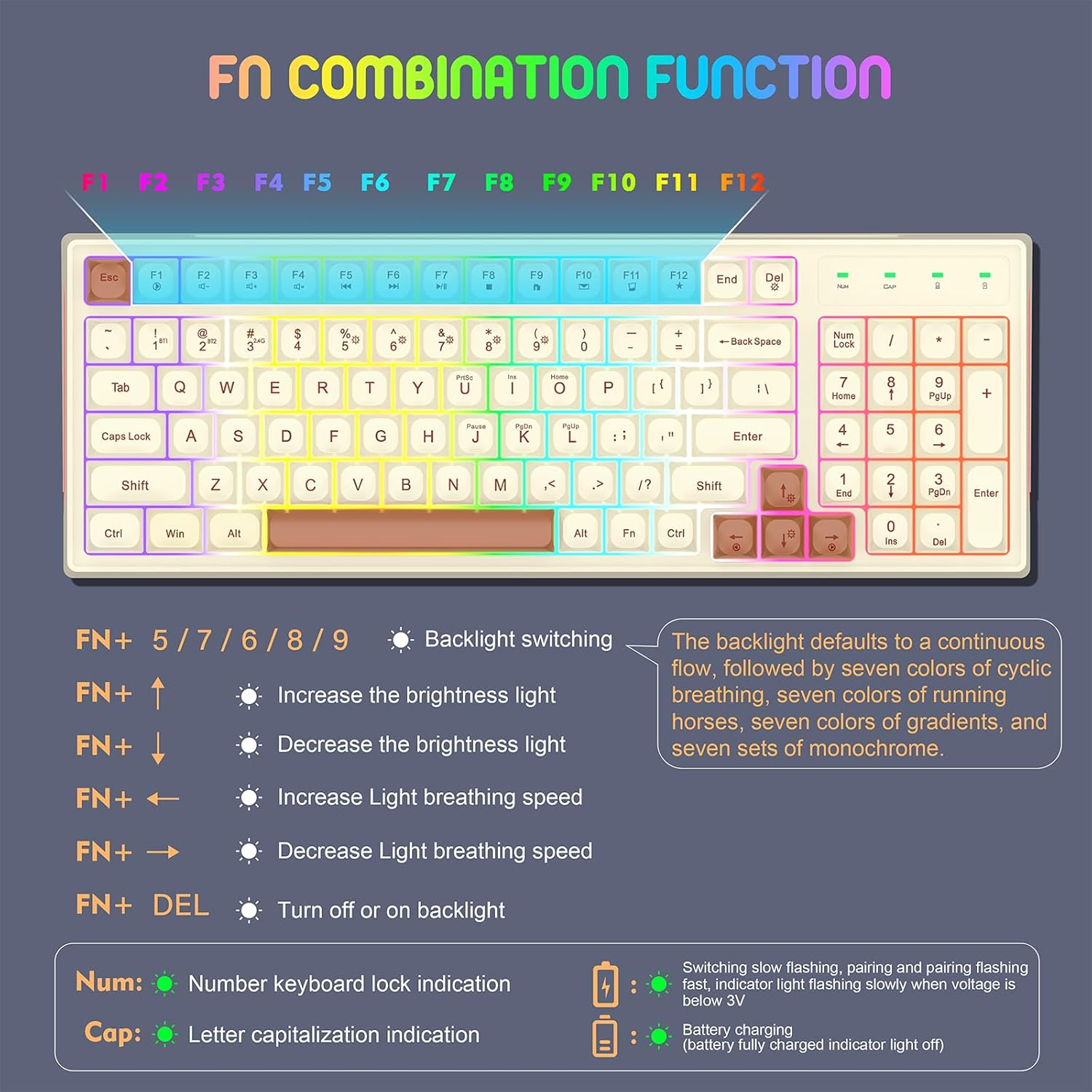
Image: A detailed guide to the FN key combinations for controlling the keyboard's backlight effects, brightness, and speed.
- FN + 5/7/6/8/9: Switch between different backlight modes.
- FN + ↑: Increase backlight brightness.
- FN + ↓: Decrease backlight brightness.
- FN + ←: Increase light breathing speed.
- FN + →: Decrease light breathing speed.
- FN + DEL: Turn backlight on or off.

Image: A visual guide to the 12 distinct RGB backlight effects, demonstrating the variety of lighting options for the keyboard.
Multi-Device Compatibility
The keyboard is designed for wide compatibility across various operating systems and devices.
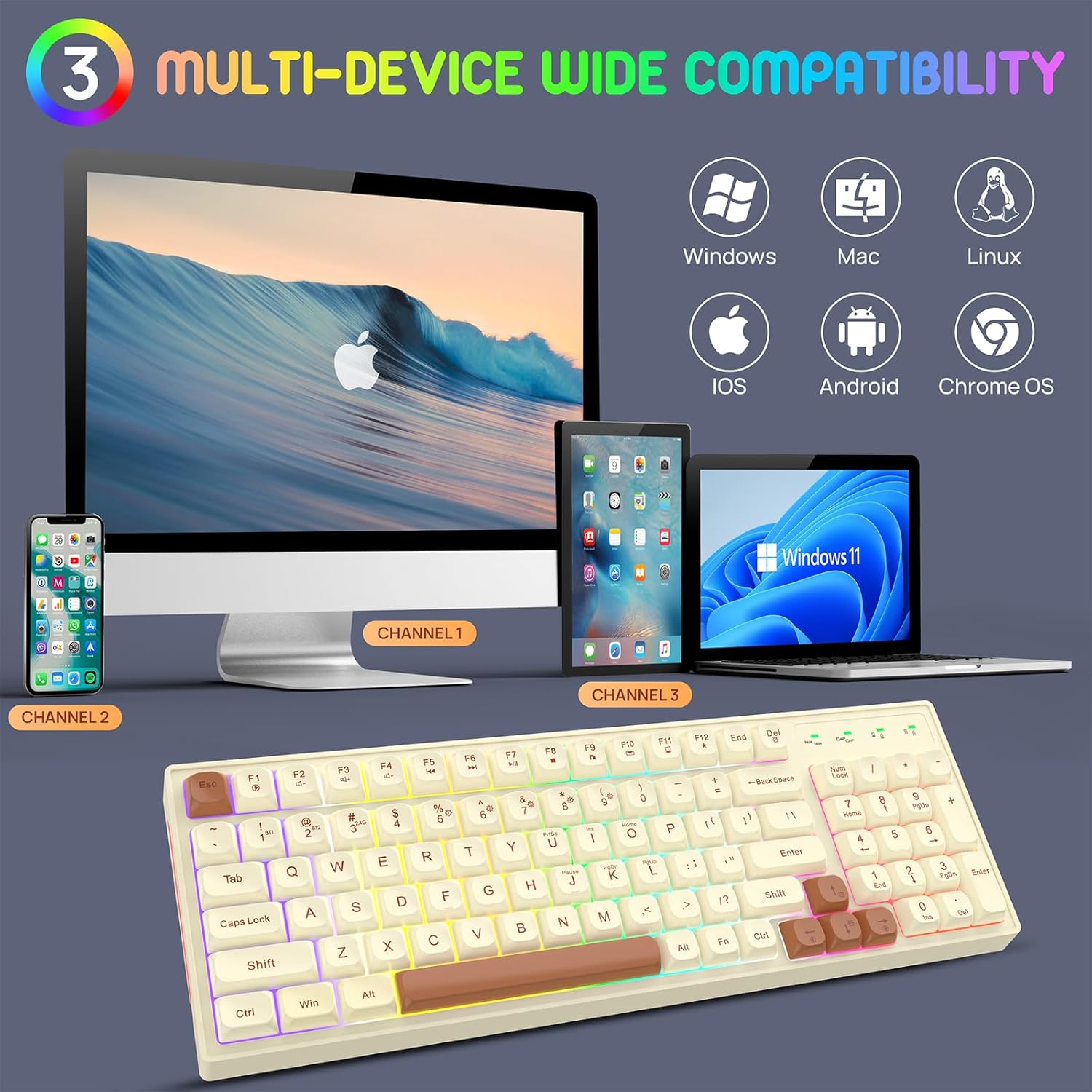
Image: The keyboard demonstrating its multi-device compatibility with various operating systems including Windows, Mac, Linux, iOS, Android, and Chrome OS.
Maintenance
Charging the Keyboard
The keyboard is equipped with a rechargeable battery. When the battery is low, the indicator light will flash slowly. Connect the USB-C cable to charge.

Image: The keyboard's Type-C rechargeable feature, highlighting its 2000mAh battery, smart sleep mode, and long standby time.
- Connect the provided USB-C cable to the keyboard's port.
- Connect the other end of the cable to a USB power source.
- The battery charging indicator will illuminate during charging and turn off when fully charged.
Power Saving Features
To conserve battery life, the keyboard features:
- Automatic backlight turn-off after 60 seconds of non-use.
- A separate power switch to completely turn off the keyboard when not in use for extended periods.
Cleaning
To clean the keyboard, gently wipe the surface with a soft, dry cloth. For deeper cleaning, you may use a slightly damp cloth, ensuring no liquid enters the keyboard. Do not use harsh chemicals or abrasive materials.
Troubleshooting
- Keyboard not connecting:
- Ensure the keyboard is turned on.
- Check if the correct connection mode (Bluetooth or 2.4G) is selected.
- For 2.4G, ensure the USB receiver is properly plugged in.
- For Bluetooth, ensure Bluetooth is enabled on your device and try re-pairing.
- Ensure the keyboard is charged.
- Backlight not working:
- Press FN + DEL to toggle the backlight.
- Adjust brightness using FN + ↑/↓.
- Ensure the keyboard has sufficient battery charge.
- Keys not responding:
- Recharge the keyboard.
- Try reconnecting the keyboard (unplug/replug receiver, re-pair Bluetooth).
- Restart your computer/device.
Specifications

Image: The ergonomic design and dimensions of the 98-key KOLMAX BK98 keyboard, including its adjustable height.
| Feature | Detail |
|---|---|
| Product Dimensions | 15.3 x 5.5 x 1.5 inches |
| Item Weight | 1.72 pounds |
| Model Number | BK98 |
| Batteries | 1 Lithium Polymer battery (included) |
| Connectivity Technology | Bluetooth, 2.4G Wireless |
| Special Features | Backlit, Ergonomic, Portable, Rechargeable |
| Compatible Devices | Gaming Console, Laptop, Personal Computer, Smartphone, Tablet |
Warranty and Support
Every KOLMAX product comes with a 30-day money-back guarantee and a 12-month worry-free warranty. If you encounter any problems or have questions, please do not hesitate to contact KOLMAX customer service. We are committed to providing the best service and will reply within 12 hours to assist you.
For support, please refer to the contact information provided with your purchase or visit the official KOLMAX website.