
1. Introduction
The Mustpoint KWS-1902C is a compact and precise digital USB-C Type-C tester designed for real-time monitoring of charging status. It accurately displays voltage, current, power, capacity, load resistance, temperature, timing, and energy consumption. This device is suitable for various USB-C compatible electronics, including mobile phones, laptops, chargers, and car chargers.
2. Safety Information
- Do not expose the device to moisture or extreme temperatures.
- Avoid dropping or subjecting the device to strong impacts.
- Do not attempt to disassemble or modify the device. This will void the warranty and may cause damage.
- Ensure proper connection to avoid short circuits or damage to connected devices.
- Keep out of reach of children.
3. Product Overview
The KWS-1902C features a 1.26-inch color screen that provides clear, real-time data. Its compact design allows for easy portability and integration into various charging setups.

Figure 3.1: Front view of the KWS-1902C tester displaying various electrical parameters.
The device is designed with a Type-C interface for broad compatibility.

Figure 3.2: Physical dimensions of the KWS-1902C tester.
Its wide application range includes testing various USB-C devices and chargers.

Figure 3.3: Examples of devices compatible with the KWS-1902C tester.
4. Setup
To begin using the KWS-1902C tester, follow these connection steps:
- Connect the male USB-C end of the KWS-1902C tester to a power source (e.g., USB recharger, PD recharger, power bank, computer USB-C port).
- Connect your device (e.g., smartphone, laptop) to the female USB-C port on the KWS-1902C tester using a compatible USB-C cable.
- The display on the KWS-1902C will automatically illuminate and begin showing real-time measurements.

Figure 4.1: Connection examples for the KWS-1902C tester.
5. Operating Instructions
Once connected, the KWS-1902C tester will automatically display various parameters on its color screen. The display cycles through different measurement screens or shows multiple parameters simultaneously, depending on the mode. The device is designed for real-time detection of the charger's status.
Understanding the Display:
- Voltage (V): Indicates the electrical potential difference.
- Current (A): Shows the flow rate of electric charge.
- Power (W): Represents the rate at which electrical energy is transferred.
- Capacity (mWh/mAh): Measures the total energy or charge delivered over time.
- Load Resistance (Ω): Displays the resistance of the connected load.
- Temperature (°C): Shows the internal temperature of the device or ambient temperature.
- Timing (hours): Tracks the duration of the charging process.
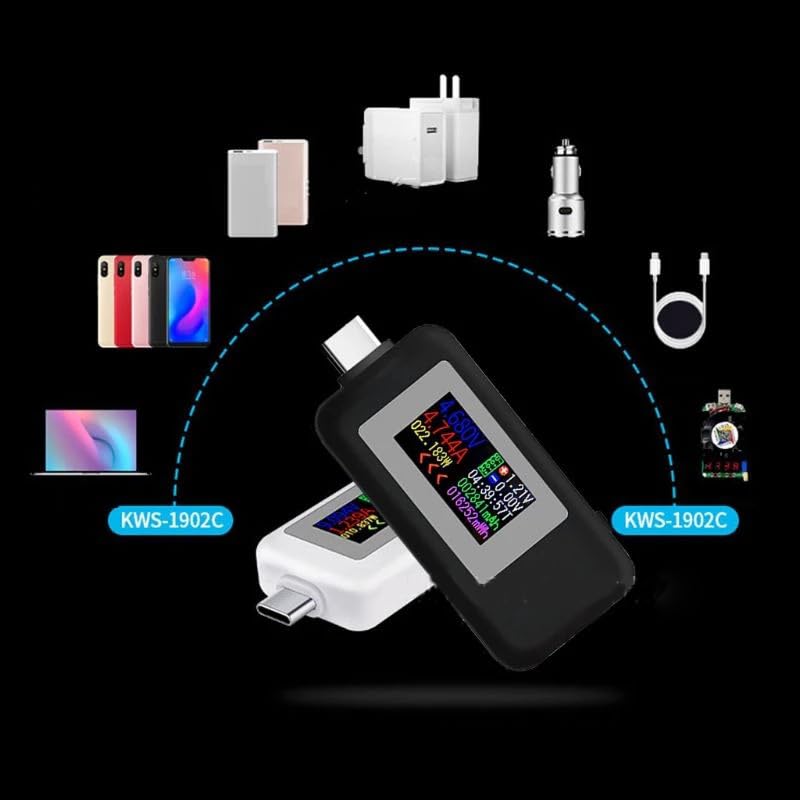
Figure 5.1: KWS-1902C testers in operation, monitoring different devices.
6. Specifications
| Parameter | Value |
|---|---|
| Product Model | KWS-1902C |
| Size | 55 x 26.5 x 11.5 mm |
| Voltage Range | 4-30V |
| Current Range | 0-5A |
| Capacity Range | 0-9999mWh |
| Load Resistance Range | 1-9999.9Ω |
| Temperature Range | 0-80°C |
| Timing Range | 0-99 hours |
| Display | 1.26" Color Screen |
| Voltage Resolution | 0.002A (Note: This appears to be a typo in the source data and likely refers to Voltage Resolution in Volts, or Current Resolution in Amps) |
| Current Resolution | 0.002A |
| Power Consumption | 0.150 W |
| Energy Range | 0-999999mWh |
| Product Interface | USB-C 24-pin |
| Test Direction | Bidirectional |
| Product Weight (incl. package) | 15g |
7. Troubleshooting
- No Display: Ensure the tester is properly connected to a power source and a device. Check if the power source is active.
- Inaccurate Readings: Verify that all connections are secure. Ensure the USB-C cable used is in good condition. Some cables may have limitations affecting readings.
- Device Not Charging: If your device is not charging while connected through the tester, bypass the tester to confirm the charger and cable are functional. If they are, the tester might be faulty or improperly connected.
- Display Freezes: Disconnect and reconnect the tester to reset it.
8. Maintenance
- Clean the device with a soft, dry cloth. Do not use liquid cleaners or solvents.
- Store the tester in a cool, dry place away from direct sunlight and extreme temperatures.
- Protect the USB-C connectors from dust and debris.
9. Warranty and Support
For warranty information or technical support, please refer to the retailer or manufacturer's official website. Keep your purchase receipt as proof of purchase.