
1. Product Overview
The A4L PRO Portable Thermal Label Printer is a versatile, inkless thermal printer designed for a wide range of applications, including shipping labels, small business needs, office documents, and personal use. Its compact and wireless design makes it ideal for travel and on-the-go printing.

Figure 1.1: A4L PRO Portable Thermal Label Printer, showcasing its compact and sleek design.
Key Features:
- Inkless Thermal Printing: Eliminates the need for ink cartridges or ribbons, reducing operational costs and maintenance.
- High Resolution: Features 300 DPI printing resolution for clear and crisp output.
- Portable Design: Lightweight and compact, making it easy to carry for mobile printing needs.
- Dual Connectivity: Supports both Bluetooth for wireless printing from smartphones/tablets and USB for PC connections.
- Wide Compatibility: Compatible with Android, iOS (Mobile Phone, Tablet/iPad), Windows, and Mac operating systems.
- Fast Printing Speed: Capable of printing at 15mm/s.
- Automatic Label Calibration: Ensures accurate and consistent printing.
- Overheat Protection: Built-in safety mechanism to prevent damage from excessive heat.
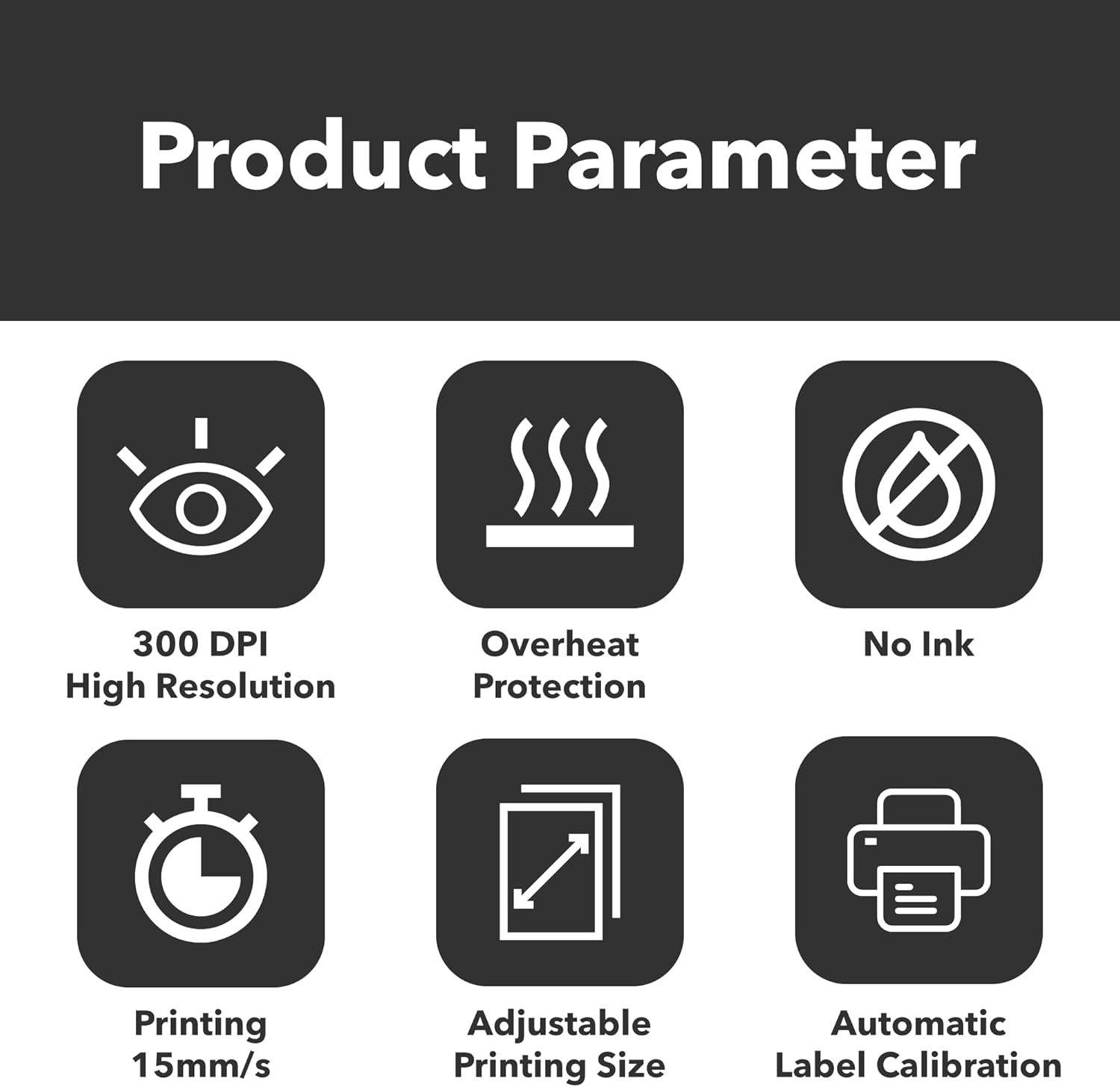
Figure 1.2: Visual representation of key product parameters including 300 DPI, Overheat Protection, No Ink, 15mm/s Printing, Adjustable Printing Size, and Automatic Label Calibration.
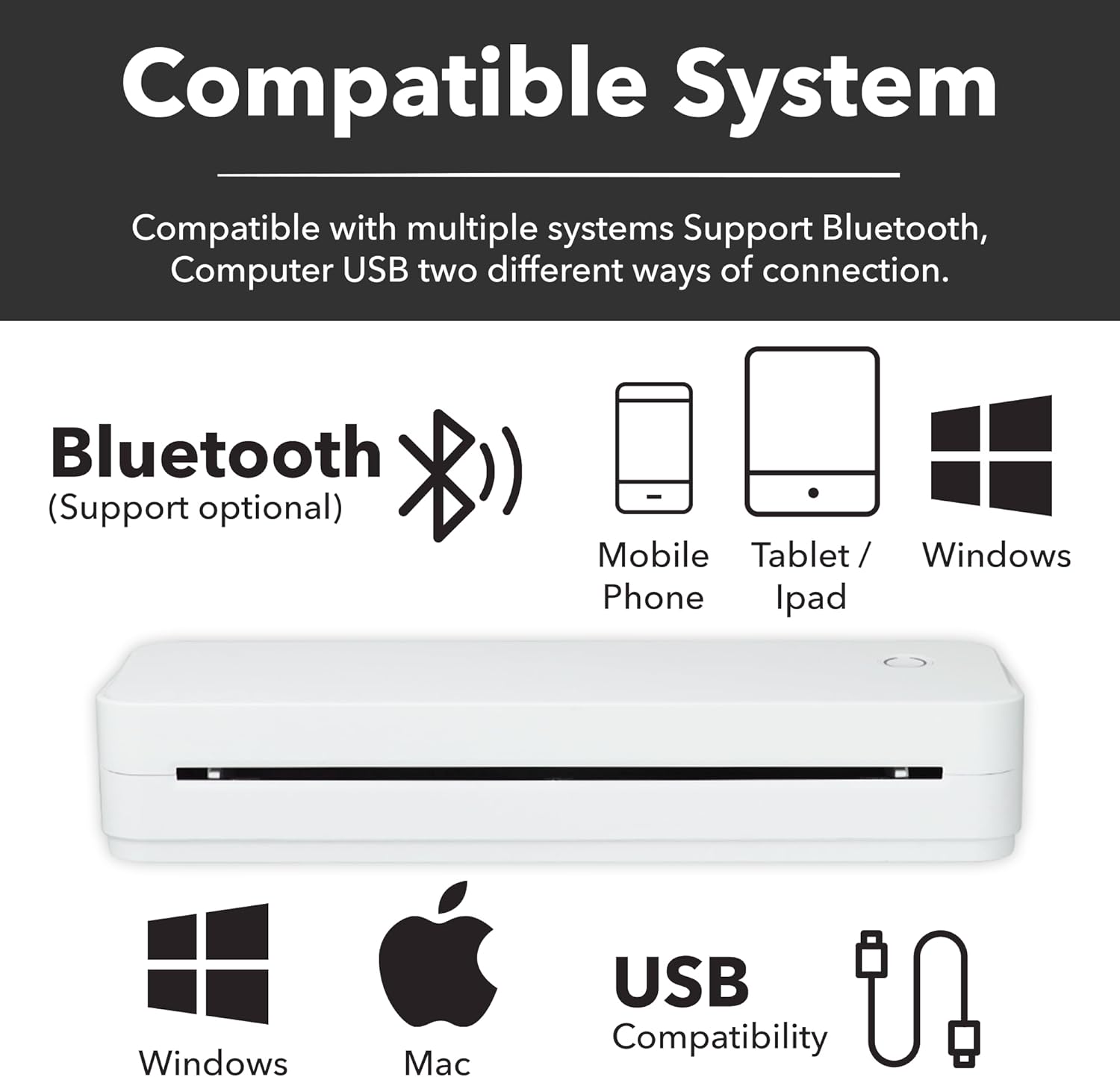
Figure 1.3: Diagram illustrating system compatibility with Mobile Phone, Tablet/iPad, Windows, and Mac, and connectivity options via Bluetooth and USB.
2. Safety Information
Please read all safety instructions carefully before using the printer to ensure safe and proper operation. Keep this manual for future reference.
- Do not disassemble, repair, or modify the printer yourself. This may cause electric shock, fire, or damage to the printer.
- Keep the printer away from water or other liquids to prevent electric shock or fire.
- Do not expose the printer to direct sunlight, high temperatures, or high humidity.
- Use only the specified power adapter and cables provided with the printer.
- Ensure the printer is placed on a stable, flat surface during operation.
- Avoid touching the print head immediately after printing, as it may be hot.
- Keep out of reach of children.
3. Package Contents
Please check the contents of your package upon opening. If any items are missing or damaged, contact customer support immediately.
- A4L PRO Portable Thermal Label Printer
- USB Charging Cable
- User Manual
- Sample Thermal Paper Roll (may vary by package)
4. Setup Guide
4.1 Charging the Printer
Before first use, fully charge the printer. Connect the provided USB cable to the printer's charging port and the other end to a USB power adapter (not included) or a computer's USB port. The indicator light will show charging status.
4.2 Loading Thermal Paper
- Gently open the paper compartment cover.
- Insert the thermal paper roll with the printing side facing up. Ensure the paper is aligned correctly within the guides.
- Pull a small amount of paper out beyond the print head.
- Close the paper compartment cover firmly until it clicks into place.

Figure 4.1: View of the printer's internal components, including the thermal printhead and paper loading area.
4.3 Installing the App/Drivers
For mobile printing, download the dedicated printer app from your device's app store (e.g., Google Play Store for Android, Apple App Store for iOS). Search for "Pikdik" or refer to the QR code in the quick start guide if provided. For PC printing, install the necessary drivers from the manufacturer's website.
4.4 Connecting the Printer
4.4.1 Bluetooth Connection (for Mobile/Tablet)
- Ensure the printer is turned on.
- Enable Bluetooth on your mobile device.
- Open the printer app. The app will guide you through searching for and pairing with the printer. Select "A4L PRO" or a similar device name from the list of available Bluetooth devices.
- Follow any on-screen prompts to complete the pairing process.
4.4.2 USB Connection (for PC)
- Connect one end of the USB cable to the printer and the other end to an available USB port on your computer.
- Ensure the printer drivers are installed. Your computer should recognize the printer as a new device.
- You can now print directly from your computer applications.
5. Operating Instructions
5.1 Powering On/Off
- To Power On: Press and hold the power button (usually located on the top or side) for a few seconds until the indicator light illuminates.
- To Power Off: Press and hold the power button again until the indicator light turns off.
5.2 Printing from the App (Mobile/Tablet)
- Ensure the printer is connected via Bluetooth to your device.
- Open the printer app.
- Select the document, image, or label you wish to print. The app typically supports various file types and templates.
- Adjust print settings such as paper size, density, and number of copies within the app.
- Tap the "Print" button. The printer will begin printing.

Figure 5.1: Example of the printer being used to print learning materials, demonstrating its ease of use for various documents.
5.3 Printing from PC (Windows/Mac)
- Ensure the printer is connected via USB to your computer and drivers are installed.
- Open the document or application you wish to print from (e.g., Word, PDF viewer, web browser).
- Go to "File" > "Print" (or press Ctrl+P / Cmd+P).
- Select "A4L PRO" or the appropriate printer name from the list of available printers.
- Adjust print settings as needed (e.g., paper size, orientation, print quality).
- Click "Print".
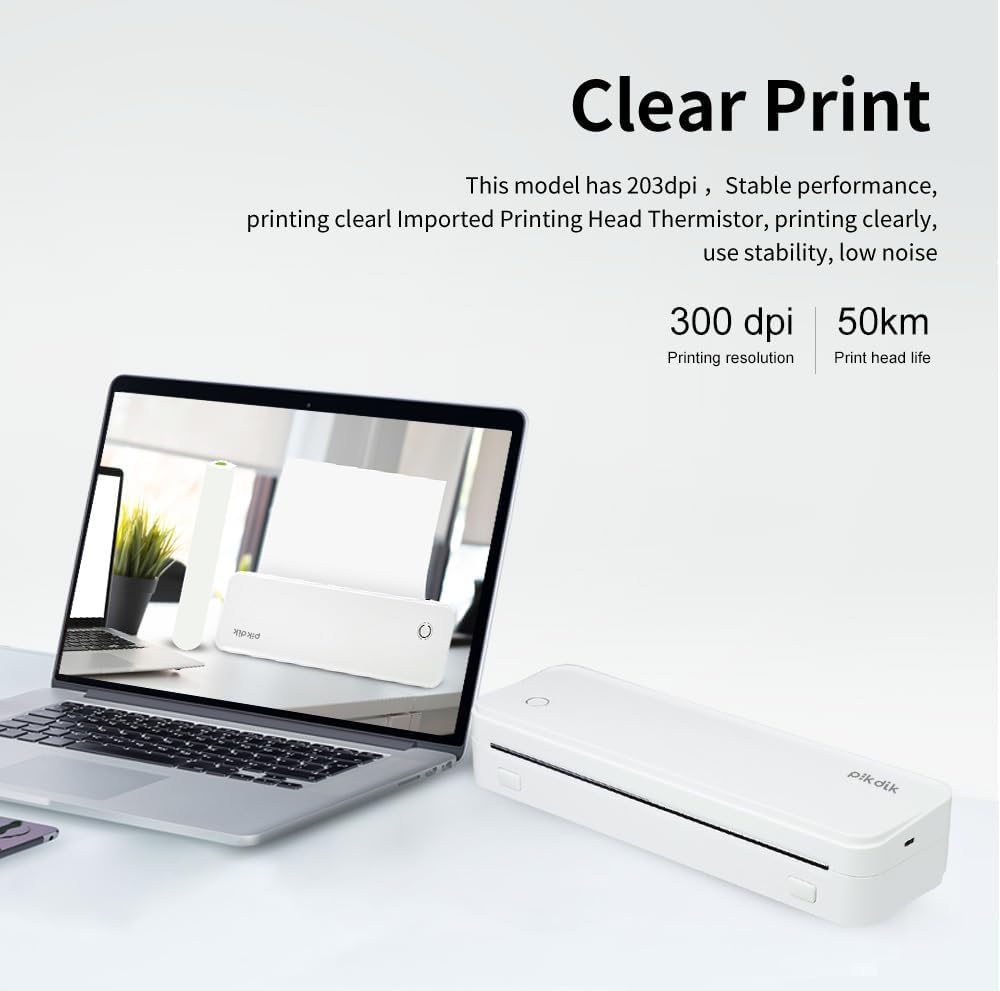
Figure 5.2: The A4L PRO printer connected to a laptop, highlighting its compatibility with computer systems for clear printing.
6. Maintenance
Regular maintenance helps ensure optimal performance and extends the lifespan of your printer.
6.1 Cleaning the Print Head
If print quality degrades (e.g., faint lines, missing dots), the print head may need cleaning. Use a cotton swab lightly dampened with isopropyl alcohol (70% or higher). Gently wipe the print head surface. Allow it to dry completely before closing the cover and using the printer.
6.2 Cleaning the Exterior
Wipe the exterior of the printer with a soft, dry, lint-free cloth. Do not use abrasive cleaners or solvents.
6.3 Storage
When not in use for extended periods, store the printer in a cool, dry place, away from direct sunlight and extreme temperatures. Remove any paper rolls if storing for very long durations to prevent dust accumulation inside the mechanism.
7. Troubleshooting
This section addresses common issues you might encounter. If the problem persists, please contact customer support.
| Problem | Possible Cause | Solution |
|---|---|---|
| Printer does not turn on. | Low battery or power issue. | Charge the printer fully. Ensure the USB cable is properly connected. |
| No print output. | No paper, paper loaded incorrectly, or connection issue. | Check if paper is loaded correctly and there's enough paper. Verify Bluetooth/USB connection. Restart printer and device. |
| Poor print quality (faint, lines, gaps). | Print head dirty, low battery, or poor quality paper. | Clean the print head (refer to Section 6.1). Ensure printer is fully charged. Use high-quality thermal paper. |
| Cannot connect via Bluetooth. | Bluetooth not enabled, printer not in pairing mode, or interference. | Ensure Bluetooth is enabled on your device. Restart both printer and device. Try pairing again through the app. Move closer to the printer. |
| Printer is offline (PC). | USB cable disconnected or driver issue. | Check USB cable connection. Reinstall printer drivers if necessary. |
8. Product Specifications
| Feature | Detail |
|---|---|
| Product Dimensions | 3.1 x 10.5 x 1.9 inches |
| Item Weight | 2.14 pounds |
| ASIN | B0CXNB9C69 |
| Date First Available | May 17, 2024 |
| Manufacturer | AIYIN |
| Brand | Generic |
| Controller Type | Android |
| Print Media | Labels (Thermal Paper) |
| Scanner Type | Portable |
| Compatible Devices | PC, Smartphones |
| Control Method | App |
| Global Trade Identification Number | 00198168537077 |
9. Warranty and Support
This product comes with a standard manufacturer's warranty. Please refer to the warranty card included in your package for specific terms and conditions. For technical support, troubleshooting assistance, or warranty claims, please contact the seller or manufacturer directly through the platform where the product was purchased.
Manufacturer: AIYIN