
1. Introduction
The Darmoshark M3 Pro is a high-performance tri-mode wireless gaming mouse designed for an exceptional gaming experience. Featuring a PAW3395 optical sensor, lightweight design, and versatile connectivity options, this manual provides detailed instructions to help you get the most out of your new gaming mouse.
2. Key Features
- Latest Three Modes Connection: Supports 2.4G wireless, USB-C wired, and Bluetooth modes for versatile connectivity across multiple devices.
- PAW3395 Optical Sensor: Delivers up to 26000 DPI resolution, 650 IPS tracking speed, 1000Hz response rate, and 50G acceleration for precise and accurate tracking.
- Programmable Buttons: Features 8 programmable keys, allowing customization of DPI settings, key functions, and macro settings via dedicated software.
- 55g Ultralight Design: Ergonomically designed for right-handed users, providing a comfortable grip and reducing wrist fatigue during extended use.
- Reliable Wired & Wireless Options: Offers both zero-lag wired connections and the convenience of Bluetooth for flexible usage.
3. Package Contents
Please ensure all items are present in your package:
- Darmoshark M3 Pro Wireless Gaming Mouse
- USB-C Charging/Data Cable
- USB Wireless Dongle (stored inside the mouse)
- Extra Mouse Feet (for replacement)
- Quick Start Guide

Image: Darmoshark M3 Pro Wireless Gaming Mouse with its USB dongle.
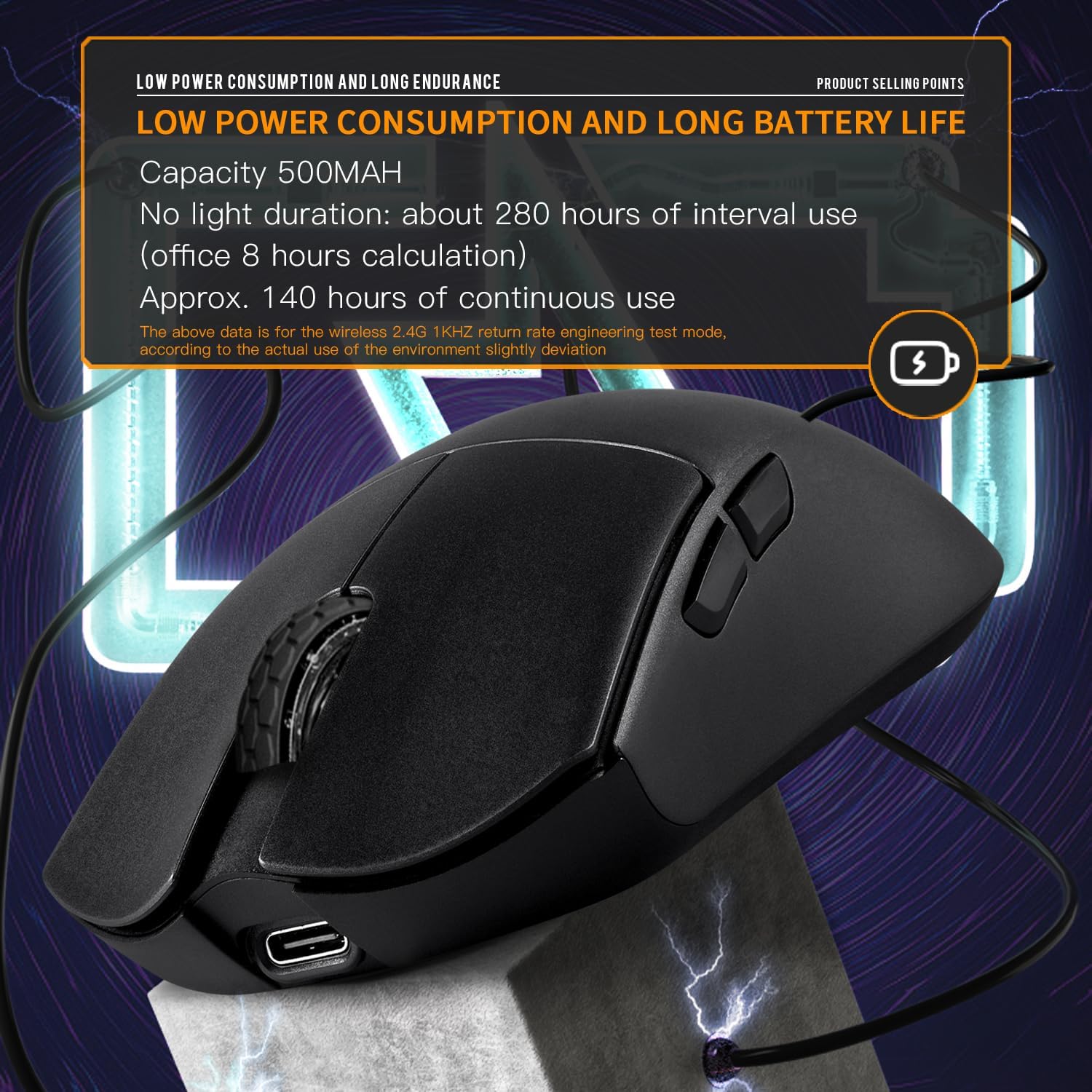
Image: The mouse alongside its USB-C cable, extra mouse feet, and quick start guide.
4. Setup and Connection
The Darmoshark M3 Pro offers three connection modes: 2.4G Wireless, Bluetooth, and Wired USB-C.
4.1. Mode Selection
On the bottom of the mouse, locate the three-way switch. This switch allows you to select your preferred connection mode:
- Left Dial (B): Bluetooth Mode
- Middle (OFF): Mouse is off
- Right Dial (G): 2.4G Wireless Mode
4.2. 2.4G Wireless Connection
- Locate the USB wireless dongle stored in the compartment on the bottom of the mouse.
- Plug the USB dongle into an available USB port on your computer.
- Set the three-way switch on the mouse to the 'G' (2.4G) position.
- The mouse should automatically connect. If not, press the left, middle, and right buttons simultaneously to initiate pairing. The green light on the scroll wheel will flash during pairing and turn off when connected.
4.3. Bluetooth Connection
- Set the three-way switch on the mouse to the 'B' (Bluetooth) position.
- On your computer or device, enable Bluetooth and search for new devices.
- Select 'M3 Mouse' from the list of available devices to pair. The blue light on the scroll wheel will flash during pairing and turn off when connected.
4.4. Wired USB-C Connection
- Connect the provided USB-C cable to the front port of the mouse.
- Connect the other end of the cable to an available USB port on your computer.
- The mouse will function in wired mode and charge simultaneously. Wired mode is preferred when both wired and wireless connections are used at the same time.
Video: Official overview of the Darmoshark M3 Pro Wireless Gaming Mouse, demonstrating its features and connectivity options.
5. Operation
5.1. Buttons and Functions
The M3 Pro mouse features 8 programmable buttons:
- Left Button
- Right Click
- Middle Key (Scroll Wheel Click)
- Forward Key (Side Button)
- Backspace (Side Button)
- DPI Key (Bottom of mouse)
- Return Rate Key (Bottom of mouse)
- Three Section Mode Switch (Bottom of mouse)

Image: Illustration of the mouse's buttons and their functions, including DPI adjustment.
5.2. DPI Adjustment
The mouse supports multiple DPI settings. Press the DPI button on the bottom of the mouse to cycle through preset DPI levels. The default DPI settings are 400 (red), 800 (blue), 1600 (green), 3200 (purple), and 4800 (orange). You can customize these settings using the dedicated software.
5.3. Return Rate Adjustment
Press the RPT button on the bottom of the mouse to adjust the return rate (polling rate). The available return rates are 125Hz (red), 500Hz (blue), and 1000Hz (green).
5.4. Software Customization
Download the official Darmoshark software to unlock full customization options, including:
- Precise DPI adjustment up to 26000 DPI.
- Custom key binding for all 8 buttons.
- Macro programming.
- Advanced sensor settings.
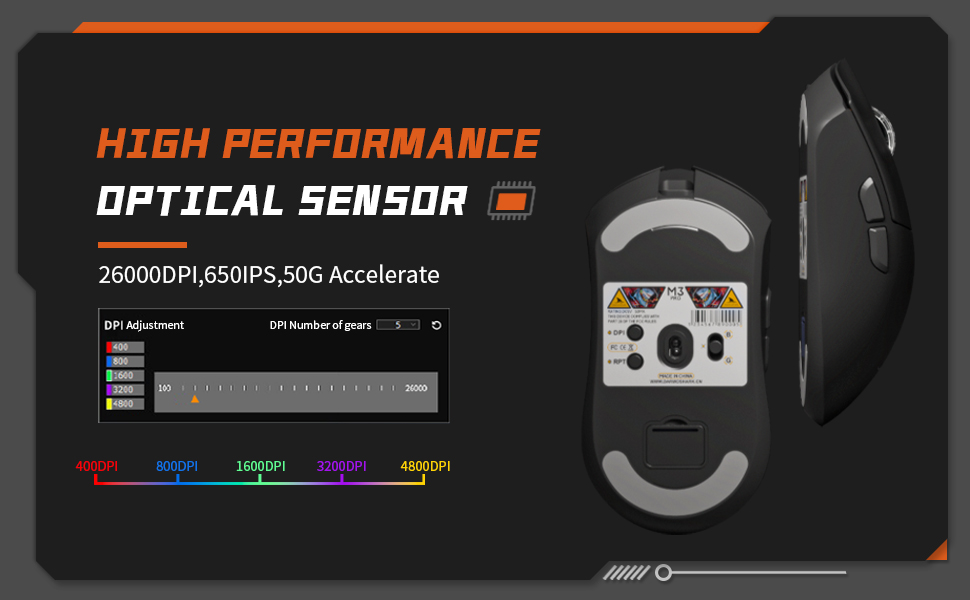
Image: Screenshot of the Darmoshark software interface, showing options for button programming and macro settings.
6. Maintenance
6.1. Charging the Mouse
The mouse is equipped with a 500mAh rechargeable lithium battery. When the data line is connected, the scroll wheel indicator will be solid red, indicating it is charging. It will turn off when fully charged. Charging time is approximately 3-5 hours.
- Low Power Indication: The scroll wheel indicator flashes yellow when the battery is low, prompting you to charge the mouse.
- Battery Life: Approximately 280 hours of interval use (8 hours/day office work) or 140 hours of continuous use (based on 2.4G 1KHz return rate engineering test mode).

Image: The Darmoshark M3 Pro mouse connected via its USB-C cable, illustrating the charging process.
6.2. Replacing Mouse Feet
The package includes extra mouse feet. If the pre-installed feet wear out, you can replace them for optimal glide performance. Carefully peel off the old feet and apply the new ones, ensuring they are clean and free of debris before application.

Image: The underside of the Darmoshark M3 Pro mouse, showing the pre-installed mouse feet and the included replacement set.
7. Troubleshooting
- Mouse not responding: Ensure the mouse is charged and the connection mode switch (2.4G, Bluetooth, or Wired) is correctly set. Try reconnecting the USB dongle or re-pairing via Bluetooth.
- Lag or erratic movement: Check for interference in 2.4G mode (e.g., other wireless devices). Ensure the mouse is fully charged. Try switching to wired mode to rule out wireless issues.
- DPI/Return Rate not changing: Ensure you are pressing the correct buttons (DPI or RPT) on the bottom of the mouse. If using software, ensure it is running and settings are applied.
- Software not detecting mouse: Ensure the mouse is connected via wired or 2.4G mode. Restart the software and/or your computer.
8. Specifications
| Feature | Specification |
|---|---|
| Model Number | Darmoshark M3 Pro |
| Connectivity Technology | 2.4G Wireless, Bluetooth, USB-C Wired |
| Sensor | PAW3395 Optical Sensor |
| Max DPI | 26000 DPI |
| Tracking Speed | 650 IPS |
| Acceleration | 50G |
| Polling Rate | Up to 1000Hz |
| Weight | 55g (1.94 ounces) |
| Battery Capacity | 500mAh Lithium Ion |
| Dimensions | 129.5 x 66.2 x 39.6 mm (5.1 x 2.6 x 1.56 inches) |
| Country of Origin | China |
9. Warranty and Support
For warranty information and technical support, please refer to the documentation included with your product or visit the official Darmoshark website. Keep your purchase receipt for warranty claims.