
Introduction
Thank you for choosing the Duex DX315G 31.5-inch IPS Full HD 360Hz Gaming Monitor. This manual provides essential information for setting up, operating, and maintaining your monitor. Please read it thoroughly before use to ensure optimal performance and safety.
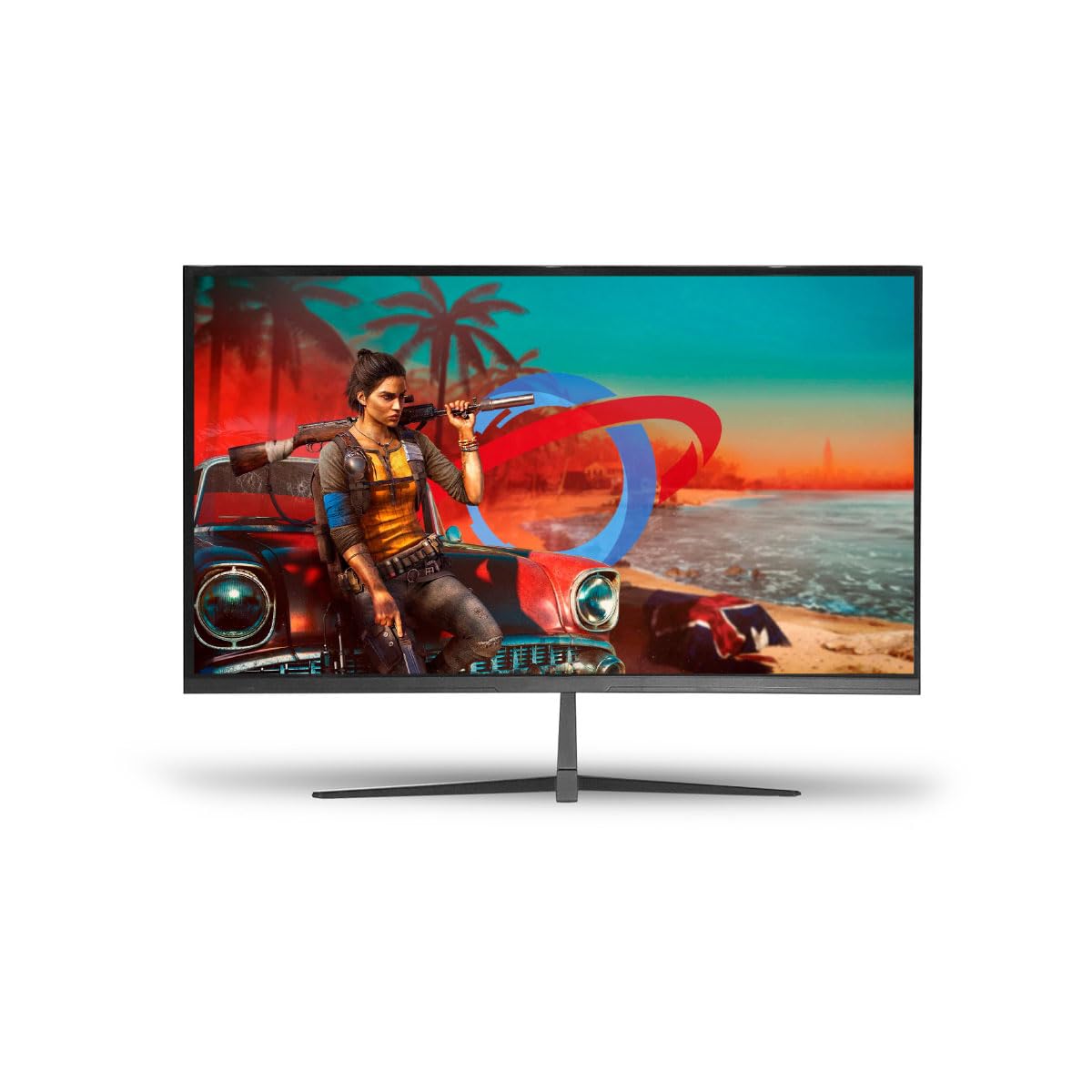
Image: The Duex DX315G 31.5-inch IPS Full HD 360Hz Gaming Monitor, showcasing its sleek design.
Safety Information
- Always disconnect the power cable from the wall outlet before cleaning or if the monitor will not be used for an extended period.
- Do not expose the monitor to rain or moisture to prevent fire or shock hazards.
- Do not open the monitor casing. There are no user-serviceable parts inside. Refer all servicing to qualified service personnel.
- Place the monitor on a stable, flat surface to prevent it from falling.
- Ensure proper ventilation around the monitor. Do not block ventilation openings.
- Use only the power adapter and cables supplied with the monitor.
Package Contents
Verify that all items are present in your package:
- Duex DX315G Monitor
- Monitor Stand (Base and Neck)
- Power Adapter and Cable
- HDMI Cable
- DisplayPort Cable
- User Manual (this document)
Setup
1. Assembling the Monitor Stand
- Carefully remove the monitor from its packaging, keeping the screen protected.
- Attach the stand neck to the monitor panel by aligning the tabs and pushing firmly until it clicks into place.
- Attach the stand base to the stand neck. Secure it with the captive screw located on the underside of the base.
- Alternatively, the monitor supports VESA mount (100x100mm) for wall or arm mounting. Remove the stand neck if already attached before mounting.
Illustration: An image showing the steps for attaching the monitor stand components would typically be included here.
2. Connecting Cables
Locate the input ports on the back of your monitor.
- Power: Connect the power cable to the monitor's power input, then plug the other end into a power outlet.
- Video Input:
- For optimal performance (360Hz), use the supplied DisplayPort cable to connect your computer's graphics card to the monitor's DisplayPort input.
- Alternatively, use the supplied HDMI cable to connect your computer's graphics card to the monitor's HDMI input. Note that HDMI 2.0 may support up to 240Hz at Full HD, depending on your graphics card.
Illustration: An image detailing the location of the power, DisplayPort, and HDMI input ports on the monitor's rear panel would typically be included here.
3. Initial Power-On
Press the power button, usually located on the bottom or back of the monitor, to turn it on. The monitor should automatically detect the active input source. If not, you may need to manually select the input using the OSD menu.
Operating the Monitor
On-Screen Display (OSD) Menu
The OSD menu allows you to adjust various monitor settings. Access the OSD menu by pressing the OSD button (refer to your monitor's physical buttons for exact location, often a joystick or a series of buttons on the back/bottom).
Common OSD Menu Options:
- Picture Settings: Adjust Brightness, Contrast, Gamma, Color Temperature, and Sharpness.
- Color Settings: Fine-tune RGB values, select preset color modes (e.g., Standard, Game, Movie).
- Input Select: Manually switch between DisplayPort and HDMI inputs.
- Gaming Settings: Enable/disable FreeSync/G-Sync compatibility, adjust Response Time (OD), and activate features like Crosshair overlay.
- OSD Settings: Adjust OSD language, transparency, and timeout.
- Reset: Restore all settings to factory defaults.
Illustration: An image showing the OSD menu interface and button layout would typically be included here.
Adaptive Sync (FreeSync/G-Sync Compatibility)
The Duex DX315G monitor supports Adaptive Sync technology, compatible with both AMD FreeSync and NVIDIA G-Sync (when enabled in your graphics card control panel). This technology synchronizes the monitor's refresh rate with your GPU's frame rate, reducing screen tearing and stuttering for a smoother gaming experience. Ensure it is enabled in the monitor's OSD menu and your graphics card software.
Maintenance
Cleaning the Monitor
- Screen: Gently wipe the screen with a soft, lint-free cloth. For stubborn marks, lightly dampen the cloth with water or a non-ammonia, non-alcohol based screen cleaner. Do not spray cleaner directly onto the screen.
- Casing: Use a soft, dry cloth to wipe the monitor casing. Avoid abrasive cleaners or solvents.
Storage
If storing the monitor for an extended period, disconnect all cables, pack it in its original packaging (if available), and store it in a cool, dry place away from direct sunlight and extreme temperatures.
Troubleshooting
| Problem | Possible Cause | Solution |
|---|---|---|
| No Power | Power cable not connected; Power outlet faulty; Monitor power button off. | Ensure power cable is securely connected. Test power outlet. Press monitor power button. |
| No Signal | Video cable not connected; Incorrect input selected; Computer not outputting signal. | Check video cable connections. Select correct input via OSD. Restart computer. |
| Flickering Screen | Faulty cable; Incorrect refresh rate; Graphics driver issue. | Replace video cable. Set refresh rate correctly in OS. Update graphics drivers. |
| Image is too dark/bright | Brightness/Contrast settings incorrect. | Adjust Brightness and Contrast in the OSD menu. |
| Dead/Stuck Pixels | Manufacturing defect. | Refer to warranty policy for pixel defect guidelines. |
Specifications
- Model: DX315G
- Screen Size: 31.5 inches
- Panel Type: ELED IPS
- Resolution: 1920x1080 (Full HD)
- Aspect Ratio: 16:9
- Refresh Rate: 360Hz
- Response Time: 1ms
- Brightness: 200 cd/m²
- Contrast Ratio: 1000:1
- Color Support: 16.7 Million Colors
- Viewing Angle: H/V: 178°
- Features: HDR, Flicker-Free, FreeSync/G-Sync Compatible
- Connectivity: 1x DisplayPort, 1x HDMI
- VESA Mount: Yes (specific dimensions not provided, typically 100x100mm for this size)
- Power Consumption: 35W
- Input Voltage: AC100-240VAC 50/60HZ
- Product Dimensions (without stand): Approximately 71.5 x 71.5 x 20 cm (Width x Height x Depth, based on product dimensions provided, assuming height includes stand and width is screen width)
- Product Weight: 6.5 kg
Warranty Information
Duex monitors are covered by a standard manufacturer's warranty against defects in materials and workmanship. The specific duration and terms of your warranty may vary by region and retailer. Please retain your proof of purchase for warranty claims. For detailed warranty information, refer to the warranty card included with your product or contact Duex customer support.
Support
If you encounter any issues not covered in this manual or require further assistance, please contact Duex customer support. You can typically find support contact details on the official Duex website or on the product packaging.
For the latest drivers, firmware updates, and additional support resources, please visit the official Duex website.