
Introduction
The SwingLogic SLX Hybrid Pro is a versatile golf device designed to enhance your game by providing comprehensive swing analysis, GPS course navigation, and integrated audio. This device tracks key metrics such as ball speed, club speed, distance, and smash factor. It also offers GPS distances for over 40,000 golf courses worldwide and features an HD magnetic speaker for audio playback. The SLX Hybrid Pro connects via Bluetooth to the SLX Connect Mobile App, available for iOS and Android devices, to unlock additional features including auto-trigger video capture and various training modes.

Image: The SLX Hybrid Pro device positioned on green grass, displaying golf metrics like club speed and ball speed.
Setup
1. Charging the Device
Before first use, fully charge the SLX Hybrid Pro using the provided USB-C cable. A full charge typically takes several hours and provides 6-10 hours of operation. The device features a battery indicator on its display.
2. Installing the SLX Connect App
Download the free SLX Connect Mobile App from your device's app store (compatible with iOS and Android). This app is essential for accessing GPS features, advanced swing analysis, and video capture.
3. Bluetooth Pairing
Turn on the SLX Hybrid Pro. Open the SLX Connect App on your smartphone and follow the on-screen instructions to pair the device via Bluetooth. Ensure Bluetooth is enabled on your smartphone.
4. Device Placement for Launch Monitor
For accurate swing and ball data, place the SLX Hybrid Pro 4-5 feet directly behind your golf ball. Ensure there are no obstructions between the device and the ball. For shorter irons or wedges, moving the device slightly closer to the ball may improve data capture.

Image: A golfer in mid-swing with the SLX Hybrid Pro positioned on the grass behind the golf ball, ready to capture swing data.
5. Magnetic Mounting
The SLX Hybrid Pro can be magnetically mounted to a golf cart for convenient access to GPS and speaker functions. Ensure the device is securely attached to prevent accidental detachment.

Image: The SLX Hybrid Pro device is shown magnetically attached to the metal frame of a golf cart.
6. Smart Marker Remote
The device includes a Smart Marker Remote. This remote can be used to trigger video capture or other functions within the app. Refer to the app's interface for specific uses and setup of the Smart Marker.

Image: A hand holds the small, circular SLX Smart Marker remote, which is used for various device functions.
Operating Instructions
1. Launch Monitor Functionality
Once positioned correctly, the SLX Hybrid Pro automatically detects your swing. The device's display will show real-time data for ball speed, club speed, and calculated distance. The SLX Connect App provides additional metrics and visual feedback on ball flight and smash factor.
2. GPS Navigation
Access the GPS mode through the SLX Connect App. The app provides access to over 40,000 golf courses. When connected, the device can provide audible distances to the green, helping you navigate the course.

Image: A smartphone screen shows the SLX Connect App displaying a golf course layout with GPS yardage to the green.
3. HD Speaker Functionality
The integrated HD speaker allows for audio playback from your connected smartphone. This can be used for music or audible GPS distances during your game.
4. Auto-trigger Video Capture
The SLX Connect App features an auto-trigger video capture function. This allows you to automatically record and trim swing videos from front or side angles. These videos can be reviewed within the app for swing analysis or shared with a coach.
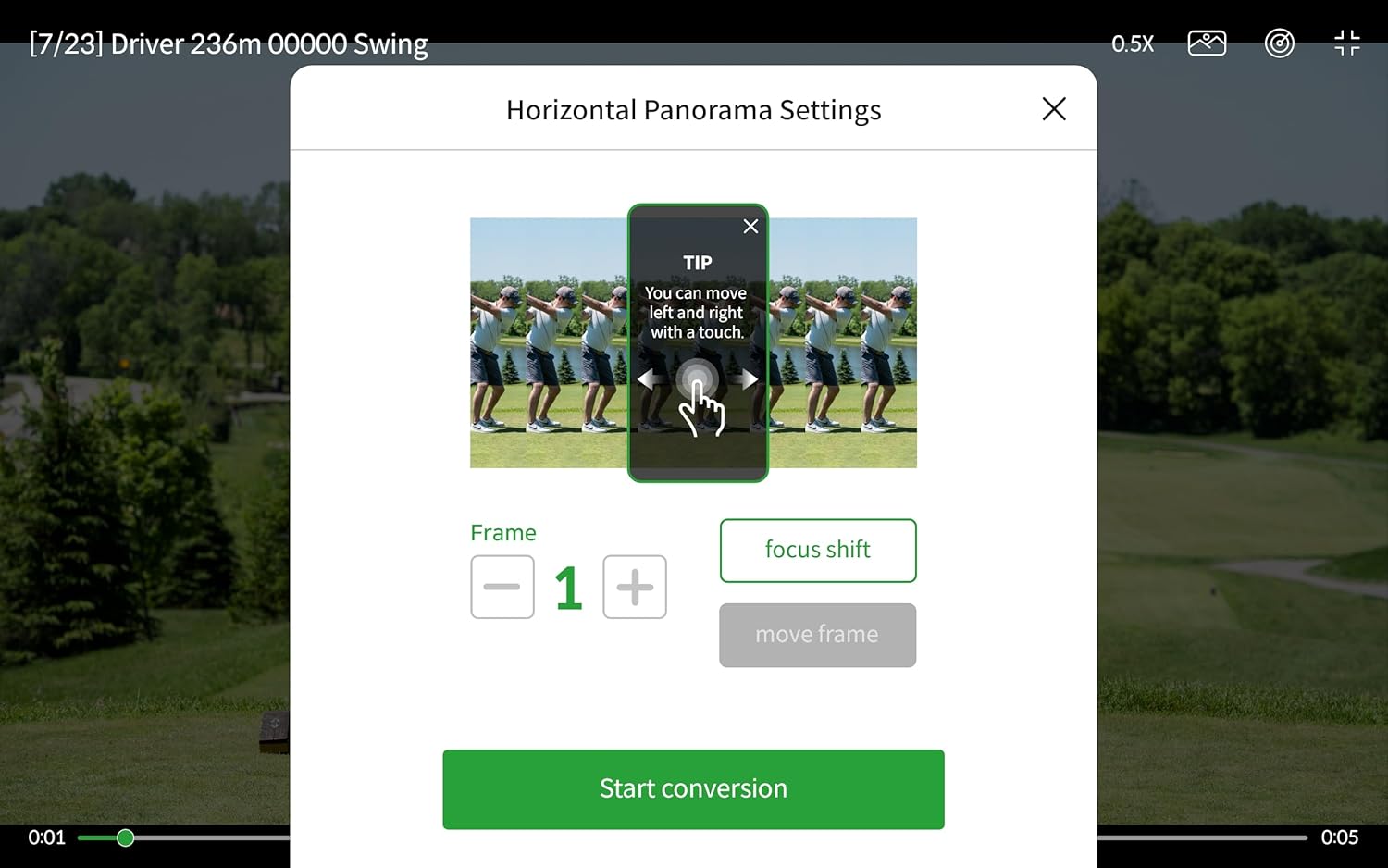
Image: A screenshot from the SLX Connect App illustrating the horizontal panorama settings for analyzing swing videos.

Image: A screenshot from the SLX Connect App demonstrating the setup for swing video capture, including a guide for feet placement.
5. Training Modes
The SLX Connect App offers various training modes to help improve your golf game. Explore these modes within the app for guided practice sessions.
Video: An overview of the SwingLogic SLX Hybrid Pro, demonstrating its features and benefits for golfers.
Video: This video highlights the GPS and launch monitor capabilities of the SLX Hybrid Pro, showcasing how it helps golfers improve their skills.
Maintenance
To ensure the longevity and optimal performance of your SLX Hybrid Pro, follow these maintenance guidelines:
- Cleaning: Wipe the device with a soft, damp cloth. Avoid using harsh chemicals or abrasive materials.
- Storage: Store the device in a cool, dry place when not in use.
- Charging: Regularly charge the device to maintain battery health, even during periods of inactivity.
- Water Resistance: The device is designed with water resistance. However, avoid submerging it in water.

Image: The SLX Hybrid Pro device is shown with water droplets on its surface, illustrating its water-resistant design.
Troubleshooting
If you encounter issues with your SLX Hybrid Pro, refer to the following common problems and solutions:
- Device Not Charging: Ensure the USB-C cable is securely connected to both the device and a power source. Try a different USB-C cable or power adapter.
- Inaccurate Readings (Ball/Club Speed, Distance):
- Verify the device is placed 4-5 feet directly behind the ball.
- Ensure no obstructions are between the device and the ball.
- For wedge shots or shorter irons, try moving the device slightly closer to the ball.
- Confirm the device's sensors are clean and free from debris.
- App Connectivity Issues:
- Ensure Bluetooth is enabled on your smartphone and the device is powered on.
- Restart both the SLX Hybrid Pro and your smartphone.
- Close and reopen the SLX Connect App.
- Check for app updates in your device's app store.
- GPS Inaccuracy or Course Not Found:
- Ensure your smartphone has a stable internet connection for course data.
- Verify location services are enabled for the SLX Connect App on your smartphone.
- Update the app to ensure you have the latest course database.
- Video Capture Problems:
- Ensure sufficient lighting for clear video recording.
- Check your smartphone's storage space.
- For optimal video capture, position your phone approximately 10 yards away from you.
- Videos are typically stored within the app. Exporting options may vary by app version.
- Smart Marker Remote Not Responding: Check the battery of the Smart Marker Remote. Ensure it is paired correctly with the device via the app.
Specifications
| Feature | Detail |
|---|---|
| Item Weight | 2.4 pounds |
| Product Dimensions | 8.39 x 4.29 x 4.21 inches |
| Batteries | 1 Lithium Ion battery required |
| Display Size | 5.5 Inches |
| Battery Life | 10 Hours |
| Voice Command | Touch Pad |
| Connectivity Technology | Bluetooth |
| Map Type | Worldwide (40,000+ courses via app) |
| Audio Output Mode | Digital |
| Operating System (App) | Android, iOS |
| Special Features | Advanced Swing Analysis, Integrated GPS Navigation, Text-to-Speech, Waterproof |
Warranty and Support
For warranty information, please refer to the official SwingLogic website or contact SwingLogic customer support directly. If you require technical assistance or have questions regarding your SLX Hybrid Pro, please visit the SwingLogic Store or contact their support team through the SLX Connect App.