
1. Introduction
The Amino H200 is a high-performance, ruggedized IPTV encoder and media player designed for diverse environments requiring 4K content delivery. Its robust design supports "out of sight" operation, making it suitable for applications ranging from in-room hospitality to public space signage and advertising. Key features include Power over Ethernet (PoE) for simplified installation and advanced AV1 and HEVC processing for efficient, high-quality video streaming.
2. Product Overview
The H200 unit is engineered for durability and discreet placement. Its compact form factor and VESA mounting capabilities allow for installation behind displays or in other concealed locations. The device integrates essential connectivity for both encoding and media playback functionalities.

Figure 1: Front view of the Amino H200 unit. This image shows the sleek, black casing of the device, designed for discreet installation.
2.1 Key Features
- 4K Resolution Support: Capable of handling and delivering high-definition 4K content.
- Power over Ethernet (PoE): Simplifies installation by allowing power and data transmission over a single Ethernet cable.
- Ruggedized Design: Built for durability in various operational environments.
- AV1 and HEVC Capability: Efficient video compression for optimized bandwidth usage and high-quality image delivery.
- Graphics Acceleration: Ensures fast rendering of high-quality graphics.
- Out-of-Sight Operation: Features like serial display port, IR extender port, and VESA mounting facilitate discreet installation.
3. Setup and Installation
This section provides instructions for setting up your Amino H200 device. Ensure all accessories are present before beginning installation.
3.1 Unpacking and Contents
Carefully unpack the Amino H200 unit and its accessories. The box should contain:
- Amino H200 Encoder/Media Player unit
- Power Adapter (if not using PoE)
- IR Extender Cable (optional, for remote control)
- Mounting hardware (e.g., VESA mount screws)
- Quick Start Guide
3.2 Connecting the Device
Refer to the port diagram below for proper connection of cables.
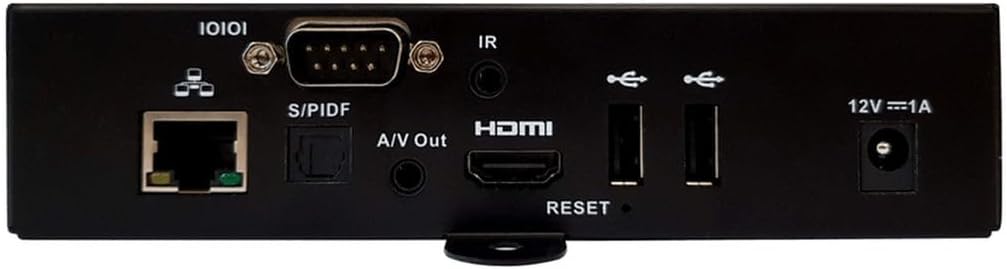
Figure 2: Rear panel connections of the Amino H200. This image details the various input and output ports available on the device, including Ethernet, S/PDIF, A/V Out, HDMI, USB, IR, and power input.
- Network Connection:
- Connect an Ethernet cable from your network switch or router to the Ethernet (10/100/1000) port on the H200.
- If your network switch supports Power over Ethernet (PoE), the device will receive power through this cable, eliminating the need for a separate power adapter.
- Video Output:
- Connect an HDMI cable from the HDMI port on the H200 to the HDMI input of your display or TV.
- Audio Output:
- For digital audio, connect an optical cable to the S/PDIF port.
- For analog audio, connect a 3.5mm audio cable to the A/V Out port.
- IR Extender (Optional):
- If the H200 is installed out of sight, connect the IR extender cable to the IR port. Position the IR receiver in a location where it can receive signals from your remote control.
- USB Devices:
- Connect USB storage devices or peripherals to the available USB ports.
- Power Connection (if not using PoE):
- If not using PoE, connect the provided power adapter to the 12V === 1A power input and then to a wall outlet.

Figure 3: Angled view of the Amino H200, highlighting the rear panel and side mounting brackets. This perspective provides a clearer view of the device's compact size and the arrangement of its various ports and connectors, along with the VESA mounting points.
3.3 VESA Mounting
The H200 features VESA mounting points for secure installation behind compatible displays or on walls. Use appropriate screws and mounting hardware (not always included) to attach the device securely. Ensure adequate ventilation around the unit.
4. Operating Instructions
Once the H200 is connected and powered on, it will boot up. The operating system and specific applications will determine the user interface and functionality. The device supports IPTV services and can function as both an encoder and a media player.
4.1 Basic Operation
- Power On/Off: The device powers on automatically when connected to a power source (PoE or power adapter). There is no physical power button. To power off, disconnect the power source.
- Remote Control: Use a compatible remote control (sold separately or provided by your service provider) to navigate the user interface. Ensure the IR extender is properly positioned if the unit is out of sight.
- Content Playback: Access media content through the installed IPTV applications or from connected USB storage devices. The H200's AV1 and HEVC capabilities ensure smooth 4K video playback.
- Encoding Functionality: For encoding applications, refer to the specific software or platform documentation integrated with the H200.
4.2 System Reset
A reset button is located on the rear panel (refer to Figure 2). This button is typically used for system reboots or factory resets, depending on the duration of the press. Consult your service provider or system administrator for specific reset procedures.
5. Maintenance
The Amino H200 is designed for low maintenance. Follow these guidelines to ensure optimal performance:
- Cleaning: Use a soft, dry cloth to clean the exterior of the device. Do not use liquid cleaners or abrasive materials.
- Ventilation: Ensure that the ventilation openings are not blocked. Adequate airflow is crucial to prevent overheating.
- Firmware Updates: Periodically check with your service provider or Amino's official support channels for available firmware updates. Updates can improve performance, add features, and enhance security.
- Environmental Conditions: Operate the device within its specified temperature and humidity ranges to prevent damage.
6. Troubleshooting
If you encounter issues with your Amino H200, try the following basic troubleshooting steps:
- No Power:
- Verify that the Ethernet cable is securely connected and your PoE switch is active, or that the power adapter is correctly plugged into the device and a working power outlet.
- Check the power indicator light on the device (if present).
- No Video Output:
- Ensure the HDMI cable is securely connected to both the H200 and your display.
- Confirm your display is set to the correct HDMI input source.
- Try a different HDMI cable or display if possible.
- No Network Connection:
- Check the Ethernet cable connection at both ends.
- Verify that your network router/switch is functioning correctly.
- Restart your network equipment.
- Remote Control Not Responding:
- Ensure the IR extender is properly connected and positioned to receive signals.
- Check the batteries in your remote control.
- System Unresponsive:
- Perform a soft reboot by disconnecting and reconnecting the power.
- If necessary, use the reset button on the rear panel (consult your service provider for proper procedure).
If these steps do not resolve the issue, please contact Amino technical support or your service provider for further assistance.
7. Technical Specifications
| Feature | Specification |
|---|---|
| Brand | Amino |
| Model Name | H200 |
| Item Model Number | H200 |
| Resolution | 4K |
| Connectivity Technology | Ethernet, HDMI, IR |
| Connector Type | Ethernet |
| Special Feature | Power over Ethernet (PoE) capability |
| Supported Internet Services | IPTV |
| Controller Type | Remote Control |
| Form Factor | TV Box |
| Color | Multicolor (Device is primarily black) |
| Item Weight | 2 pounds |
| First Available | August 6, 2024 |
8. Warranty and Support
For warranty information, please refer to the documentation provided with your purchase or contact your reseller/service provider. Amino products typically come with a standard manufacturer's warranty covering defects in materials and workmanship.
For technical support, product inquiries, or service requests, please contact your authorized Amino reseller or visit the official Amino website for support resources and contact information.
Manufacturer: Amino
Note: Warranty terms and support availability may vary by region and reseller.