
Introduction
This manual provides detailed instructions for the setup, operation, maintenance, and troubleshooting of your LabelRange BT620 Thermal Label Printer. Please read this manual thoroughly before using the printer to ensure optimal performance and longevity.
1. Setup Guide
1.1 Unboxing and Initial Inspection
Carefully unpack all components and verify that all items are present. The package should include:
- LabelRange BT620 Bluetooth Label Printer
- Power Adapter and Power Cord
- USB Cable
- USB-C Adapter (for computers without a standard USB port)
- 100 sheets of 4x6'' Thermal Label Paper
- User Manual
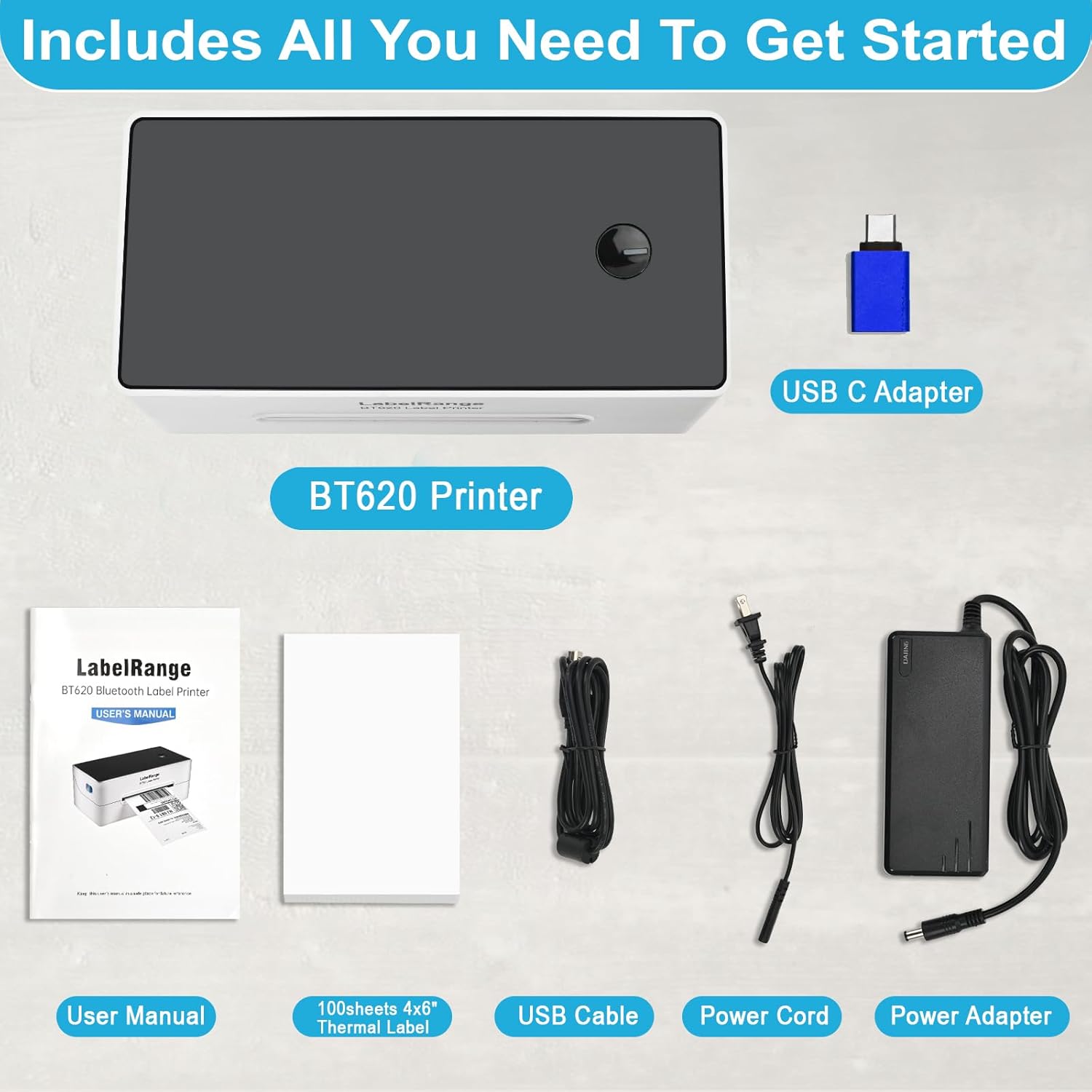
Image 1: Included components of the BT620 printer package, showing the printer, power cables, USB cables, labels, and user manual.
1.2 Connecting the Printer
- Connect the power cord to the power adapter, then plug the adapter into the printer's power port and a wall outlet.
- For USB connection: Connect the provided USB cable from the printer to your computer. If your computer only has USB-C ports, use the included USB-C adapter.
- For Bluetooth connection: Ensure the printer is powered on. Bluetooth pairing instructions are detailed in Section 2.1.

Image 2: Overview of printer connectivity, illustrating USB and Bluetooth options compatible with Windows, Mac, Linux, iOS, and Android. Note: Chromebooks are not supported.
1.3 Loading Labels
- Ensure the printer is powered on.
- Open the top cover of the printer.
- Align the label stack or roll with the label guides. The printable side of the labels should face upwards.
- Adjust the label guides to fit the width of your labels snugly, without bending them.
- Close the top cover. The printer will automatically detect and calibrate the label size.

Image 3: The BT620 printer demonstrating label loading and various label types it can handle, including circular and standard shipping labels.
2. Operating Instructions
2.1 Printing via Bluetooth (iOS/Android)
- Download the dedicated LabelRange app from your device's app store (iOS or Android).
- Ensure Bluetooth is enabled on your smartphone or tablet.
- Open the LabelRange app and follow the in-app instructions to pair with your BT620 printer.
- Select the document or label design you wish to print within the app.
- Confirm print settings (label size, quantity) and initiate printing.
2.2 Printing via USB (Windows/Mac/Linux)
- Connect the printer to your computer using the USB cable.
- Install the printer drivers. Drivers are typically provided on a USB stick included with the printer or can be downloaded from the LabelRange official website.
- For Windows users, you may also set up Bluetooth printing after USB connection and driver installation.
- For Mac and Linux users, printing is exclusively via USB cable.
- Open your document or label design software.
- Select the LabelRange BT620 as your printer and configure print settings (e.g., 4x6 inch label format for shipping labels).
- Initiate printing.
Note: Most shipping platforms now support direct 4x6 inch label generation. Always select the 4x6 inch label format before creating your label to ensure proper printing.

Image 4: The BT620 printer's compatibility with major shipping and e-commerce platforms, facilitating label printing for various business needs.
2.3 Multiple Label Size Printing
The BT620 printer supports direct thermal labels with widths from 1.5 to 4.1 inches and heights from 1 to 9.5 inches. This versatility allows for printing various label types, including:
- 4x6 inch shipping labels
- 3x5 inch food labels
- 3x2 inch product labels
- 3x1 inch address labels
- 2x2 inch round labels
- 2x1 inch UPC barcode labels

Image 5: Examples of different label sizes and types that can be printed with the BT620, demonstrating its adaptability for various labeling requirements.
3. Maintenance
3.1 Cleaning the Print Head
Regular cleaning of the print head ensures consistent print quality. Follow these steps:
- Turn off the printer and unplug it from the power source.
- Open the top cover to access the print head.
- Gently wipe the print head with an alcohol swab or a lint-free cloth lightly dampened with isopropyl alcohol.
- Allow the print head to dry completely before closing the cover and powering on the printer.
3.2 General Care
- Keep the printer in a clean, dust-free environment.
- Avoid exposing the printer to direct sunlight or extreme temperatures.
- Use only high-quality direct thermal labels to prevent damage to the print head and ensure clear prints.
4. Troubleshooting
This section addresses common issues you might encounter. Many problems can be resolved quickly.
4.1 Common Issues and Solutions
- Printer Not Connecting (Bluetooth/USB):
- Ensure the printer is powered on and properly connected (USB cable secure, Bluetooth enabled on device).
- For Bluetooth, verify the printer is paired via the LabelRange app.
- For USB, confirm drivers are correctly installed. Try restarting both the printer and your computer.
- Poor Print Quality (Faded, Streaky, or Unclear):
- Clean the print head as described in Section 3.1.
- Ensure you are using direct thermal labels.
- Check print density settings in your printer preferences or the LabelRange app.
- Labels Not Feeding or Jamming:
- Verify labels are loaded correctly and the label guides are adjusted snugly.
- Ensure there are no obstructions in the label path.
- The printer automatically identifies label size; ensure it has completed this process after loading.
- Printer Not Responding:
- Power cycle the printer (turn off, unplug, wait 10 seconds, plug back in, turn on).
- Check if the power adapter and cord are securely connected.
5. Technical Specifications
| Feature | Specification |
|---|---|
| Model Name | BT620 |
| Printing Technology | Thermal |
| Connectivity Technology | Bluetooth, USB |
| Print Resolution | 300 DPI (300 x 300) |
| Maximum Print Speed | Up to 127 mm/sec (60 ppm) |
| Maximum Media Size | 4.1 x 9.5 inches |
| Print Media Width | 1.5 to 4.1 inches |
| Print Media Height | 1 to 9.5 inches |
| Compatible Devices | Laptops, PC, Smartphones, Tablets (iOS, Android, Windows, Mac, Linux) |
| Operating System Support | iOS, Android, Windows, Mac, Linux (Chromebooks not supported) |
| Product Dimensions (DxWxH) | 4.1"D x 8.7"W x 3.6"H |
| Item Weight | 2.6 pounds |
| Memory Storage Capacity | 64 KB |
| UPC | 762716190054 |

Image 6: Key features of the BT620 printer, including high print resolution and speed.
6. Warranty Information
The LabelRange BT620 Thermal Label Printer comes with a 2-year warranty from the date of purchase. This warranty covers manufacturing defects and malfunctions under normal use. Please retain your proof of purchase for warranty claims.
For detailed warranty terms and conditions, please refer to the official LabelRange website or contact customer support.
7. Customer Support
LabelRange is committed to providing excellent customer service. If you encounter any issues or have questions regarding your BT620 printer, please do not hesitate to contact our support team. Most issues can be resolved quickly.
For support, please visit the LabelRange Store on Amazon or refer to the contact information provided in your product packaging.