
1. Introduction
This manual provides detailed instructions for the installation, operation, and maintenance of your Gosulub P6 5Ghz/2.4Ghz WiFi Bulb Security Camera. Please read this manual thoroughly before using the product to ensure proper function and safety. Keep this manual for future reference.

Image 1.1: Gosulub P6 Bulb Security Camera with live view on a smartphone.
2. Safety Information
To prevent damage to the product or injury to yourself or others, observe the following safety precautions:
- Ensure the power is off before installation or maintenance.
- Do not attempt to disassemble or modify the camera.
- Keep the camera away from extreme temperatures, direct sunlight, and moisture.
- Use only the recommended power source and accessories.
- This camera is designed for E26/E27 bulb sockets. Ensure the socket is compatible and securely installed.
3. Package Contents
Verify that all items are present in your package:
- Gosulub P6 Bulb Security Camera Body
- Installation Guide (this manual)
4. Product Overview
The Gosulub P6 is a versatile security camera designed for both indoor and outdoor use. It offers advanced features for comprehensive surveillance and peace of mind.
Key Features:
- High Resolution: 4MP (2K) video capture for clear images.
- Dual-Band WiFi: Supports both 2.4GHz and 5GHz WiFi for stable connectivity.
- Wide Coverage: Pan 355° and Tilt 90° for full area monitoring.
- Weatherproof: IP65 rated for outdoor use, resistant to wind and rain.
- Smart Detection: AI human motion detection with light alarm.
- Night Vision: Full-color night vision up to 10 meters.
- Two-Way Audio: Built-in speaker and microphone for communication.
- Flexible Storage: Supports up to 128GB SD card (not included) and cloud storage (7-day free trial).
- Smart Home Integration: Compatible with Alexa and Google Assistant.

Image 4.1: Dual-band WiFi coverage for enhanced signal stability.

Image 4.2: The camera is designed to withstand temperatures from -20°C to 80°C.
5. Setup
The Gosulub P6 camera is designed for easy installation, similar to changing a light bulb. No special tools or wiring are required.
5.1. Physical Installation
Simply screw the camera into a standard E26 or E27 light bulb socket. Ensure the socket is powered.

Image 5.1: Easy installation into an E26/E27 bulb socket.
5.2. App Download and Connection Procedure
To configure and control your camera, download the "Symynelec" app from the App Store (iOS) or Google Play (Android).
- Open the app and log in.
- Click the "+" icon in the upper right corner of the app and select "P6-5GHz/2.4GHz".
- Click "Next" to obtain the QR code.
- Power on the camera.
- Wait for the camera to rotate automatically. (Do not touch the camera during automatic rotation.)
- Once automatic rotation is complete, locate the camera's reset button. Press and hold the reset button until you hear a "ding-dong" sound.
- Wait for the camera to rotate automatically again. (Do not touch the camera during automatic rotation.)
- Once automatic rotation is complete, hold the QR code in front of the camera for recognition.
- Wait for the camera to make a "ding-dong" sound again. (If you don't hear the sound, adjust the distance of the QR code.)
- Once you hear the sound, click "I heard the sound" displayed in the app.
- After a short while, the camera will begin pairing.

Image 5.2: Detailed connection procedure steps.
6. Operating Instructions
Once connected, you can control and monitor your Gosulub P6 camera via the Symynelec app.
6.1. Live View and Camera Control
- Access live video feed from anywhere using the app.
- Use the app to remotely control the camera's pan (355°) and tilt (90°) movements.
- Adjust zoom, activate the light, use two-way audio, and review recorded footage directly from the app.

Image 6.1: Remote 355° pan and 90° tilt control via the app.
6.2. Two-Way Audio
The built-in speaker and microphone enable two-way communication. This feature is useful for speaking with visitors, deterring intruders, or checking on pets and family members.

Image 6.2: Use two-way audio to communicate with visitors or deter unwanted guests.
6.3. Multi-User and Multi-Platform Access
The camera supports sharing with up to 20 users simultaneously and can be viewed on multiple platforms, including iOS, Android, and Windows devices.

Image 6.3: Monitor your property with multiple users and on various devices.
7. Advanced Features
7.1. AI Human Motion Detection and Light Alarm
The camera features advanced motion detection that can distinguish human shapes, reducing false alarms. Upon detecting movement, it automatically records, activates the LED light (manual or automatic), and sends push notifications to your smartphone.
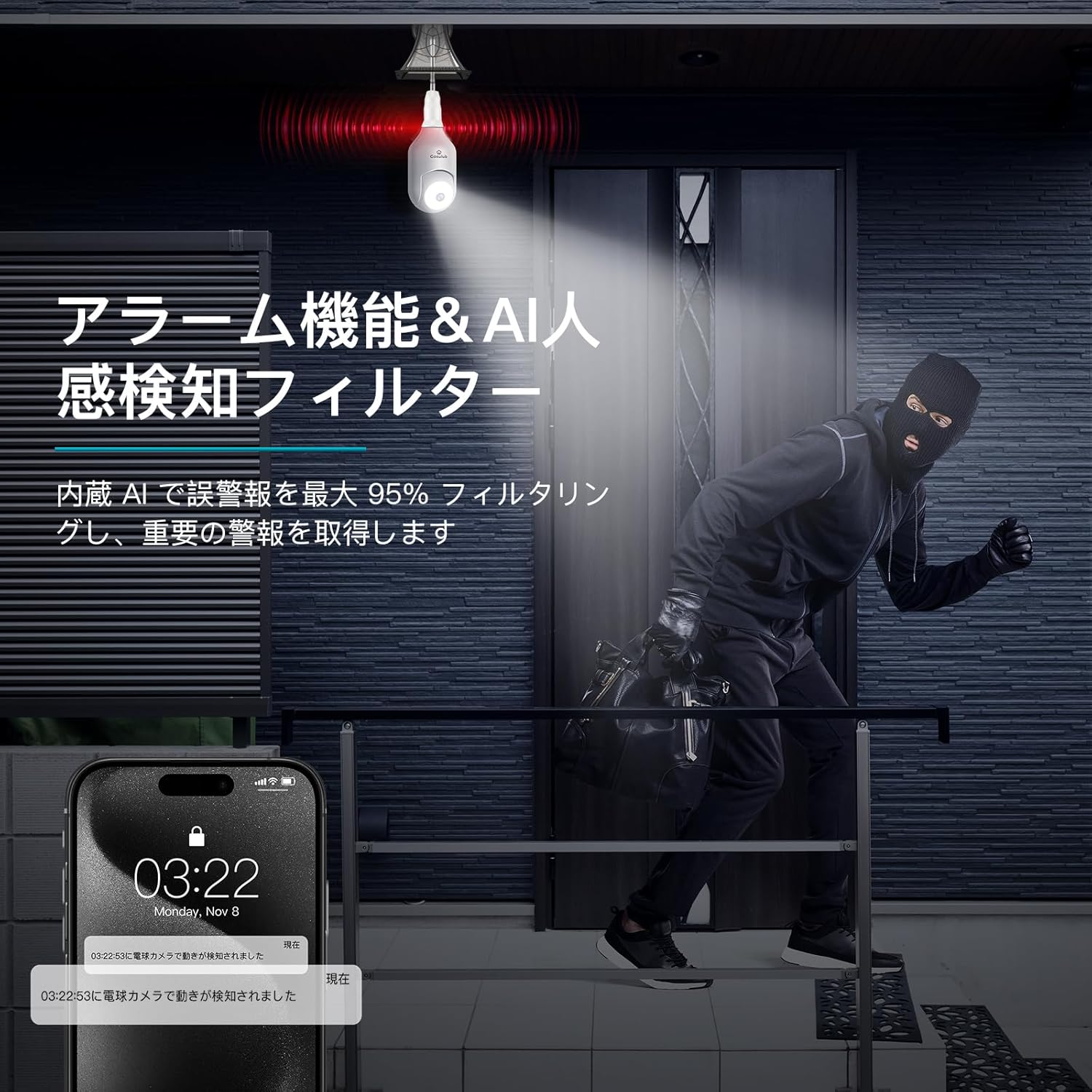
Image 7.1: AI human detection triggers a light alarm and sends notifications.
7.2. Full-Color Night Vision
Equipped with full-color night vision mode, the camera captures clear and vivid images even in low-light conditions, up to 10 meters. This can be adjusted via the app.

Image 7.2: The Gosulub camera provides clear color night vision.
7.3. Smart Home Compatibility
The Gosulub P6 camera integrates with Alexa and Google Assistant, allowing for voice control and seamless integration into your smart home ecosystem.
8. Recording and Storage
The camera supports continuous 24/7 recording and offers two storage options:
- SD Card Storage: Supports a MicroSD card up to 128GB (sold separately).
- Cloud Storage: Offers a 7-day free trial for cloud storage, allowing you to access recordings remotely.

Image 8.1: Both local SD card and cloud storage options are available for 24/7 recording.
9. Maintenance
Regular maintenance ensures optimal performance and longevity of your camera.
- Cleaning: Gently wipe the camera lens and body with a soft, dry cloth. Do not use harsh chemicals or abrasive materials.
- Firmware Updates: Check the Symynelec app periodically for firmware updates. Keeping your camera's firmware up-to-date ensures access to the latest features and security enhancements.
- Power Cycle: If the camera becomes unresponsive, try turning off the power to the socket for a few seconds and then turning it back on.
10. Troubleshooting
If you encounter issues with your Gosulub P6 camera, refer to the following common problems and solutions:
- Camera not connecting to WiFi:
- Ensure your WiFi network is 2.4GHz or 5GHz and stable.
- Check that the WiFi password is entered correctly in the app.
- Move the camera closer to your WiFi router.
- Perform a factory reset on the camera and try the connection procedure again.
- Poor video quality:
- Ensure your WiFi signal is strong.
- Clean the camera lens.
- Check your internet speed.
- Motion detection not working:
- Verify that motion detection is enabled in the app settings.
- Adjust the sensitivity settings.
- Ensure there are no obstructions blocking the camera's view.
- No sound from two-way audio:
- Check the volume settings on your smartphone and in the app.
- Ensure the microphone and speaker permissions are granted to the app.
For further assistance, please contact customer support.
11. Specifications
| Feature | Specification |
|---|---|
| Mounting Type | Indoor and Outdoor placement possible |
| Video Capture Resolution | 4MP (2K) |
| Color | White |
| Included Components | Camera body, Installation Guide |
| Wireless Communication Technology | Wi-Fi (2.4GHz & 5GHz) |
| Form Factor | Bulb type |
| Field of View | 355 degrees (Pan) |
| Installation Type | Screw-in |
| Night Vision Range | 10 meters |
| Material | Acrylonitrile Butadiene Styrene (ABS) |
| Voltage | 100 Volts (AC) |
| Product Dimensions (LxWxH) | 9 x 9 x 17 cm |
| Water Resistance Level | Waterproof (IP65) |
| Product Model Number | P6 |
| Optical Zoom Ratio | 3X |
| Digital Zoom Ratio | 3X |
| Recommended Uses | Indoor Security, Outdoor Security |
| Connectivity Technology | Wireless |
| Special Features | 4MP High Resolution, Color Night Vision, Alexa/Google Compatible, Two-Way Audio, Motion Detection, Pan/Tilt Tracking, Waterproof, Alarm Notification, Remote Monitoring |
| Indoor/Outdoor Use | Indoor, Outdoor |
| Compatible Devices | Smartphones |
| Power Source | AC (Bulb Socket) |
| Controller Type | iPhone, Amazon Alexa, Android, Google Assistant |
12. Warranty and Support
Gosulub is committed to providing high-quality products and excellent customer service.
- 100% Satisfaction Guarantee: Your Gosulub camera is designed to protect you and your family.
- Customer Support: If you encounter any issues, please contact us via Amazon or email. We aim to respond within 24 hours to ensure your complete satisfaction.