1. Introduction
The NiPoGi Essenx E2 Mini PC is a compact and powerful desktop computer designed for various applications, including office work, home entertainment, and educational use. Featuring an Intel Alder Lake-N95 processor, 16GB DDR4 RAM, and a 512GB M.2 SSD, it offers efficient performance in a small form factor. This manual provides detailed instructions for setting up, operating, maintaining, and troubleshooting your Mini PC.

Image 1.1: Front view of the NiPoGi Essenx E2 Mini PC, showcasing its compact design and front ports.
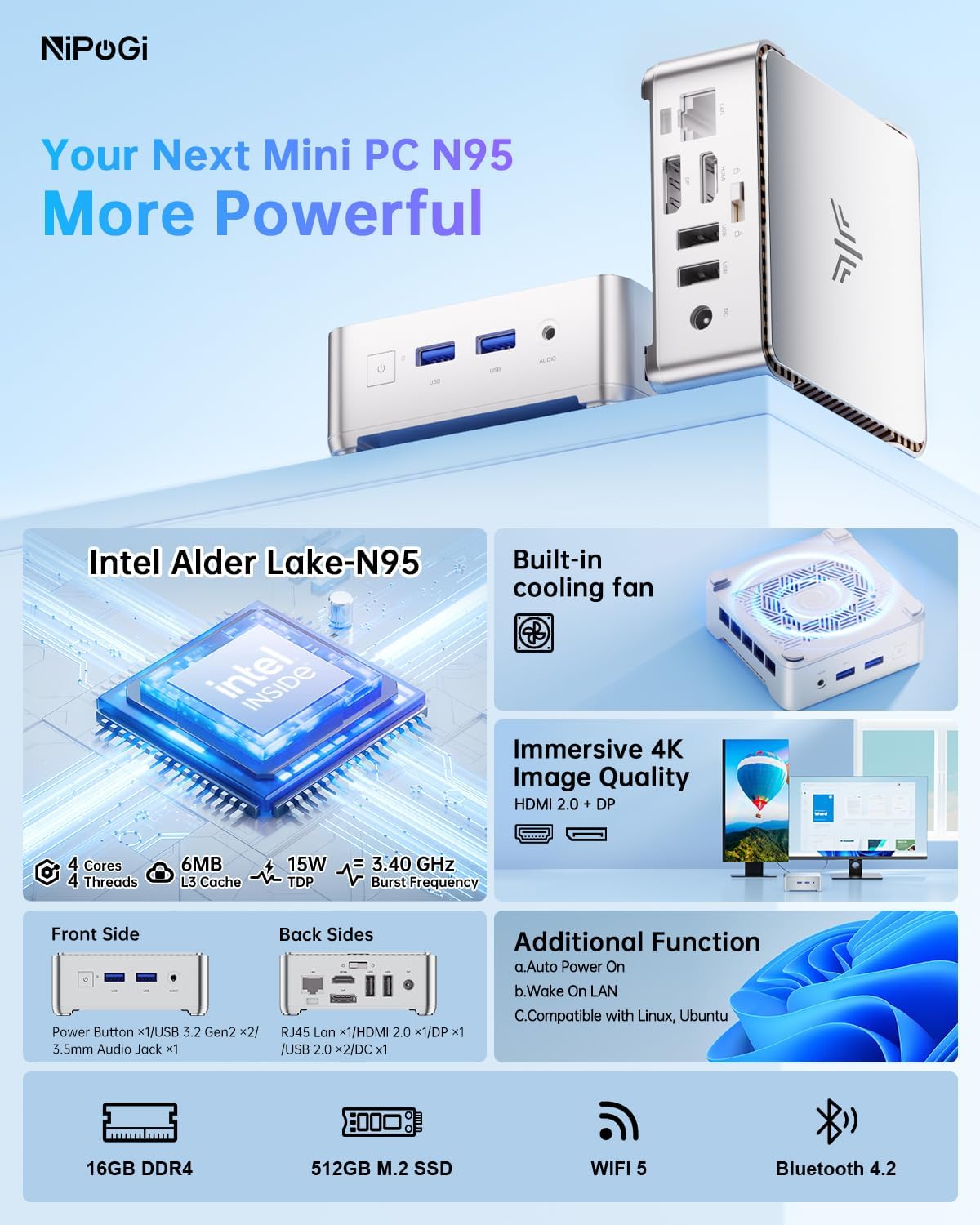
Image 1.2: Overview of the NiPoGi Essenx E2 Mini PC's key features, including the Intel Alder Lake-N95 processor, built-in cooling fan, 4K image quality, various ports, 16GB DDR4, 512GB M.2 SSD, WiFi 5, and Bluetooth 4.2.
2. Package Contents
Please verify that all items are present in the package:
- 1 x NiPoGi Essenx E2 Mini PC
- 1 x Power Adapter (EU plug)
- 1 x User Manual
- 1 x HDMI Cable
- 1 x VESA Mount Bracket
3. Setup Guide
3.1 Connecting Peripherals
Before powering on your Mini PC, connect all necessary peripherals:
- Connect Display: Use the provided HDMI cable to connect your monitor or TV to the HDMI 2.0 port on the Mini PC. Alternatively, use a DisplayPort (DP) cable for DP connectivity. The device supports dual display output.
- Connect Keyboard and Mouse: Plug your USB keyboard and mouse into the available USB ports (2 x USB 3.0, 2 x USB 2.0).
- Connect Network (Optional): For a wired internet connection, connect an Ethernet cable to the RJ45 LAN port. Wireless connectivity (Wi-Fi 5) and Bluetooth 4.2 are also available.
- Connect Power: Plug the power adapter into the DC input port on the Mini PC, then connect the adapter to a power outlet.

Image 3.1: Diagram illustrating the various ports on the NiPoGi Essenx E2 Mini PC, including USB, HDMI, DisplayPort, LAN, and DC power input.
3.2 Initial Boot and Operating System Setup
The Mini PC comes with Windows 11 Pro pre-installed.
- Press the power button on the front of the Mini PC.
- Upon first boot, you will be guided through the Windows 11 Pro setup process. Follow the on-screen instructions to select your language, region, and create a user account.
- Important First Boot Tip: To avoid initial configuration issues, it is recommended not to connect to a network (wired or Wi-Fi) until the operating system setup is complete. You can skip the network connection step during the initial setup. If you accidentally connect to Wi-Fi and encounter issues, disconnect your router, restart the Mini PC, and proceed with the setup offline.
3.3 BIOS Settings: Automatic Power On
The Mini PC supports automatic power-on after a power failure. To enable this feature:
- During startup, repeatedly press the ESC key to enter the BIOS interface.
- Navigate to the "Boot" section.
- Locate and enable the "Enable Automatic Power On" option.
- Save changes and exit the BIOS.
3.4 VESA Mount Installation
The included VESA mount allows you to attach the Mini PC to the back of a compatible monitor or TV, saving desk space.
- Attach the VESA bracket to the back of your monitor using the provided screws.
- Slide the Mini PC onto the VESA bracket until it clicks securely into place.

Image 3.2: Visual representation of the Mini PC's small size and various placement options, including desktop, VESA-mounted behind a monitor, and portable in a bag.
4. Operating Instructions
4.1 System Overview
The NiPoGi Essenx E2 Mini PC runs on Windows 11 Pro (64-bit) and is compatible with Linux and Ubuntu operating systems. It is powered by a 12th Gen Intel Alder Lake-N95 processor, offering efficient performance for daily tasks.
4.2 Dual Display Configuration
The Mini PC supports dual 4K display output via its HDMI 2.0 and DisplayPort interfaces, allowing for an expanded workspace.
- Connect your primary monitor to either the HDMI or DP port.
- Connect your secondary monitor to the remaining video output port.
- In Windows, right-click on the desktop, select "Display settings," and configure your preferred display arrangement (e.g., Extend, Duplicate).

Image 4.1: The Mini PC connected to two monitors, demonstrating its dual 4K display capability for enhanced productivity.
4.3 Network Connectivity
The Mini PC offers versatile network options:
- Wi-Fi: Built-in dual-band Wi-Fi 5 (802.11ac, 2.4G/5G) provides stable wireless internet access. Connect via Windows network settings.
- LAN: A 1000 Mbps Ethernet port is available for a stable wired connection.
- Bluetooth: Bluetooth 4.2 allows connection to wireless peripherals such as keyboards, mice, and headphones.

Image 4.2: The Mini PC facilitating easy multitasking with Wi-Fi 5 and Bluetooth 4.2, showing multiple applications open across a display.
4.4 Storage Expansion
The Mini PC includes a 512GB M.2 SSD. For additional storage, it supports replacement of the M.2 NVMe PCIe3.0 SSD or M.2 SATA SSD, up to 2TB.
- To upgrade or replace the M.2 SSD, consult a qualified technician or refer to detailed hardware upgrade guides.
- Ensure the new SSD is compatible with M.2 NVMe PCIe3.0 or M.2 SATA standards.

Image 4.3: Internal view of the Mini PC highlighting the 16GB DDR4 RAM and the 512GB M.2 SSD, with an indication of support for up to 2TB storage expansion.
5. Maintenance
5.1 General Care
- Keep the Mini PC in a well-ventilated area to prevent overheating.
- Avoid exposing the device to extreme temperatures, humidity, or direct sunlight.
- Clean the exterior with a soft, dry cloth. Do not use liquid cleaners.
- Ensure all cables are securely connected.
5.2 Software Updates
Regularly update your Windows operating system and drivers to ensure optimal performance and security. Windows Update can be accessed through the system settings.
6. Troubleshooting
6.1 Initial Setup Network Issues
If you encounter issues during the initial Windows setup related to network connectivity:
- No Network/Wi-Fi Connection: It is recommended to complete the OS setup without connecting to the internet. If prompted, skip the network connection step.
- Wired Network Connection Issues: If using a wired connection and the OS fails to load, disconnect the Ethernet cable, restart the device, and proceed with setup offline.
- Wi-Fi Connection Issues: If you established a Wi-Fi connection and the OS cannot load, temporarily turn off your Wi-Fi router, then restart the Mini PC.
6.2 Common Problems
- No Display: Ensure the HDMI/DP cable is securely connected to both the Mini PC and the monitor. Check that the monitor is powered on and set to the correct input source.
- No Power: Verify the power adapter is correctly plugged into the Mini PC and a working power outlet.
- System Slowdown: Check for background applications consuming resources. Ensure sufficient free storage space. Consider running system diagnostics.
7. Specifications
| Feature | Detail |
|---|---|
| Brand | NiPoGi |
| Model Number | E2 |
| Operating System | Windows 11 Pro (64-bit), supports Linux, Ubuntu |
| CPU | Intel Alder Lake-N95 Processor (12th Gen, up to 3.4 GHz, 4 Cores, 4 Threads, 6MB Cache) |
| GPU | Intel UHD Graphics (4K UHD, Triple Display) |
| RAM | 16GB DDR4 |
| Storage | 512GB M.2 SSD (Supports M.2 NVMe PCIe3.0 or M.2 SATA SSD up to 2TB) |
| Wi-Fi | Dual-band 802.11ac (Wi-Fi 5), 2.4G/5G |
| Bluetooth | Version 4.2 |
| LAN | 1000 Mbps Ethernet |
| USB Ports | 2 x USB 3.0, 2 x USB 2.0 |
| Video Output | 1 x HDMI 2.0, 1 x DisplayPort (DP) |
| Audio Port | 1 x Headphone/Microphone Combo Interface |
| Other Features | Auto Power On, Wake On LAN, RTC Wake, VESA Mount Support |
| Dimensions | Approx. 10 x 10 x 3.6 cm |
| Weight | Approx. 500 grams |
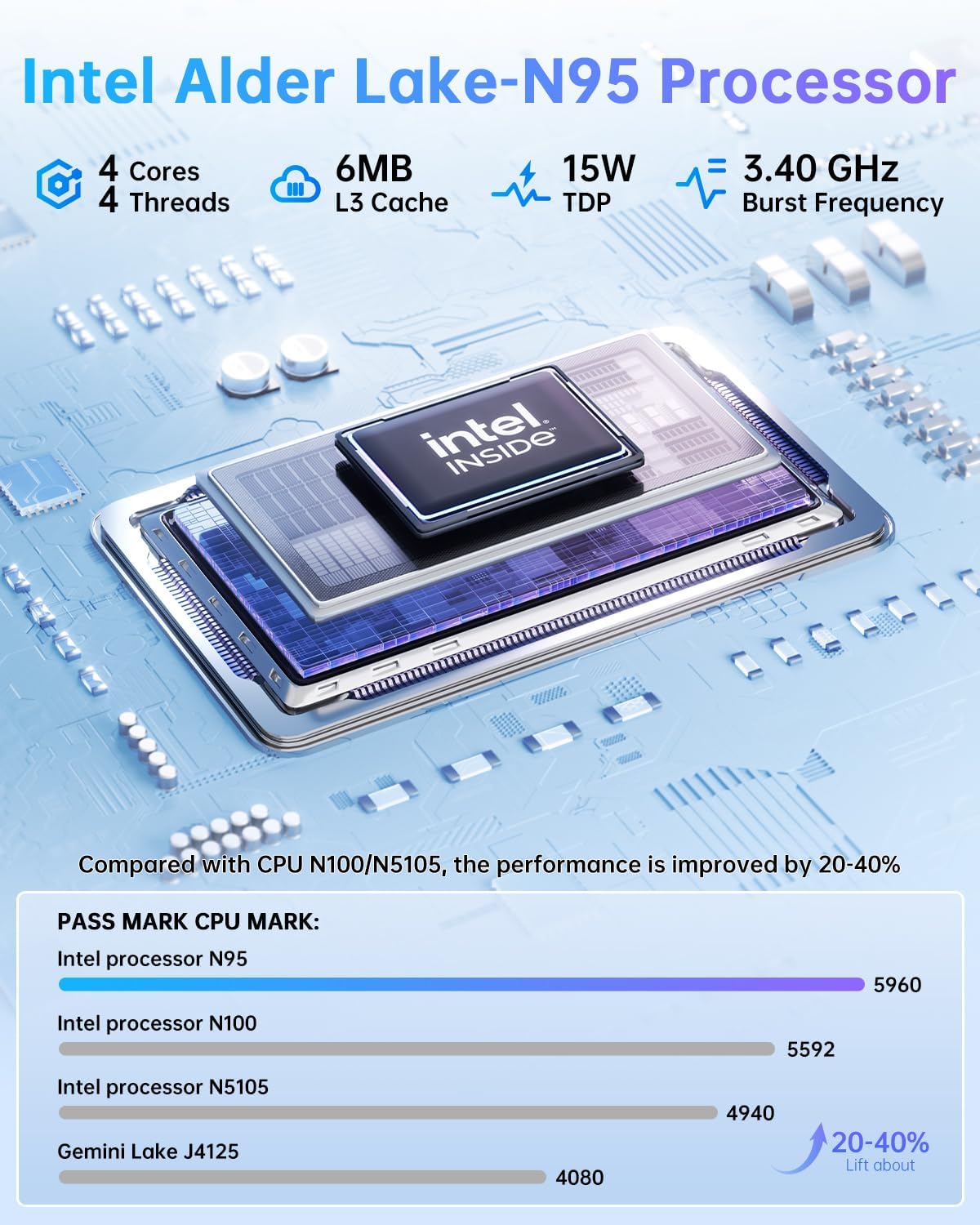
Image 7.1: Detailed specifications of the Intel Alder Lake-N95 processor, including 4 Cores, 4 Threads, 6MB L3 Cache, 15W TDP, and 3.40 GHz Burst Frequency, with performance comparison.
8. Warranty and Support
NiPoGi provides a 1-year warranty for the Essenx E2 Mini PC. For any technical assistance, product inquiries, or warranty claims, please contact NiPoGi customer support. Professional 24/7 customer service is available to assist you.
Please refer to the contact information provided with your product packaging or visit the official NiPoGi website for support details.