
Gaoducash Wireless Smart Hub Gateway with IR Remote Control
Gaoducash Multi-Mode Gateway with IR Remote User Manual
Model: Wireless Smart Hub Gateway with IR Remote Control
1. Introduction
This user manual provides detailed instructions for the setup, operation, and maintenance of your Gaoducash Multi-Mode Gateway with IR Remote. Please read this manual thoroughly before using the device to ensure proper functionality and safety.
The Gaoducash Multi-Mode Gateway is a versatile smart home hub that integrates WiFi, Zigbee, and Bluetooth Mesh protocols, along with an infrared universal remote blaster. It allows you to connect and control a wide range of smart devices and traditional IR-controlled appliances through the Tuya Smart/Smart Life app, and supports voice control via Alexa and Google Home.
2. Product Features
- Multi-Protocol Support: Seamlessly connects WiFi, Zigbee, and Bluetooth Mesh devices.
- Integrated IR Remote Blaster: Controls traditional infrared appliances like TVs, air conditioners, and fans.
- Tuya Smart/Smart Life App Control: Manage devices, create scenes, and control your home remotely.
- Voice Control Compatibility: Works with Amazon Alexa and Google Assistant for hands-free operation.
- Scene Linkage: Enables interaction between different smart devices for automated scenarios.
- IR Code DIY Learning: Learn IR codes from unsupported remote controls.
- High Device Capacity: Supports up to 128 Tuya smart home devices.
3. Package Contents
Please check the package for the following items:
- 1 x Gaoducash Wireless Smart Hub Gateway with IR Remote Control
- 1 x USB Cable
- 1 x User Manual (This document)

Image: The Gaoducash Multi-Mode Gateway device shown with a smartphone displaying the Tuya Smart app interface for adding devices.
4. Specifications
| Product Name | Wireless Smart Hub Gateway with IR Remote Control |
| Power Input | DC 5V1A |
| Working Temperature | -10°C ~ 55°C (14°F ~ 131°F) |
| Working Humidity | 10% ~ 90% RH (non-condensing) |
| Wireless Connection | WIFI (2.4GHz), ZigBee, Bluetooth (BLE Mesh) |
| Max Supported Devices | 128 Tuya smart home devices |
| IR Frequency | 38KHz |
| Dimensions | 1.96 x 1.96 x 0.43 inches (approx.) |
| Weight | 1.76 ounces (approx.) |
5. Setup Guide
5.1. Before You Begin
- Ensure your Wi-Fi network is 2.4GHz. The gateway does not support 5GHz Wi-Fi.
- Download the Tuya Smart or Smart Life app from your smartphone's app store (available on iOS and Android).
- Register or log in to your account in the app.
5.2. Device Connection
- Power On: Connect the provided USB cable to the gateway and plug it into a 5V1A power adapter (not included). The indicator light on the gateway will start blinking.
- Open App: Launch the Tuya Smart or Smart Life app on your smartphone.
- Add Device: The app should automatically detect the new gateway and prompt you to "Add" it. If not, tap the "+" icon in the top right corner of the app, then select "Gateway Control" or "Others" and choose "Wireless Gateway (Zigbee/Bluetooth)".
- Confirm Indicator: Confirm that the indicator light on the gateway is blinking rapidly.
- Wi-Fi Configuration: Select your 2.4GHz Wi-Fi network and enter the password.
- Pairing: The app will begin the pairing process. Once successful, the indicator light will turn solid blue, and the gateway will appear in your device list.
- Rename Device: You can rename the gateway for easier identification (e.g., "Living Room Hub").

Image: An illustration demonstrating how the gateway connects to different Zigbee devices (temperature/humidity sensor, motion sensor, door/window sensors) and Bluetooth devices (water valve, smart door lock, temperature/humidity sensor, night light, BLE Mesh LED ceiling light).
6. Operating Instructions
6.1. Adding Sub-Devices (Zigbee/Bluetooth)
- In the Tuya Smart/Smart Life app, tap on your Multi-Mode Gateway.
- Tap "Add sub-device" or the "+" icon within the gateway interface.
- Follow the on-screen instructions to put your Zigbee or Bluetooth device into pairing mode (this usually involves pressing a reset button on the device).
- The app will search for and add the device. Once added, you can control it through the app.
6.2. Controlling IR Appliances
- In the Tuya Smart/Smart Life app, tap on your Multi-Mode Gateway.
- Select the "IR Remote" or "Infrared Remote Control" section.
- Tap "Add Remote Control" and choose the type of appliance (e.g., TV, Air Conditioner, Fan, DVD).
- Auto Matching: The app will guide you through a series of tests to find the correct remote code for your appliance. Point the gateway towards the appliance during this process.
- DIY Learning (for unsupported devices): If auto-matching fails or your brand is not listed, select "DIY" or "Learn". Point your original remote control at the gateway and press the buttons you wish to learn (e.g., Power, Volume Up, Channel Down). The gateway will record the IR signal.
- Once configured, you can control your IR appliance directly from the app.
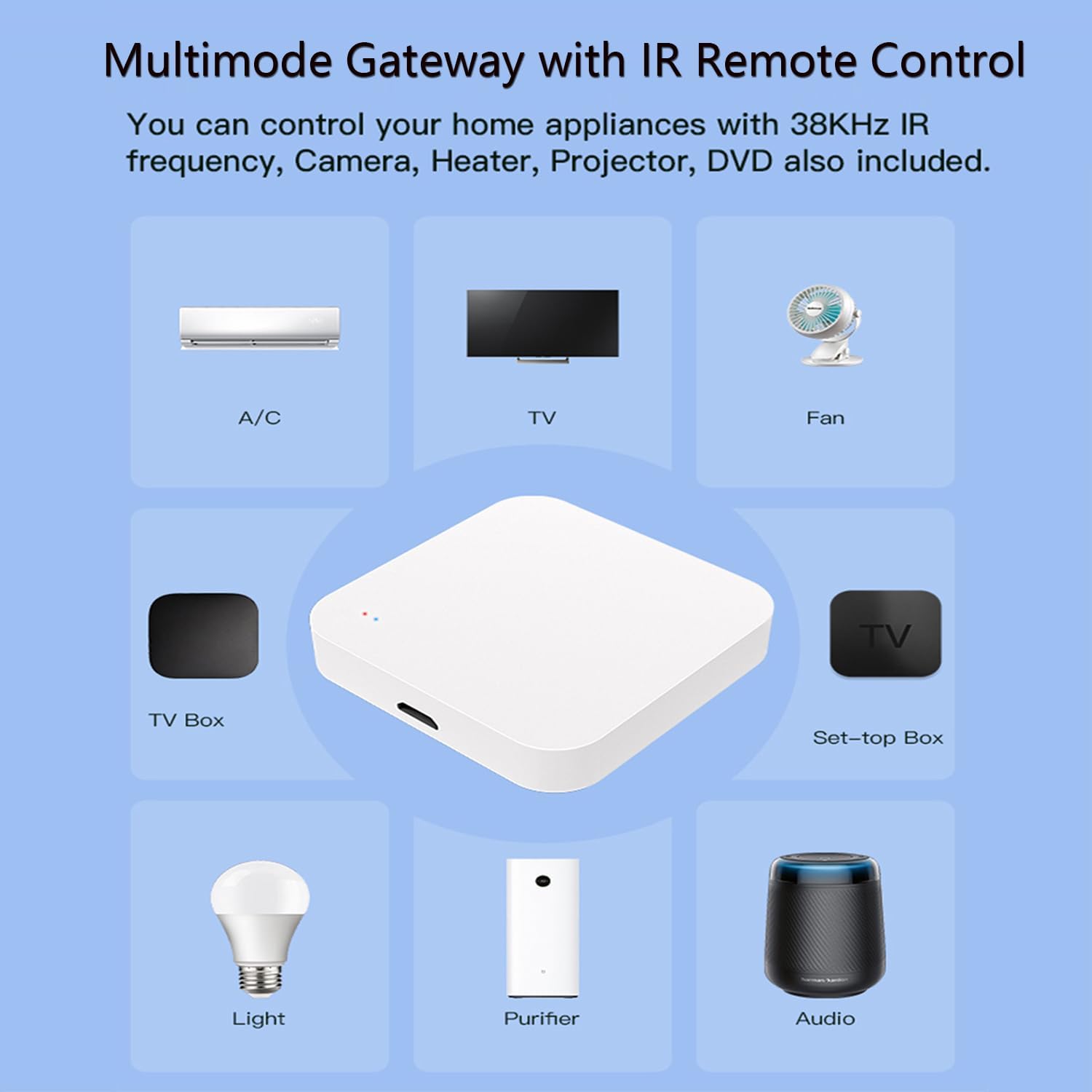
Image: An illustration depicting the Multi-Mode Gateway's ability to control various infrared appliances such as A/C units, TVs, fans, TV boxes, set-top boxes, lights, purifiers, and audio systems.
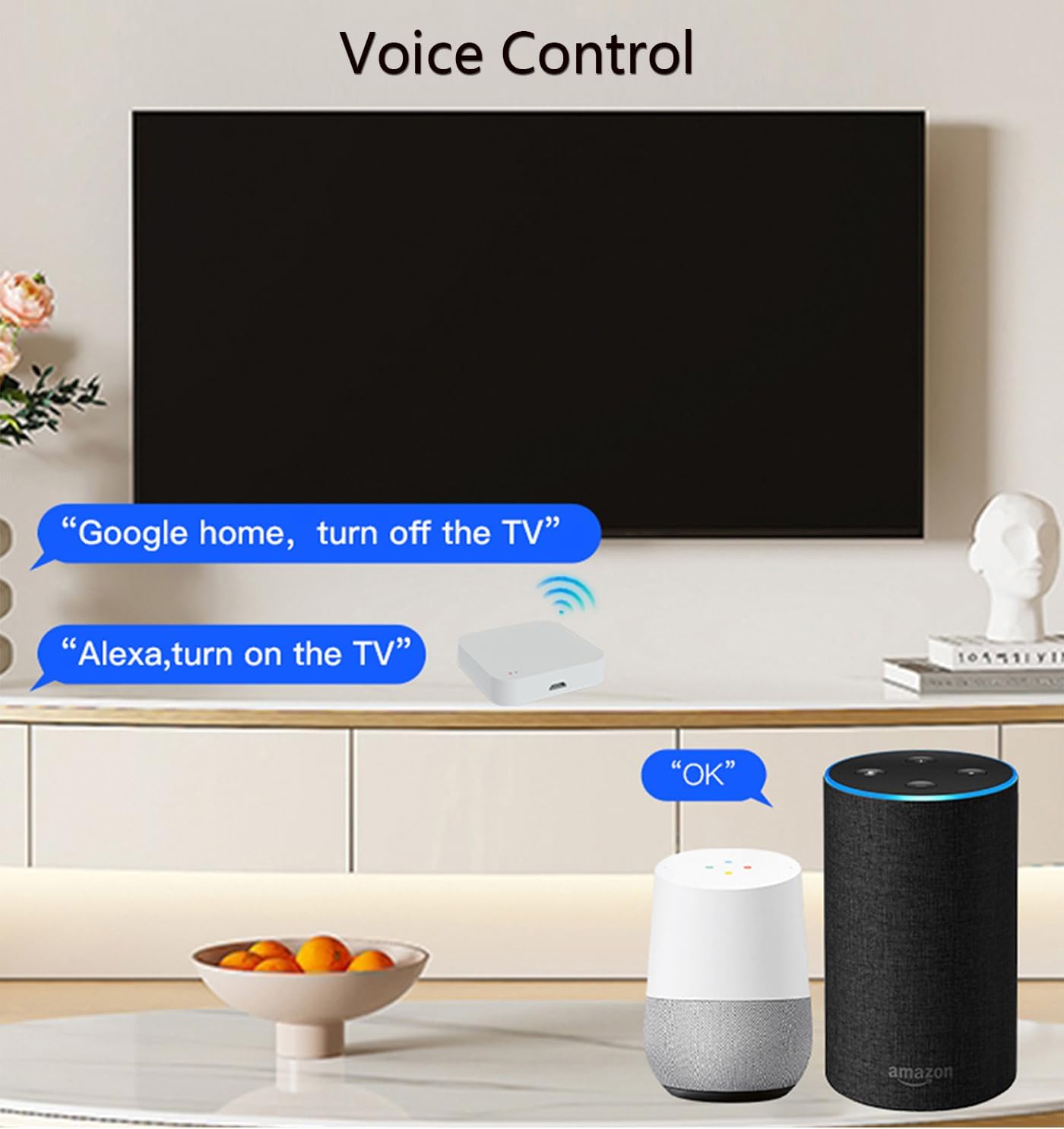
Image: The Multi-Mode Gateway is shown alongside a collection of traditional remote controls, symbolizing its capability to integrate and replace multiple remotes for various home appliances.

Image: A living room scene with a TV and smart speakers (Google Home and Amazon Echo), demonstrating voice commands like "Google home, turn off the TV" and "Alexa, turn on the TV" being processed by the gateway.

Image: A central diagram of the gateway surrounded by various remote controls and appliances (fan, air conditioner, water dispenser), illustrating the "IR Code DIY Learning" function where the gateway can learn commands from original remotes.
6.3. Voice Control Integration (Alexa/Google Home)
- Link Account: In the Alexa or Google Home app, search for the "Tuya Smart" or "Smart Life" skill/service and enable it.
- Authorize: Log in with your Tuya Smart/Smart Life account credentials to link the accounts.
- Discover Devices: Once linked, ask your voice assistant to "Discover devices" or manually initiate device discovery in the app.
- Control: You can now control your connected smart devices and IR appliances using voice commands (e.g., "Alexa, turn on the living room light," "Hey Google, set the AC to 24 degrees").
6.4. Creating Smart Scenes
Smart scenes allow you to automate actions based on specific conditions or schedules. For example, you can set lights to turn on when a door sensor detects entry.
- In the Tuya Smart/Smart Life app, navigate to the "Smart" or "Scene" section.
- Tap "Create Scene" or the "+" icon.
- Set Condition: Choose a condition (e.g., "When device status changes" for a sensor, "Schedule" for a time-based event).
- Set Action: Choose the action(s) to be performed (e.g., "Turn on light," "Adjust AC temperature").
- Save the scene.
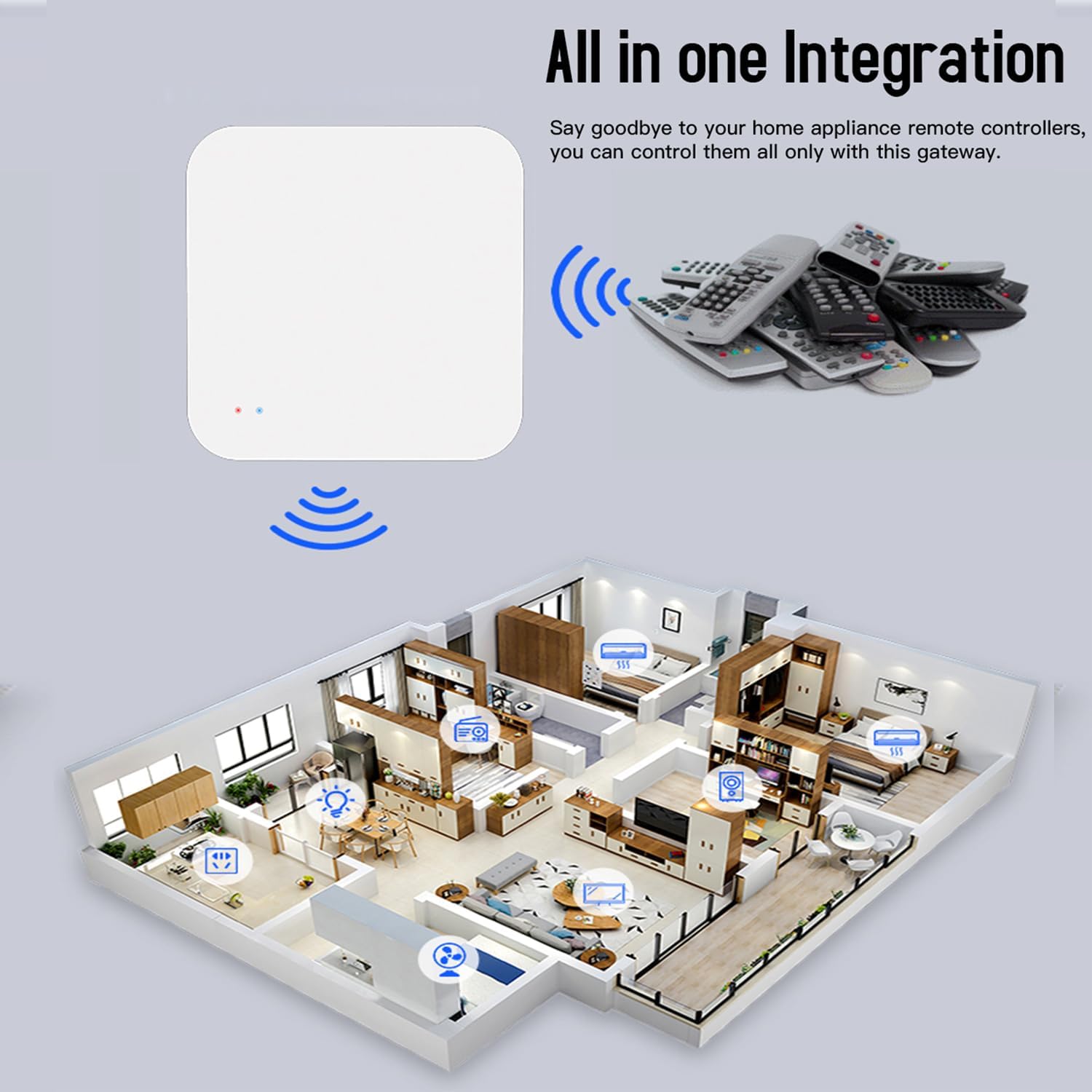
Image: A modern living space illustrating a smart scene where the Multi-Mode Gateway, a smart door lock, smart curtains, and a smart light are linked to create an automated home environment.
7. Maintenance
- Cleaning: Wipe the device with a soft, dry cloth. Do not use liquid cleaners or aerosols.
- Placement: Place the gateway in a central location within your home, away from large metal objects, thick walls, or other sources of interference that might block Wi-Fi or IR signals. Ensure it has a clear line of sight to IR-controlled appliances.
- Firmware Updates: Periodically check the Tuya Smart/Smart Life app for firmware updates for the gateway. Updates can improve performance and add new features.
- Power Supply: Use only the provided USB cable and a compatible 5V1A power adapter.
8. Troubleshooting
| Problem | Possible Cause / Solution |
|---|---|
| Gateway won't connect to Wi-Fi. |
|
| Cannot add sub-devices (Zigbee/Bluetooth). |
|
| IR remote control not working. |
|
| Voice control not responding. |
|
9. Warranty and Support
Gaoducash provides a 24-month warranty for the Wireless Smart Hub Gateway from the date of purchase. This warranty covers manufacturing defects and malfunctions under normal use.
The warranty does not cover damage caused by:
- Improper installation or operation.
- Unauthorized repairs or modifications.
- Accidents, misuse, abuse, or neglect.
- Natural disasters or acts of God.
For technical support, warranty claims, or further assistance, please contact Gaoducash customer service through the retailer where you purchased the product or visit the official Gaoducash website for contact information.
Gaoducash Official Store: Visit Store
no relevant documents
Ask a question about this manual
Ask about setup, troubleshooting, compatibility, parts, safety, or missing instructions. Manuals+ will review the question and use this page’s manual context to help answer it.