1. Introduction
This manual provides detailed instructions for the installation, operation, and maintenance of your RONGJI 9-inch Android Car Radio. This unit is specifically designed for Suzuki Vitara models manufactured between 2005 and 2015. Please read this manual thoroughly before installation and use to ensure proper functionality and safety.
2. Safety Information
- Professional Installation Recommended: Due to the complexity of vehicle electrical systems, professional installation is highly recommended to prevent damage to the unit or your vehicle.
- Power Disconnection: Always disconnect the vehicle's battery before performing any electrical work to avoid short circuits or electrical shock.
- Wiring: Ensure all wiring connections are secure and properly insulated to prevent electrical hazards. Refer to the wiring diagram provided.
- Driving Safety: Do not operate the unit's advanced features or watch videos while driving. Distracted driving can lead to accidents.
- Temperature: Avoid exposing the unit to extreme temperatures or direct sunlight for prolonged periods.
3. Package Contents
Verify that all components listed below are included in your package:

Image: Components included in the RONGJI 8 Core Car Radio package, showing RCA cables, reversing camera cable, USB cables, microphone, 4G antenna, and GPS antenna.
- Main Head Unit (9-inch Android Car Radio)
- Plastic Bezel (Dash Kit for Suzuki Vitara 2005-2015)
- Power Plug/Harness
- RCA Cable Set
- Reversing Camera Input Cable
- USB Cables (Multiple)
- External Microphone
- GPS Antenna
- 4G Antenna (for 8 Core models)
4. Setup and Installation
Before proceeding with installation, ensure your vehicle is compatible. This unit is designed for Suzuki Vitara models from 2005 to 2015. It is recommended to consult a professional for installation.

Image: A visual comparison showing the original car radio dashboard and the dashboard after the RONGJI 9-inch Android Car Radio has been installed, demonstrating a seamless fit.
4.1 Vehicle Compatibility Check
Carefully compare your vehicle's center console and the back of your factory radio socket with the product images and specifications. If unsure, contact customer support with photos of your vehicle's dashboard and original radio connections for verification.
4.2 Basic Installation Steps (General Guide)
- Disconnect Battery: Turn off the vehicle and disconnect the negative terminal of the car battery.
- Remove Factory Radio: Carefully remove the existing factory radio and dashboard trim. Refer to your vehicle's service manual for specific instructions.
- Connect Wiring Harness: Connect the provided power plug/harness to the vehicle's wiring. Ensure all connections match the vehicle's original wiring.
- Connect Antennas: Connect the GPS antenna and 4G antenna (if applicable) to the corresponding ports on the new head unit. Position the antennas in a location with clear signal reception.
- Connect USB and RCA Cables: Connect any necessary USB cables for external devices and RCA cables for auxiliary inputs/outputs (e.g., reversing camera, external amplifier).
- Mount Head Unit: Securely mount the RONGJI head unit into the dashboard opening using the provided plastic bezel and mounting brackets.
- Reconnect Battery: Reconnect the vehicle's battery and test the unit's functionality before fully reassembling the dashboard.
- Final Assembly: Reinstall all dashboard trim pieces.
5. Operating Instructions
5.1 Power On/Off and Basic Navigation
- Power On: The unit will power on automatically when the vehicle's ignition is turned on.
- Power Off: The unit will power off automatically when the vehicle's ignition is turned off.
- Touch Screen: Navigate the Android interface by tapping, swiping, and pinching on the 9-inch capacitive touch screen.
5.2 Car-Play and Android Auto
The unit supports both wireless and wired Car-Play and Android Auto for seamless smartphone integration.

Image: Displays the user interfaces for Car-Play and Android Auto, showing various app icons and media controls, indicating both wired and wireless connectivity options.
- Wireless Connection: Enable Bluetooth and Wi-Fi on your smartphone. Pair your phone with the car radio via Bluetooth. Follow the on-screen prompts to initiate wireless Car-Play or Android Auto.
- Wired Connection: Connect your smartphone to the car radio using an original USB cable. The system will automatically detect and launch Car-Play or Android Auto.
5.3 Bluetooth Functions
The built-in Bluetooth module supports hands-free calling and audio streaming.
- Pairing: Go to the Bluetooth settings on the car radio and enable Bluetooth. Search for available devices on your smartphone and select the car radio's Bluetooth name to pair.
- Hands-Free Calling: Once paired, you can make and receive calls directly from the car radio's interface. The unit has a built-in microphone and supports an external microphone for clearer audio.
- Bluetooth Music: Stream audio from your smartphone's music player to the car radio.
5.4 FM/AM Radio with RDS
Access various radio stations with stable frequency reception.

Image: Shows the FM radio interface with station presets and frequency display, alongside the Digital Sound Processor (DSP) equalizer settings for audio customization.
- Automatic Search: Use the auto-scan function to find and save available radio stations.
- Manual Tuning: Manually tune to desired frequencies.
- RDS (Radio Data System): Displays station information such as station name, program type, and traffic announcements where available.
5.5 GPS Navigation
The unit features a built-in GPS module and supports online and offline navigation.

Image: Illustrates the GPS navigation interface with a map displaying routes and real-time traffic, and a diagram showing the car radio connected to WiFi for online services.
- Online Maps: Connect to Wi-Fi or a mobile hotspot to use online navigation applications.
- Offline Maps: Download maps for specific regions for navigation without an internet connection. Access this feature through the navigation app's menu.
5.6 Wi-Fi Connectivity
Connect the car radio to a Wi-Fi network or mobile hotspot to access online features.
- Connecting: Go to Settings > Network & Internet > Wi-Fi. Select your desired network and enter the password.
- Applications: Once connected, you can download apps, browse the internet, and stream media.
5.7 Steering Wheel Control (SWC)
The unit supports your vehicle's existing steering wheel controls for convenient operation.

Image: Demonstrates the split-screen feature displaying two applications simultaneously, and an illustration of how steering wheel controls can be used to manage the car radio.
- Setup: Access the SWC settings in the unit's menu. Follow the on-screen instructions to map your vehicle's steering wheel buttons to the desired functions (e.g., volume up/down, track skip, mode change).
5.8 Split Screen Function
Multitask by displaying two applications simultaneously on the screen.
- Activation: While an app is open, long-press the recent apps button or drag an app to one side of the screen to activate split-screen mode. Select another app to fill the remaining space.
6. Key Features
The RONGJI Android Car Radio offers a range of advanced features for an enhanced driving experience:
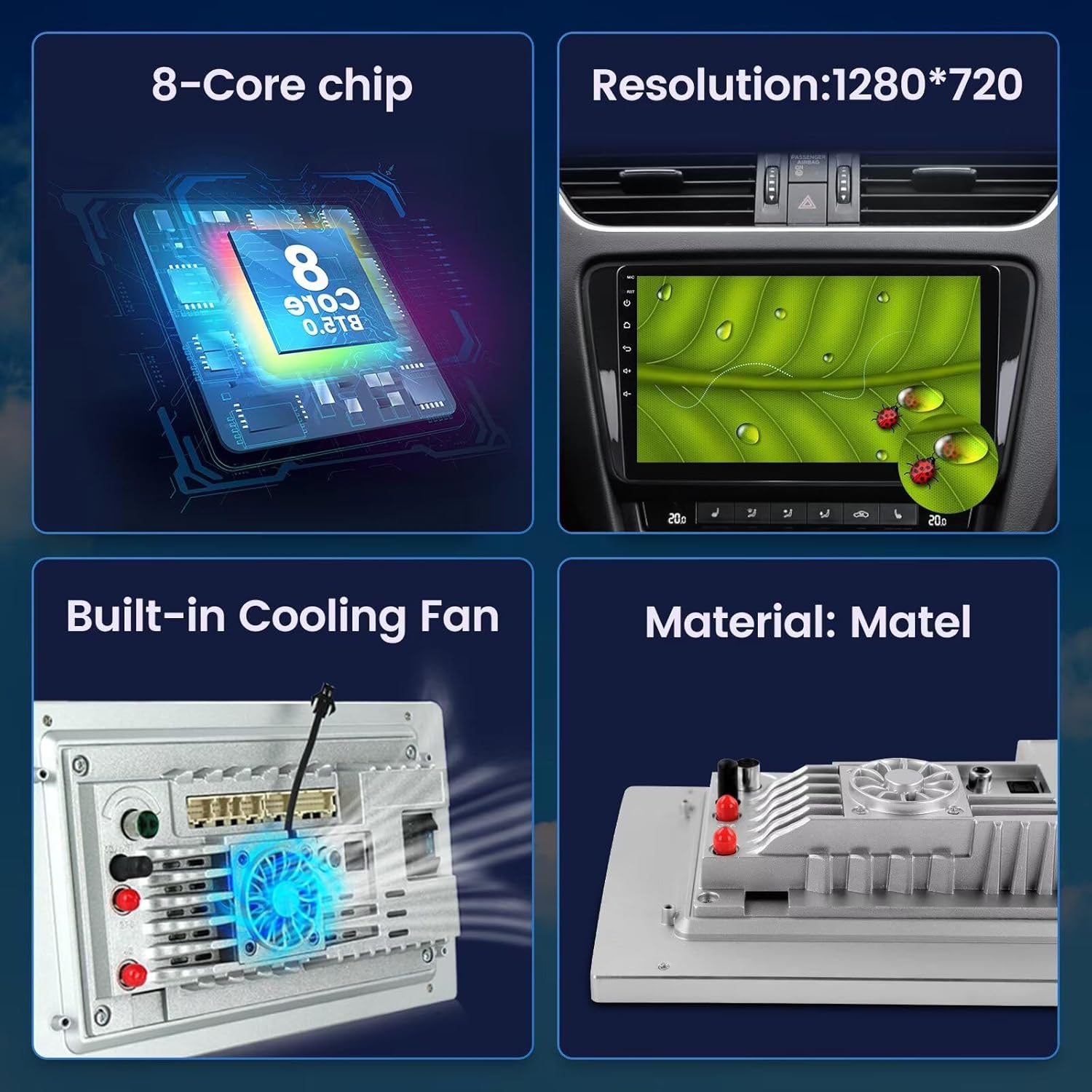
Image: Highlights key hardware components including the 8-Core chip, 1280*720 resolution display, built-in cooling fan, and the material construction of the unit.
- Operating System: Android 13.0 OS for a modern and responsive user experience.
- Processor: Octa-Core CPU for fast performance and smooth multitasking.
- Memory: 4GB RAM and 32GB ROM for ample storage and efficient operation.
- Display: 9-inch IPS Capacitive Touch Screen with 1280*720 resolution for clear visuals and responsive interaction.
- Smartphone Integration: Built-in Wireless Car-Play and Android Auto for seamless connectivity with iOS and Android devices.
- Audio: Built-in DSP (Digital Sound Processor) with EQ settings for customizable and high-quality audio output.
- Connectivity: Integrated Bluetooth for hands-free calling and music streaming, and built-in Wi-Fi for internet access.
- Navigation: Built-in GPS module with an external GPS antenna for accurate online and offline navigation.
- Radio: FM/AM radio with RDS support for enhanced radio listening.
- Cooling: Built-in cooling fan to maintain optimal operating temperature.
- Rear View Camera Support: Compatible with aftermarket rear view cameras (camera not included) for safer parking and reversing.
7. Specifications
Detailed technical specifications for the RONGJI 9-inch Android Car Radio (Model B0CX52D2FD):
| Feature | Specification |
|---|---|
| Brand | RONGJI |
| Model Name | B0CX52D2FD (For Suzuki Vitara 2005-2015) |
| Operating System | Android 13 |
| CPU | Octa Core |
| RAM | 4 GB |
| Memory Storage Capacity | 32 GB |
| Screen Size | 9 Inches |
| Display Type | LCD |
| Touch Screen Type | Capacitive |
| Resolution | 1280*720 |
| Special Features | Bluetooth, Touchscreen, Wireless Android Auto, Wireless Car-play, Built-in DSP |
| Connectivity Technology | Bluetooth, Wi-Fi |
| GPS Navigation | Built-in GPS module, supports Worldwide maps |
| Radio | FM/AM with RDS |
| Control Method | Touch, Steering Wheel Control |
| Human-Interface Input | Microphone, Touchscreen |
| Manufacturer | Shenzhen Rongji Electronics Co., Ltd |
8. Troubleshooting
If you encounter issues with your RONGJI car radio, refer to the following common problems and solutions:
- No Power:
- Check all power connections and fuses.
- Ensure the vehicle's battery is properly connected and charged.
- No Sound:
- Verify speaker connections.
- Check volume settings and ensure the unit is not muted.
- Confirm audio output settings are correct.
- GPS Signal Loss:
- Ensure the GPS antenna is properly connected and positioned with a clear view of the sky.
- Check for obstructions that might block the signal.
- Bluetooth Connection Issues:
- Ensure Bluetooth is enabled on both the car radio and your smartphone.
- Delete previous pairings and attempt to re-pair the devices.
- Restart both devices.
- Touch Screen Unresponsive:
- Restart the unit.
- Ensure the screen is clean and free from debris.
- Car-Play/Android Auto Not Connecting:
- For wired connection, use an original, high-quality USB cable.
- For wireless, ensure Bluetooth and Wi-Fi are active and paired correctly.
- Check your phone's settings for Car-Play/Android Auto permissions.
If these steps do not resolve the issue, please contact customer support for further assistance.
9. Maintenance
- Screen Cleaning: Use a soft, lint-free cloth to gently wipe the screen. For stubborn smudges, slightly dampen the cloth with water or a screen-safe cleaner. Avoid harsh chemicals.
- Software Updates: Periodically check for software updates through the unit's settings or the manufacturer's website to ensure optimal performance and access to new features.
- General Care: Keep the unit free from dust and debris. Avoid spilling liquids on the unit.
10. Warranty and Support
Your RONGJI car radio is covered by a standard manufacturer's warranty. Please refer to the warranty card included with your product for specific terms and conditions, including warranty duration and coverage details. Keep your proof of purchase for warranty claims.

Image: A customer service representative with contact information for support.
Customer Support
For technical assistance, troubleshooting, or warranty inquiries, please contact our customer support team:
Email: Rongji08@outlook.com
When contacting support, please provide your product model number (B0CX52D2FD) and a detailed description of the issue.