1. Introduction
Thank you for choosing the TIDRADIO TD-M11 FRS Two-Way Radio. This manual provides essential information for the safe and efficient operation of your device. Please read it thoroughly before use and retain it for future reference. The TD-M11 is a compact, waterproof (IP67) FRS radio featuring an LED display, NOAA weather alerts, and Bluetooth programming capabilities via the Odmaster app, designed for reliable communication in various environments.
2. Safety Information
Always observe the following basic safety precautions to reduce the risk of fire, electric shock, and injury:
- Do not operate the radio in explosive atmospheres (e.g., flammable gases, dust particles, metallic powders).
- Do not replace or charge batteries in potentially explosive environments.
- Use only TIDRADIO approved batteries and chargers. Unauthorized accessories may cause damage or injury.
- Do not disassemble or modify the radio. Servicing should be performed by qualified technicians only.
- Avoid prolonged exposure to direct sunlight or high temperatures.
- Keep the radio away from medical devices to prevent interference.
- Ensure the battery compartment is securely sealed to maintain IP67 waterproof rating.
3. Package Contents
Verify that all items are present in your package:
- 2 x TIDRADIO TD-M11 Walkie Talkies
- 2 x 1000mAh Li-ion Batteries
- 2 x USB Cables & Adapters
- 2 x Belt Clips
- 1 x User Manual

This image displays the TIDRADIO TD-M11 walkie-talkie units along with their included accessories: two USB wall adapters, two USB-C charging cables, and two belt clips.
4. Product Overview
4.1 Key Features
- Output Power: 2W
- Channels: 22 FRS Channels
- Waterproof Rating: IP67 (Dustproof and temporary immersion in water)
- Display: Hidden LED Display for clear status indication
- Programming: Bluetooth connection via Odmaster APP for mobile programming
- Weather Alerts: NOAA Weather Forecasts
- Hands-Free Operation: Built-in VOX function
- Security: Busy Channel Lockout (BLCO)
- Charging: Convenient Type-C USB charging
- Battery: 1000 mAh Li-ion Battery for extended use
4.2 Component Identification
The TD-M11 radio features a minimalist design with essential controls:
- Antenna: Integrated for signal transmission and reception.
- Power/Volume Knob: Rotate to power on/off and adjust volume.
- PTT (Push-to-Talk) Button: Press and hold to transmit, release to receive.
- Channel Up/Down Buttons: Located on the left side, below the PTT button, for channel selection.
- LED Display: Hidden display shows channel, volume, battery, and feature status.
- Type-C Charging Port: For connecting the USB charging cable.
- Speaker/Microphone: For audio output and input.
- Battery Compartment: Houses the Li-ion battery.
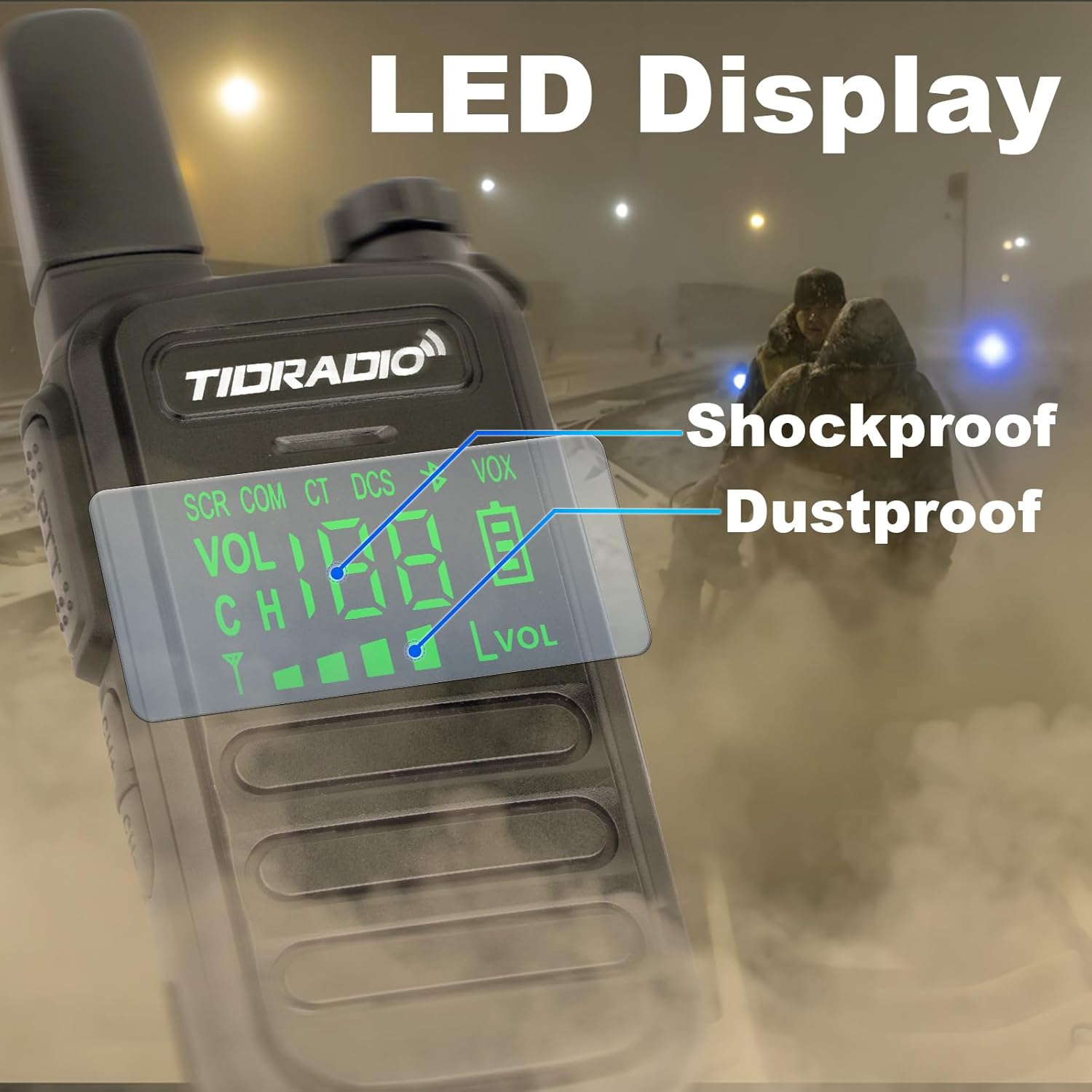
A detailed view of the TD-M11's hidden LED display, which clearly shows operational status including channel number, volume level, battery indicator, and active features such as Scrambler (SCR), CTCSS/DCS codes, and VOX.
5. Getting Started
5.1 Battery Installation
- Ensure the radio is powered off.
- Locate the battery compartment cover on the back of the radio.
- Gently slide or unlatch the cover to open it.
- Insert the 1000mAh Li-ion battery, ensuring the contacts align correctly.
- Close the battery compartment cover securely until it clicks into place. This is crucial for maintaining the IP67 waterproof rating.
5.2 Charging the Radio
Before first use, fully charge the battery. The TD-M11 uses a convenient Type-C charging port.
- Connect the provided USB Type-C cable to the radio's charging port.
- Connect the other end of the USB cable to the provided USB adapter, a power bank, a PC, or a vehicle charging port.
- The LED display will indicate charging status. A full charge typically takes a few hours.
- Disconnect the charger once charging is complete.

This visual demonstrates the versatility of the TD-M11's Type-C charging, compatible with standard wall adapters, power banks, personal computers, and in-vehicle charging ports.
5.3 Attaching the Belt Clip
To attach the belt clip, align it with the designated slots on the back of the radio and slide it down until it locks into place. To remove, lift the tab and slide the clip upwards.
6. Basic Operation
6.1 Powering On/Off
Rotate the Power/Volume knob clockwise to turn the radio on. Rotate it counter-clockwise until it clicks to turn the radio off.
6.2 Adjusting Volume
After powering on, continue rotating the Power/Volume knob clockwise to increase the volume or counter-clockwise to decrease it.
6.3 Selecting Channels
Use the Channel Up/Down buttons located on the side of the radio (below the PTT button) to select your desired FRS channel (1-22). The selected channel will be displayed on the LED screen.
6.4 Transmitting and Receiving (PTT)
- To Transmit: Press and hold the PTT (Push-to-Talk) button on the side of the radio. Speak clearly into the microphone. Release the PTT button when you finish speaking.
- To Receive: Ensure the PTT button is released. The radio will automatically receive transmissions on the selected channel.
7. Advanced Features
7.1 VOX Function
The built-in VOX (Voice Operated Exchange) function allows for hands-free transmission. When VOX is enabled, the radio will automatically transmit when it detects your voice, eliminating the need to press the PTT button. VOX settings can be adjusted via the Odmaster app.
7.2 NOAA Weather Radio
The TD-M11 can receive NOAA (National Oceanic and Atmospheric Administration) weather alerts, providing timely information on severe weather conditions. This feature can be activated and managed through the radio's programming or the Odmaster app.
7.3 Bluetooth Programming (Odmaster App)
The TD-M11 supports wireless programming via Bluetooth using the Odmaster mobile application (available for iOS and Android). This allows you to easily customize frequencies, channels, VOX sensitivity, and other parameters without a programming cable.
- Download and install the Odmaster app on your smartphone.
- Ensure your TD-M11 radio is powered on and Bluetooth is enabled (refer to radio settings or app instructions).
- Open the Odmaster app and follow the on-screen prompts to connect to your radio.
- Once connected, you can read current settings, modify parameters, and write new configurations to the radio. You can also search for nearby repeaters.
Note: The Bluetooth function is exclusively for programming and cannot be used to connect to other accessories like Bluetooth headsets.

This image guides users through the process of programming the TD-M11 via the Odmaster mobile application, showing steps from app installation and device pairing to model selection and parameter modification. Note that Bluetooth is for programming only.
7.4 Busy Channel Lockout (BLCO)
BLCO prevents transmission on a channel that is already in use. This feature helps avoid interference and ensures clear communication by automatically locking out busy channels.
8. Maintenance and Care
8.1 Cleaning
Clean the radio's exterior with a soft, damp cloth. Do not use harsh chemicals or abrasive cleaners. Ensure the charging port is free of dust and debris.
8.2 Waterproof Guidelines (IP67)
The TD-M11 is rated IP67, meaning it is dust-tight and protected against temporary immersion in water (up to 1 meter for 30 minutes). However, it is not designed for continuous underwater use.
- Always ensure the battery cover is securely closed to maintain the waterproof seal.
- If the radio falls into water, retrieve it promptly. Before using it again, shake or wipe off any water, especially from the speaker, microphone, and charging port.
- Do not charge the radio if the charging port is wet.

The TD-M11 radio is shown enduring water splashes, illustrating its IP67 waterproof capability. This rating indicates protection against dust and temporary immersion in water.
8.3 Battery Care
- Avoid overcharging or completely draining the battery.
- Store the radio and battery in a cool, dry place when not in use.
- If the battery appears swollen or damaged, discontinue use immediately and replace it with an authorized TIDRADIO battery.

This image highlights the extended battery life of the TD-M11, powered by a 1000 mAh Li-ion battery, ensuring long standby time for continuous use.
9. Troubleshooting
| Problem | Possible Cause | Solution |
|---|---|---|
| Radio does not power on | Battery is low or not installed correctly. | Charge the battery. Reinstall the battery, ensuring proper contact. |
| Cannot transmit or receive | Incorrect channel selected; out of range; battery low; BLCO active. | Verify both radios are on the same channel. Move closer to the other radio. Charge battery. Check BLCO settings via app. |
| Poor audio quality | Volume too low/high; interference; radio too far apart. | Adjust volume. Move away from sources of interference. Reduce distance between radios. |
| Odmaster app connection issues | Bluetooth not enabled; radio not in programming mode; app outdated. | Ensure radio is on and Bluetooth is active. Restart app and radio. Update Odmaster app to the latest version. |
| Battery swells or overheats during charging | Faulty battery or charger. | Immediately discontinue use. Replace battery and/or charger with authorized TIDRADIO components. Contact customer support. |
10. Specifications

A visual representation of the TD-M11 radio's compact size, highlighting its height of 5.3 inches, thickness of 0.7 inches, and a weight of 0.2 pounds (approximately 3.2 ounces).
| Feature | Detail |
|---|---|
| Model Number | TD-M11 |
| Item Weight | 3.2 ounces (0.2 lb) |
| Product Dimensions | 0.7 x 2.1 x 5.3 inches (D x W x H) |
| Battery Type | 1000 mAh Lithium Polymer (Li-ion) |
| Number of Channels | 22 FRS Channels |
| Frequency Range | UHF 400-480MHz |
| Output Power | 2W |
| Water Resistance Level | IP67 Waterproof |
| Special Features | LED Display, NOAA Weather, Bluetooth Programming, VOX, BLCO |
| Charging Type | USB Type-C |
| Manufacturer | TIDRADIO |
11. Warranty Information
The TIDRADIO TD-M11 comes with a 3-month warranty from the date of purchase. This warranty covers manufacturing defects under normal use. It does not cover damage caused by misuse, accidents, unauthorized modifications, or improper maintenance. Please retain your proof of purchase for warranty claims.
12. Customer Support
If you encounter any issues or have questions regarding your TIDRADIO TD-M11 radio that are not addressed in this manual, please contact TIDRADIO customer support. Refer to the product packaging or the official TIDRADIO website for the most current contact information.


