1. Product Overview
The MAXDONE PH820W-US Trail Camera is a high-performance wildlife camera designed for capturing still images and videos in various outdoor conditions. It features Wi-Fi and Bluetooth connectivity for easy access to media via a dedicated mobile application, enhanced night vision, and a durable waterproof design.
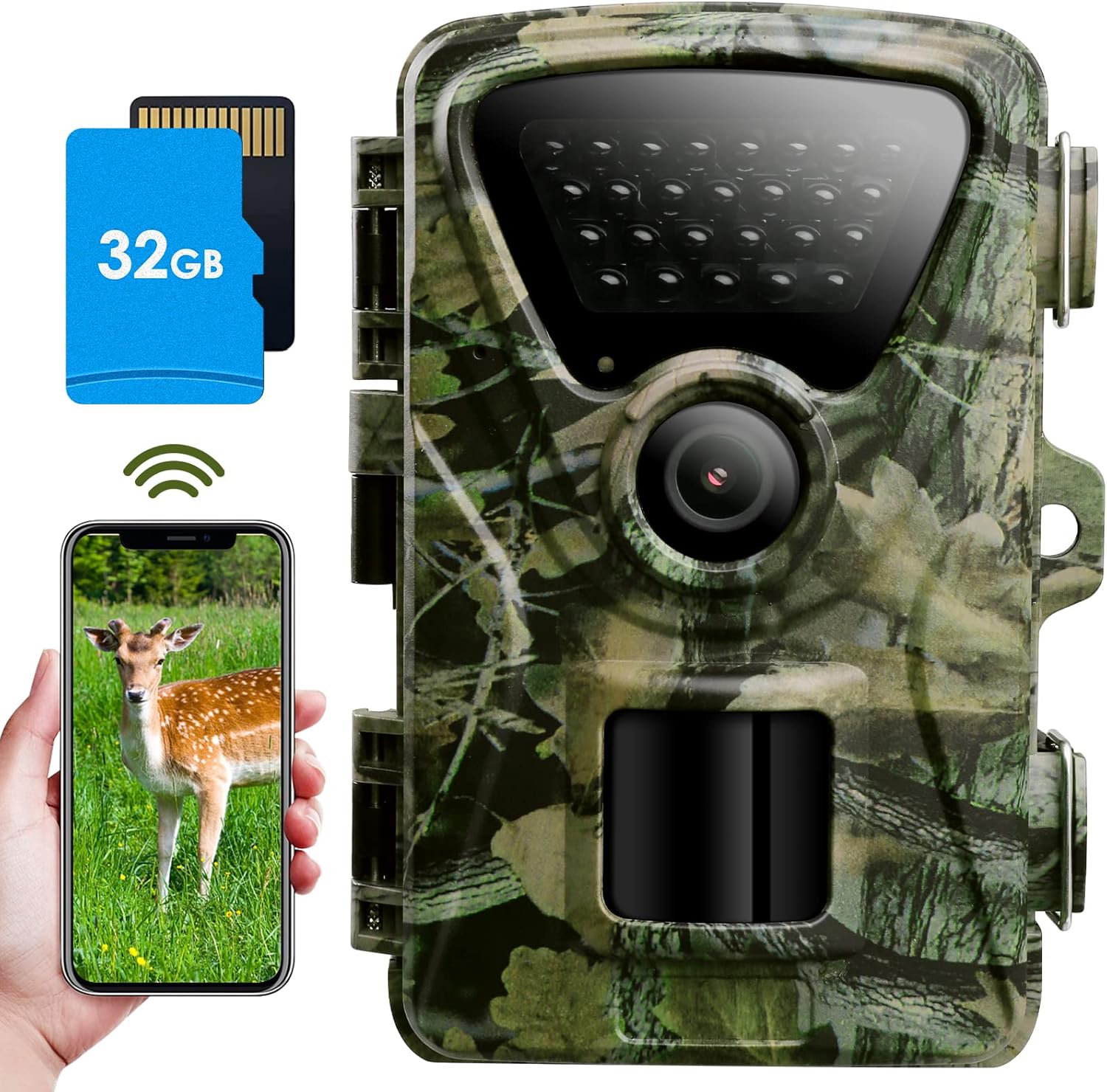
Figure 1: MAXDONE PH820W-US Trail Camera with included 32GB SD card and smartphone app interface.
2. What's in the Box
- 1 x MAXDONE Trail Camera (PH820W-US)
- 1 x 32GB Micro SD Card
- 1 x USB Cable
- 1 x Mounting Strap
- 1 x Adjustable Mount
- 1 x Instruction Manual

Figure 2: Included components of the MAXDONE PH820W-US Trail Camera package.
3. Setup Guide
3.1 Battery and SD Card Installation
The camera operates on 4 or 8 AA 1.5V Alkaline or Lithium batteries (not included). It is recommended to use 8 batteries for extended operation. A 32GB Micro SD card is included and should be inserted into the SD card slot.
- Open the camera housing latches.
- Locate the battery compartment and insert 4 or 8 AA batteries, ensuring correct polarity.
- Insert the 32GB Micro SD card into the designated slot until it clicks into place.
- Close the camera housing securely, ensuring the latches are fully engaged to maintain IP66 waterproof integrity.

Figure 3: Battery and external power supply options. Note: External power supply may affect IP66 rating.
Video 1: Quick Start Guide for MAXDONE WiFi Camera. This video demonstrates the initial setup, including battery and SD card installation, and basic app connectivity.
3.2 Initial Camera Configuration
After installing batteries and the SD card, turn the camera to "TEST" mode to access the internal menu for configuration.
- Switch the mode selector from OFF to TEST. The LCD screen will activate.
- Format Micro SD Card: Navigate to MENU → Memory Card Format → YES → OK. This prepares the card for optimal performance.
- Set Date & Time: Navigate to MENU → Date & Time → Set time & date. Adjust year, month, day, hour, minute, and second. Press OK to confirm.
- Set Time Format: Navigate to MENU → Time Format → 24H or 12H → OK.
- Set Loop Record: Navigate to MENU → Loop Record → ON → OK. This setting automatically deletes the earliest pictures when the SD card storage is full, allowing continuous recording.
- Choose Language: Navigate to MENU → Language → Select your desired language (e.g., English) → OK.
- Set Password Protection: Navigate to MENU → Password Protection → ON → Set your desired password → OK. This prevents unauthorized access to your camera's settings and media.
- Factory Reset: If needed, navigate to MENU → Factory Reset → YES → OK to restore default settings.
4. Operating Instructions
4.1 Mobile Application (TrailCam GO)
The MAXDONE Trail Camera is compatible with the "TrailCam GO" mobile application, available for both iOS and Android devices. This app allows for remote viewing, control, and media management.
- Download the App: Search for "TrailCam GO" in your device's app store and install it.
- Enable Bluetooth and Wi-Fi: Before using the Wi-Fi function, ensure your phone's Bluetooth and Wi-Fi are turned on and grant necessary access permissions to the app.
- Connect to Camera:
- Open the TrailCam GO app.
- Click "+" to add a new device.
- Select "Wi-Fi Camera".
- Ensure your camera is in "ON" mode and close to your phone.
- Click "Connect Camera" when your camera (e.g., PH820WD_6713) is found. The app will connect via Bluetooth first, then Wi-Fi.
- Once connected, you can enter a location name for your camera (e.g., "Backyard", "Forest").
- Remote Control and Media Access:
- From the app, you can control the camera to take photos or record videos. These will be directly saved to your mobile phone album.
- Access the "Gallery" section in the app to view media stored on the camera (Camera tab) or downloaded to your phone (Local tab).
- Click on a picture to download it, or click on a video to play it and save it to your phone album.
- Camera Location Mapping: Use the "MAP" function in the app to mark the physical location of your camera. Note: The camera does not have GPS, so real-time tracking is not available.

Figure 4: Wi-Fi and Bluetooth connectivity for remote viewing and control via the TrailCam GO app. Note the 50-foot connection range.
Video 2: Detailed guide on using the MAXDONE WiFi Trail Camera app, covering connection, settings, and media management.
4.2 Camera Settings via App
Adjust various camera parameters directly from the TrailCam GO app's settings menu.
- Work Mode:
- Motion Detection: Camera records when motion is detected.
- Detection Interval: Set the delay between detections (5 seconds to 60 minutes optional duration).
- Photo or Video:
- Photo Settings:
- Quality: Up to 32MP (e.g., 2MP, 4MP, 8MP, 16MP, 20MP, 24MP, 32MP).
- Photo Burst: 1P-5P (number of photos per trigger).
- Video Settings:
- Quality: Up to 1440P (e.g., 720P, 1080P, 2.7K).
- Video Length: 5-59 seconds and 1-10 minutes.
- Audio Recording: Enable/Disable.
- Photo Settings:
- Motion Detection:
- Detection Sensitivity: Low, Middle, High.
- Motion Filter: ON/OFF. When ON, you can define a specific detection zone to monitor, ignoring movement outside this area.
- Device Language: Change the camera's display language.

Figure 5: The camera's 32MP HD photo resolution provides clearer and more realistic images.
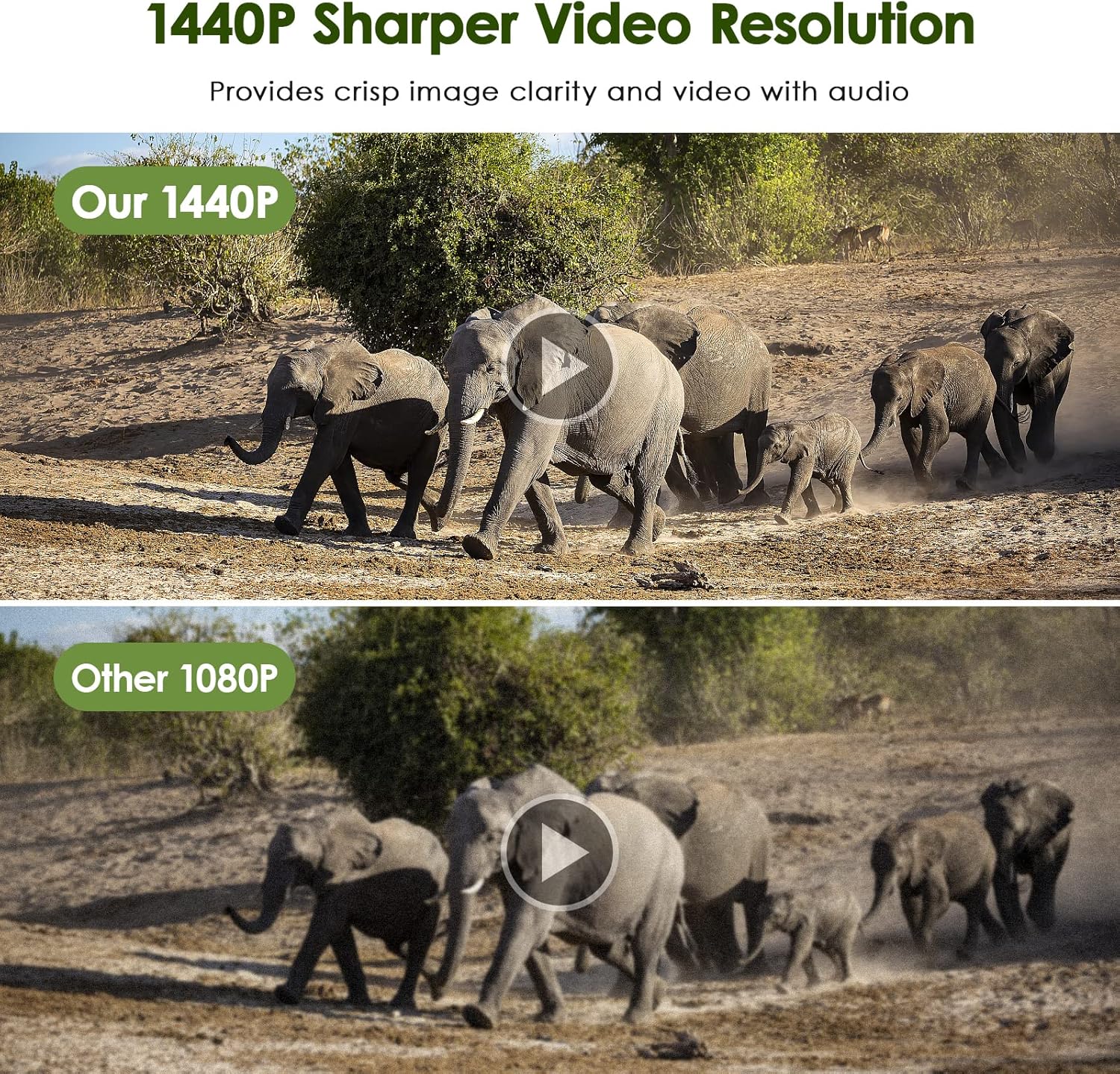
Figure 6: The camera's 1440P video resolution offers crisp image clarity and video with audio.
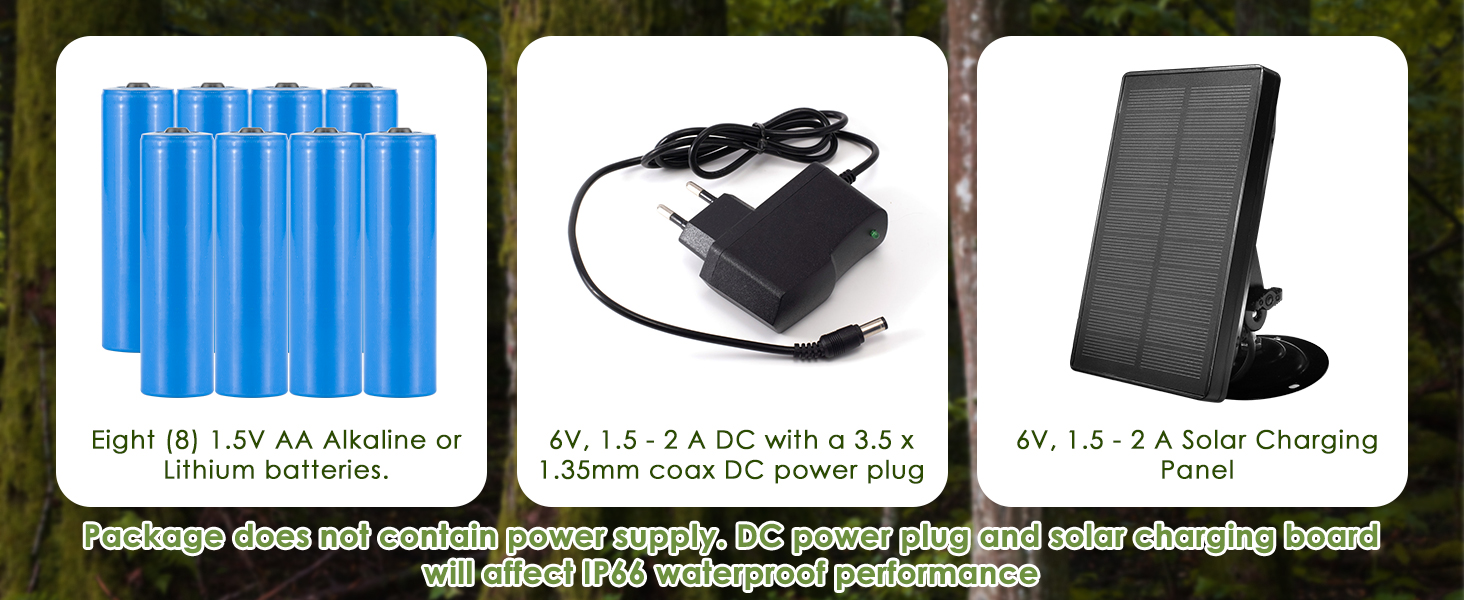
Figure 7: Smart Motion Filter Function helps reduce false triggering by allowing definition of a specific detection area.
4.3 Night Vision and Trigger Speed
The camera features enhanced 940nm no-glow infrared technology for stealthy night vision up to 65 feet (20 meters). It also boasts an ultra-fast 0.2-second trigger speed to capture fleeting moments.

Figure 8: Excellent Night Shooting Capabilities with 940nm no-glow infrared LEDs.

Figure 9: Ultra-fast 0.2-second trigger speed and 100° wide-angle detection area.
5. Maintenance
The MAXDONE Trail Camera is designed for durability in outdoor environments.
- IP66 Waterproof: The camera features an IP66 waterproof and dust-proof design, making it resistant to rain, snow, and dust. Ensure the housing latches are always securely closed.
- Cleaning: Use a soft, dry cloth to clean the lens and PIR sensor. Avoid abrasive materials or harsh chemicals.
- Battery Care: Replace batteries when low to ensure continuous operation. If storing the camera for an extended period, remove all batteries.
- SD Card Management: Regularly transfer media from the SD card to a computer or external storage to prevent it from filling up and to ensure data backup. Format the SD card periodically for optimal performance.
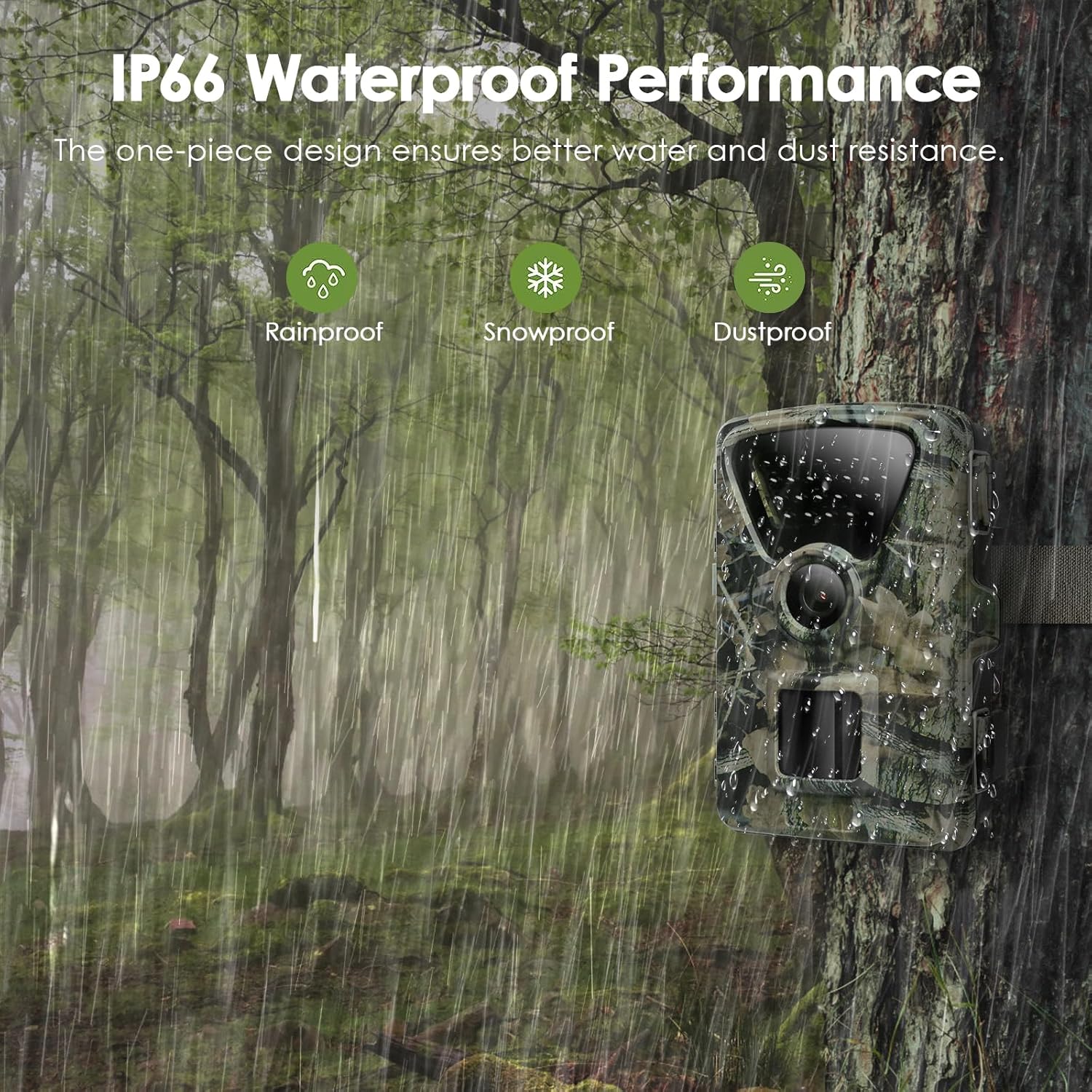
Figure 10: IP66 Waterproof Performance ensures reliability in various weather conditions.
6. Troubleshooting
If you encounter issues with your MAXDONE Trail Camera, refer to the following common solutions:
| Problem | Possible Cause & Solution |
|---|---|
| Camera not powering on. |
|
| Wi-Fi/Bluetooth connection issues. |
|
| Poor image/video quality. |
|
| Motion detection not working or false triggers. |
|
| SD card errors or not saving media. |
|
7. Specifications
| Feature | Specification |
|---|---|
| Brand | MAXDONE |
| Model Name | PH820W-US |
| Still Image Resolution | Up to 32MP |
| Video Resolution | 1440P @ 30fps (H.264, MP4 format) |
| Connectivity | Wi-Fi, Bluetooth |
| Night Vision Range | Up to 65 feet (20 meters) with 940nm no-glow IR LEDs |
| Trigger Speed | 0.2 seconds |
| Viewing Angle | 100 Degrees |
| Waterproof Rating | IP66 |
| Power Source | 4 or 8 x 1.5V AA Alkaline/Lithium batteries (not included), or 6V DC external power |
| Storage | Micro SD Card (up to 32GB included) |
| Dimensions (L x W x H) | 4.72 x 2.76 x 1.57 inches |
| Item Weight | 1.23 pounds |
8. Warranty and Support
For warranty information, technical support, or service inquiries, please refer to the contact details provided in the product packaging or visit the official MAXDONE website. Keep your purchase receipt for warranty claims.