
1. Introduction
Welcome to the user manual for the Xtahdge M1Pro Mobile Gaming Keyboard and Mouse Converter. This device allows you to connect a standard USB keyboard and mouse to your Android or iOS mobile device, transforming your mobile gaming experience with enhanced precision and control. Please read this manual carefully to ensure proper setup and operation of your M1Pro converter.
2. Product Overview
The Xtahdge M1Pro is a compact and portable converter designed for mobile gamers. It features Bluetooth 5.0 connectivity for stable and low-latency performance, supporting both Android and iOS systems.
Key Features:
- Bluetooth 5.0 Connection: Provides a stable signal and superior performance compared to older Bluetooth versions, without occupying your device's charging or headphone port.
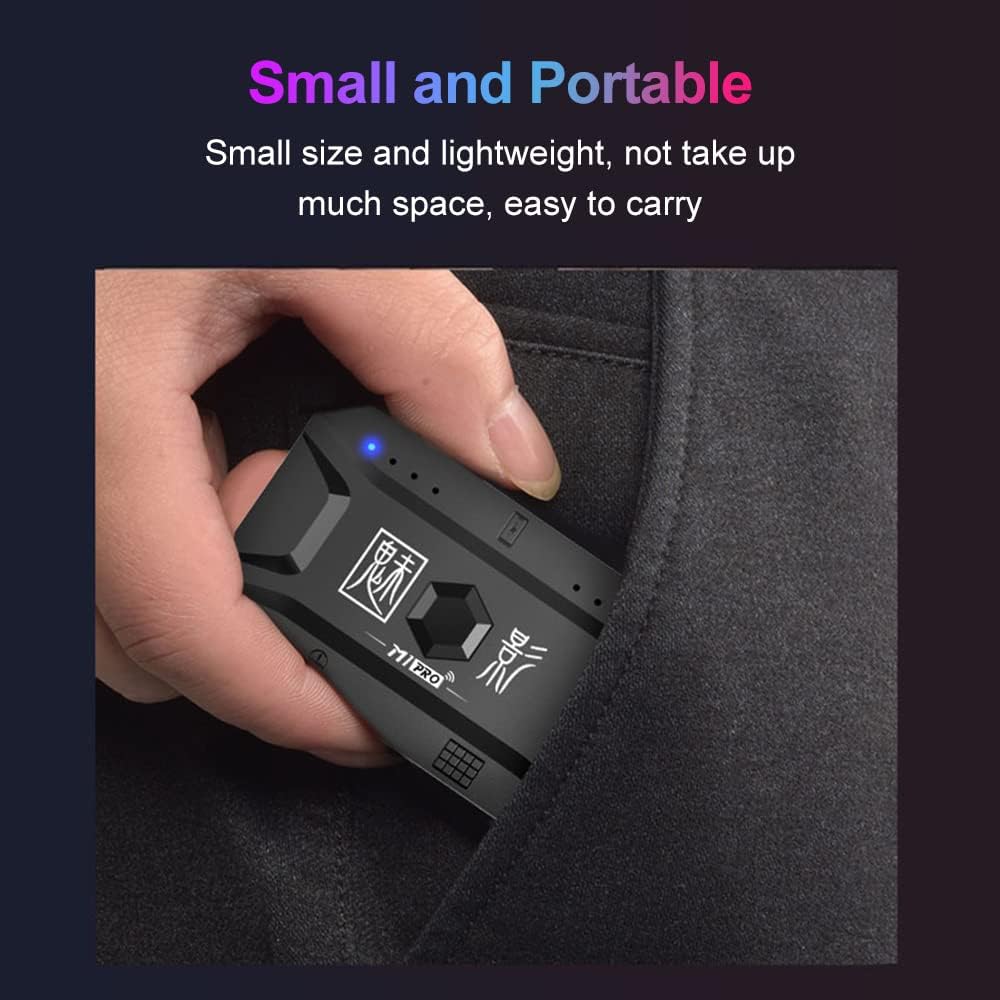
- Portable and Lightweight Design: Small size makes it easy to carry and use anywhere.
- Cloud Key Mapping: Default key mappings are automatically matched for various popular mobile games.
- Customizable Keys via App: Personalize your key configurations through a dedicated application for an optimized gaming experience.
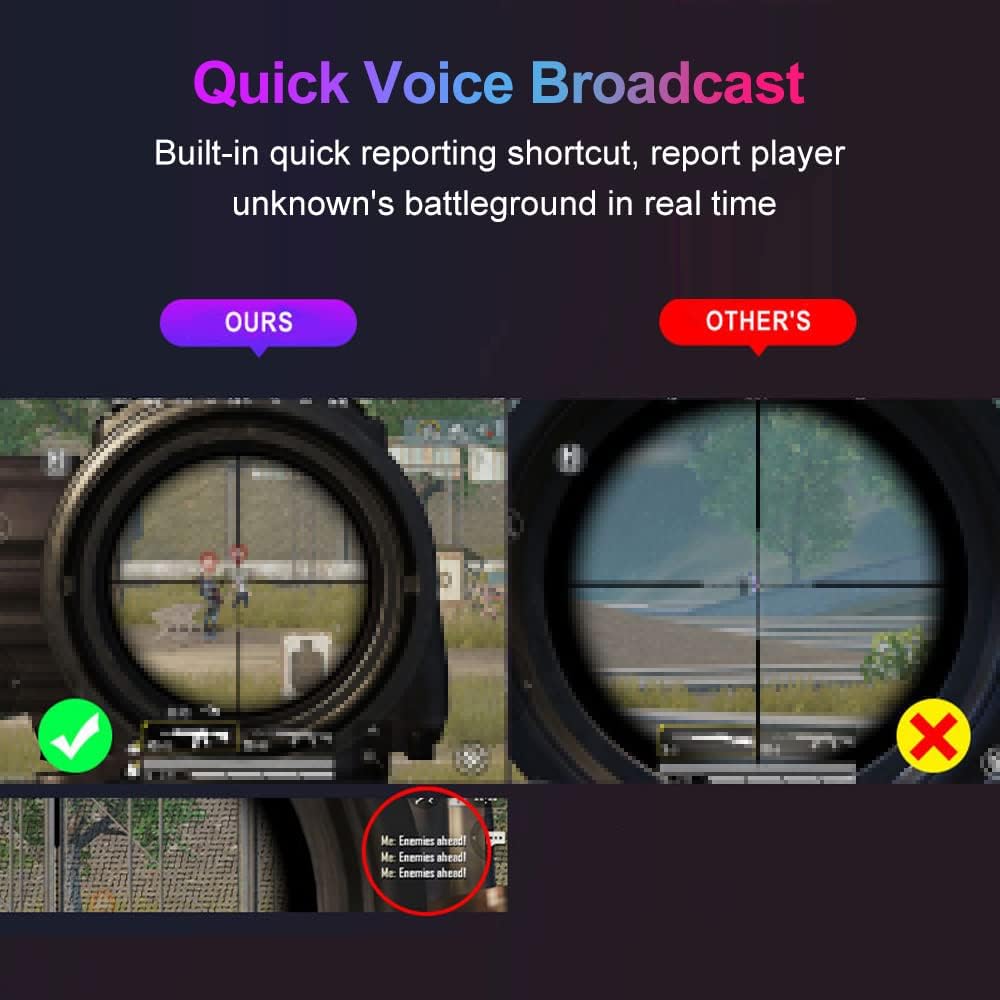
- Quick Voice Broadcast: Built-in shortcut for real-time in-game reporting.
- Wide Compatibility: Supports a broad range of Android and iOS mobile devices.


3. Setup Instructions
Follow these steps to set up your Xtahdge M1Pro converter:
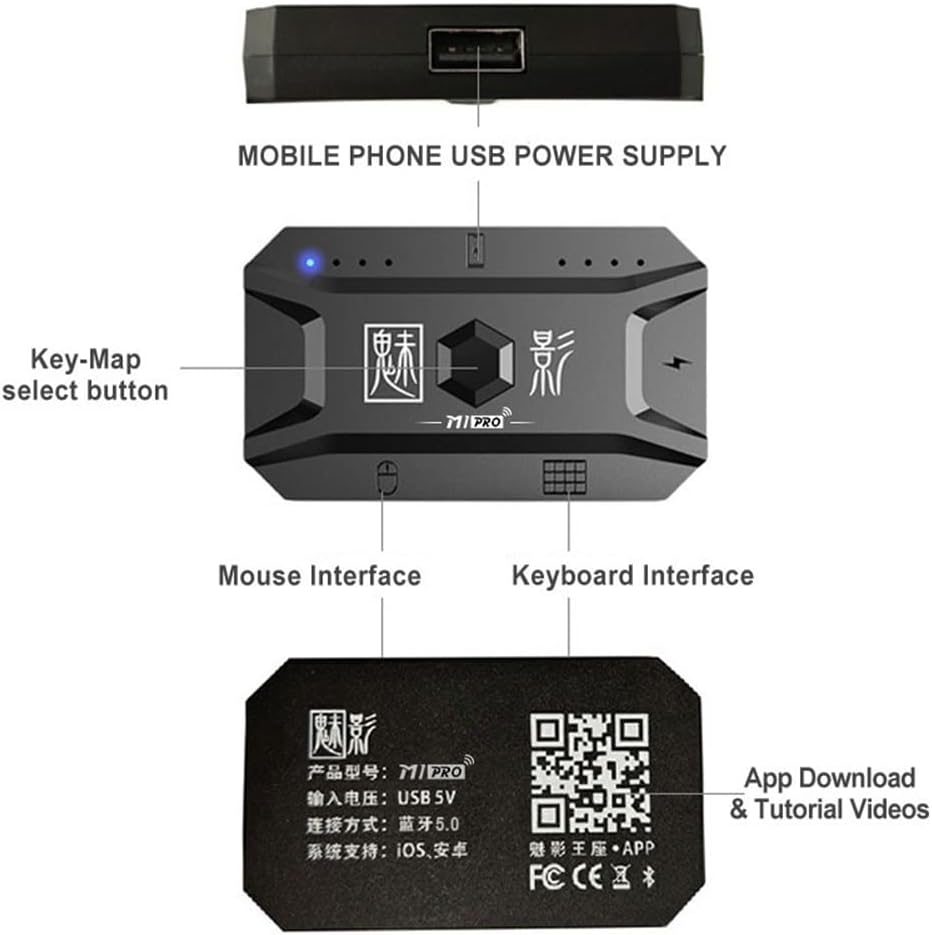
- Power Supply: Connect the M1Pro converter to a 5V USB power source using a USB cable (not included). The device does not use internal batteries.
- Connect Peripherals: Plug your USB keyboard into the keyboard interface and your USB mouse into the mouse interface on the converter.
- Download the App: Scan the QR code provided on the product packaging or in Figure 3.1 to download the official M1Pro application. This app is essential for key mapping and customization.
- Bluetooth Pairing: Turn on Bluetooth on your mobile device (Android or iOS). Search for available devices and select "M1Pro" to pair. Ensure the converter's indicator light shows a successful connection.
4. Operating Instructions
Once set up, you can begin using your M1Pro converter for mobile gaming:
- Game Launch: Open your desired mobile game on your Android or iOS device.
- Automatic Key Mapping: The M1Pro features cloud key mapping, which automatically matches default key configurations for many popular games.
- Key-Map Selection: Use the dedicated Key-Map select button on the converter (refer to Figure 3.1) to cycle through different pre-set key maps if available or needed for specific game modes.
- Quick Voice Broadcast: Utilize the built-in quick reporting shortcut to communicate with teammates in real-time during gameplay. This feature helps in reporting enemy positions or other critical information efficiently.
5. Key Mapping and Customization
For advanced users or those who prefer personalized controls, the M1Pro offers extensive key mapping customization:
- Cloud Key Mapping: The system automatically provides default key mappings for various mobile games, ensuring a plug-and-play experience for many titles. This feature is compatible with devices from brands like Apple, Huawei, ZTE, Xiaomi, OPPO, Samsung, Nokia, and Lenovo.
- App-Based Customization: Use the dedicated M1Pro application to customize individual keys to fit your gaming habits. This independent app provides a secure platform for remapping controls. For example, you can configure a key to enable continuous jumping by holding SPACE or automatic sprinting by pressing SHIFT while running.


6. Troubleshooting
If you encounter issues with your M1Pro converter, consider the following:
- No Power: Ensure the USB power cable is securely connected to a 5V power source and the converter. Check if the indicator light is on.
- Bluetooth Connection Issues: Make sure Bluetooth is enabled on your mobile device and the M1Pro is within range. Try unpairing and re-pairing the device. Restarting both the converter and your mobile device can also resolve connection problems.
- Keyboard/Mouse Not Responding: Verify that your keyboard and mouse are properly plugged into the correct interfaces on the converter. Test them on a computer to ensure they are functional.
- Key Mapping Problems: If keys are not responding as expected in-game, open the M1Pro application to check and adjust your key mappings. Ensure the app has the necessary permissions on your mobile device. Refer to the in-app tutorials for detailed guidance on key customization.
- Lag or Delay: Ensure your mobile device meets the game's minimum requirements. While BT5.0 offers stable performance, environmental interference can sometimes affect wireless signals. Try moving closer to the converter or reducing other wireless interference sources.
7. Specifications
| Feature | Description |
|---|---|
| Brand | Xtahdge |
| Model | M1Pro |
| Color | Black |
| Connectivity | Bluetooth 5.0 |
| Compatible OS | Android, iOS |
| Power Input | USB 5V |
| Battery | No (USB powered) |
| Product Dimensions | 67mm (Length) x 40mm (Width) x 14mm (Height) |
| Package Size | 10.6 x 10.4 x 2.2 cm |
| Weight | 50 g (Package weight) |
| Keyboard Description | Gaming |

8. Maintenance
To ensure the longevity and optimal performance of your M1Pro converter:
- Keep the device clean and free from dust. Use a soft, dry cloth for cleaning.
- Avoid exposing the converter to extreme temperatures, direct sunlight, or moisture.
- Do not attempt to disassemble or repair the device yourself, as this may void any potential warranty and cause damage.
- Store the converter in a safe place when not in use to prevent physical damage.
9. Warranty and Support
For warranty information, technical support, or any inquiries regarding your Xtahdge M1Pro converter, please refer to the contact information provided with your purchase or visit the official Xtahdge support website. Keep your purchase receipt as proof of purchase for warranty claims.