
1. Introduction
Thank you for choosing the VCHICS Digital Audio Amplifier Receiver Module. This device is designed to provide versatile audio playback options, including Bluetooth, USB, TF card, and FM radio, with adjustable bass and treble controls. This manual will guide you through the setup, operation, and maintenance of your amplifier module.
2. Key Features
- MP3 music playback from TF card, USB disk, and Bluetooth.
- Adjustable Treble, Bass, and Master Volume controls.
- Integrated Bluetooth receiver for wireless audio streaming.
- Built-in FM radio function.
- AUX port for connection to PC, phone, or CD players.
- Supports AC 110-220V or DC 12-24V input voltage.
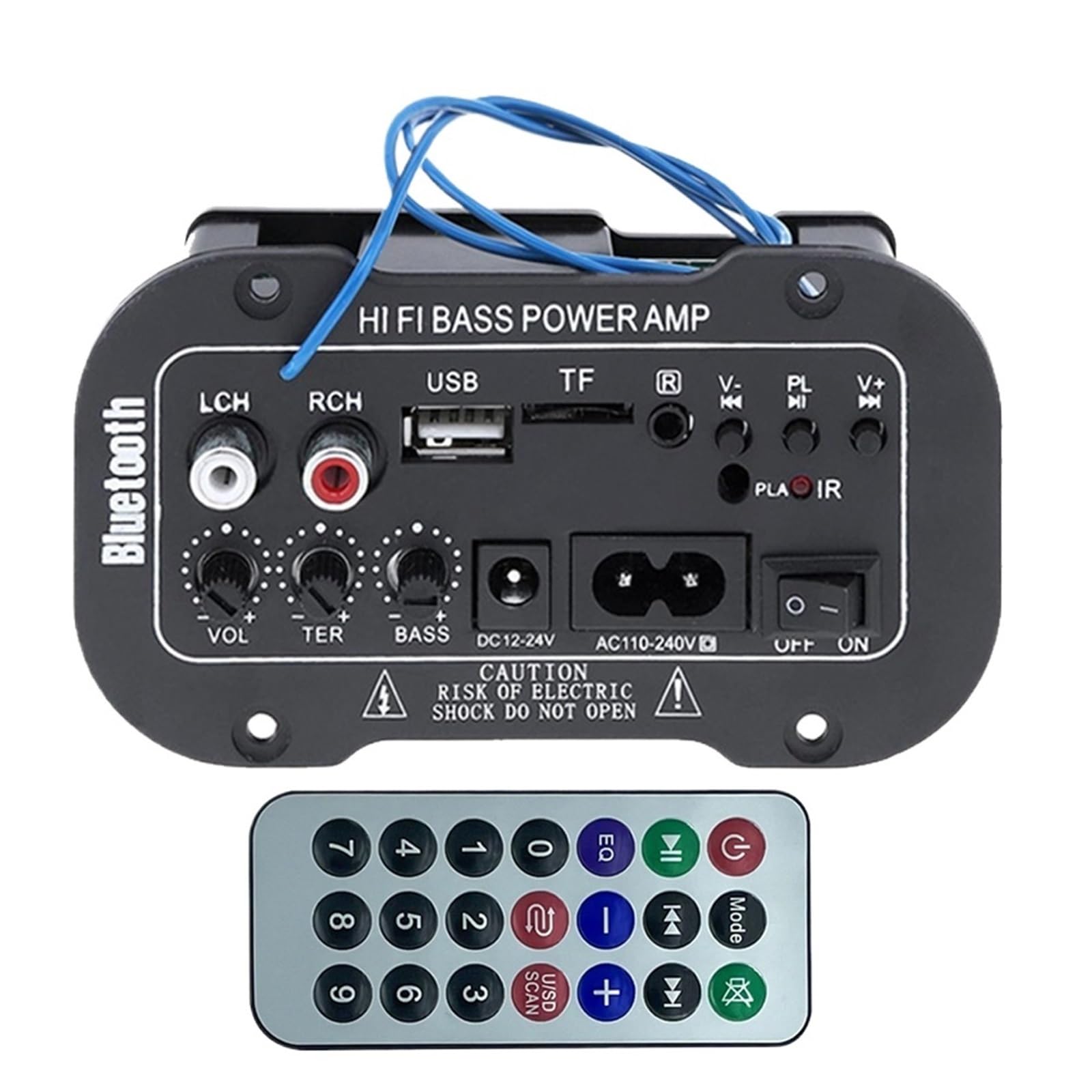
Figure 1: Overview of the VCHICS Digital Audio Amplifier Receiver Module.
3. Specifications
| Specification | Value |
|---|---|
| Bluetooth Version | 2.1+EDR |
| Operating Voltage | 9-20 V DC |
| Working Power | 25-30 W |
| Codec | SBC |
| Impedance | 4 Ohms |
| Speaker Unit Size | 133 mm |
| Sensitivity | 200hv |
| Frequency Response | 20-20000 Hz |
| Item Weight | 400 Grams |
| Number of Channels | 1 |
| Model Number | 1005005454581585 |

Figure 2: Product dimensions (11.7cm x 6.5cm x 4.5cm / 10cm x 4cm).
4. Controls and Connections
Familiarize yourself with the various controls and connection ports on your amplifier module:

Figure 3: Detailed view of controls and connection points.
- LCH / RCH (Audio Input): Left and Right channel audio input for external devices.
- USB Slot: For connecting USB flash drives for MP3 playback.
- TF Slot: For inserting TF (MicroSD) cards for MP3 playback.
- Previous / Next (V- / V+): Navigate tracks or adjust volume in certain modes.
- Play / Pause (PL/IR): Play/pause audio, or initiate FM scan. IR indicates Infrared Sensor for remote control.
- Indicator: Status light.
- Infrared Sensor: For receiving signals from a remote control (if included or compatible).
- OFF / ON: Power switch for the module.
- AC110-240V: AC power input.
- DC12-24V: DC power input.
- Bass Adjust: Rotary knob to adjust bass levels.
- Treble Adjust: Rotary knob to adjust treble levels.
- Volume Adjust: Rotary knob to adjust master volume.
- Bluetooth Button: Activates Bluetooth mode.
5. Setup
5.1 Power Connection
- Ensure the amplifier module is switched OFF.
- Connect the appropriate power supply to either the AC110-240V input or the DC12-24V input. Use only the specified voltage range to prevent damage.
5.2 Speaker Connection
Connect your speakers to the output terminals of the amplifier module. Ensure correct polarity (+/-) for optimal sound quality.
5.3 Antenna Connection (for FM Radio)
If using the FM radio function, connect the provided FM antenna to the designated antenna port for better reception.
6. Operating Instructions
6.1 Power On/Off
Toggle the OFF / ON switch to power on or power off the module.
6.2 Bluetooth Connection
- Press the MODE button (or the Bluetooth button if labeled) to switch the amplifier to Bluetooth mode.
- On your mobile phone or Bluetooth device, open the Bluetooth settings and search for available devices.
- Select the amplifier's Bluetooth device name (usually "Bluetooth" or similar) from the list to connect.
- Once successfully paired, you can play audio from your device through the amplifier.
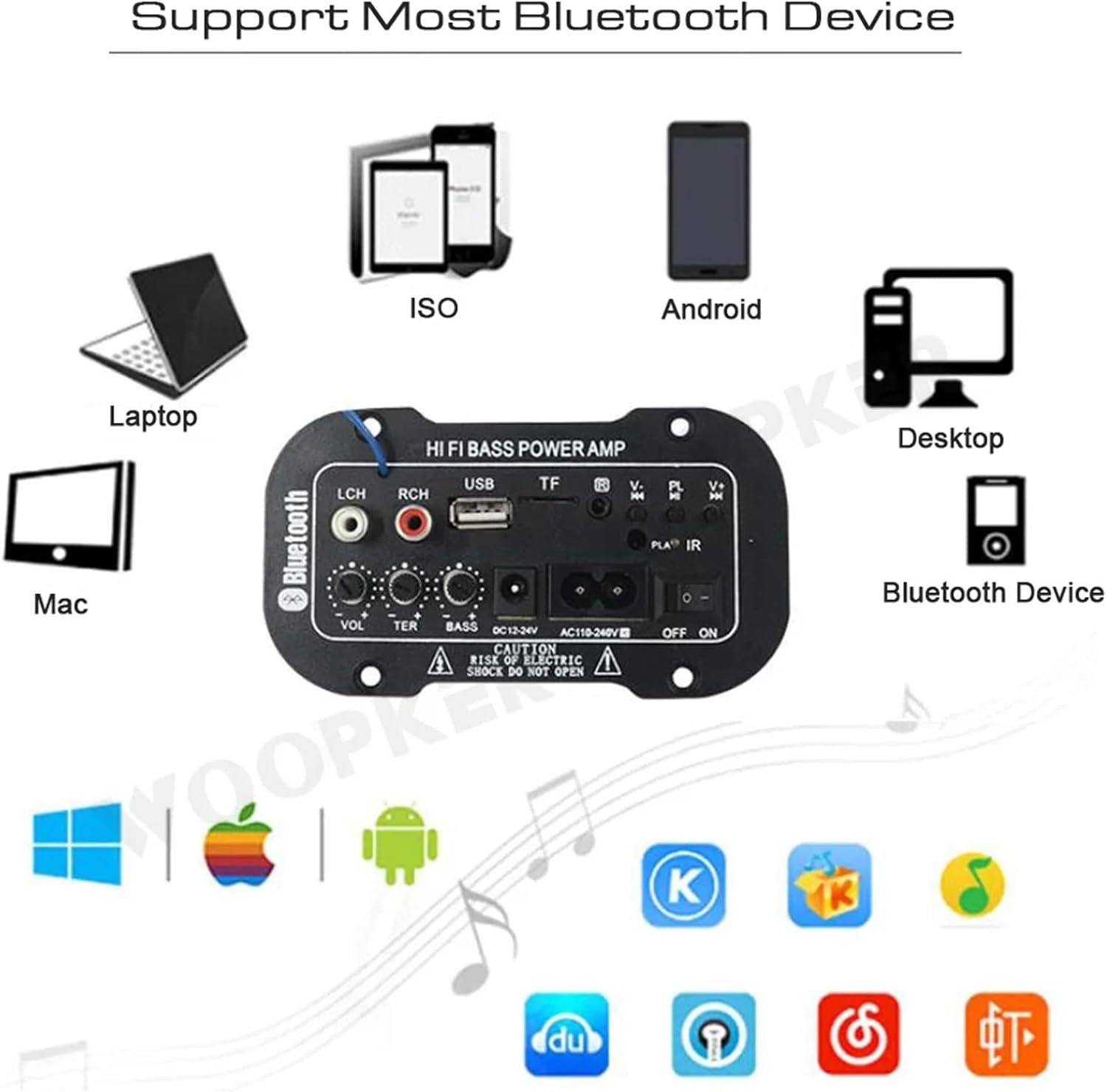
Figure 4: The amplifier module supports various Bluetooth devices including laptops, phones, and desktops.
6.3 FM Radio Operation
- Ensure the radio antenna is properly connected.
- Press the MODE button to switch the amplifier to FM radio mode.
- Press the Play / Pause button to initiate an automatic scan for all available FM channels. The module will save them automatically.
- Use the Previous / Next buttons to switch between saved radio stations.
6.4 USB / TF Card Playback
- Insert a USB flash drive into the USB Slot or a TF (MicroSD) card into the TF Slot.
- The module should automatically detect the storage device and begin playing MP3 files. If not, press the MODE button to cycle through input sources until USB or TF mode is active.
- Use the Previous / Next buttons to change tracks and the Play / Pause button to control playback.
6.5 AUX Input
Connect an external audio source (e.g., PC, phone, CD player) to the LCH / RCH (Audio Input) ports using an appropriate audio cable. Press the MODE button to select the AUX input source.
6.6 Adjusting Audio
Use the Volume Adjust, Treble Adjust, and Bass Adjust rotary knobs to fine-tune your audio output to your preference.
7. Troubleshooting
- No Power: Ensure the power cable is securely connected and the power switch is in the ON position. Verify the power source is active and providing the correct voltage (AC 110-240V or DC 12-24V).
- No Sound: Check speaker connections for correct polarity. Ensure the volume is turned up. Verify the correct input mode (Bluetooth, FM, USB, TF, AUX) is selected. Test with a different audio source.
- Bluetooth Not Connecting: Make sure the amplifier is in Bluetooth mode. Ensure your device's Bluetooth is enabled and within range. Try restarting both the amplifier and your Bluetooth device.
- Poor FM Reception: Ensure the FM antenna is properly connected and extended. Try repositioning the antenna or the amplifier for better signal.
- USB/TF Card Not Playing: Ensure the USB drive or TF card contains compatible MP3 audio files. Check that the storage device is inserted correctly and not corrupted.
8. Maintenance
- Keep the amplifier module clean by wiping it with a soft, dry cloth.
- Avoid exposing the device to moisture, extreme temperatures, or direct sunlight.
- Do not attempt to disassemble or repair the module yourself, as this may void any warranty and cause damage.
9. Warranty and Support
For warranty information and technical support, please refer to the documentation provided at the time of purchase or contact your retailer. Keep your proof of purchase for any warranty claims.