
1. Introduction
This manual provides detailed instructions for the installation, operation, and maintenance of your Hiseeu Wireless Security Cameras System. This system features 5MP PTZ and Bullet cameras, a 3TB HDD NVR, and is designed for reliable surveillance with easy setup and remote access capabilities.

Figure 1: Hiseeu Wireless Security Camera System components including NVR and 8 cameras.
2. Product Overview and Components
Your Hiseeu security system includes the following main components:
- Network Video Recorder (NVR) with pre-installed 3TB HDD
- 5MP PTZ Cameras (Quantity may vary based on package)
- 5MP Bullet Cameras (Quantity may vary based on package)
- Power Adapters for NVR and Cameras
- USB Mouse
- HDMI Cable
- Ethernet Cable
- Mounting Screw Kits
Refer to the diagram below for an identification of the various ports and components on your cameras and NVR.

Figure 2: Detailed view of camera and NVR ports and features.
3. Setup
3.1 NVR Initial Setup
- Connect NVR to Power: Plug the NVR power adapter into the NVR and a power outlet.
- Connect to Monitor: Use the provided HDMI or VGA cable to connect the NVR to a monitor or TV.
- Connect Mouse: Plug the USB mouse into a USB port on the NVR for navigation.
- Network Connection: For remote viewing and app functionality, connect the NVR to your router using the provided Ethernet cable.
- Camera Pairing: The cameras are pre-paired with the NVR for a plug-and-play experience.
3.2 Camera Installation
- Mount Cameras: Securely mount the cameras in your desired outdoor or indoor locations using the provided screw kits. Ensure the cameras have a clear line of sight to the areas you wish to monitor.
- Power Cameras: Connect each camera to its respective power adapter and plug into a power outlet. The cameras will automatically connect to the NVR.

Figure 3: Camera power connection for continuous operation.
The cameras are IP66 waterproof, making them suitable for outdoor use in various weather conditions.

Figure 4: IP66 waterproof camera designed for year-round outdoor durability.
3.3 Mobile App Setup (Eseecloud App)
To access your cameras remotely, download and configure the Eseecloud mobile application.
- Download App: Search for "Eseecloud" in your device's app store (iOS/Android) and install it.
- Register Account: Open the app, click "Register," and follow the prompts to create an account using your phone number or email.
- Add Device: After logging in, click "Add smart camera" or scan the QR code located on your camera or NVR. For new cameras, reset the camera until you hear a beep sound, then proceed with scanning.
- Connect to Wi-Fi: Select your home 2.4GHz Wi-Fi network (5GHz is not supported) and enter the password. Ensure the Wi-Fi name and password do not contain special characters and the password is not over 12 characters.
Video 1: Eseecloud App Manual - Video Version. This video demonstrates the process of setting up the Eseecloud app, registering an account, adding devices, and connecting to Wi-Fi for your Hiseeu security camera system.
4. Operating Instructions
4.1 Eseecloud Main Interface
From the main app interface, you can manage various camera functions:
- Alarm Push: Enable to receive phone notifications for motion alerts.
- Settings: Access camera settings directly.
- Cloud Storage: Purchase cloud storage services if desired. Mobile video stores suspicious object detections, while 24-hour video stores continuous footage.
- Sharing: Share device access with family or friends via QR code.
- Real-time Video Recording: Switch between SD and HD quality, enable sound, take screenshots, and record video. Recorded content can be found in the "Photo album."
- Frequently Viewed Location: Set and recall specific camera positions.
4.2 PTZ Control
For PTZ cameras, you can control movement and zoom:
- Direction Control: Drag the direction key to move the camera lens up, down, left, or right.
- PTZ Speed: Adjust the rotation speed of the camera (High, Medium, Low).
- Cruise Mode: Choose between panoramic cruise or preset position cruise. For preset cruise, set positions first.
- PTZ Control Direction Flip: If the camera direction is reversed after installation, use this option to correct it.
- Zoom and Focus: Use the "Pro" button on the PTZ interface for zoom in/out options. Optical zoom is for specific camera models; digital zoom can be achieved by swiping the screen.
4.3 Motion Detection Alert
Configure motion detection settings to enhance security:
- Motion Detection Sensitivity: Adjust sensitivity to reduce false alarms.
- Motion Detection Period: Set specific times for motion detection (all day, daytime, night, or custom).
- Motion Detection Area Setting: Define specific areas for motion detection to trigger alarms.
- Siren Setting: Enable or disable the siren to prompt an alarm sound when motion is detected.

Figure 5: Smart person detection tracking with app notifications.
4.4 Recording Settings
Manage how your system records footage:
- Record Mode: Choose between "Event recording" (records when changes are detected) or "Keep recording" (continuous recording).
- Record Sound Switch: Enable to hear sound during playback or live view.
- Time Record: Customize recording schedules for specific days and times.

Figure 6: The NVR supports 24/7 recording with its built-in 3TB HDD.
4.5 Screen and Sound Settings
Adjust visual and audio preferences:
- Night Vision Mode: Select between Smart, Full Color, or Infrared night vision. Full color night vision uses floodlights for bright, clear images in low light.
- Device Call Volume: Adjust the volume for two-way audio communication.
- Privacy Area: Set specific areas to be covered for privacy.
- Humanoid Detection Frame: Enable to highlight detected people with a frame.
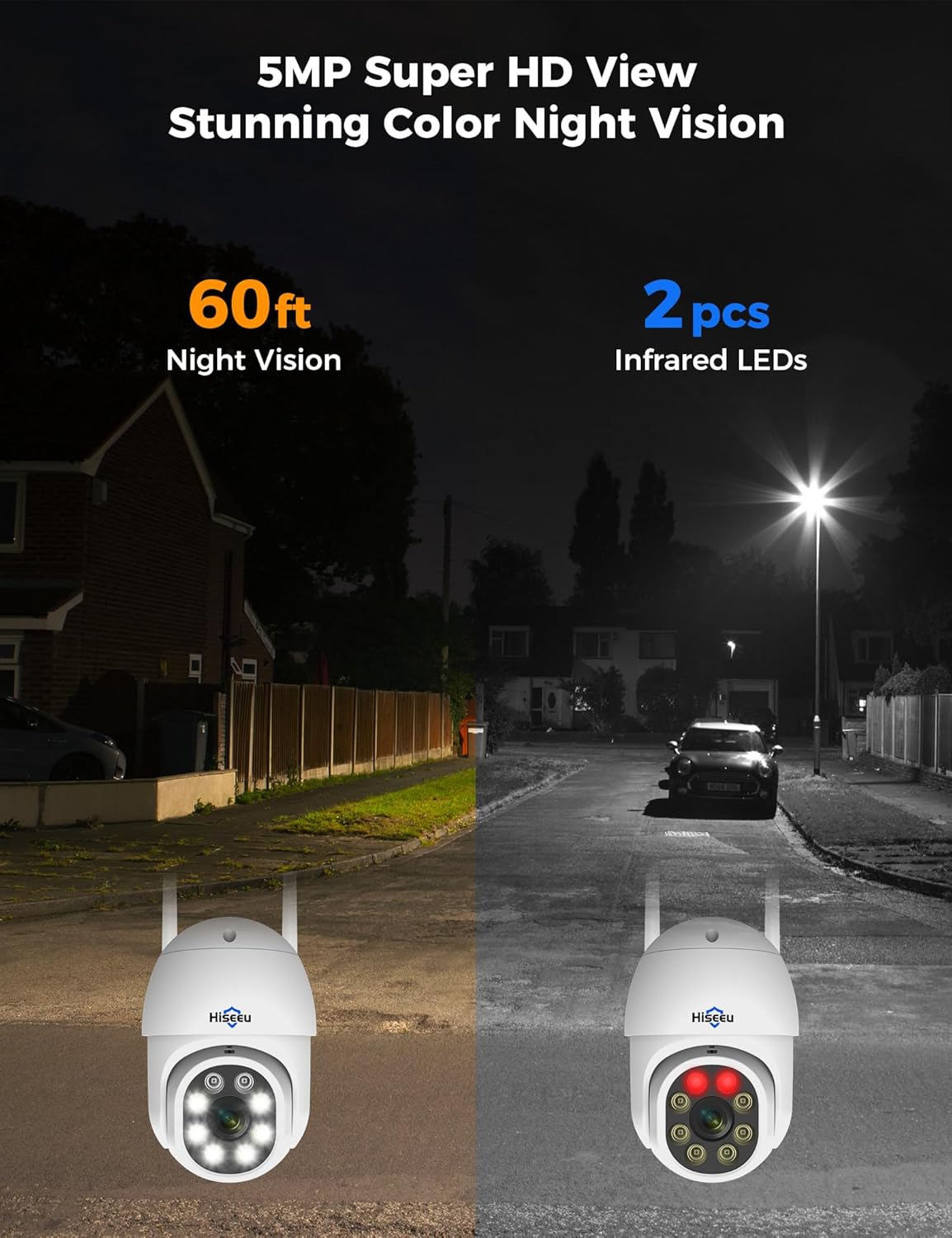
Figure 7: Comparison of night vision capabilities, including 5MP Super HD and Color Night Vision up to 60ft.
4.6 Alexa Integration
Integrate your Hiseeu system with Alexa for voice control and viewing:
- Enable Alexa Service Authorization: In the Eseecloud app's advanced settings, enable Alexa service authorization.
- Search Eseecloud Skill: Open the Alexa app, go to "Skills & Games," and search for "Eseecloud."
- Enable to Use: Input your Eseecloud account and password, then select "Discover Devices."
- View on Echo Show: After discovery, you can view your cameras on compatible Alexa devices like Echo Show.
Note: You must name the device in the Eseecloud app, otherwise Alexa may not find it.

Figure 8: Hiseeu system integration with Alexa for convenient voice control and viewing.
5. Maintenance
- Regular Cleaning: Periodically clean the camera lenses and housing with a soft, damp cloth to ensure clear image quality. Avoid abrasive cleaners.
- Check Connections: Ensure all power and network cables are securely connected and free from damage.
- Firmware Updates: Check the Eseecloud app regularly for firmware updates to ensure optimal performance and security.
- Waterproof Cap: For outdoor installations, ensure the waterproof cap is correctly installed on the Ethernet port to prevent water ingress.
Video 2: How to use a waterproof cap. This video demonstrates the correct installation of the waterproof cap for the camera's Ethernet port, crucial for outdoor durability.
6. Troubleshooting
- No Image/Signal: Check power connections for both NVR and cameras. Ensure cameras are within range of the NVR's wireless signal. Verify NVR is connected to the monitor correctly.
- Poor Wi-Fi Connection: Ensure the NVR is connected to your router via Ethernet. Check that cameras are connected to a 2.4GHz Wi-Fi network. Reduce distance between cameras and NVR/router if possible.
- Motion Detection Issues: Adjust motion detection sensitivity and ensure detection areas are correctly configured in the app.
- App Connectivity Problems: Verify your phone has a stable internet connection. Ensure the Eseecloud app is updated to the latest version. Restart the app or your phone if necessary.
7. Specifications
| Feature | Specification |
|---|---|
| Brand | Hiseeu |
| Connectivity Technology | Wired, Wireless (2.4GHz) |
| Video Capture Resolution | 5MP (2640 pixels) |
| Number of Channels | Up to 16 |
| Memory Storage Capacity | 3 TB HDD (built-in) |
| Power Source | Corded Electric |
| Item Dimensions (L x W x H) | 8 x 10 x 10 inches |
| Operating System Compatibility | Android, iOS |
| Recommended Uses | Surveillance |
| Compatible Devices | Smartphones |
| Night Vision Range | 65 Feet |
| Frame Rate | 15 fps, 24 fps, 30 fps |
| Recording Mode | Continuous, Motion Detection |
| Hardware Interface | 802.11 ac/b/g/n |
| Lens Type | Fixed |
| Video Input | CVBS |
| Item Weight | 15.37 pounds |
8. Warranty and Support
Your Hiseeu Wireless Security Cameras System comes with a 12-month limited warranty. The actual warranty period shall be implemented according to the requirements of local laws and regulations.
For any questions or support needs, the Eseecloud app provides one-on-one 7/24 online support. Please contact customer service directly through the app to resolve any issues.