
1. Introduction
This manual provides comprehensive instructions for the JISOWA replacement remote control, model VZ-4+AL, designed for various Vizio Smart TV models. Please read this manual carefully to ensure proper use and longevity of your remote control.

Image: Front, back, and side views of the JISOWA remote control, model VZ-4+AL. The front features standard TV remote buttons and quick access buttons for Amazon, Netflix, and MGO. The back includes a QWERTY keyboard. The side view shows its slim profile.
2. Setup
The JISOWA remote control is pre-programmed and requires no additional setup or pairing with your Vizio Smart TV. Simply insert batteries, and it is ready for use.
2.1 Battery Installation
- Locate the battery compartment cover on the back of the remote control.
- Slide the cover downwards or press the latch to open the compartment.
- Insert two (2) 1.5V AAA batteries, ensuring the correct polarity (+ and -) as indicated inside the compartment. Batteries are not included.
- Replace the battery compartment cover, ensuring it clicks securely into place.

Image: The JISOWA remote control with text indicating "No Setup Required. No Programming or Pairing Required." Dimensions are shown as 6.00 inches in length, 2.00 inches in width, and 0.50 inches in thickness. It also highlights "Long-distance Control" with a transmission signal range of over 40 ft.
3. Operating Instructions
The remote control features an ergonomic design for comfortable handling and agile operation. It includes a QWERTY keyboard on the back for easy text input and dedicated buttons for popular streaming services.
3.1 Button Functions

Image: A detailed diagram of the JISOWA remote control's front panel, labeling each button and its corresponding function. Key buttons include INPUT, POWER, A/V CONTROLS, INFO, CLOSED CAPTIONS, MENU, EXIT, ARROW navigation, OK, GUIDE, BACK, V BUTTON, VOLUME UP/DOWN, CHANNEL UP/DOWN, MUTE, LAST, NUMBER PAD, WIDE, and DASH.
- INPUT: Change the currently-displayed input source.
- POWER: Turn the TV on or off.
- A/V CONTROLS: Control USB media player functions (Play, Pause, Stop, Rewind, Fast Forward).
- INFO: Display the info window.
- CLOSED CAPTIONS (CC): Open the closed caption menu.
- MENU: Display the on-screen menu.
- EXIT: Close the on-screen menu.
- ARROW (Up, Down, Left, Right): Navigate the on-screen menu.
- OK: Select the highlighted menu option.
- GUIDE: Display the info window.
- BACK: Go to the previous on-screen menu.
- V BUTTON: Open the VIA dock.
- VOLUME UP/DOWN: Increase or decrease loudness of the audio.
- CHANNEL UP/DOWN: Change the channel.
- MUTE: Turn the audio off or on.
- LAST: Return to the channel last viewed.
- NUMBER PAD (0-9): Manually enter a channel number.
- WIDE: Switch the display mode.
- DASH (-): Use with the number pad to manually enter a digital sub-channel (e.g., 18-4 or 18.3).
- Dedicated App Buttons: Quick access to Amazon, Netflix, and MGO.
3.2 QWERTY Keyboard
The back of the remote features a full QWERTY keyboard for convenient text entry in smart TV applications and search functions. Simply flip the remote over to access the keyboard.

Image: Illustrates the ease of use of the JISOWA remote control with different Vizio TV types, including 4K UHD TV, Smart TV, and Smart Cast TV. It highlights the original function of the remote and the quick access buttons for Amazon, Netflix, and MGO.
4. Maintenance
4.1 Battery Replacement
When the remote control's performance degrades or it becomes unresponsive, it is time to replace the batteries. Follow the battery installation steps in Section 2.1.
4.2 Cleaning
To clean the remote control, gently wipe its surface with a soft, dry cloth. For stubborn dirt, slightly dampen the cloth with water. Avoid using harsh chemicals or abrasive cleaners, as these can damage the remote's finish or internal components.
5. Troubleshooting
- Remote not responding: Ensure batteries are correctly installed and have sufficient charge. Replace batteries if necessary. Check for any obstructions between the remote and the TV's infrared receiver.
- Buttons not working: If specific buttons are unresponsive, try cleaning the remote as described in Section 4.2. If the issue persists, the remote may need replacement.
- Cannot program to other devices: This remote control is pre-programmed specifically for Vizio Smart TVs and cannot be programmed to control other devices such as DVD players or cable boxes.
6. Specifications
- Model: VZ-4+AL
- Product Dimensions: 6 x 2 x 0.5 inches (15.24 x 5.08 x 1.27 cm)
- Item Weight: 1.76 ounces (50 grams)
- Batteries Required: 2 x AAA (not included)
- Connectivity Technology: Infrared (IR)
- Special Feature: No Programming Required, Pre-Programmed
- Max Number of Supported Devices: 1 (Vizio Smart TV)
- Compatible Devices: Vizio Smart Televisions (various models including M421VT, SV472XVT, XVT3D424SV, XVT3D650SV, E500I-A1, M3D421SR, M3D550SR, M470VSE, E322AR, E370VP, E3D420VX, E420VT, E460ME, M3D650SV, etc.)
- Material: New ABS material
- Signal Range: Farther than 40 ft.
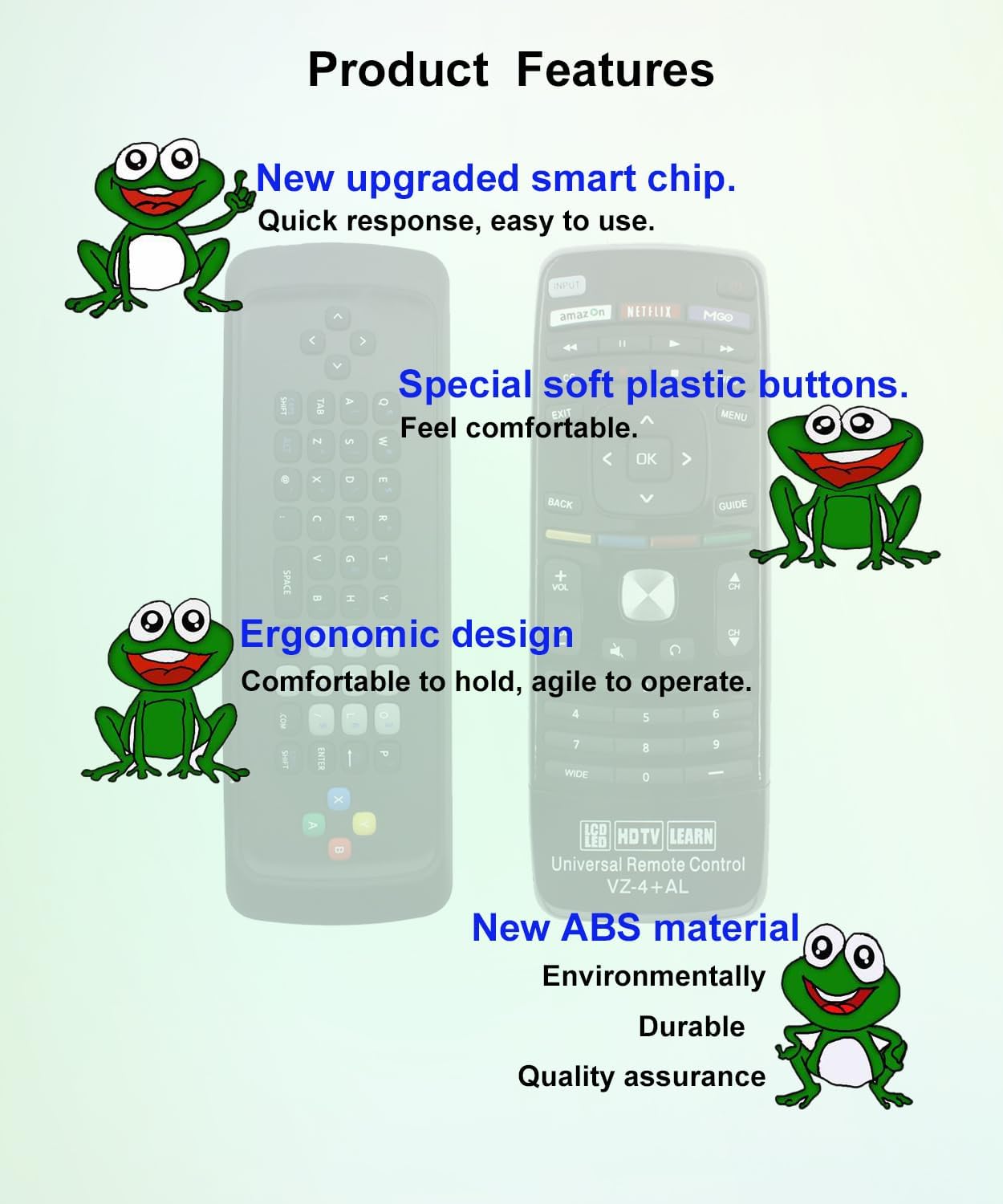
Image: Highlights key product features of the JISOWA remote control, including a new upgraded smart chip for quick response, special soft plastic buttons for comfort, ergonomic design for agile operation, and new ABS material for environmental friendliness and durability.

Image: Focuses on the "New Upgraded Smart Chip" within the JISOWA remote control, illustrating its benefits: Sensitive & Durable, Signal stabilization, Precise Control, and No Programming required. The remote is shown against a background of a vibrant TV display and circuit board elements.
7. Warranty and Support
7.1 After-Sales Service
For any defects or issues with this remote control, please contact our customer support. We are committed to providing a suitable solution within one business day.
7.2 Contact Information
Please refer to your purchase documentation or the seller's information on the platform where you purchased the product for specific contact details. Typically, you can reach us via the messaging system provided by the e-commerce platform.