
1. Introduction
This manual provides comprehensive instructions for the YONGNUO BR-L1 Remote Controller, designed to enhance the functionality of compatible YONGNUO YN lenses. Please read this manual thoroughly before using the device to ensure correct operation and to achieve optimal performance. Keep this manual for future reference.

Figure 1: YONGNUO BR-L1 Remote Controller. This image displays the compact design of the BR-L1 remote controller, highlighting its purpose as a lens remote control.
2. Product Overview
2.1 Package Contents
- YONGNUO BR-L1 Remote Controller
- USB Charging Cable (not explicitly listed but implied by rechargeable nature)
- Instruction Manual (this document)
2.2 Parts Identification
Familiarize yourself with the main components of the BR-L1 Remote Controller.

Figure 2: Front view of the BR-L1 Remote Controller. This image shows the front of the remote, including its display and control buttons.
- Display Screen: Shows current mode (F for Focus, M for Manual).
- Control Buttons: Used for various functions (specific functions depend on lens and mode).
- Lens Mount: Connects to compatible YONGNUO YN lenses.
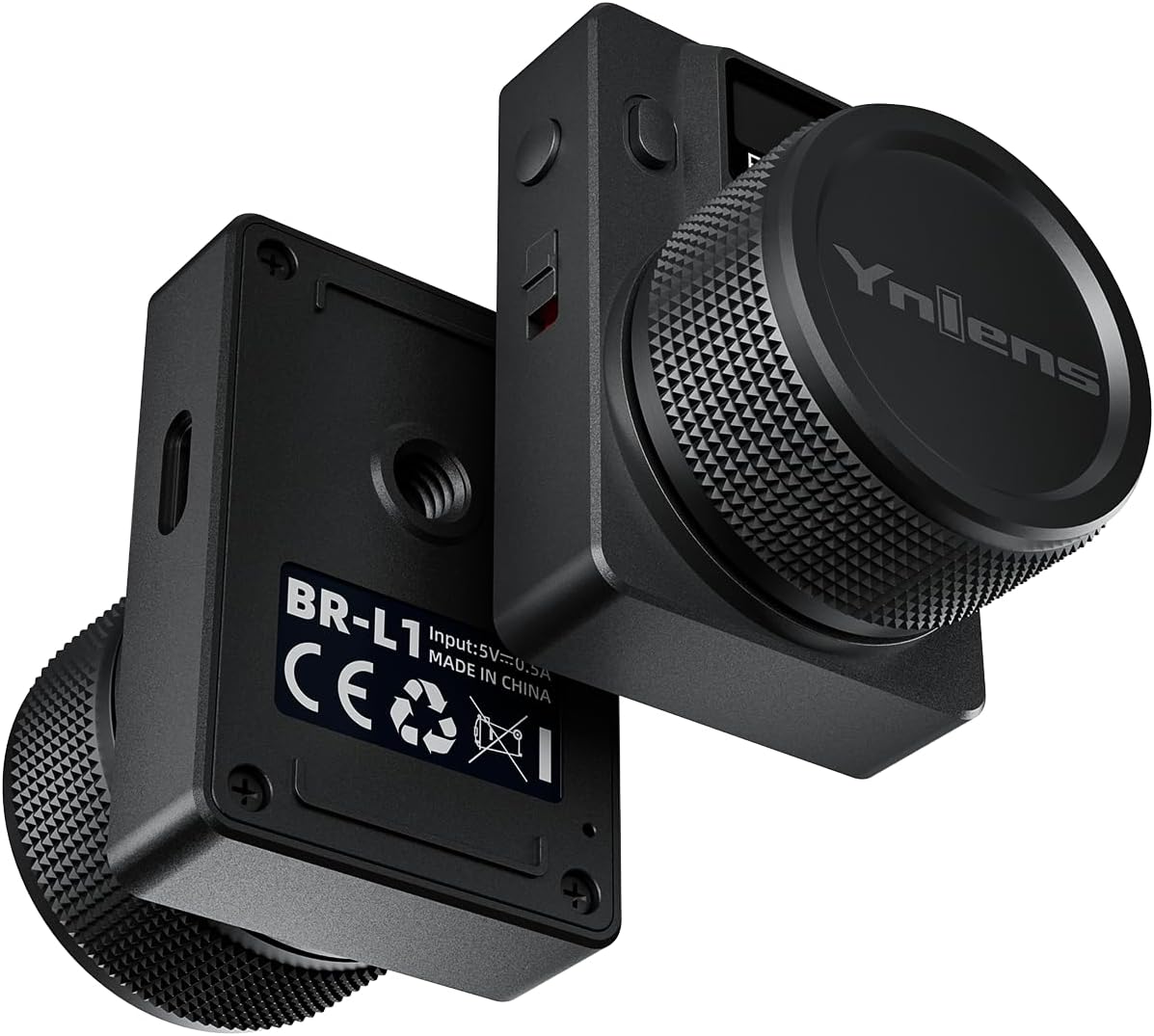
Figure 3: Back view of the BR-L1 Remote Controller. This image displays the back of the remote, including the charging input (5V=0.5A) and regulatory markings.
- Charging Port: For connecting the USB charging cable (Input: 5V=0.5A).
- Tripod Mount: Standard 1/4-inch screw hole for mounting.
3. Setup
3.1 Charging the Remote Controller
- Connect the USB charging cable to the BR-L1 Remote Controller's charging port.
- Connect the other end of the USB cable to a 5V/0.5A power source (e.g., a computer USB port or a USB wall adapter).
- Allow the device to charge fully before first use. A charging indicator (if present) will typically change color or turn off when charging is complete.
3.2 Attaching to a Compatible YN Lens
The BR-L1 Remote Controller is designed to attach directly to compatible YONGNUO YN lenses.
- Align the remote controller's mount with the designated mounting area on your YN lens.
- Gently twist or secure the remote controller until it is firmly attached to the lens. Ensure a secure connection to prevent accidental detachment.
3.3 Enabling Wireless Remote Control on the Lens
For the BR-L1 to function as a wireless remote, the compatible YN lens must have its SW (Switch) function set correctly.

Figure 4: SW Function Switch settings on a YN lens. This diagram illustrates how to configure the lens's SW switch for focus mode or wireless remote control.
- Locate the SW function switch on your YN lens.
- To enable wireless remote control, set the switch to the position indicated as "I" for wireless remote control function.
- If you wish to use the lens's SW switch for focus mode (AF/MF), set it to the appropriate position for that function. Note that the BR-L1's remote control capabilities will be active when the lens switch is set to "I" for wireless control.
4. Operating Instructions
4.1 Basic Operation
Once the BR-L1 is attached to a compatible YN lens and the lens's SW function is set to wireless remote control, you can begin operation.
- Power On/Off: Refer to the specific lens manual for powering on the lens system. The remote controller typically powers on with the lens or when a button is pressed.
- Mode Display: The display on the BR-L1 will show 'F' for Focus mode or 'M' for Manual mode, depending on the current setting or function being controlled.
- Controlling Focus: Use the control buttons or dial on the BR-L1 to adjust the focus of the attached lens. The exact function of each button may vary slightly depending on the specific YN lens model.
- Other Functions: The remote may offer additional controls such as aperture adjustment or zoom, depending on the lens's capabilities. Consult your lens manual for full compatibility.
5. Maintenance
5.1 Cleaning
- Use a soft, dry cloth to clean the exterior of the remote controller.
- Do not use liquid cleaners, solvents, or abrasive materials, as these can damage the device.
- Ensure no dust or debris accumulates in the charging port or lens contacts.
5.2 Storage
- Store the BR-L1 in a cool, dry place away from direct sunlight and extreme temperatures.
- If storing for an extended period, ensure the battery is partially charged (around 50%) to prolong its lifespan. Avoid storing with a completely depleted or fully charged battery.
5.3 Battery Care
- Recharge the battery when the low battery indicator appears or when performance degrades.
- Use only the specified 5V/0.5A input for charging.
- Do not attempt to replace the internal battery yourself. Contact YONGNUO customer support for battery-related issues.
6. Troubleshooting
If you encounter issues with your YONGNUO BR-L1 Remote Controller, refer to the following common problems and solutions:
| Problem | Possible Cause | Solution |
|---|---|---|
| Remote not responding | Low battery Lens SW function not set to wireless control Improper connection to lens | Charge the remote controller Set the lens's SW function switch to "I" for wireless remote control Ensure the remote is securely attached to the lens |
| Inconsistent response | Interference Out of range Lens firmware issue | Move away from sources of strong electromagnetic interference Ensure the remote is within effective operating range of the lens Check YONGNUO's official website for lens firmware updates |
| Display not working | Low battery Device malfunction | Charge the remote controller If charging does not resolve the issue, contact customer support |
If the problem persists after attempting these solutions, please contact YONGNUO customer support for further assistance.
7. Specifications
| Feature | Specification |
|---|---|
| Model | BR-L1 |
| Brand | YONGNUO |
| Compatible Devices | YONGNUO YN Lenses (e.g., YN11mm F1.8S) |
| Max Number of Supported Devices | 1 (one lens at a time) |
| Color | Black |
| Special Feature | Universal (for compatible YN lenses) |
| Input Power | 5V=0.5A |
| Item Weight | 2.39 ounces (approx. 67.7 grams) |
| Package Dimensions | 3.31 x 2.44 x 2.4 inches |
| Manufacturer | YONGNUO |
| Date First Available | March 1, 2024 |
8. Warranty and Support
8.1 Warranty Information
Specific warranty terms and conditions for the YONGNUO BR-L1 Remote Controller may vary by region and retailer. Please refer to the warranty card included with your product or visit the official YONGNUO website for detailed warranty information.
8.2 Customer Support
For technical support, service, or inquiries regarding your YONGNUO BR-L1 Remote Controller, please visit the official YONGNUO website or contact their authorized customer service channels. Keep your purchase receipt and product serial number handy when seeking support.
Official YONGNUO Website: www.yongnuo.com.cn