
1. Introduction
Thank you for choosing the Newsoul 18.5-inch Portable Touch Monitor. This manual provides essential information for setting up, operating, and maintaining your device. Please read it thoroughly before use to ensure proper functionality and to maximize your experience.
This portable monitor features a large 18.5-inch Full HD (1920x1080) display with multi-touch capabilities, a high 120Hz refresh rate, and a rapid 1ms response time, making it ideal for gaming, video consumption, and enhancing productivity in remote work environments.

Figure 1.1: Newsoul 18.5-inch Portable Touch Monitor
The Newsoul 18.5-inch Portable Touch Monitor, showcasing its sleek design and large display. A hand is shown interacting with the touch screen, highlighting its touch functionality. The display also indicates 120Hz refresh rate and AMD FreeSync support.
2. Key Features
- 18.5" FHD 1080P Multi-touch Display: Enjoy immersive visuals on a large 18.5-inch Full HD (1920x1080) screen. The IPS panel offers a wide 178° viewing angle with natural color reproduction. The capacitive touch panel supports intuitive multi-touch gestures, enhancing productivity by reducing the need for external input devices.
- 120Hz Refresh Rate & 1ms Response Time: Experience a new level of gaming performance with minimal ghosting and reduced response time. The 120Hz refresh rate provides incredibly smooth and tear-free visuals, displaying images twice as fast as standard 60Hz displays, perfect for fast-paced action.
- 100% sRGB & HDR10 Technology: The monitor supports HDR10 dynamic technology, significantly reducing lag and screen tearing. With 100% sRGB color gamut, it covers 16.7 million colors, ensuring vibrant and accurate color reproduction for all your content.
- Versatile Connectivity: Equipped with Mini HDMI, two full-function USB Type-C ports, and a 3.5mm audio jack. This allows seamless connection to a wide range of devices including laptops, smartphones, game consoles (PS4/PS5, Xbox, Switch), cameras, and tablets.
- Standard VESA Mount: Features a 75mm VESA mount with 4mm screw holes, allowing for easy attachment to monitor arms or wall mounts for flexible setup options.
- Eye-Care Mode: Adjust the color temperature to a warmer setting to automatically activate Eye-Care Mode, reducing eye strain and fatigue during prolonged use.

Figure 2.1: Multi-touch Panel Functionality
This image illustrates the multi-touch capabilities of the monitor, showing various hand gestures for clicking, sliding, zooming in, and zooming out. A user is interacting with the screen connected to a laptop, demonstrating its use in a creative application.

Figure 2.2: High 120Hz Refresh Rate
A dynamic image of a sports car on the monitor screen, emphasizing the smooth motion provided by the 120Hz refresh rate, indicated by a glowing 120Hz icon.

Figure 2.3: 1ms Response Time Comparison
This image shows a side-by-side comparison of a scene from a first-person shooter game, illustrating the difference between 1ms and 3ms response times. The 1ms image appears sharper and clearer, demonstrating reduced motion blur.

Figure 2.4: 100% sRGB and IPS Panel
A split image demonstrating the vibrant color reproduction of the 100% sRGB IPS panel compared to 80% sRGB. The 100% sRGB side shows richer and more accurate colors.
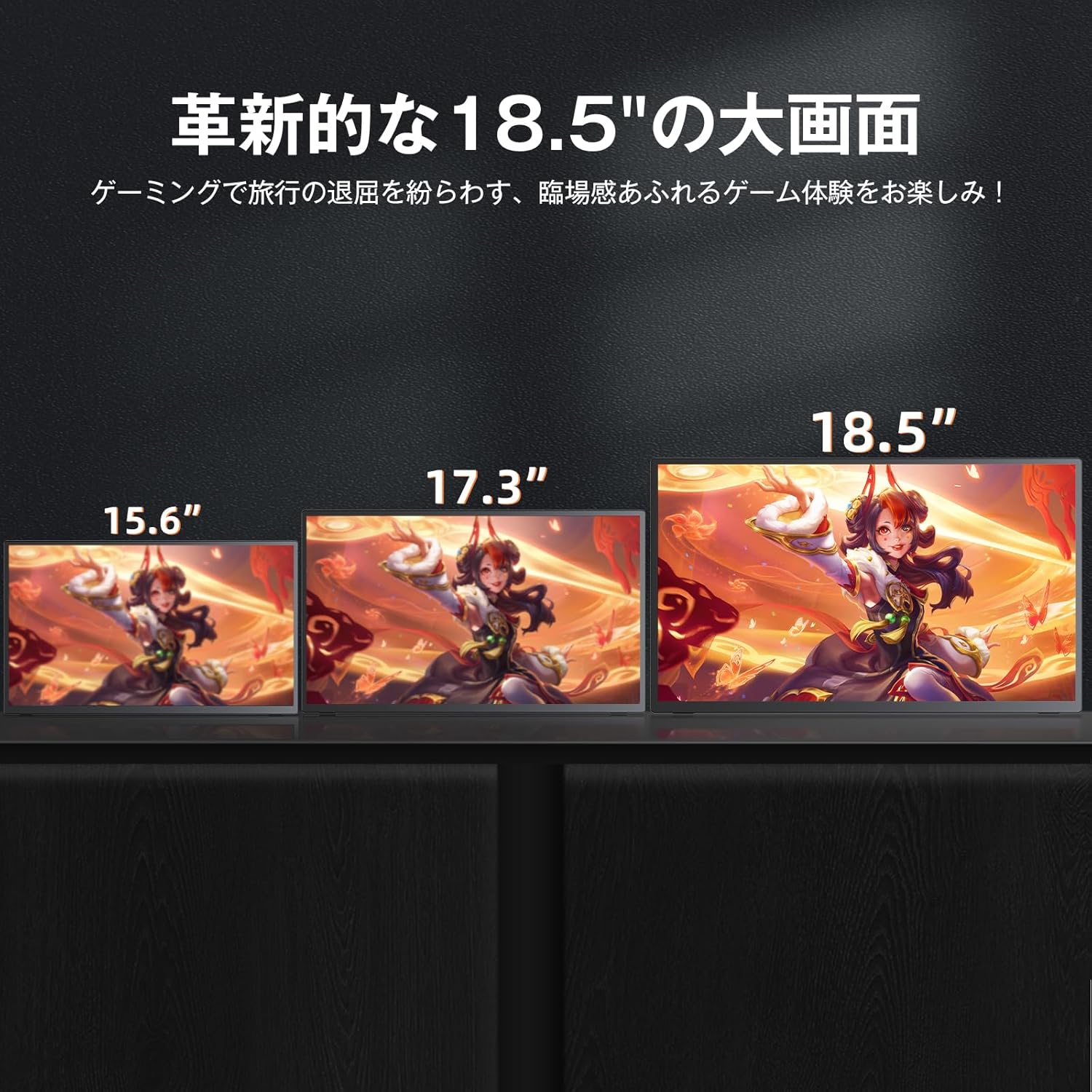
Figure 2.5: Innovative 18.5-inch Large Screen
This image compares the physical size of 15.6-inch, 17.3-inch, and 18.5-inch portable monitors, highlighting the larger screen real estate of the 18.5-inch model for an enhanced viewing experience.
3. Setup Guide
3.1 Package Contents
Before you begin, please ensure all items are present in the package:
- Newsoul 18.5-inch Portable Touch Monitor
- Mini HDMI to HDMI Cable
- USB-C to USB-C Cable (x2)
- Power Adapter
- User Manual (this document)
3.2 Connecting Your Monitor
The monitor offers flexible connectivity options. Choose the method that best suits your device:
- Using USB Type-C (Full Function):
For devices with a full-function USB Type-C port (supporting video output and power delivery), connect one end of the USB-C to USB-C cable to the monitor's Type-C port and the other end to your device's Type-C port. This single cable can provide both video signal and power.
- Using Mini HDMI & USB Type-C (Power):
For devices with an HDMI output, connect the Mini HDMI to HDMI cable from your device to the monitor's Mini HDMI port. Then, connect one end of a USB-C to USB-C cable to the monitor's power-only Type-C port and the other end to a power adapter or a USB port on your device for power supply.
- Audio Output:
Connect headphones or external speakers to the 3.5mm audio jack on the monitor for audio output.

Figure 3.1: Available Ports
A detailed view of the monitor's side profile, highlighting the various input/output ports: Mini HDMI, two full-function Type-C ports, and a 3.5mm audio jack. This image visually confirms the rich connectivity options.
3.3 VESA Mounting
The monitor is equipped with standard 75x75mm VESA mounting holes (4mm screw size) on the back. This allows you to attach the monitor to a compatible VESA arm or wall mount for ergonomic positioning and space-saving solutions.

Figure 3.2: VESA Mounting Options
This image displays various scenarios for using the VESA mount, including desktop arm mounting and wall mounting, demonstrating the monitor's adaptability to different workspaces.
4. Operating Instructions
4.1 Power On/Off
To power on the monitor, ensure it is connected to a power source and press the power button located on the side/back of the monitor. To power off, press and hold the power button until the screen turns off.
4.2 On-Screen Display (OSD) Menu
The OSD menu allows you to adjust various display settings. Use the control buttons (usually a joystick or a set of buttons) on the monitor to navigate the menu. Common settings include:
- Brightness/Contrast: Adjust the overall luminance and contrast of the display.
- Color Settings: Modify color temperature, hue, and saturation.
- Input Source: Manually select the input signal (HDMI, Type-C 1, Type-C 2).
- Aspect Ratio: Change the display's aspect ratio (e.g., 16:9, 4:3).
- Eye-Care Mode: Enable or disable the blue light filter.
4.3 Touch Functionality
The monitor supports multi-touch gestures for intuitive interaction. Simply use your fingers directly on the screen to perform actions such as:
- Tap: Equivalent to a mouse click.
- Swipe: Scroll through content or navigate.
- Pinch-to-Zoom: Enlarge or shrink images and documents.
- Two-finger Scroll: Scroll vertically or horizontally.
Note: For Mac devices, only single-point touch is supported. Touch functionality is not available for iPhone/iPad.
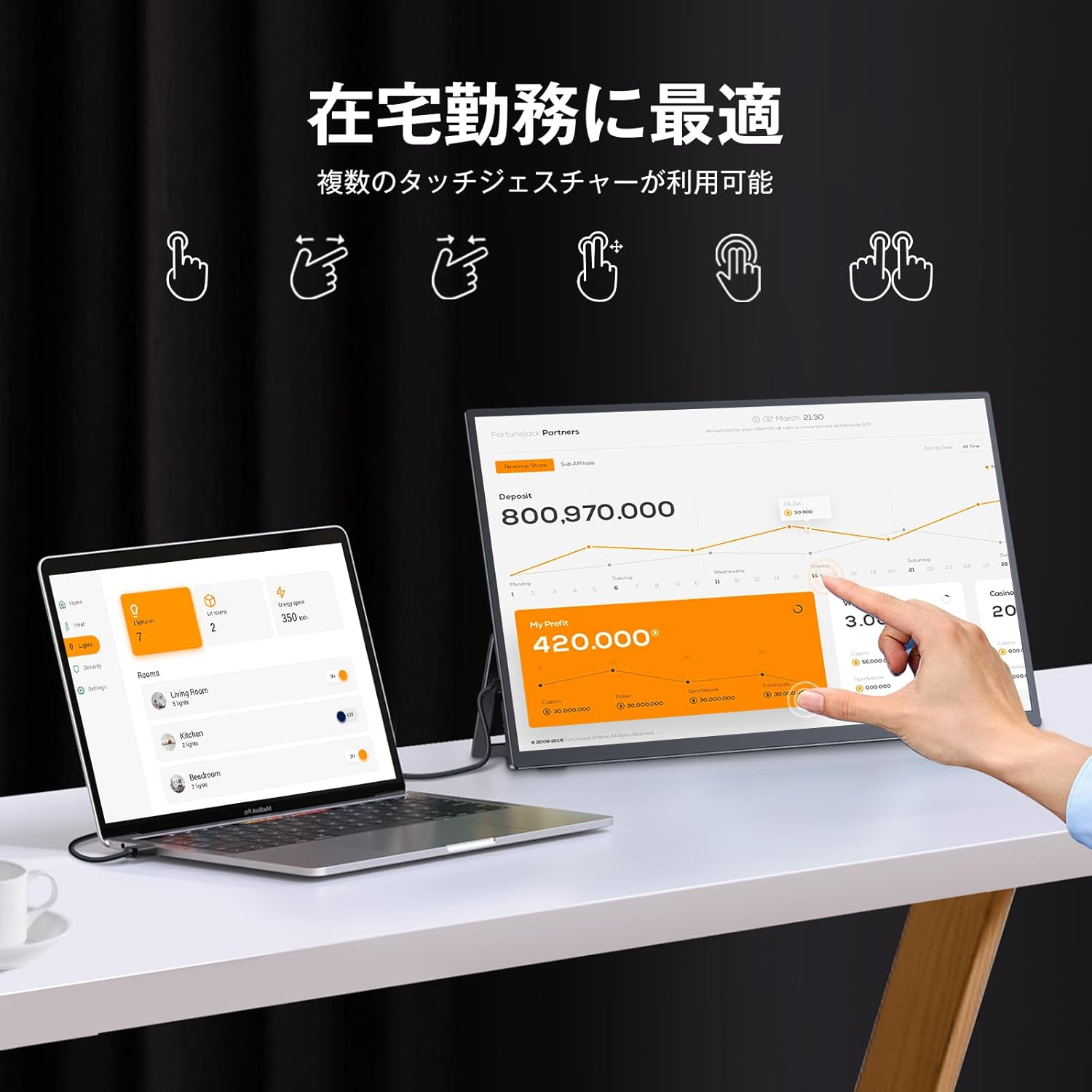
Figure 4.1: Optimized for Remote Work
A user is shown interacting with the touch screen of the portable monitor, which is connected to a laptop. The screen displays a spreadsheet, illustrating how multi-touch gestures can be used for efficient work, such as zooming and navigating data.
5. Maintenance
5.1 Cleaning the Monitor
To clean the screen, gently wipe it with a soft, lint-free cloth. For stubborn smudges, dampen the cloth slightly with water or a screen-cleaning solution. Avoid using harsh chemicals, abrasive cleaners, or alcohol-based solutions, as they can damage the screen surface.
5.2 Storage
When not in use, store the monitor in a cool, dry place away from direct sunlight and extreme temperatures. If transporting, use the original packaging or a protective case to prevent damage.
6. Troubleshooting
If you encounter any issues with your Newsoul portable monitor, please refer to the following common problems and solutions:
| Problem | Possible Cause | Solution |
|---|---|---|
| No display/"No Signal" message | Incorrect input source selected, loose cable connection, insufficient power. | Check all cable connections. Ensure the correct input source is selected in the OSD menu. Verify power supply is adequate (especially for Type-C connections). |
| Touch function not working | Incorrect cable connection, incompatible device, driver issue. | Ensure the Type-C cable supports touch data transmission. For Windows PCs, ensure touch drivers are installed. Note: Mac supports single-point touch only; iPhone/iPad do not support touch. |
| Screen flickering or unstable image | Cable issue, refresh rate mismatch, power instability. | Try a different cable. Adjust the refresh rate in your device's display settings. Ensure stable power supply. |
| No audio from monitor speakers/headphone jack | Audio output not routed to monitor, volume too low. | Check your device's audio output settings to ensure sound is sent to the monitor. Increase monitor volume via OSD menu. |
If the problem persists after trying these solutions, please contact Newsoul customer support.
7. Specifications
| Feature | Specification |
|---|---|
| Brand | Newsoul |
| Model Number | 157-85ME6 |
| Screen Size | 18.5 inches |
| Resolution | 1920 x 1080 (Full HD) |
| Panel Type | IPS |
| Refresh Rate | 120Hz |
| Response Time | 1ms |
| Color Gamut | 100% sRGB |
| HDR Support | HDR10 |
| Touchscreen | Capacitive Multi-touch |
| Connectivity | 2x Full-function USB Type-C, 1x Mini HDMI, 1x 3.5mm Audio Jack |
| VESA Mount | 75mm x 75mm |
| Product Dimensions | 42.3 x 25.1 x 1.3 cm |
| Product Weight | 1.27 kg |
8. Warranty and Support
Newsoul provides a one-year quality warranty for this product. For any questions, concerns, or technical assistance, please do not hesitate to contact our customer support team.
Customer Support Email: supportjp@newsoul.store
Our team is dedicated to providing prompt and helpful support to ensure your satisfaction.


