
1. Introduction
Thank you for choosing the BUDI Multifunctional 10-in-1 USB C Hub. This device is designed to enhance your digital experience by combining a docking station, card reader, SD card storage, and a phone holder into a single, durable unit. It offers versatile connectivity and storage solutions for a wide range of devices, including laptops, tablets, and smartphones.
2. Product Overview
Key Features:
- 10-in-1 Multifunctionality: Combines USB hub, card reader, card storage, and phone stand.
- 5-Port USB C Hub: Easily connect multiple USB devices like keyboards, mice, and external drives.
- High-Speed SD Card Reader: USB 3.0 for data transfer rates up to 5Gbps, supporting various card formats.
- High Capacity Storage: Dedicated slots for 4 SD cards, 15 TF (Micro SD) cards, and 2 SIM cards.
- Integrated Phone Stand: Conveniently holds your smartphone for hands-free viewing.
- Durable Design: Constructed with aluminum shell material for enhanced durability and resistance to falls.
Components:
The BUDI 10-in-1 USB C Hub features a compact, rectangular design with a carbon fiber texture. It slides open to reveal various ports, card slots, and integrated cables.

Figure 2.1: Exploded view of the BUDI 10-in-1 USB C Hub, illustrating its various components including USB-C cable, USB-A adapters, SIM ejector tool, and multiple card slots.

Figure 2.2: Detailed diagram highlighting the 10-in-1 functionalities and port types of the USB-C Hub.

Figure 2.3: Illustration of the memory card reader section, detailing the USB 2.0 and USB 3.0 interfaces for TF and SD cards.
Video 2.1: This video demonstrates the durability of the BUDI 10-in-1 USB C Hub by showing it withstand a car driving over it, followed by a demonstration of how the device slides open to reveal its internal components and card slots.
3. Setup
The BUDI 10-in-1 USB C Hub is designed for plug-and-play operation, requiring no additional drivers for most operating systems. Simply connect the integrated USB-C cable to your host device.
System Compatibility:
The hub is compatible with a wide range of operating systems, including Windows, macOS, Linux, iOS, and Android (OTG-enabled smartphones).

Figure 3.1: Compatibility chart showing various devices and operating systems supported by the hub without requiring driver installation.
4. Operating Instructions
4.1. USB Hub Functionality
To use the USB hub, slide open the device to reveal the USB ports. Connect your USB devices (e.g., keyboard, mouse, USB flash drive) to the available USB 3.0 and USB 2.0 ports. The hub provides 5 ports for expanded connectivity.
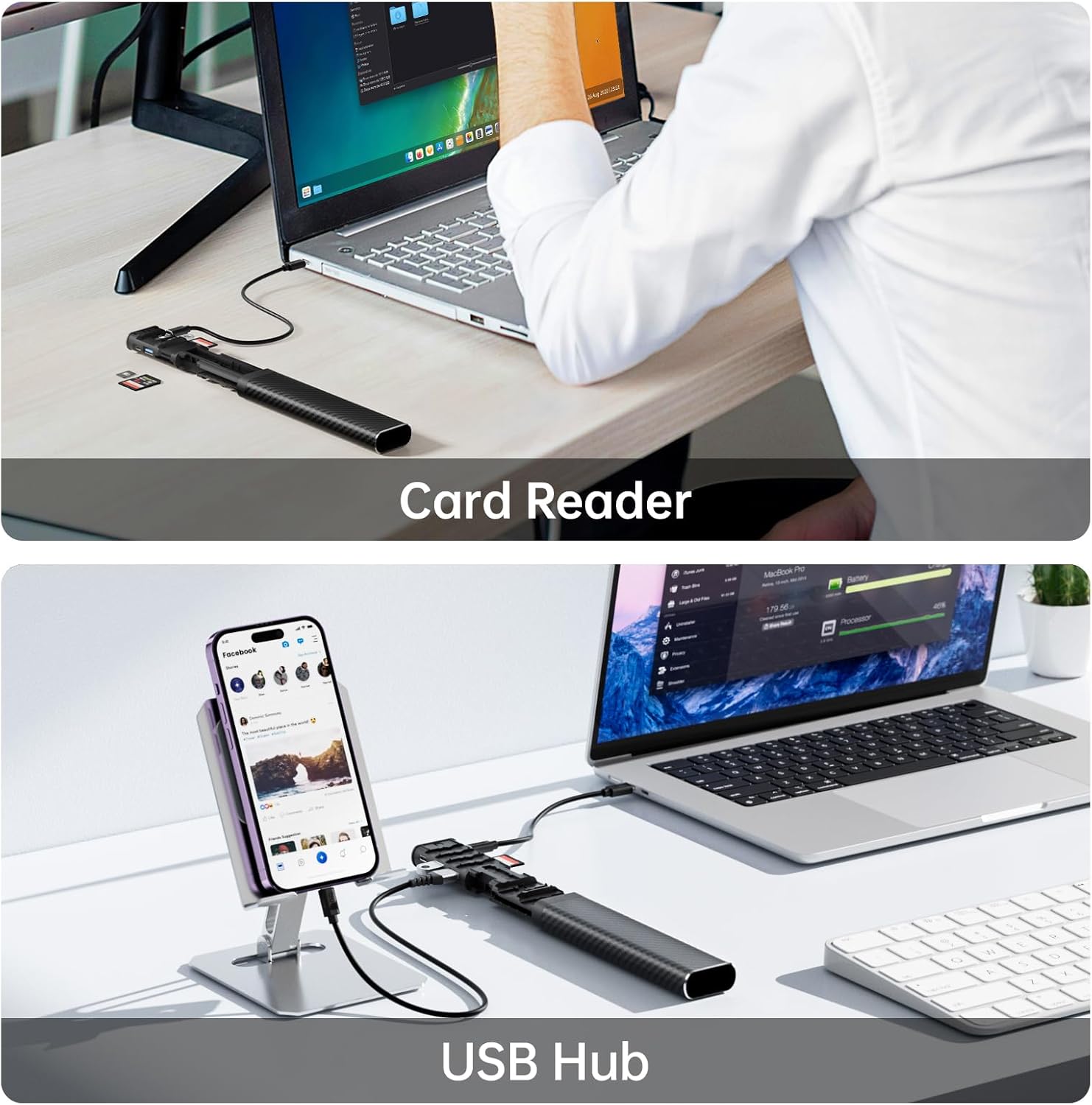
Figure 4.1: The hub functioning as a USB hub, connecting a smartphone to a laptop.

Figure 4.2: Close-up of the USB hub ports and their specifications.
4.2. SD Card Reader Functionality
Insert your SD or TF (Micro SD) card into the corresponding slot on the hub. The USB 3.0 interface ensures fast data transfer for quick syncing of files between your devices and external storage media. Note that simultaneous reading and writing of both SD and TF cards is not supported; only one card can be recognized at a time.

Figure 4.3: Close-up of the card reader slots for SD and TF cards.
4.3. Card Storage
The hub provides dedicated storage slots for various memory cards. It can securely store up to 4 SD cards, 15 TF (Micro SD) cards, and 2 SIM cards. This feature is ideal for organizing and protecting your important files, photos, and videos, especially when traveling.

Figure 4.4: The hub used for secure card storage.

Figure 4.5: Detailed view of the internal card storage slots.
4.4. Phone Stand
The bottom of the SD card storage case can be extended to function as a convenient cell phone stand. This allows you to prop up your device for hands-free viewing, suitable for various settings such as office, bedroom, living room, or during travel.

Figure 4.6: The hub used as a phone cradle for hands-free viewing.
4.5. Power Delivery (PD) Pass-Through Charging
The hub supports 100W Power Delivery pass-through charging. Connect your USB-C power adapter to the PD port on the hub, and then connect the hub to your laptop or device. This allows you to charge your device while simultaneously using the hub's other functionalities.

Figure 4.7: Illustration of 100W Power Delivery pass-through charging.
5. Maintenance
To ensure the longevity and optimal performance of your BUDI 10-in-1 USB C Hub, follow these maintenance guidelines:
- Cleaning: Use a soft, dry cloth to wipe the exterior of the device. Avoid using liquid cleaners or abrasive materials.
- Storage: When not in use, store the hub in a cool, dry place away from direct sunlight and extreme temperatures.
- Handling: While the device is designed to be durable, avoid dropping it or subjecting it to excessive force. Ensure all components are properly secured when closing the case.
6. Troubleshooting
If you encounter issues with your BUDI 10-in-1 USB C Hub, please refer to the following common problems and solutions:
| Problem | Possible Cause | Solution |
|---|---|---|
| Device not recognized by computer. | Loose connection, incompatible port, or insufficient power. | Ensure the USB-C cable is securely connected to both the hub and your computer. Try a different USB-C port on your computer. If using high-power devices, ensure external power is supplied via the PD port. |
| SD/TF card not detected. | Card not inserted correctly, corrupted card, or simultaneous card insertion. | Reinsert the card firmly into the correct slot. Ensure only one card (SD or TF) is inserted at a time. Test the card in another device to check for corruption. |
| Slow data transfer speeds. | Using USB 2.0 port for high-speed transfer, or host device limitations. | Ensure you are using the USB 3.0 port for faster transfers. Verify your computer's USB port supports USB 3.0 speeds. |
| Phone stand is unstable. | Improper extension or uneven surface. | Ensure the phone stand mechanism is fully extended and locked into place. Place the hub on a flat, stable surface. |
7. Specifications
| Feature | Detail |
|---|---|
| Brand | BUDI |
| Model Number | DC568B |
| Connectivity Technology | USB Type C |
| USB Ports | 1x USB 3.0, 2x USB 2.0 |
| Card Reader | SD Card, TF (Micro SD) Card (USB 3.0 speed, single card operation) |
| Card Storage Capacity | 4x SD Cards, 15x TF Cards, 2x SIM Cards |
| Power Delivery | Up to 100W Pass-Through Charging |
| Operating System Compatibility | Windows, Mac OS, Linux, iOS, Android (OTG) |
| Item Weight | 4.2 ounces |
| Product Dimensions (LxWxH) | 9.84 x 7.87 x 3.15 inches |
| Color | BLACK |
8. Warranty and Support
BUDI products are manufactured with high-quality standards. For warranty information or technical support, please refer to the product packaging or contact BUDI customer service through the retailer where the product was purchased. Please retain your proof of purchase for warranty claims.