
Introduction
Thank you for choosing the Tujoe USB LED Gooseneck Lamp. This flexible and dimmable LED light is designed to provide convenient illumination for various tasks, including reading, computer work, and camping. Its USB-powered design ensures compatibility with a wide range of devices, offering versatile lighting wherever you need it.

Image: Two Tujoe USB LED Gooseneck Lamps, illustrating the product in a typical use scenario with a laptop.
Package Contents
Please check the package to ensure all items are present:
- 2 x USB LED Reading Lamps
Features
- Touch Switch: Easy control for power and brightness adjustment.
- Durable and Adaptable: 360-degree flexible gooseneck made from aluminum alloy for precise positioning.
- Sufficient LED Lights: Each lamp is fitted with 10 LED beads for bright illumination.
- USB Powered: Compatible with various 5V USB devices such as laptops, computers, portable power sources, and USB wall sockets.
- Portable Design: Lightweight and easy to carry for use on the go.

Image: Close-up view of the 360-degree flexible gooseneck and the practical USB connector, highlighting the lamp's adaptability.
Setup
- Unpack the USB LED Gooseneck Lamp from its packaging.
- Insert the USB connector into any compatible 5V USB port (e.g., laptop, computer, power bank, USB wall adapter).
- Adjust the flexible gooseneck to position the light as desired.
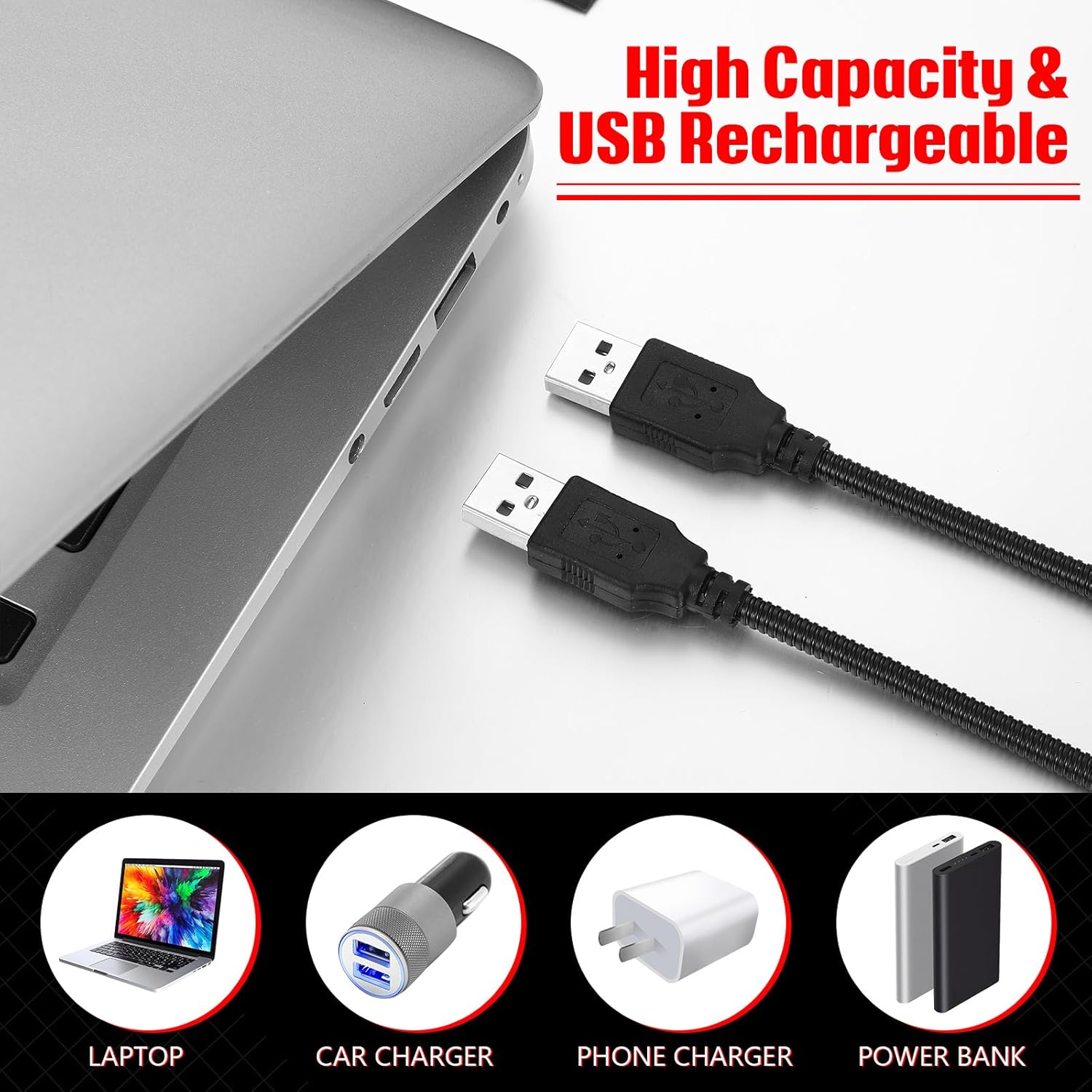
Image: The USB LED lamp connected to a laptop, car charger, phone charger, and power bank, demonstrating its versatile power options.
Operating Instructions
The Tujoe USB LED Gooseneck Lamp features a touch-sensitive switch for easy operation.
- Turning On/Off: Briefly tap the touch switch located at the end of the lamp to turn the light on or off.
- Adjusting Brightness:
- When the light is on, press and hold the touch switch to gradually increase the brightness.
- Release the switch at your desired brightness level.
- To decrease brightness, press and hold the touch switch again. The light will dim. Release the switch when the desired brightness is reached.

Image: Diagram illustrating the touch switch functionality for turning the lamp on/off and adjusting brightness, with visual representations of different brightness levels (25%, 50%, 75%, 100%).
Maintenance
- Cleaning: Use a soft, dry cloth to wipe the lamp. Do not use abrasive cleaners or solvents.
- Storage: When not in use, store the lamp in a clean, dry place.
- Handling: While the gooseneck is flexible, avoid excessive force or sharp bends to prevent damage.
Troubleshooting
- Light does not turn on:
- Ensure the USB connector is fully inserted into a working 5V USB port.
- Try plugging the lamp into a different USB port or power source to rule out a faulty port.
- Gently tap the touch switch to ensure it registers the input.
- Brightness adjustment is erratic:
- Ensure your finger is making full contact with the touch switch area.
- Avoid rapidly tapping or releasing the switch during brightness adjustment; use a steady press and hold.
Specifications
| Model Number | SEW0943 |
| Brand | Tujoe |
| Lamp Type | USB Light |
| Light Source Type | LED |
| Number of LED Beads | 10 (per lamp) |
| Power Source | USB Powered (5V) |
| Wattage | 4.5 watts |
| Switch Type | Touch |
| Additional Features | Dimmable, Flexible Gooseneck |
| Material Type | Aluminum |
| Product Dimensions (D x W x H) | 9.84"D x 1.96"W x 0.39"H |
| Indoor/Outdoor Usage | Indoor |
| Water Resistance Level | Not Water Resistant |
Product Video
Video: A demonstration of the Tujoe USB LED Gooseneck Light, showcasing its flexible design, USB connectivity, and touch-sensitive controls for power and brightness adjustment.
Warranty and Support
Warranty information for this product is not provided in the available product data. For support or inquiries, please refer to the seller's contact information on the purchase platform.