
Sinilink XY-WFUSB
Sinilink WiFi-USB Mobile Phone Remote Controller User Manual
Model: XY-WFUSB
Brand: Sinilink
1. Introduction
The Sinilink XY-WFUSB is a compact and versatile WiFi-enabled USB controller designed for remote control of various electrical devices via a mobile phone application. It integrates seamlessly into smart home automation systems and is particularly useful for DIY electronics projects, including those based on Arduino platforms. This manual provides essential information for the safe and effective use of your Sinilink WiFi-USB controller.
2. Product Overview
The Sinilink XY-WFUSB controller features a standard USB-A male connector for power input and a USB-A female receptacle for power output to the controlled device. Its transparent blue casing allows for visibility of the internal circuitry, and it includes an integrated button for manual control.

Figure 2.1: Sinilink XY-WFUSB Controller (Cap Removed)
Key Features:
- WiFi Connectivity: Enables remote control via a mobile application.
- Wide Voltage Range: Supports input voltages from 3.5V to 20V DC.
- High Power Output: Capable of handling up to 5A current and 100W power.
- Mobile APP Control: Convenient control and scheduling through a dedicated smartphone application.
- Compact Design: Portable and easy to integrate into various setups.
- Button Control: Includes a physical button for direct manual operation.
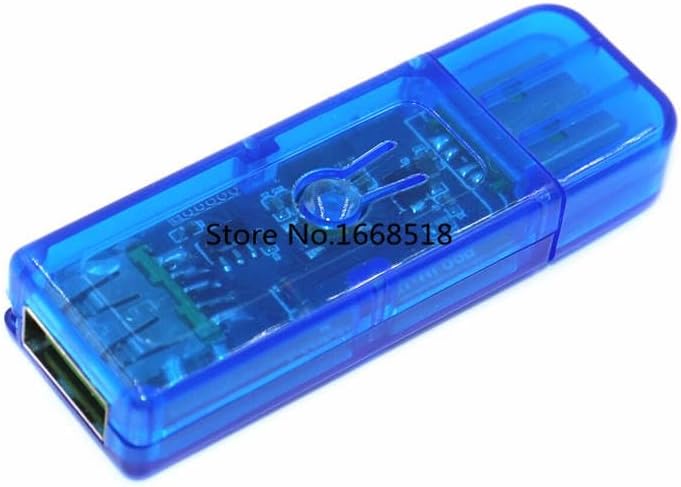
Figure 2.2: Sinilink XY-WFUSB Controller (Cap On)
3. Setup
3.1 Hardware Connection
- Power Input: Insert the USB-A male plug of the XY-WFUSB controller into a compatible USB power source (e.g., a USB wall adapter, power bank, or computer USB port) that provides 3.5V to 20V DC.
- Device Connection: Connect the device you wish to control (e.g., an LED strip, fan, or other USB-powered accessory) into the USB-A female receptacle on the XY-WFUSB controller. Ensure the connected device's power requirements do not exceed 5A or 100W.

Figure 3.1: USB-A Male Plug for Power Input
3.2 Mobile Application Installation
To utilize the remote control features, you need to install the official Sinilink mobile application on your smartphone. Search for "Sinilink" in your device's app store (Google Play Store for Android or Apple App Store for iOS). Alternatively, refer to the product packaging or included documentation for a QR code that links directly to the app download.
3.3 Initial Pairing and Configuration
- Power On: Ensure the XY-WFUSB controller is powered on and the indicator light (if present) is blinking, indicating it's in pairing mode.
- Open App: Launch the Sinilink application on your smartphone.
- Add Device: Follow the in-app instructions to add a new device. This typically involves selecting the device type (e.g., "USB Controller" or "Smart Switch"), entering your WiFi network credentials (SSID and password), and confirming the device's pairing status.
- Connect to WiFi: The app will guide the controller to connect to your home WiFi network. Ensure your smartphone is connected to the same 2.4GHz WiFi network during the pairing process.
- Rename Device (Optional): Once paired, you can rename the controller within the app for easier identification (e.g., "Desk Lamp Controller").
4. Operating Instructions
4.1 Manual Control
The XY-WFUSB controller features a physical button. A short press of this button will toggle the power output to the connected device (ON/OFF).
4.2 Mobile App Control
Once the controller is successfully paired with the Sinilink app, you can control it remotely:
- Remote ON/OFF: Tap the device icon in the app to instantly turn the connected device on or off from anywhere with an internet connection.
- Scheduling: Set up schedules or timers to automatically turn the device on or off at specific times.
- Scene Creation: Create custom scenes that trigger the controller based on various conditions (e.g., time of day, other smart devices).
- Status Monitoring: View the current ON/OFF status of the connected device within the app.
5. Maintenance
To ensure the longevity and optimal performance of your Sinilink XY-WFUSB controller, follow these maintenance guidelines:
- Cleaning: Use a soft, dry cloth to wipe the exterior of the device. Do not use liquid cleaners or solvents, as they may damage the electronics.
- Storage: When not in use, store the controller in a cool, dry place away from direct sunlight and extreme temperatures.
- Avoid Physical Damage: Protect the device from drops, impacts, and excessive force, especially on the USB connectors.
- Environmental Conditions: Do not expose the device to water, high humidity, or corrosive environments.
6. Troubleshooting
If you encounter issues with your Sinilink XY-WFUSB controller, refer to the following common problems and solutions:
| Problem | Possible Cause | Solution |
|---|---|---|
| Device not powering on. | No power from USB source; faulty USB source. | Ensure the USB power source is active. Try a different USB port or power adapter. |
| Cannot connect to WiFi. | Incorrect WiFi password; device out of range; 5GHz network. | Double-check WiFi password. Move the controller closer to the router (within 10 meters). Ensure you are connecting to a 2.4GHz WiFi network. |
| App cannot find or control device. | Device not paired; device offline; app glitch. | Ensure the controller is powered on and connected to WiFi. Re-pair the device through the app. Restart the app or your smartphone. |
| Connected device not receiving power. | Controller is OFF; connected device faulty; power overload. | Toggle the controller ON via the app or physical button. Test the connected device directly. Ensure the connected device's power requirements are within the controller's specifications (max 5A/100W). |
7. Specifications
| Parameter | Value |
|---|---|
| Model | XY-WFUSB |
| Input Voltage | 3.5V - 20V DC |
| Output Current | Up to 5A |
| Max Power | 100W |
| Connectivity | WiFi (2.4GHz) |
| Control Method | Mobile APP, Physical Button |
| Maximum WiFi Range | 10 Meters (approximate, line of sight) |
| Max Number of Supported Devices | 1 (per controller) |
8. Safety Information
Please read and adhere to the following safety precautions to prevent damage to the device or personal injury:
- Do not disassemble, modify, or attempt to repair the device. Unauthorized modifications may void the warranty and pose safety risks.
- Ensure the input voltage and connected device's power requirements are within the specified limits (3.5-20V, 5A, 100W). Exceeding these limits can cause damage or fire.
- Keep the device away from water, moisture, and high humidity.
- Avoid exposing the device to extreme temperatures, direct sunlight, or open flames.
- Use the device in a well-ventilated area.
- This device is intended for indoor use only.
- Keep out of reach of children.
9. Warranty and Support
For specific warranty information, please refer to the terms and conditions provided by your retailer or the manufacturer at the time of purchase. If you require technical support or have questions regarding the operation of your Sinilink XY-WFUSB controller, please contact the seller or manufacturer directly through their official support channels.
Related documentsXY-WFUSB

Ask a question about this manual
Ask about setup, troubleshooting, compatibility, parts, safety, or missing instructions. Manuals+ will review the question and use this page’s manual context to help answer it.