
Introduction
This manual provides comprehensive instructions for the setup, operation, and maintenance of your aMZCaSE Magnetic Detachable Keyboard Case. Please read this manual thoroughly before using the product to ensure optimal performance and longevity.
Compatibility
The aMZCaSE Keyboard Case is designed for specific iPad models. Please verify your iPad's model number on the back of your device to ensure compatibility.

Image: A chart illustrating the compatible iPad models and their corresponding model numbers.
- 2025 (M3) iPad Air 13-inch: Models A3268, A3269, A3271
- 2024 (M2) iPad Air 13-inch: Models A2900, A2899, A2898
- 2022 iPad Pro 12.9-inch (6th Generation): Models A2437, A2764, A2766
- 2021 iPad Pro 12.9-inch (5th Generation): Models A2378, A2379, A2461, A2462
Note: This case is NOT compatible with 2020/2018/2017/2015 versions (4th/3rd/2nd/1st Generation) of iPad Pro 12.9 inch or other iPad models.
Package Contents
Upon opening your aMZCaSE Keyboard Case package, you should find the following items:
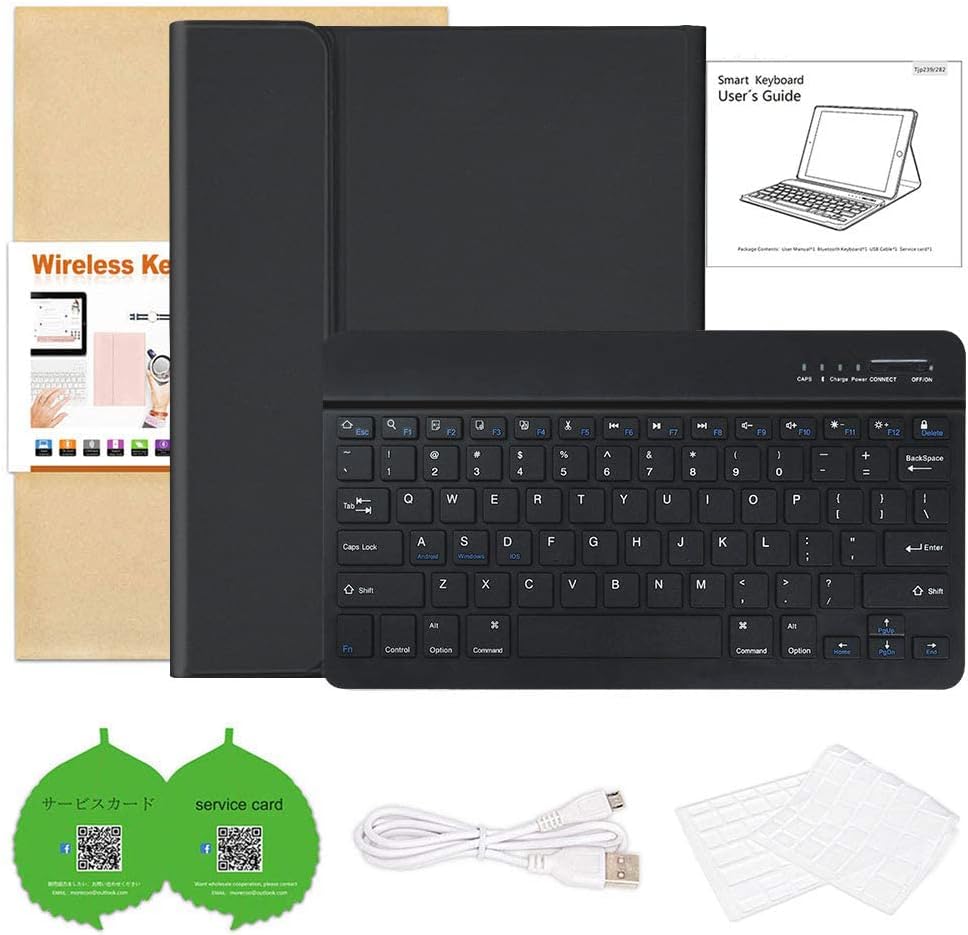
Image: A visual representation of the items included in the product package, such as the case, keyboard, charging cable, and instruction manual.
- Protective Case (1)
- Detachable Wireless Bluetooth Keyboard (1)
- USB Type-C Charging Cable (1)
- Instruction Manual (1)
- Keyboard Dust Film (1)
- Pencil Holder (integrated into case)
Setup
1. Case Installation
- Gently align your iPad with the protective shell of the case.
- Press the iPad firmly into the case, ensuring all edges are securely seated and all ports and buttons are accessible through the precise cutouts.
2. Keyboard Charging
Before initial use, fully charge the keyboard for approximately 2 hours.

Image: A detailed view of the keyboard's Type-C charging port, indicating fast charging capability and battery life.
- Locate the Type-C charging port on the side of the keyboard.
- Connect the provided USB Type-C cable to the keyboard and a suitable power source (e.g., USB wall adapter, computer USB port).
- The charging indicator light will illuminate during charging and turn off when fully charged.
3. Bluetooth Pairing
- Turn on the keyboard by sliding the power switch to the 'ON' position. The power indicator light will briefly illuminate.
- Press the 'CONNECT' button on the keyboard. The Bluetooth indicator light will start blinking, indicating it's in pairing mode.
- On your iPad, go to Settings > Bluetooth.
- Ensure Bluetooth is turned 'On'.
- Look for 'Bluetooth Keyboard' (or a similar name) in the 'Other Devices' list and tap on it to connect.
- Once connected, the Bluetooth indicator light on the keyboard will stop blinking and remain solid.
Operating Instructions
1. Magnetic Detachable Keyboard
The keyboard is magnetically attached to the case, allowing for flexible positioning or removal.
Video: A demonstration of the aMZCaSE keyboard case, highlighting its magnetic detachment and overall functionality with an iPad.

Image: A visual of the keyboard detaching from the case, emphasizing its magnetic feature.
- To attach: Simply place the keyboard onto the designated magnetic strip within the case.
- To detach: Gently pull the keyboard away from the magnetic strip.
2. Adjustable Viewing Angles
The case features three anti-slip grooves to provide multiple viewing angles.

Image: Close-ups of the case's adjustable stand and anti-slip lining, showing how to position the iPad for different viewing angles.
- Position your iPad by resting its bottom edge into one of the three anti-slip grooves on the case cover.
- Adjust the iPad's position forward or backward along the grooves to find your preferred typing, viewing, reading, or sketching angle.
3. Smart Sleep/Wake Function
The case supports automatic sleep/wake functionality to conserve iPad battery life.
- Opening the case will automatically wake your iPad.
- Closing the case will automatically put your iPad to sleep.
- For optimal smart sleep/wake performance, ensure the detachable keyboard is removed from the case when closing.
4. Pencil Holder
A built-in holder is provided for convenient storage and charging of your Apple Pencil (2nd Gen).

Image: A hand placing an Apple Pencil into the integrated holder on the side of the case, demonstrating its secure fit and wireless charging capability.
- Place your Apple Pencil (2nd Gen) into the designated slot on the side of the case.
- This slot allows for secure storage and supports wireless charging of the Apple Pencil.
Maintenance
1. Cleaning
- Wipe the case and keyboard with a soft, damp cloth.
- Avoid using harsh chemicals or abrasive cleaners, as these may damage the materials.
- Ensure the keyboard is powered off and disconnected from any power source before cleaning.
2. Battery Care
- To prolong battery life, avoid fully discharging the keyboard battery frequently.
- Store the keyboard in a cool, dry place when not in use for extended periods.
Troubleshooting
Keyboard Not Connecting via Bluetooth
- Check Power: Ensure the keyboard is turned on and has sufficient battery charge.
- Re-pair: Go to your iPad's Bluetooth settings, 'Forget This Device' for the keyboard, and then repeat the pairing steps.
- Restart Devices: Restart both your iPad and the keyboard, then attempt to pair again.
Smart Sleep/Wake Function Not Working
- Remove Keyboard: Ensure the detachable keyboard is removed from the case when closing the cover for the smart sleep function to activate correctly.
- Case Alignment: Verify that the iPad is correctly seated within the case and the cover is fully closed.
Specifications
| Feature | Detail |
|---|---|
| Compatible Devices | iPad Air 13 inch (M2/M3), iPad Pro 12.9 inch (6th/5th Gen) |
| Connectivity Technology | Bluetooth |
| Keyboard Description | Flexible, Detachable |
| Special Features | Adjustable Stand, Foldable, Portable, Rechargeable, Smart Sleep/Wake, Pencil Holder |
| Material | Acrylonitrile Butadiene Styrene, Plastic, Polyurethane (PU) |
| Battery | 1 Lithium Polymer battery (included), 450mAh |
| Battery Life | Up to 10 hours working time, over 130 days standby time |
| Item Weight | 2.53 pounds |
| Manufacturer | aMZCaSE |
Warranty and Support
For any questions, concerns, or support needs regarding your aMZCaSE Keyboard Case, please contact the manufacturer directly. Refer to the packaging or the official aMZCaSE website for specific warranty details and customer service contact information.