
1. Introduction
This manual provides detailed instructions for the setup, operation, and maintenance of your aMZCaSE Keyboard Case for iPad 9th/8th/7th Generation. Please read this manual thoroughly before use to ensure optimal performance and longevity of your device.
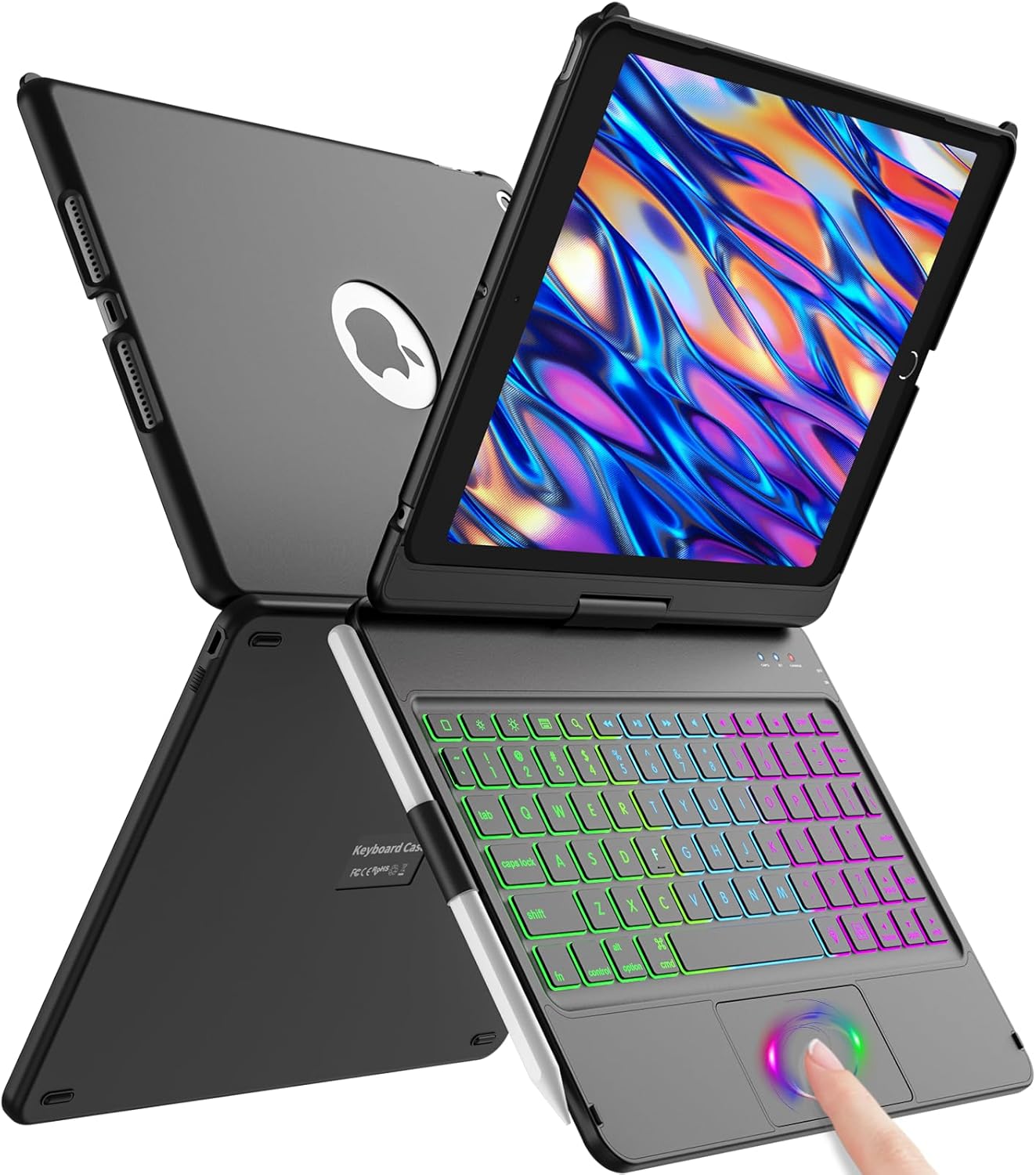
Image: The aMZCaSE Keyboard Case shown in an open position, featuring an iPad securely placed in the case and the backlit keyboard illuminated. A finger interacts with the trackpad.
2. Compatibility
The aMZCaSE Keyboard Case is designed for specific iPad models. Please verify your iPad's model number on the back of the device before use.
- iPad 9th Generation 10.2-inch (2021): Models A2602, A2603, A2604, A2605
- iPad 8th Generation 10.2-inch (2020): Models A2270, A2430, A2428, A2429
- iPad 7th Generation 10.2-inch (2019): Models A2197, A2200, A2198
Note: This keyboard case is NOT compatible with iPad 10th Generation 10.9-inch or any other iPad models.

Image: A visual guide illustrating the compatible iPad models (9th, 8th, and 7th generations, 10.2-inch) and explicitly stating incompatibility with the iPad 10th Generation 10.9-inch.
3. Package Contents
Upon opening the package, please ensure all items are present:
- aMZCaSE Keyboard Case x 1
- USB Charging Cable x 1
- User's Guide x 1
4. Setup
4.1. Charging the Keyboard
Before initial use, fully charge the keyboard. Connect the provided USB charging cable to the keyboard's charging port and a power source. The charging indicator light will show the charging status.
- Charging Time: Approximately 2.5 hours
- Working Time (backlight off): Up to 100 hours
- Working Time (backlight on): Up to 3 hours
- Standby Time: Up to 130 days

Image: An illustration of the keyboard being charged with a USB cable, alongside key battery performance metrics such as working time, charging time, and standby time.
4.2. Pairing the Keyboard with your iPad
- Ensure the keyboard is charged.
- Turn on the keyboard by sliding the power switch to the 'ON' position.
- Press the 'Connect' button on the keyboard (usually indicated by a Bluetooth symbol). The Bluetooth indicator light will begin to flash.
- On your iPad, go to Settings > Bluetooth.
- Turn on Bluetooth. Your iPad will search for available devices.
- Select 'Bluetooth Keyboard' (or a similar name) from the list of devices.
- Follow any on-screen prompts to complete the pairing process. The Bluetooth indicator light on the keyboard will stop flashing once successfully paired.
5. Operating Instructions
5.1. Keyboard Backlight Control
The keyboard features a colorful backlight with adjustable modes.
- Turn On/Off Backlight: Press the Light Bulb key.
- Change Backlight Color: Press the Light Bulb key repeatedly to cycle through 10 available colors.
- Adjust Brightness: Use the Brightness +/- keys (often Fn + Light Bulb or dedicated keys) to adjust the backlight intensity.
- Breathing Mode: Some models may feature a breathing backlight mode, activated by specific key combinations (refer to keyboard markings if available).
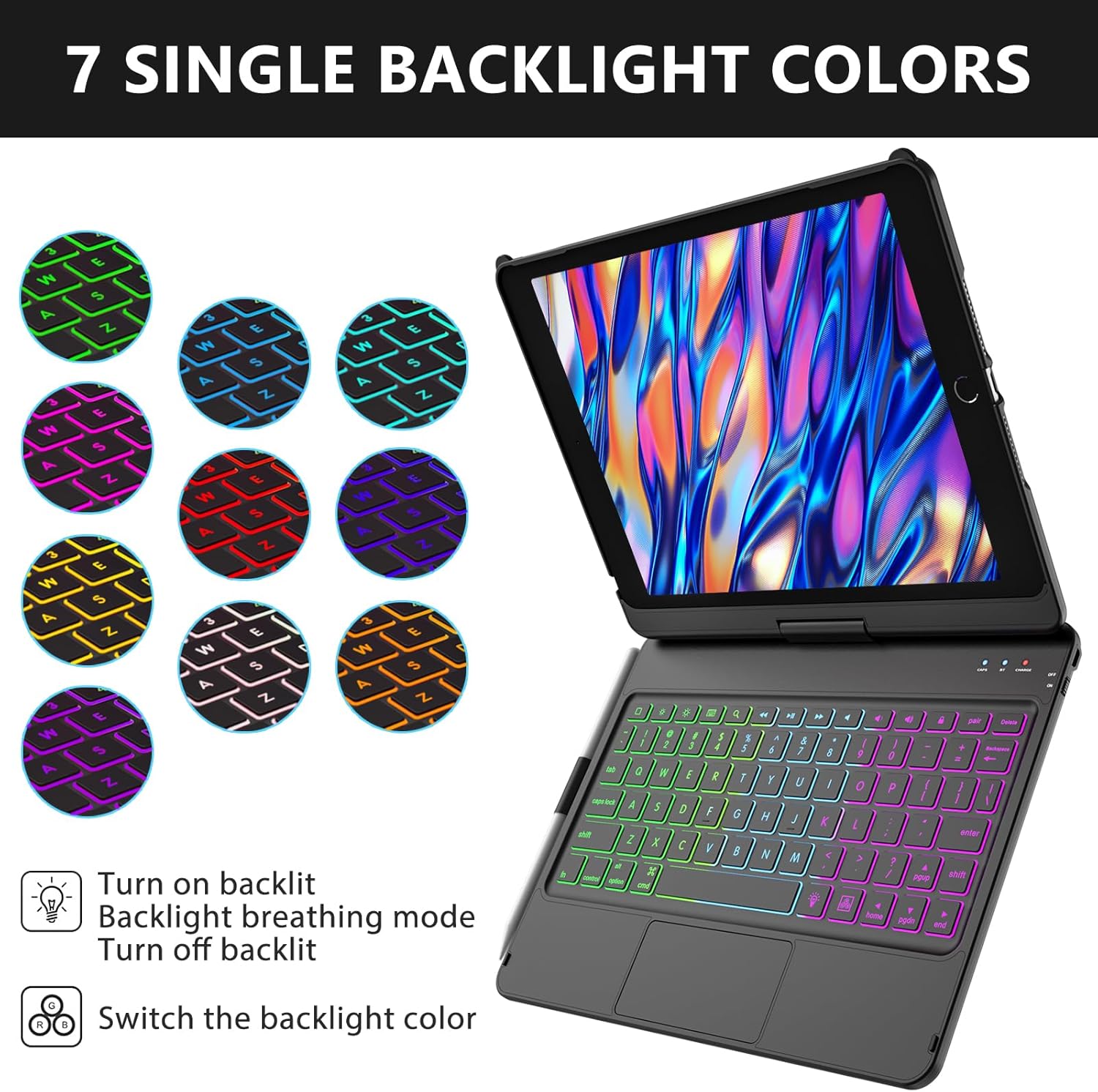
Image: A visual representation of the keyboard's 7 single backlight color options, along with icons indicating how to turn the backlight on/off, activate breathing mode, and switch colors.
5.2. Trackpad Functions
The integrated trackpad supports multi-touch gestures for enhanced navigation.
- Single Finger Tap: Left-click.
- Two Finger Tap: Right-click (context menu).
- Two Finger Scroll: Scroll up/down or left/right.
- Pinch to Zoom: Zoom in/out on content.
- Three Finger Swipe Up: View all open applications.
- Three Finger Swipe Left/Right: Switch between open applications.

Image: A graphic demonstrating various multi-touch gestures for the trackpad, including actions like managing files, browsing the web, and switching between applications.
5.3. Rotation and Viewing Modes
The case features a 360-degree rotatable hinge and 180-degree flip capability, allowing for multiple viewing and usage modes.
- Laptop Mode (Type): Standard laptop-like setup for typing.
- Tablet Mode (View): Fold the keyboard behind the iPad for tablet use.
- Presentation Mode (Facetime): Rotate the screen to share content easily.
- Book Mode (Read): Fold the case completely flat for comfortable reading.

Image: A collage of four images showcasing the versatility of the case, demonstrating its 360-degree rotation and 180-degree flip to achieve 'Type', 'View', 'Facetime', and 'Read' modes.
5.4. Pencil Holder
The case includes a dedicated slot for your Apple Pencil or compatible stylus, ensuring it is securely stored and easily accessible. (Note: Apple Pencil is not included).

Image: A close-up view of the keyboard case highlighting the integrated pencil holder, designed for convenient storage and access to a stylus.
6. Maintenance
- Cleaning: Use a soft, damp cloth to clean the exterior of the case and keyboard. Avoid harsh chemicals or abrasive materials.
- Storage: When not in use for extended periods, store the keyboard case in a cool, dry place. Ensure the keyboard is turned off to conserve battery life.
- Battery Care: To prolong battery life, avoid fully discharging the keyboard frequently. Charge it regularly, even if not completely depleted.
- Protection: The sturdy case offers protection against scratches and impacts when closed. Handle with care to prevent damage to the hinge mechanism.
7. Troubleshooting
| Issue | Possible Solution |
|---|---|
| Keyboard not pairing with iPad |
|
| Keys or trackpad not responding |
|
| Backlight not working |
|
| iPad not sleeping/waking automatically |
|
8. Specifications
- Brand: aMZCaSE
- Model Number: For iPad 9th/8th/7th generation
- Compatible Devices: iPad 7th/8th/9th Generation (10.2-inch)
- Connectivity Technology: Bluetooth 5.0
- Keyboard Description: Flexible, 78-key layout
- Special Features: Backlit (10 colors, 3 modes), Lightweight, Portable, Rechargeable, Multi-touch Trackpad, 360° Rotation, 180° Flip, Auto Sleep/Wake
- Material: Acrylonitrile Butadiene Styrene (ABS)
- Item Weight: Approximately 0.018 ounces (keyboard only, excluding iPad)
- Package Dimensions: 11.14 x 8.23 x 1.3 inches
- Batteries: 2 Lithium Polymer batteries (included)
- Recommended Uses: Business, Education, Everyday Use, Personal, Student
9. Warranty and Support
aMZCaSE is committed to product quality and customer satisfaction. While specific warranty details are not provided in this manual, we offer 24-hour contact service for any issues or inquiries you may have regarding your keyboard case.
For assistance, please refer to the contact information provided with your purchase or visit the official aMZCaSE store page on Amazon.

Image: A customer service representative ready to assist with product inquiries.