
aMZCaSE air 13 inch M2/M3; 12.9 inch 6th/5th
AMZCASE iPad Air 13 inch and iPad Pro 12.9 inch Keyboard Case Instruction Manual
Model: air 13 inch M2/M3; 12.9 inch 6th/5th
1. Product Overview
The AMZCASE Keyboard Case is designed to enhance your iPad experience, transforming it into a versatile workstation. It features a magnetic detachable Bluetooth keyboard, adjustable viewing angles, a dedicated pencil holder, and robust protection for your device.

Image 1: AMZCASE iPad Keyboard Case in Lake Blue, showcasing the case, keyboard, and iPad with an Apple Pencil.
2. Compatibility
This keyboard case is compatible with the following iPad models:
- iPad Air 13 inch (M3 2025): Models A3268, A3269, A3271
- iPad Air 13 inch (M2 2024): Models A2900, A2899, A2898
- iPad Pro 12.9 inch (6th Generation 2022): Models A2437, A2764, A2766
- iPad Pro 12.9 inch (5th Generation 2021): Models A2378, A2379, A2461, A2462
Note: This case is NOT compatible with 2020/2018/2017/2015 versions (4th/3rd/2nd/1st Generation) of iPad Pro 12.9 inch or other iPad models.

Image 2: Visual compatibility chart for various iPad models.
3. What's Included
Your package contains the following items:
- Bluetooth Keyboard (x1)
- Protective Case (x1)
- USB Cable (for charging the keyboard)
- User Manual
- Keyboard Dust Film

Image 3: All components included in the product package.
4. Setup & Installation
4.1 Installing Your iPad into the Case
Gently align your iPad with the case and press it into place, ensuring all corners are securely fitted. The case is designed for a snug fit to provide maximum protection.
Video 1: Demonstrates the process of installing the iPad into the protective case and setting up the keyboard.
4.2 Connecting the Bluetooth Keyboard
- Turn on the keyboard using the power switch located on the side.
- On your iPad, go to Settings > Bluetooth.
- Enable Bluetooth. The iPad will search for nearby devices.
- Select "Bluetooth Keyboard" from the list of available devices to pair.
- Once paired, the keyboard is ready for use.
Video 2: Provides tips for using the iPad keyboard case, including installation and Bluetooth pairing.
4.3 Charging the Keyboard
The keyboard features a Type-C USB charging port. Use the provided USB cable to charge the keyboard. A full charge takes approximately 2 hours and provides up to 10 hours of working time or over 130 days of standby time.

Image 4: The keyboard's Type-C fast charging port and battery indicator lights.
4.4 Pencil Holder
The case includes a built-in pencil holder, allowing you to easily carry your Apple Pencil (2nd Gen) with your device. It supports Apple Pencil wireless charging when placed in the designated slot.

Image 5: The integrated pencil holder supporting Apple Pencil wireless charging.
5. Operating Instructions
5.1 Adjustable Viewing Angles
The case supports 3 adjustable viewing angles with built-in anti-slip grooves. You can move the iPad forward or backward along the case cover to select a comfortable angle for typing, viewing, reading, or sketching.

Image 6: The adjustable stand feature of the case.
Video 3: Showcases the iPad Air 13'' M2 2024 Case Keyboard for iPad Pro 12.9 Case, highlighting its features and adjustable angles.
5.2 Smart Sleep/Wake Function
The iPad Pro 12.9 keyboard case includes an auto sleep/wake function to protect and conserve your iPad's battery life. The iPad will wake up when the case is opened and go to sleep when it is closed. For optimal performance of this feature, it is recommended to remove the detachable keyboard when closing the case.
5.3 Magnetic Detachable Keyboard
The ultra-slim and lightweight magnetic Bluetooth keyboard can be easily attached to or detached from the case. This allows you to use your iPad as a mini-laptop or remove the keyboard for a tablet-only experience. You can adjust the keyboard's position according to your preference.
Video 4: A brief overview of the AMZCASE iPad Air 13 inch Pro 12.9 13 Case with Keyboard, demonstrating its magnetic detachment.
5.4 Precise Cutouts
The case features high-precise cutouts, providing full access to all iPad features, including the camera, charging port, speakers, and buttons, without needing to remove the case.
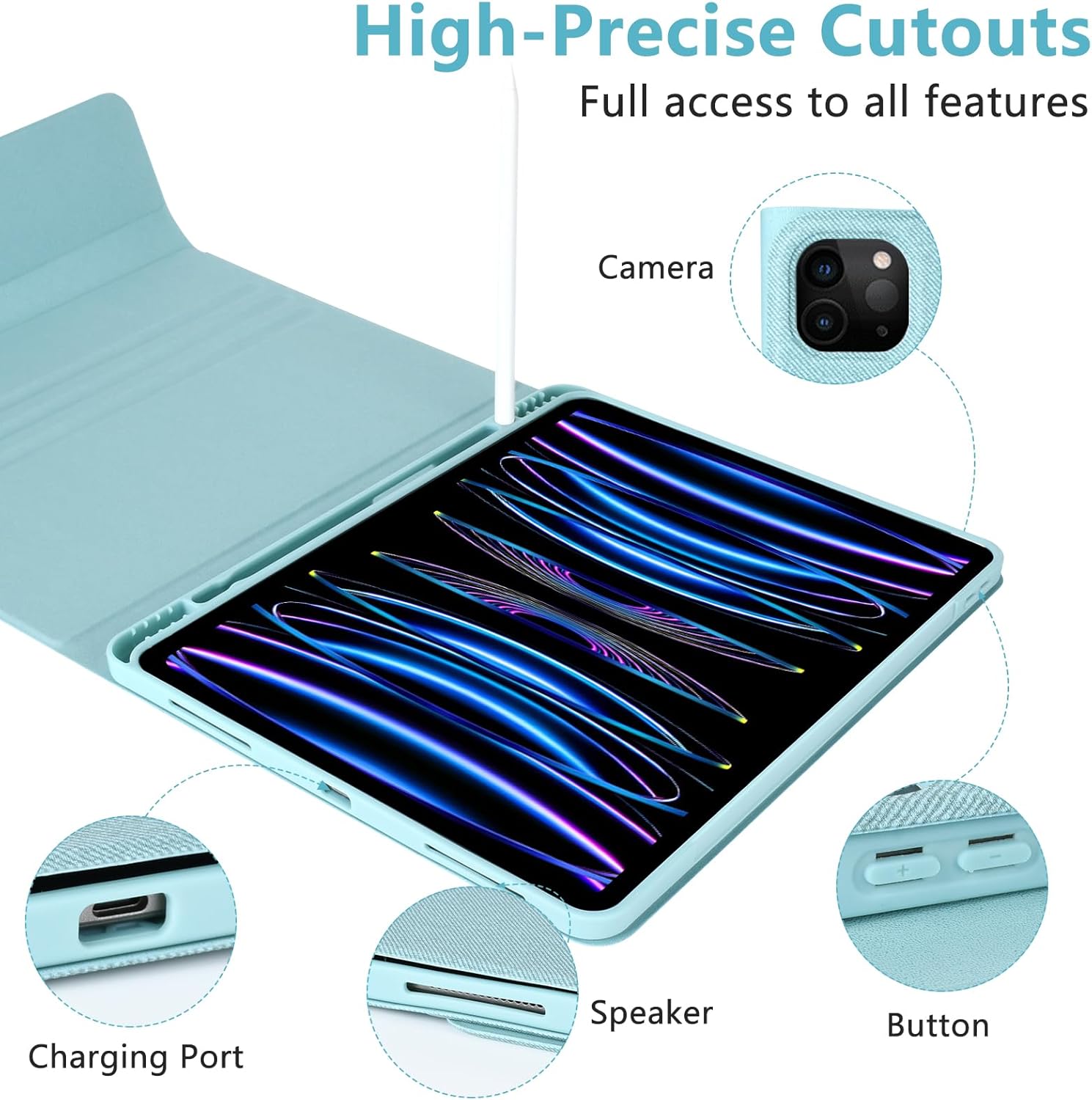
Image 7: Detailed view of the precise cutouts for iPad features.
6. Maintenance
To clean your keyboard case, gently wipe it with a damp cloth or wet paper. Avoid using harsh chemicals or abrasive materials that could damage the surface.
Video 5: Demonstrates the installation and features of the keyboard case, including its easy-to-clean surface.
7. Troubleshooting
7.1 Keyboard Not Connecting
- Ensure the keyboard is powered on and fully charged.
- Verify Bluetooth is enabled on your iPad and the keyboard is in pairing mode.
- Try unpairing and re-pairing the keyboard from your iPad's Bluetooth settings.
- Restart both your iPad and the keyboard.
7.2 Smart Sleep/Wake Not Functioning
- Ensure the detachable keyboard is removed from the case when closing the cover.
- Check your iPad's settings to ensure the 'Lock/Unlock' feature is enabled.
8. Specifications
| Feature | Detail |
|---|---|
| Package Dimensions | 12.6 x 9.57 x 1.38 inches |
| Item Weight | 2.53 pounds |
| Manufacturer | aMZCaSE |
| Item Model Number | air 13 inch M2/M3; 12.9 inch 6th/5th |
| Batteries | 1 Lithium Polymer battery required (included) |
| Connectivity Technology | Bluetooth |
| Keyboard Description | Flexible |
| Special Feature | Adjustable Stand, Foldable, Portable, Rechargeable, Smart Sleep/Wake |
| Color | Lake Blue |
| Material | Acrylonitrile Butadiene Styrene, Plastic, Polyurethane (PU) |
9. Warranty & Support
For any product inquiries or support, please refer to the included user manual or contact aMZCaSE customer service. You can also find additional support and community discussions on our official Facebook page:
Ask a question about this manual
Ask about setup, troubleshooting, compatibility, parts, safety, or missing instructions. Manuals+ will review the question and use this page’s manual context to help answer it.