
Diealles Shine BMHTT-MKF02
Diealles Shine PC Gaming USB Microphone User Manual
Model: BMHTT-MKF02
1. Introduction
Thank you for choosing the Diealles Shine PC Gaming USB Microphone. This high-quality condenser microphone is designed for clear and accurate audio capture, ideal for gaming, streaming, podcasting, and video calls. Featuring a flexible boom arm, RGB lighting, and a convenient mute button, it offers a superior user experience.

Image: The microphone in various application settings, including music recording, video calls, live streaming, and gaming, demonstrating its versatility.
2. Package Contents
Please check the package contents to ensure all items are present:
- Diealles Shine USB Microphone
- Flexible Boom Arm Stand
- Pop Filter
- USB-C to USB-A Cable
- User Manual (this document)

Image: The complete Diealles Shine PC Gaming USB Microphone package, including the microphone unit, adjustable boom arm, pop filter, and USB cable.
3. Product Features
- Clear Sound Quality: Equipped with a high-quality 14mm sound chipset and a 192 kHz/24-bit sampling rate for clear and accurate audio recording. The cardioid polar pattern effectively suppresses background noise, ensuring a smooth and consistent sound.

Image: A close-up of the microphone highlighting its internal components and sound capture capabilities, including the cardioid directivity pattern and high sampling rate.
- RGB Gradient Lighting: Features dynamic RGB gradient lighting to enhance your gaming or streaming setup. The lighting effect can be cycled by touching the light icon on the microphone.
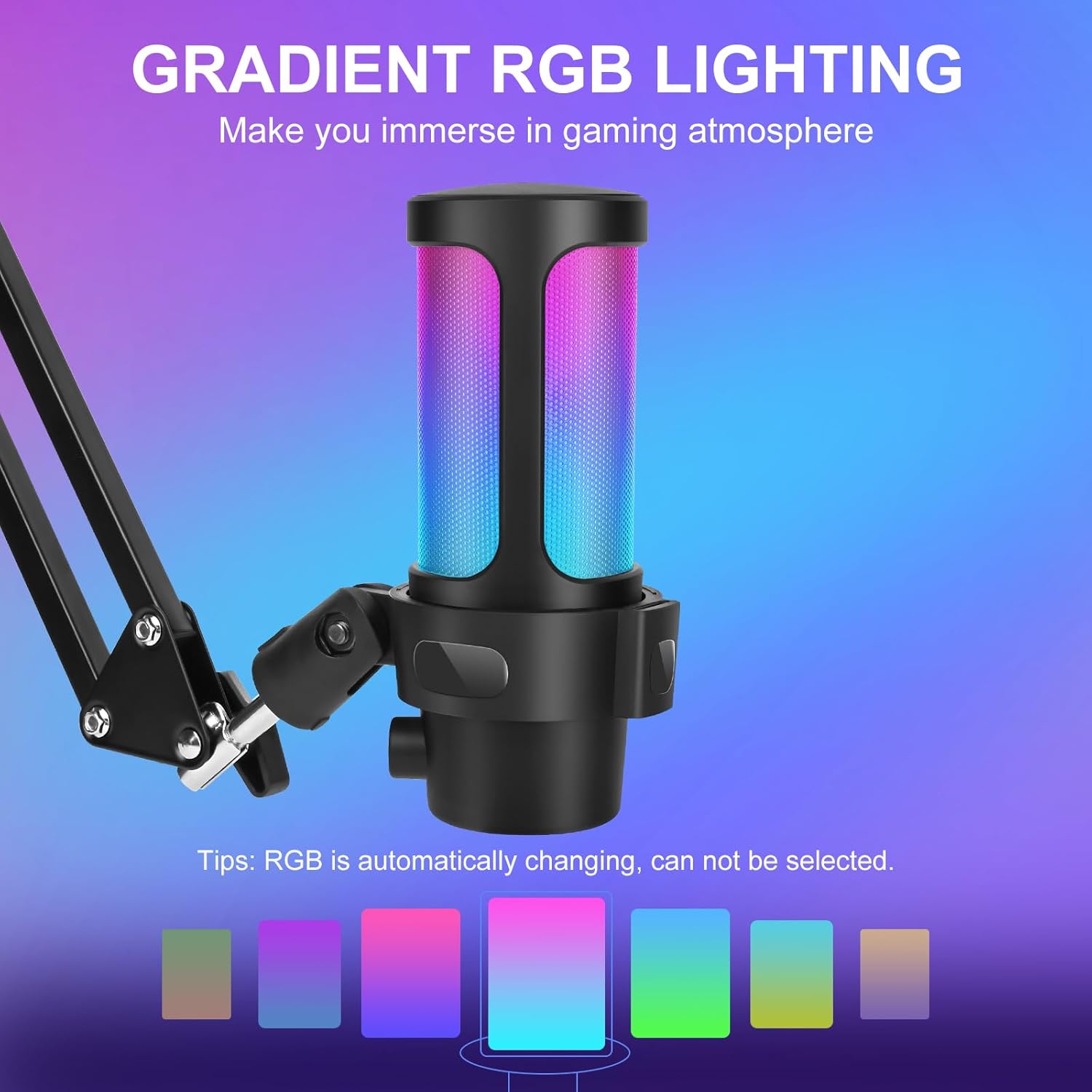
Image: The microphone illuminated with a colorful RGB gradient, illustrating its aesthetic feature.
- One-Touch Mute Button & Volume Control: A convenient mute button is located on top of the microphone for instant muting/unmuting. A volume control knob at the bottom allows for easy gain adjustment.
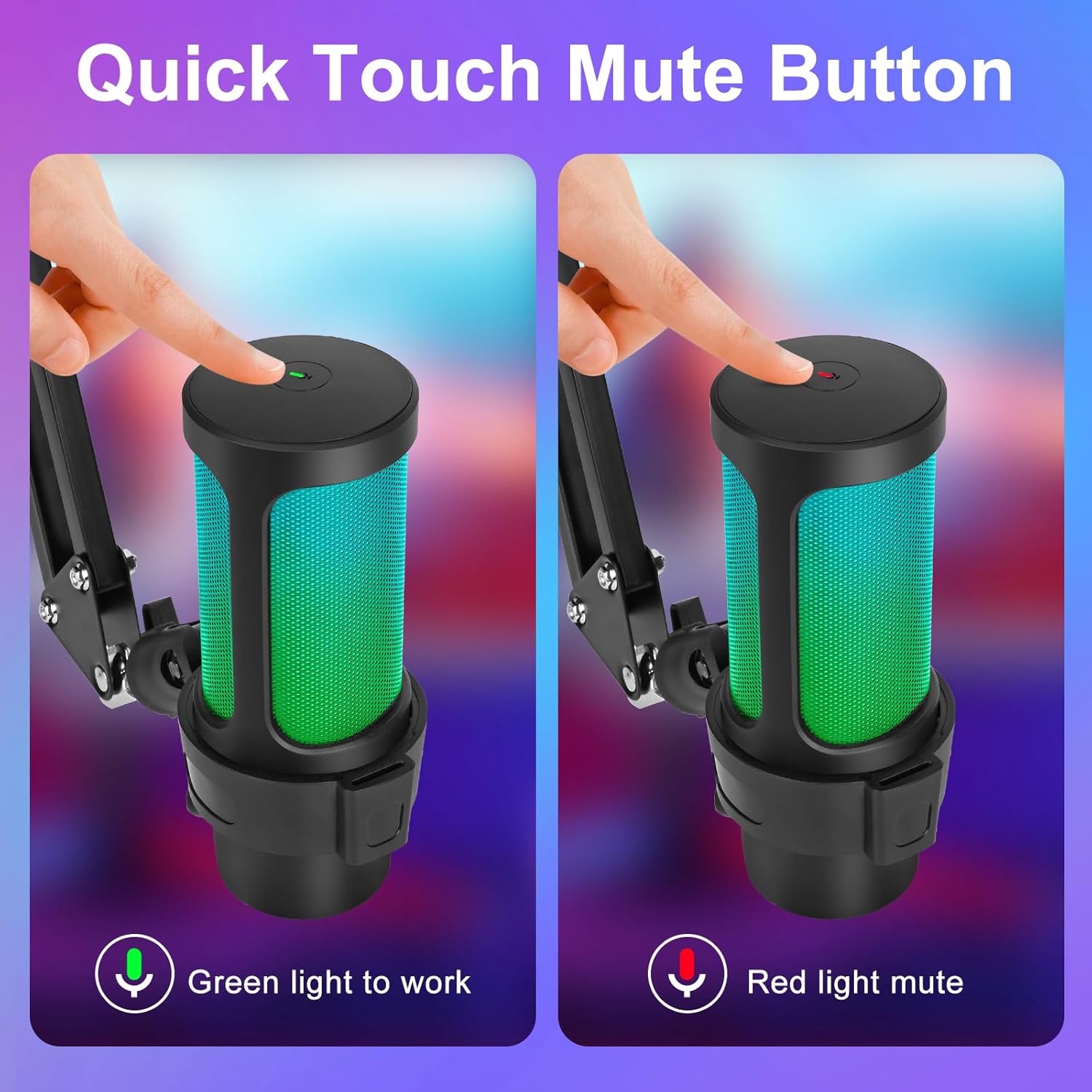
Image: The quick touch mute button, showing its green (active) and red (muted) states.

Image: The volume control knob located at the base of the microphone for gain adjustment.
- Flexible Boom Arm Stand: Includes a stable metal boom arm with a C-clip, suitable for tables up to 1.7 inches (4.3 cm) thick. The arm and microphone can be adjusted for optimal positioning.

Image: The flexible boom arm stand, illustrating its adjustable angles and compatibility with various table thicknesses.
- Pop Filter: An anti-pop filter is included to block airflow and reduce plosive sounds for cleaner audio.

Image: The pop filter attached to the microphone, designed to block airflow and improve sound clarity.
4. Setup Guide
- Attach the Boom Arm: Secure the C-clip of the boom arm stand to your desk. Ensure the desk thickness is less than 1.7 inches (4.3 cm) and avoid edges with a lip or 90-degree angle for optimal stability.

Image: Instructions for attaching the boom arm to a desk, detailing compatible desk dimensions and types of edges to avoid.
- Mount the Microphone: Screw the microphone onto the boom arm. Adjust the arm and microphone angle to your desired position for optimal sound capture.
- Attach the Pop Filter: Secure the pop filter to the boom arm or microphone to minimize plosive sounds during recording.
- Connect to Device: Connect the USB-C end of the provided cable to the microphone's Type-C port and the USB-A end to an available USB port on your computer, laptop, PS4, or PS5.

Image: The Type-C port on the microphone, indicating where to connect the USB cable.
- Plug and Play: The microphone is plug-and-play and should be automatically recognized by your operating system (Windows, macOS) or console (PS4/PS5). No additional drivers are typically required.
5. Operating Instructions
- Mute/Unmute: Lightly touch the mute button located on the top of the microphone to toggle between mute (red light) and unmute (green light) states.
- Adjust Volume (Gain): Rotate the volume control knob at the bottom of the microphone to adjust the input gain level. Turn clockwise to increase volume, counter-clockwise to decrease.
- Change RGB Lighting: Touch the light icon on the microphone to cycle through different RGB lighting effects. Long press the button to turn off the lighting.

Image: The microphone's radiant RGB lighting and the control button for changing or turning off the light effects.
- Software Settings: For advanced settings, access your device's sound settings.
- Windows: Go to Settings > System > Sound > Input and select "Diealles Shine Microphone" as your input device.
- macOS: Go to System Settings > Sound > Input and select "Diealles Shine Microphone".
- PS4/PS5: Navigate to Settings > Sound > Audio Output/Input Devices and select the microphone.
6. Compatibility
The Diealles Shine USB Microphone is compatible with a wide range of devices:
- PC (Windows operating systems)
- Laptops
- MAC (macOS operating systems)
- PlayStation 4 (PS4)
- PlayStation 5 (PS5)
Note: This microphone is NOT compatible with XBOX series consoles.

Image: Visual representation of device compatibility, clearly indicating supported platforms and the incompatibility with XBOX consoles.
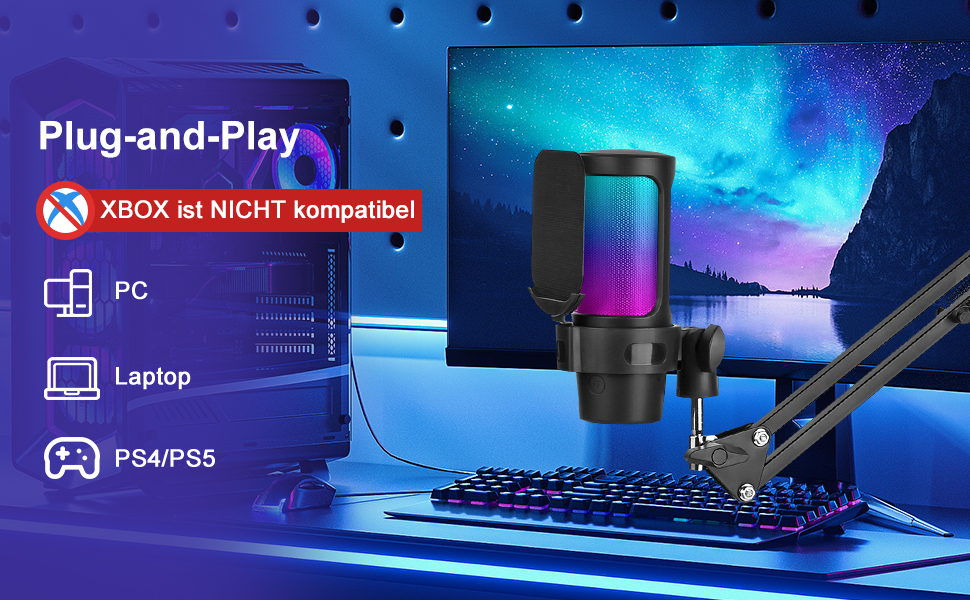
Image: Another visual confirming plug-and-play functionality and device compatibility, emphasizing XBOX incompatibility.
7. Maintenance
To ensure the longevity and optimal performance of your microphone, follow these maintenance guidelines:
- Keep the microphone clean by wiping it with a soft, dry cloth.
- Avoid exposing the microphone to extreme temperatures, humidity, or direct sunlight.
- Do not disassemble the microphone or attempt repairs yourself, as this may void the warranty.
- Store the microphone in a dry, dust-free environment when not in use.
8. Troubleshooting
| Problem | Possible Cause | Solution |
|---|---|---|
| No sound output from microphone. |
|
|
| Poor sound quality / Background noise. |
|
|
| RGB lighting not working. |
|
|
| Microphone not recognized by XBOX. | Incompatibility. | The microphone is not compatible with XBOX series consoles. This is expected behavior. |
9. Specifications
| Feature | Detail |
|---|---|
| Model Number | BMHTT-MKF02 |
| Polar Pattern | Cardioid |
| Input Sample Rate | 192 kHz / 24 Bit (max) |
| Bitrate | 24 Bit |
| Frequency Response | 30 Hz - 16 kHz |
| Sensitivity | -40 dB |
| S/N Ratio | 80 dB |
| Connectivity | USB (USB-C to USB-A cable included) |
| Compatible Devices | PC, Laptop, Mac, PS4, PS5 |
| Incompatible Devices | XBOX series consoles |
| Special Features | RGB Gradient Lighting, Flexible Boom Arm, One-Touch Mute Button |
| Dimensions (Microphone) | Approx. 10 x 5 x 1 cm |
| Weight (Microphone) | Approx. 20 grams |
| Color | Black |

Image: A visual summary of the microphone's technical specifications, including its cardioid polar pattern and audio performance metrics.
10. Warranty and Support
Specific warranty information for the Diealles Shine PC Gaming USB Microphone is not provided in this manual. For warranty details, technical support, or customer service inquiries, please refer to the product packaging or contact Diealles Shine customer support directly through their official website or the retailer where the product was purchased.
Ask a question about this manual
Ask about setup, troubleshooting, compatibility, parts, safety, or missing instructions. Manuals+ will review the question and use this page’s manual context to help answer it.