
Introduction
Thank you for choosing the HYCENCY R9 4K WiFi Indoor Camera. This manual provides essential information for the proper setup, operation, and maintenance of your device. Please read these instructions carefully before use to ensure optimal performance and longevity of your camera.
What's in the Box
Verify that all components are present in the package:
- Mini Wireless Camera
- Camera Mount
- USB Charging Cable
- MicroSD Card Reader
- User Manual
Product Overview
The HYCENCY R9 camera is designed for indoor security, offering advanced features in a compact form factor.

Image: The HYCENCY R9 4K WiFi Indoor Camera, showcasing its compact design and main lens.
Key Features:
- Immersive 4K Clarity and Wide View: Capture sharp, clear live video footage in Super HD resolution. The 150° wide field of view ensures comprehensive monitoring, ideal for home security, travel surveillance, or monitoring pets.
- Compact and Magnetic Design: With dimensions of 4.1 x 4.1 x 2.8 cm, this wireless camera is discreet and integrates seamlessly into any environment. Its magnetic back allows for flexible placement on metallic surfaces.
- Smart Motion Detection and Enhanced Night Vision: PIR motion detection combined with advanced human detection minimizes false alarms. The camera automatically switches to night vision in low-light conditions, providing clear footage up to 26 feet.
- Extended Battery Life: The built-in 1500 mAh rechargeable battery offers up to 6 hours of continuous recording. Energy-saving mode can extend battery life for weeks based on PIR motion triggers, and remote shutdown via the app can provide up to 100 days of standby time.
- Easy Wireless Connectivity and Versatile Mounting: Connect the camera to your 2.4 GHz WiFi network. Access live streams remotely using the free companion app. The included magnetic mount allows for flexible installation on any metallic surface.
- Storage Options: Supports up to 256GB MicroSD card (not included) and offers free 3-day loop cloud storage.
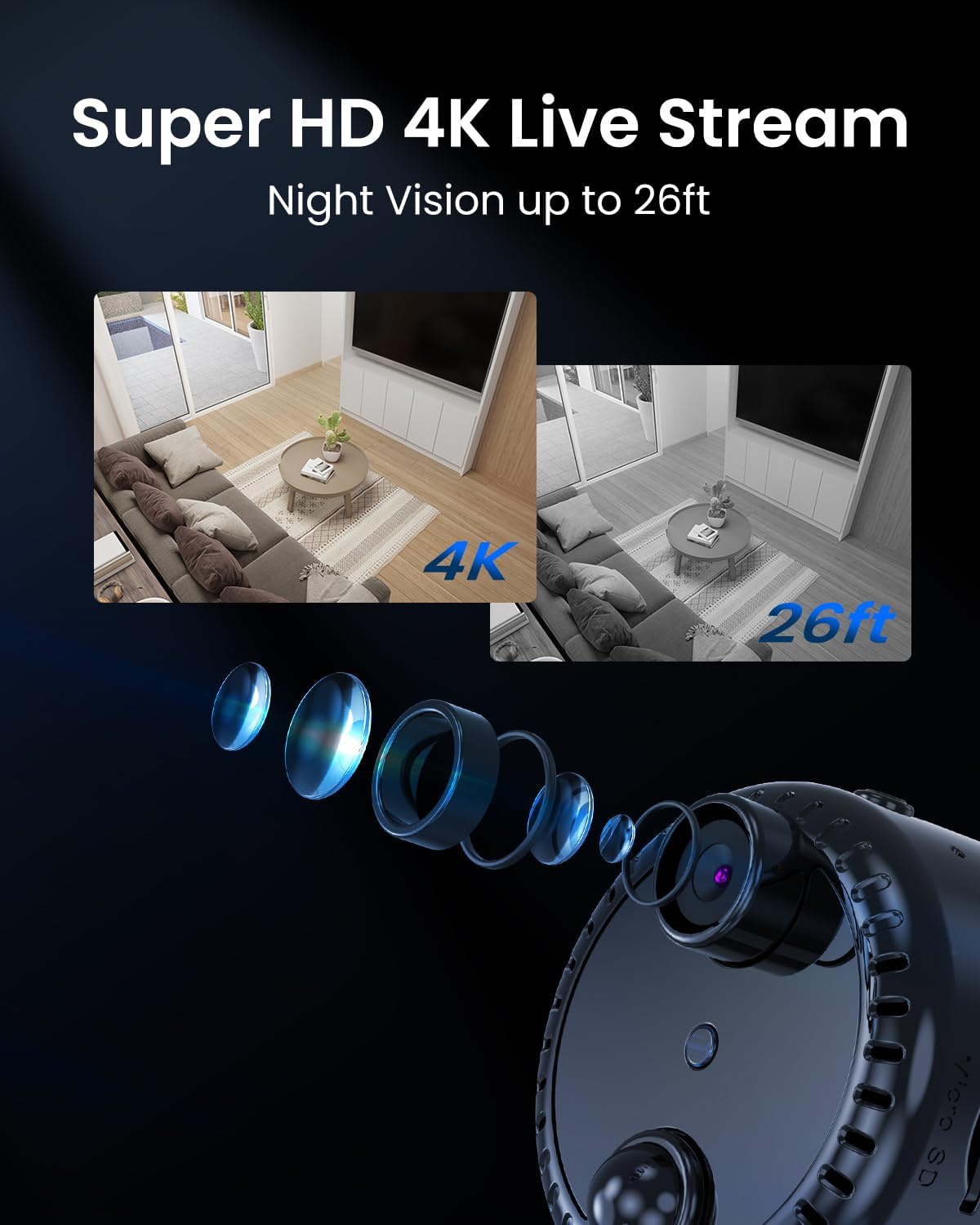
Image: Visual representation of 4K Super HD live stream capability and night vision up to 26ft.

Image: The camera's compact size being held by a hand, with examples of discreet placement in a room.

Image: An illustration of the AI Human Detection feature, showing a person detected within the camera's view and an app notification.

Image: An exploded view of the camera highlighting its 1500mAh rechargeable battery, indicating its power source.

Image: The camera demonstrating its magnetic attachment and 2.4/5GHz WiFi connectivity.

Image: The camera with an inserted MicroSD card and a cloud icon, illustrating storage options.
Setup
1. Charging the Camera
Before initial use, fully charge the camera using the provided USB charging cable. Connect the cable to the camera's charging port and a standard USB power adapter (not included). The charging indicator light will provide status.
2. Installing a MicroSD Card (Optional)
If local storage is desired, insert a MicroSD card (up to 256GB, not included) into the designated slot on the camera. Ensure the card is inserted correctly according to the diagram in the manual.
3. Downloading the Companion App
Search for the official companion app on your smartphone's app store (iOS or Android). Install the app and create an account if prompted.
4. Connecting to Wi-Fi
- Power on the camera.
- Open the companion app and follow the on-screen instructions to add a new device.
- Select your 2.4 GHz Wi-Fi network and enter the password. The camera does not support 5 GHz Wi-Fi networks.
- Once connected, the camera's status indicator will confirm a successful connection.
5. Mounting the Camera
Use the included magnetic mount to position the camera. Attach the camera to any suitable metallic surface or use the mount to secure it in your desired location. Ensure the camera has a clear line of sight to the area you wish to monitor.
Operating Instructions
Live View
Open the companion app and select your camera from the device list to access the live video feed. You can view the area in real-time from anywhere with an internet connection.
Video Recording
Record video manually through the app or set up automatic recording triggered by motion detection. Recordings are saved to the MicroSD card (if installed) or to the cloud storage.
Motion Detection
Enable motion detection in the app settings. The camera will send alerts to your smartphone when motion is detected. Adjust sensitivity and set specific detection zones to reduce false alarms.
Night Vision
The camera automatically activates infrared night vision in low-light conditions, providing clear black-and-white footage. No manual intervention is required.
Remote Shutdown
To conserve battery life, you can remotely shut down the camera via the app. This feature is particularly useful for extending standby time when the camera is not actively needed.
Maintenance
Cleaning
Gently wipe the camera lens and body with a soft, dry cloth. Avoid using harsh chemicals or abrasive materials that could damage the device.
Battery Care
To prolong battery life, avoid fully discharging the camera frequently. Recharge the battery regularly, especially if the camera will be stored for an extended period.
Firmware Updates
Periodically check the companion app for available firmware updates. Keeping your camera's firmware up-to-date ensures optimal performance, security, and access to new features.
Troubleshooting
Camera Not Connecting to Wi-Fi
- Ensure your Wi-Fi network is 2.4 GHz. The camera does not support 5 GHz networks.
- Check that the Wi-Fi password is entered correctly.
- Move the camera closer to your Wi-Fi router to improve signal strength.
- Restart your router and the camera.
Short Battery Life
- Ensure the camera is fully charged before use.
- Frequent motion detection triggers and continuous recording will consume battery faster. Adjust motion detection sensitivity or use energy-saving mode.
- Consider connecting the camera to a continuous power source via the USB cable for extended operation.
Poor Video Quality
- Clean the camera lens with a soft cloth.
- Ensure adequate lighting in the monitored area during the day.
- Check your internet connection speed; a slow connection can affect live stream quality.
Motion Detection Not Working
- Verify that motion detection is enabled in the app settings.
- Adjust the motion detection sensitivity.
- Ensure there are no obstructions blocking the camera's view.
Specifications
| Model Name | R9 |
| Brand | HYCENCY |
| Video Recording Resolution | 1080p (Super HD 4K capability) |
| Wireless Communication Technology | Wi-Fi (2.4 GHz) |
| Special Features | Night Vision, Motion Detection, Magnetic Mount |
| Power Source | Battery Powered (1500 mAh Lithium-ion, included) |
| Battery Life (Continuous Recording) | Up to 6 hours |
| Standby Time (Energy Saving Mode) | Up to 100 days (with remote shutdown) |
| Dimensions (L x W x H) | 4.06 x 4.06 x 2.79 cm (1.6 x 1.6 x 1.1 inches) |
| Weight | 260 grams |
| Material | Metal |
| Recommended Use | Indoor Security |
Warranty and Support
For warranty information and technical support, please refer to the documentation included with your purchase or visit the official HYCENCY website. If you encounter any issues not covered in this manual, please contact customer service for assistance.