
NetumScan Mini 1D Bluetooth Barcode Scanner
NetumScan Mini 1D Bluetooth Barcode Scanner User Manual
Model: Mini 1D Bluetooth Barcode Scanner
Brand: NetumScan
1. Introduction
This manual provides detailed instructions for the setup, operation, and maintenance of your NetumScan Mini 1D Bluetooth Barcode Scanner. Please read this manual thoroughly before using the device to ensure proper functionality and to maximize its lifespan.

Image: The NetumScan Mini 1D Bluetooth Barcode Scanner, a compact grey device with a scanning window at one end and a USB-C port at the other.
2. What's in the Box
Upon opening the package, please verify that all items are present:
- NetumScan Mini 1D Bluetooth Barcode Scanner
- Charger (USB cable)
- User Manual (this document)
3. Key Features
- 3-in-1 Portable Mini 1D Scanner: Supports 2.4G wireless, Bluetooth, and USB wired connection modes for versatile use with laptops, phones, and other devices.
- Professional CCD Sensor: Capable of reading 1D barcodes from computer screens, mobile phones, and paper. It can also decode damaged, distorted, colorful, and reflective barcodes.
- Auto Scanning & Storage Mode: Offers Manual Scan, Auto-sensing Scan, and Continuous Scan modes. Includes an instant upload mode and a storage mode for offline data collection.
- High Compatibility: Works with Windows XP/7/8/10, Mac OS, Linux, Windows Mobile, iOS, and Android operating systems.
- Long-Lasting Battery: Equipped with a 1200mAh rechargeable battery, providing up to 20 hours of continuous operation on a full charge.
- Multiple Configuration Options: Allows customization of sound and vibration, adding/deleting prefix/suffix digits, and incorporating keyboard keys (TAB, CR&LF) into scanning operations.

Image: The NetumScan Mini 1D Bluetooth Barcode Scanner highlighting its 3-in-1 connection mode, multi-language support, and high compatibility. It also indicates it supports 1D barcodes.
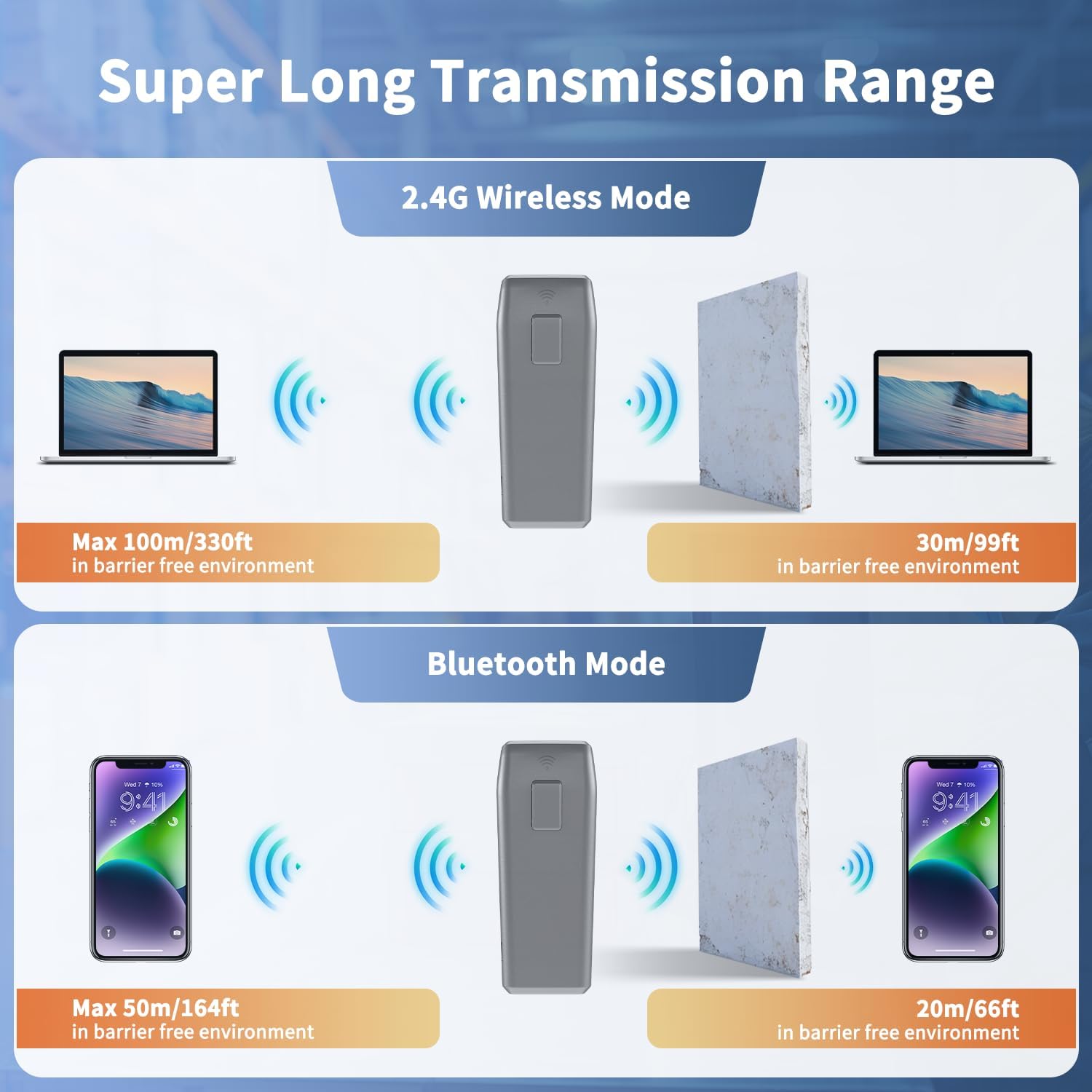
Image: Diagram illustrating the super long transmission range of the scanner. In 2.4G Wireless Mode, it reaches Max 100m/330ft in barrier-free environments and 30m/99ft with barriers. In Bluetooth Mode, it reaches Max 50m/164ft in barrier-free environments and 20m/66ft with barriers.

Image: The compact size of the scanner (105mm length, 42mm width, 25mm height) and its lightweight design (66g), shown next to a smartphone and bag, emphasizing its portability.
4. Setup and Connection
The scanner offers three connection modes: 2.4G Wireless, Bluetooth, and USB Wired. Choose the mode that best suits your needs.
4.1. USB Wired Connection
- Connect the scanner to your computer using the provided USB cable.
- The scanner will be recognized as a keyboard device.
- It is ready for use immediately.
4.2. 2.4G Wireless Connection
- Plug the 2.4G USB dongle (if included, otherwise use Bluetooth or wired) into your computer's USB port.
- Turn on the scanner. It should automatically pair with the dongle.
- A successful connection will be indicated by a specific sound or light pattern (refer to LED indicator section if available).
4.3. Bluetooth Connection
- Ensure the scanner is powered on and in Bluetooth pairing mode (refer to the quick start guide for specific barcode scans to enter pairing mode).
- On your host device (smartphone, tablet, computer), navigate to Bluetooth settings.
- Search for available devices and select "NetumScan Scanner" (or similar name).
- Confirm pairing if prompted.
- The scanner will indicate a successful connection.
5. Operating Instructions
5.1. Scanning Modes
- Manual Scan: Press the trigger button to activate the scan beam and read a barcode.
- Auto-sensing Scan: The scanner automatically detects a barcode placed within its scanning range and activates the beam.
- Continuous Scan: The scan beam remains active, continuously reading barcodes as they are presented.

Image: Illustration of the auto-sensing scanning feature, where the scanner automatically activates its beam when a barcode is detected.

Image: A hand holding the NetumScan Mini 1D Barcode Scanner, demonstrating its professional CCD sensor reading a 1D barcode displayed on a smartphone screen. The barcode value "201708010942" is visible on the screen.

Image: Examples of different barcode conditions that the scanner can read, including damaged, blurred, distorted, and color barcodes.
5.2. Data Storage Modes
- Instant Upload Mode: Barcodes are transmitted to the connected device immediately after scanning.
- Storage Mode: Barcodes are stored in the scanner's internal memory (16MB, up to 50,000 barcodes) and can be uploaded later when within wireless transmission range or connected via USB.

Image: The scanner's built-in 16MB flash memory, capable of storing over 50,000 offline barcodes. A barcode with the value "201708010945" is shown being scanned.
5.3. Configuration Options
The scanner can be configured using special barcodes found in the quick start guide (not provided here, but typically included with the product). Common configurations include:
- Turning sound (beep) on or off.
- Enabling or disabling vibration feedback.
- Adding or deleting custom prefix/suffix digits to scanned data.
- Adding keyboard keys (e.g., TAB, CR&LF for new line) to the end of scanned data.
- Adjusting idle time before automatic power-off.

Image: Icons indicating the ability to turn beep sounds and vibration feedback on or off for the scanner.
6. Maintenance
- Cleaning: Use a soft, dry cloth to clean the scanner's exterior. For the scanning window, use a lens cleaning cloth to avoid scratches. Do not use abrasive cleaners or solvents.
- Charging: Charge the scanner using the provided USB cable. Ensure the battery is fully charged before first use and when the low battery indicator appears.
- Storage: Store the scanner in a cool, dry place away from direct sunlight and extreme temperatures.
- Battery Care: To prolong battery life, avoid fully discharging the battery frequently. If storing for an extended period, charge the battery to about 50% and recharge every few months.
7. Troubleshooting
| Problem | Possible Cause | Solution |
|---|---|---|
| Scanner does not turn on. | Low battery. | Charge the scanner using the provided USB cable. |
| Cannot connect via Bluetooth. | Scanner not in pairing mode; Bluetooth on host device is off; interference. | Ensure scanner is in pairing mode. Turn on Bluetooth on your device. Move closer to the device or away from sources of interference. |
| Scanner not reading barcodes. | Barcode damaged/unreadable; incorrect scanning mode; dirty scanning window. | Ensure barcode is clear. Try different scanning modes. Clean the scanning window. Ensure it's a 1D barcode. |
| Scanner accidentally turns on in bag. | Power button pressed inadvertently. | Adjust idle time settings to power off faster. Consider a protective case or storing it in a way that prevents button presses. |
| Scanner does not identify screen codes. | This model is equipped with a CCD sensor which is designed to read screen codes. If issues persist, ensure screen brightness is adequate and try different angles. | If issues persist, contact customer support. |
8. Specifications
- Model: Mini 1D Bluetooth Barcode Scanner
- Connectivity Technology: Bluetooth, 2.4G Wireless, USB Wired
- Scanning Type: 1D Barcodes (CCD Sensor)
- Battery: 1 Lithium Ion battery (included), 1200mAh
- Battery Life: Up to 20 hours continuous work
- Internal Storage: 16MB (stores over 50,000 barcodes)
- Compatible Devices: Desktop, Laptop, Smartphone, Tablet
- Compatible OS: Windows XP/7/8/10, Mac OS, Linux, Windows Mobile, iOS, Android
- Item Weight: 6.7 ounces
- Package Dimensions: 6.77 x 4.13 x 2.52 inches
- Manufacturer: NetumScan
- Date First Available: February 26, 2024
9. Warranty and Support
For warranty information and technical support, please refer to the official NetumScan website or contact your retailer. Keep your purchase receipt for warranty claims.
NetumScan focuses on intelligent recognition technology and provides professional barcode scanners. For more information, visit the NetumScan Store on Amazon.
Ask a question about this manual
Ask about setup, troubleshooting, compatibility, parts, safety, or missing instructions. Manuals+ will review the question and use this page’s manual context to help answer it.