
SWARK MB1001
SWARK Touch Screen Replacement for Moderness MB1001 Tablet 10.1
User Manual
1. Introduction
This manual provides essential information for the proper installation and care of your SWARK Touch Screen Replacement for the Moderness MB1001 Tablet 10.1. This product is a touch digitizer panel only and does not include the inner LCD display screen. Please read all instructions carefully before proceeding with installation.
2. Product Compatibility
This touch screen replacement is specifically designed for the Moderness MB1001 Tablet 10.1 inch.
Important: This replacement is for the outer glass touch panel (digitizer) only. It does NOT include the LCD display screen. Ensure your tablet's LCD display is functional before purchasing this product.
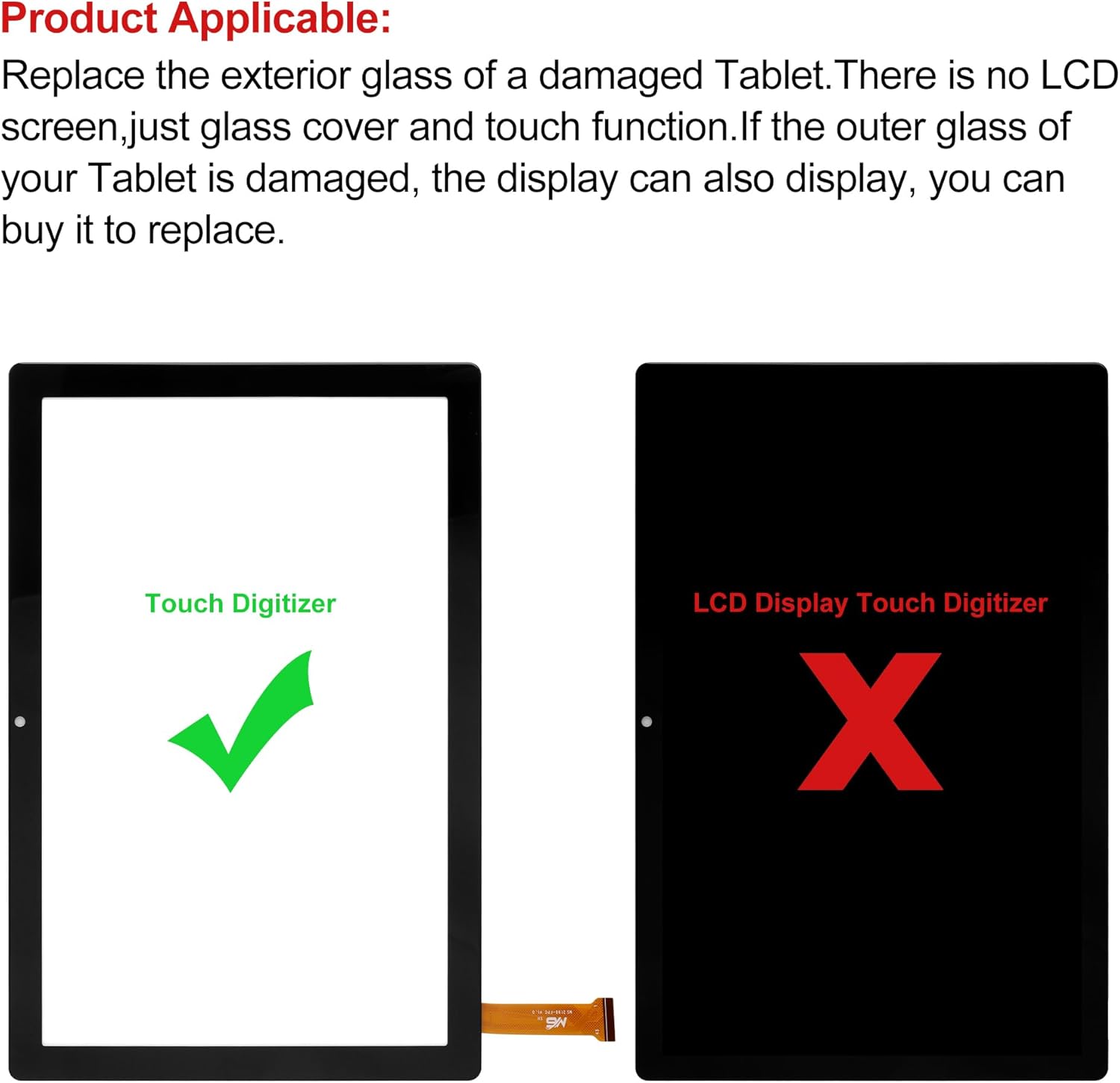
Figure 2.1: Product Scope - Touch Digitizer Only
3. Package Contents
Verify that all items are present in your package:
- 1 x Touch Screen Panel Digitizer (Glass Lens)
- 1 set (11 pcs) x Opening Tool Kit (as shown in product images)

Figure 3.1: Complete Package Contents
4. Installation Instructions
Warning: Professional installation is highly recommended. The disassembly and reassembly process for tablet screens can be complex and may lead to damage if not performed correctly. We strongly advise seeking professional maintenance personnel for installation if you lack experience.
- Preparation: Ensure your tablet is powered off completely before beginning. Gather all tools from the repair kit.
- Research: We recommend watching several installation videos on platforms like YouTube specifically for the "Moderness MB1001 Tablet 10.1 touch screen replacement" to familiarize yourself with the process.
- Disassembly: Carefully use the provided opening tools to separate the old, damaged touch screen from the tablet frame. Pay close attention to any adhesive and ribbon cables.
- Cleanliness: Thoroughly clean the tablet frame, removing any old adhesive or glass fragments. Ensure the LCD display is free of dust and debris.
- Connect New Digitizer: Carefully connect the ribbon cable of the new touch screen digitizer to the tablet's motherboard. Test the touch functionality before fully adhering the screen.
- Adhesion: Apply new adhesive (if not pre-applied on the replacement screen) around the edges of the tablet frame. Carefully align and press the new touch screen into place.
- Final Assembly: Secure the tablet's components and reassemble the device.

Figure 4.1: Example of a tablet screen before and after replacement.

Figure 4.2: Understanding the components: Glass Lens vs. LCD Display.
5. Operating the Touch Screen
Once installed, the new touch screen digitizer will restore the touch functionality of your Moderness MB1001 Tablet. The screen is designed to provide the same quality and responsiveness as the original screen.
- Touch Sensitivity: The digitizer is calibrated for optimal touch response.
- Cleaning: Use a soft, lint-free cloth to clean the screen. Avoid harsh chemicals.
6. Maintenance and Care
To ensure the longevity of your new touch screen:
- Avoid dropping the tablet or subjecting it to strong impacts.
- Keep the screen clean from dust, dirt, and liquids.
- Do not use abrasive materials or sharp objects on the screen.
- If using a protective case, ensure it does not put undue pressure on the screen.
7. Troubleshooting
If you encounter issues after installation, consider the following:
- No Touch Response:
- Ensure the digitizer's ribbon cable is securely connected to the motherboard.
- Check for any damage to the ribbon cable during installation.
- Restart the tablet.
- Partial Touch Response:
- This could indicate an issue with the digitizer cable connection or a faulty digitizer. Re-check connections.
- Screen Not Fitting Properly:
- Ensure all old adhesive and debris are removed from the frame.
- Verify the screen is correctly aligned before applying final pressure.
If problems persist, it is recommended to consult a professional repair technician.
8. Product Specifications
| Feature | Detail |
|---|---|
| Compatible Model | Moderness MB1001 Tablet 10.1 inch |
| Product Type | Touch Screen Panel Digitizer (Glass Lens) |
| LCD Display | Not Included |
| Package Dimensions | 11 x 9 x 4 inches |
| Item Weight | 16 ounces |
9. Warranty and Support
All products undergo rigorous testing before shipment to ensure quality. If you have any questions about your order or experience any issues, please contact our support team. We are committed to providing friendly customer service and will assist you within 24 hours.
Contact Information:
Please refer to your purchase platform or packaging for specific contact details for SWARK customer service.