
1. Product Overview
This manual provides instructions for the NPTWARCOT Replacement Voice Remote Control, designed for use with specific Onn TV streaming devices. It features dedicated buttons for popular streaming services and voice control capabilities.

Figure 1: NPTWARCOT Replacement Voice Remote Control.
Compatibility
- Compatible with Onn UHD Streaming Device models: 100024646 and 100026240.
- Compatible with Onn 4k Pro.
- Not compatible with TCL TV.
- Not compatible with Mecool TV box.

Figure 2: Visual representation of remote compatibility with Onn TV Stick Box models.
2. Setup and Pairing
2.1 Battery Installation
The remote control requires two AAA batteries (not included). Ensure correct polarity when inserting the batteries.
Video 1: Demonstrates battery installation and initial button presses for the Onn remote control.
2.2 Initial Pairing with Onn TV Streaming Device
Follow these steps to pair your NPTWARCOT remote control with your Onn TV streaming device:
- Use your existing TV remote control to turn on your TV and Onn Box.
- Switch the TV input to the HDMI port connected to your Onn Box.
- Navigate to "Settings" on your TV using your existing remote.
- Select "Remotes & Accessories" or "Bluetooth & Devices" (menu names may vary).
- Choose "Pair Accessory". Your Onn Box will begin searching for the remote.
- On the NPTWARCOT remote, press and hold the RETURN (left arrow) and HOME (house icon) buttons simultaneously for approximately 5 seconds until the LED light on the remote flashes.
- Release the buttons. The remote should now pair with your Onn Box.
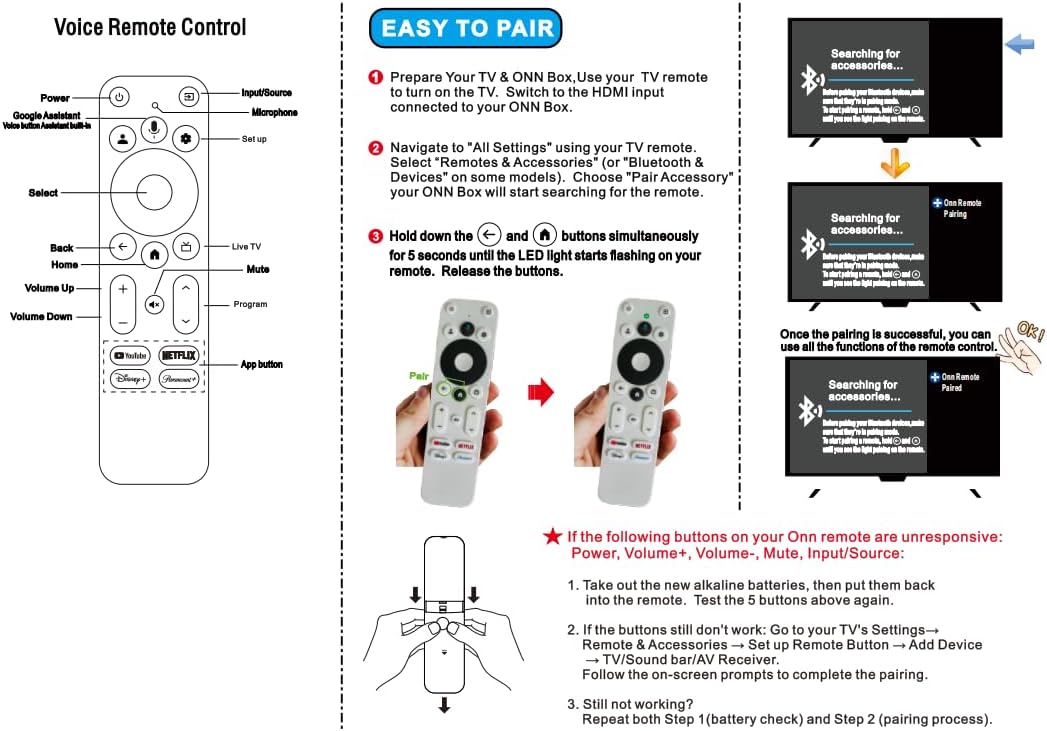
Figure 3: Visual guide for pairing the remote control.
2.3 Alternative Pairing Method (if initial pairing fails)
If the new remote control cannot be used after the initial pairing attempt, try the following:
- Enable the Bluetooth function on your mobile phone.
- Attempt to connect your phone to the remote control via Bluetooth. The remote control name should appear as "onn remote".
- If your phone can successfully control the remote, proceed to your TV settings.
- Open "Settings" on your TV.
- Go to "Remotes & Accessories" or "Bluetooth & Devices".
- Add a new remote control and disconnect any original remote controls if they are interfering.
3. Operating Instructions
The NPTWARCOT remote control provides intuitive navigation and quick access to your favorite streaming content.
3.1 Basic Functions
- Power Button: Turns the connected device on or off.
- Navigation Pad (Circular): Use the directional buttons (Up, Down, Left, Right) to navigate menus and content. The center button acts as Select/OK.
- Volume Control (+/-): Adjusts the volume.
- Mute Button: Mutes or unmutes audio.
- Home Button (house icon): Returns to the home screen of your streaming device.
- Back Button (left arrow): Returns to the previous screen or menu.
- Input/Source Button (TV icon with arrow): Changes the input source on your TV.
- App Shortcut Buttons: Dedicated buttons for YouTube, Netflix, Disney+, and HBO Max for quick access.
3.2 Voice Control
The remote features a voice control button (Google Assistant icon) for hands-free commands. Press and hold the button, then speak your command clearly into the remote's microphone.

Figure 4: Voice control feature in use.
4. Maintenance
4.1 Battery Replacement
When the remote's performance degrades or the LED indicator no longer flashes during use, it's time to replace the batteries. Open the battery compartment cover on the back of the remote and replace the old AAA batteries with new ones, ensuring correct polarity.
4.2 Cleaning
To clean the remote, use a soft, dry cloth. Avoid using liquid cleaners or abrasive materials, as these can damage the remote's surface or internal components.
5. Troubleshooting
5.1 Remote Not Responding or Pairing
- Check Batteries: Ensure batteries are correctly inserted and have sufficient charge. Replace with new AAA alkaline batteries if necessary.
- Re-attempt Pairing: Follow the "Initial Pairing" steps in Section 2.2 carefully. Ensure the TV streaming device is in pairing mode.
- Proximity: Keep the remote within 3 feet of the streaming device during pairing.
- Interference: If you are using the original remote control simultaneously, it might cause interference. This replacement remote cannot be used simultaneously with the original remote control.
5.2 Specific Buttons Unresponsive (Power, Volume, Mute, Input/Source)
If these buttons are not working after pairing:
- Remove and reinsert the batteries. Test the buttons again.
- If still unresponsive, navigate to your TV's "Settings" → "Remotes and Accessories" → "Set up Remote Button" → "Add Device" → "TV/Sound bar/AV Receiver". Follow the on-screen prompts to complete the pairing for these specific functions.
- If the remote cannot turn off the TV, use the remote to find the TV settings, then remote control settings, then remote control button settings. Find the corresponding TV brand and allow the remote to learn the button functions from the TV remote control.
5.3 Software Upgrade Prompts
If the device prompts to upgrade your software, please turn off the upgrade button for streaming media to avoid potential compatibility issues.
6. Specifications
- Brand: NPTWARCOT
- Model Number: 100026240
- Compatible Devices: Onn TV FHD 4K UHD Streaming Box 100024646, 100026240, Onn 4k Pro
- Product Dimensions: 5.49 x 1.45 x 0.67 inches
- Item Weight: 1.44 ounces
- Power Source: 2 x AAA Batteries (not included)
- Special Feature: Ergonomic, Voice Control

Figure 5: Remote control dimensions.
7. Warranty and Support
For warranty information or technical support, please refer to the product packaging or contact NPTWARCOT customer service directly. Contact details are typically available on the manufacturer's official website or through your point of purchase.