
1. Introduction
This manual provides detailed instructions for the installation, operation, and maintenance of your Rimoody 4G+64G Android 15 Car Stereo. Please read this manual thoroughly before using the product to ensure proper function and safety. This car stereo is designed for specific vehicle models: Ford Escape, Kuga, and Mazda Tribute manufactured between 2007 and 2012.
2. What's in the Box
Carefully unpack the box and ensure all items are present and in good condition. If any items are missing or damaged, please contact customer support.
- Car radio unit
- GPS Antenna
- Backup camera
- Canbus decoder
- Microphone
- Power cable
- USB cable
- RCA Cable
- Reverse line
- Radio Antenna
- Installation Tool
- User Manual

Figure 2.1: Included components and a visual comparison of the car interior before and after installation.
3. Key Features
3.1. 9-inch In-Cell Touchscreen Display
The car stereo features a 9-inch 1280×720 In-Cell touchscreen. This technology integrates the touch panel directly into the LCD, resulting in a thinner screen with brighter display and responsive touch control, minimizing lag during interaction.
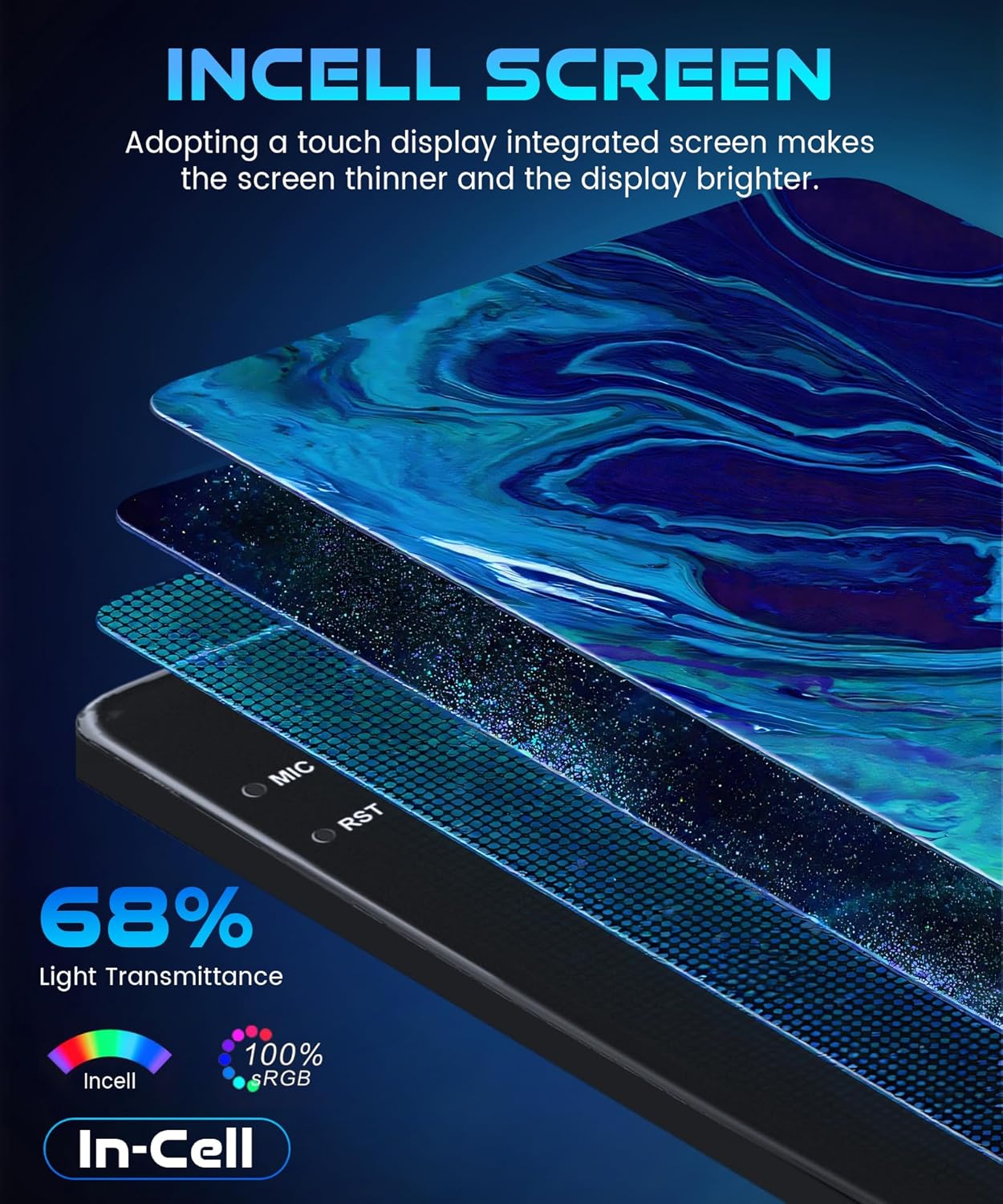
Figure 3.1: In-Cell screen technology for enhanced display quality.
3.2. Performance and Android 15 System
Equipped with 4GB RAM and 64GB ROM, this system ensures smooth operation and sufficient storage for applications. Powered by Android 15, it supports multitasking, allowing simultaneous use of applications like GPS navigation and music playback without performance degradation.
3.3. Wireless Connectivity: CarPlay, Android Auto, and Mirror Link
The head unit supports wireless CarPlay and Android Auto, enabling seamless integration with your smartphone for hands-free calling, access to contacts, emails, notifications, map navigation, and music. Mirror Link functionality is also available for both iOS and Android devices, allowing you to mirror your smartphone screen via USB or Wi-Fi to the car's display for app access, music, and video playback.

Figure 3.2: Wireless connectivity options including CarPlay, Android Auto, and Mirror Link.
3.4. GPS Navigation and Built-in Wi-Fi
The system includes built-in GPS for both online and offline maps, offering real-time traffic updates and voice guidance. This ensures reliable navigation even in areas with limited cellular reception. Integrated Wi-Fi allows connection to a mobile hotspot for internet access, enabling streaming of music/videos and downloading applications directly to the stereo.

Figure 3.3: GPS navigation capabilities and internal memory specifications.
3.5. FM/RDS Radio and Bluetooth 5.0
Enjoy high-quality FM radio with various preset stations, allowing you to save favorites for news, traffic, music, and programs. Bluetooth 5.0 provides stable connectivity for hands-free calls, phonebook synchronization, and wireless audio streaming, contributing to a safer driving experience.

Figure 3.4: Audio features including Bluetooth, FM/RDS Radio, and Equalizer.
3.6. AHD Backup Camera and Steering Wheel Control (SWC)
The included AHD backup camera provides a clear rear view, assisting with safe parking and obstacle avoidance when reversing. The system supports steering wheel controls, allowing convenient operation of various stereo functions without diverting attention from the road.

Figure 3.5: AHD Backup Camera and Steering Wheel Control functionality.
4. Setup & Installation
Installation of the Rimoody car stereo requires technical knowledge and should ideally be performed by a qualified professional. Incorrect installation can lead to damage to the unit or your vehicle. Refer to the included wiring diagrams and your vehicle's service manual for specific instructions.
4.1. Pre-Installation Check
- Verify vehicle compatibility (Ford Escape, Kuga, Mazda Tribute 2007-2012).
- Ensure all components listed in Section 2 are present.
- Disconnect the vehicle's battery before starting installation.
4.2. General Installation Steps
- Remove the original car radio unit from the dashboard.
- Connect the power cable, GPS antenna, and other necessary cables to the new Rimoody unit. Ensure all connections are secure.
- If installing a backup camera, route the camera cable to the rear of the vehicle and connect it to the appropriate input on the stereo.
- Mount the new car stereo securely into the dashboard.
- Reconnect the vehicle's battery.
- Power on the unit and perform initial setup and testing.
For detailed wiring diagrams and vehicle-specific instructions, consult the supplementary installation guide or contact customer support.
5. Operating Instructions
5.1. Basic Operation
- Power On/Off: Press and hold the power button (if available) or turn the vehicle ignition on/off.
- Touchscreen Navigation: Tap icons to open applications, swipe to navigate menus, and use pinch-to-zoom for maps.
- Volume Control: Adjust using the physical knobs/buttons on the unit or steering wheel controls.
- Home Button: Returns to the main home screen.
5.2. Wireless CarPlay Connection
To connect your iPhone wirelessly to CarPlay:
- On the car stereo, open the 'S-Play' application.
- Ensure Bluetooth is enabled on your iPhone.
- On your iPhone, go to Bluetooth settings and select the car stereo's Bluetooth name (e.g., 'BLINK_UNW2652').
- Confirm the pairing request on both devices.
- Once connected via Bluetooth, a prompt may appear on your iPhone to 'Connect to CarPlay'. Tap to confirm.
- CarPlay will launch automatically on the car stereo display.
5.3. Wireless Android Auto Connection
To connect your Android phone wirelessly to Android Auto:
- On the car stereo, open the 'S-Play' application.
- Ensure Bluetooth is enabled on your Android phone.
- On your Android phone, go to Bluetooth settings and select the car stereo's Bluetooth name (e.g., 'BLINK_UNW2652').
- Confirm the pairing request on both devices.
- Once connected via Bluetooth, Android Auto will launch automatically on the car stereo display.
5.4. Wireless Jlink (Mirror Link) Connection
To use the Wireless Jlink feature for screen mirroring:
- On the car stereo, open the 'Jlink' application.
- Connect the car stereo to your mobile phone's hotspot via Wi-Fi. Go to the car stereo's Wi-Fi settings, find your phone's hotspot, and enter the password.
- For the first-time connection, you may need to download the Jlink mobile client. Click the provided link within the Jlink app on the stereo and scan the QR code with your phone to download.
- On your mobile phone, open the Jlink application and initiate screen casting/broadcast.
- Your phone's screen will be mirrored on the car stereo display.
Video 5.1: Demonstrates wireless CarPlay, Android Auto, and Jlink (Mirror Link) connection procedures. The video shows step-by-step pairing of a smartphone via Bluetooth for CarPlay and Android Auto, and connecting via Wi-Fi hotspot for Jlink screen mirroring.
6. Maintenance
Regular maintenance helps ensure the longevity and optimal performance of your car stereo.
- Screen Cleaning: Use a soft, lint-free cloth to gently wipe the touchscreen. For stubborn smudges, slightly dampen the cloth with water or a screen-safe cleaner. Avoid harsh chemicals or abrasive materials.
- Software Updates: Periodically check for software updates through the system settings or the manufacturer's website to ensure you have the latest features and bug fixes.
- Cable Connections: Ensure all cables are securely connected and free from damage. Loose connections can lead to intermittent issues.
- Environmental Conditions: Avoid exposing the unit to extreme temperatures, direct sunlight for prolonged periods, or excessive moisture.
7. Troubleshooting
If you encounter issues with your car stereo, refer to the following common troubleshooting steps:
| Problem | Possible Cause | Solution |
|---|---|---|
| Unit does not power on | Loose power connection, blown fuse, vehicle battery issue | Check power cables, inspect vehicle fuses, ensure battery is charged. |
| No sound | Volume too low, mute activated, speaker wiring issue | Increase volume, check mute status, verify speaker connections. |
| Touchscreen unresponsive | Software glitch, screen protector interference | Restart the unit, remove and reapply screen protector if applicable. |
| GPS signal lost or inaccurate | GPS antenna obstruction, poor satellite reception | Ensure GPS antenna has a clear view of the sky, check antenna connection. |
| Bluetooth/CarPlay/Android Auto connection issues | Incorrect pairing, Bluetooth/Wi-Fi off on phone/unit, software issue | Re-pair devices, ensure Bluetooth/Wi-Fi is active, restart both devices. |
| Backup camera not displaying | Camera cable loose, camera power issue, incorrect gear selection | Check camera connections, ensure vehicle is in reverse gear. |
If the problem persists after attempting these solutions, please contact Rimoody customer service for further assistance.
8. Specifications
| Feature | Detail |
|---|---|
| Brand | Rimoody |
| Model | 4 Core 4G+64G Incell Screen |
| Operating System | Android 15 |
| RAM | 4GB |
| ROM | 64GB |
| Screen Size | 9 Inches |
| Screen Resolution | 1280×720 |
| Connectivity Technology | Bluetooth 5.0, USB, Wi-Fi (5G-WiFi compatible) |
| Special Features | Wireless CarPlay, Wireless Android Auto, Mirror Link, GPS Navigation, FM/RDS Radio, EQ, AHD Backup Camera Support, Steering Wheel Control (SWC) |
| Compatible Vehicle Type | Ford Escape, Kuga, Mazda Tribute (2007-2012) |
| Included Components | Car radio, GPS Antenna, Backup camera, Canbus, Microphone |
| Map Type | Worldwide (Online/Offline) |
9. Warranty & Customer Support
Rimoody provides a 2-year manufacturer warranty for this product. We are committed to providing excellent customer service and technical support.
9.1. Warranty Coverage
- 30-day Money-Back Guarantee: If you are not satisfied with your purchase, you may return it within 30 days for a full refund.
- 12-month Replacement: For manufacturing defects or malfunctions within 12 months of purchase, a free replacement will be provided.
- 2-year Manufacturer Warranty: Covers defects in materials and workmanship for two years from the date of purchase.
9.2. Technical Support
Our professional technical team is available to assist you with any installation or usage questions. We aim to respond to inquiries within 24 hours.
To contact customer support:
- Visit the product page on Amazon.
- Click on the seller name (Rimoody Tech).
- Select 'Ask a question' to send an email to our support team.